

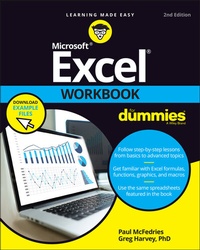
Excel Workbook For Dummies
Description

Looking for easy-to-understand, practical guidance on how to go from Excel newbie to number crunching pro? Excel Workbook For Dummies is the hands-on tutorial you've been waiting for.
This step-by-step guide is packed with exercises that walk you through the basic and advanced functions and formulas included in Excel. At your own speed, you'll learn how to enter data, format your spreadsheet, and apply the mathematical and statistical capabilities of the program.
Work through the book from start to finish or, if you'd prefer, jump right to the section that's giving you trouble, whether that's data visualization, macros, analysis, or anything else. You can also:
* Brush up on and practice time-saving keyboard shortcuts for popular commands and actions
* Get a handle on multi-functional and practical pivot tables with intuitive practice exercises
* Learn to secure your data with spreadsheet password protections
Perfect for new users of Excel, Excel Workbook For Dummies is also the ideal resource for those who know their way around a spreadsheet but need a refresher on some of the more advanced features of this powerful program.
More details
Other editions
Additional editions
Persons
Greg Harvey, PhD was author of over 30 For Dummies titles covering Excel.
Content
Part 1: Building Worksheets 5
Chapter 1: Getting Familiar with the Excel Interface 7
Chapter 2: Entering the Worksheet Data 21
Chapter 3: Formatting the Worksheet 37
Chapter 4: Printing Worksheet Reports 59
Chapter 5: Modifying the Worksheet 79
Part 2: Using Formulas and Functions 101
Chapter 6: Building Formulas 103
Chapter 7: Copying and Correcting Formulas 123
Chapter 8: Creating Date and Time Formulas 145
Chapter 9: Financial Formulas and Functions 155
Chapter 10: Using Math Functions 167
Chapter 11: Using Common Statistical Functions 179
Chapter 12: Using Lookup Functions 187
Chapter 13: Using Logical Functions 197
Chapter 14: Text Formulas and Functions 209
Part 3: Working with Graphics 217
Chapter 15: Charting Worksheet Data 219
Chapter 16: Adding Graphics to Worksheets 231
Part 4: Managing and Securing Data 249
Chapter 17: Building and Maintaining Tables 251
Chapter 18: Protecting Workbooks and Worksheet Data 271
Part 5: Doing Data Analysis 283
Chapter 19: Performing What-If Analysis 285
Chapter 20: Generating PivotTables 299
Part 6: Macros and Visual Basic for Applications 315
Chapter 21: Using Macros 317
Chapter 22: Using the Visual Basic Editor 327
Part 7: The Part of Tens 341
Chapter 23: Top Ten Features in Excel 343
Chapter 24: Top Ten Tips for Using Excel Like a Pro 347
Index 355
Chapter 1
Getting Familiar with the Excel Interface
IN THIS CHAPTER
Opening and identifying the different parts of the Excel screen
Selecting commands in the Excel Backstage view
Selecting commands on the Ribbon and Quick Access toolbar
Customizing the Ribbon and Quick Access toolbar
If the proverbial journey of a thousand miles begins with a single step, what should be the first step on your new Excel journey? You can take lots of possible directions, but might I humbly suggest a tour? Nothing exhaustive, mind you; just a quick look at the most basic elements of the Excel program window. Does that sound too elementary? You'd be surprised. One of the secrets of Excel proficiency and efficiency is knowing where to find the command, feature, or setting you want to work with next. Sure, maybe you really want to waste precious time clicking aimlessly around the Excel interface until your blood boils and jets of steam blast out of your ears. Hey, it's your life. But my guess is that doesn't sound appealing to you, not even a little. So: A tour it is, then.
To that end, the exercises in this first chapter are designed to get you familiar with the Excel interface. After doing these exercises, you should be comfortable with all aspects of the Excel window and the command structure and ready to do all the rest of the exercises in this book.
Launching Excel
Excel is one of the primary application programs included as part of Microsoft Office. To get proficient with Excel, you need to be familiar with all the various ways of launching the program.
Q. How many ways are there to start Excel?
A. You should be familiar with the two main methods:
- Click Start and then click Excel in the All Apps list. If you're using Windows 11, you need to first click the Start menu's All Apps button and then click Excel.
- Double-click an Excel workbook file in any folder on any drive to which your computer has access.
Q. Are there quicker ways to launch Excel?
A. Yes, you can use two other methods:
- If you see an Excel icon pinned to the Start menu, click that icon.
- If you see an Excel button pinned to the Windows taskbar, click that button.
Try It
Exercise 1-1: Pinning Excel to the Windows Start Menu and Taskbar
In Exercise 1-1, you pin Excel both to the Windows Start menu and to the Windows taskbar and then launch Excel using each of these two methods:
- Click Start and then locate Excel in the All Apps list (remember to first click All Apps if you're running Windows 11).
-
Right-click Excel and then click Pin to Start.
Windows adds a pinned tile for Excel to the bottom of the Start menu.
-
In Windows 11, click Back to return to the main Start menu, right-click the pinned Excel icon, and then click Move to Top.
Windows moves the pinned Excel tile to the top-left corner of the Start menu.
-
Right-click the pinned Excel tile on the Start menu and then click Pin to Taskbar.
Windows adds a pinned Excel button to the taskbar.
-
If you don't like where Windows pinned the Excel button, click and drag it to the left or right to your preferred location.
Windows moves the pinned Excel button along with the mouse pointer and you can drop the button in your preferred position.
-
Practice launching Excel by clicking the pinned Excel Start menu tile and then exiting the program. Then launch Excel again, this time by clicking the pinned Excel button on the Windows taskbar.
You can leave Excel running for Exercise 1-2.
Identifying the Parts of the Excel Window
When you launch Excel by opening the Windows Start menu and clicking Excel, the Home tab of Excel's Backstage view appears. Click the Blank Workbook thumbnail to start a fresh workbook, which contains a single worksheet named Sheet1.
Before you can start using Excel, you must be familiar with its window. Figure 1-1 shows you the Excel window as it appears when you launch a new workbook. Note the names of the different parts of the window before you perform Exercise 1-2.
FIGURE 1-1: The Excel program window as it appears immediately after launching a fresh workbook.
Q. What are the primary functions of the commands located on the File menu in the Excel Backstage View?
A. To open, close, save, print, and share your Excel workbook files as well as to modify the Excel program options.
Q. What's the primary function of the Ribbon in Excel?
A. To group related Excel commands together and give you quick and easy access to these commands.
Q. What is the primary function of the Quick Access toolbar?
A. To enable you to quickly select Excel commands that you use all the time without having to open the File menu or use the Ribbon commands.
Selecting Commands in the Backstage View
Clicking the File tab opens the Excel Backstage view with a menu of options that appears down the left side. Almost all the commands on this menu are related to actions that affect the entire file, such as saving and printing. If you prefer, you can open this view and access the menu by pressing Alt+F (F for File) instead of clicking the File menu.
When you select any of the major options on the Backstage view - Home, New, Open, Info, Save, Save As, and so on - panels appear that bring together further related and commonly used options on the left side along with pertinent information on the right.
Try It
Exercise 1-2: Opening the Backstage View and Selecting Its Buttons
In this exercise, you get familiar with Excel's Backstage view and its commands by opening the Backstage view and selecting some of its buttons. Make sure that Excel is running and a blank workbook with its empty Sheet1 worksheet is active on your computer monitor.
- Click the File tab to switch to the Excel Backstage view and display the menu of buttons (Home through Options) on the left side of this screen. By default, Excel selects the Home button.
-
Click the Info button on the menu.
The Info screen now appears to the immediate right of the Info button (see Figure 1-2). The Info screen is divided into two areas: the left side offers commands for working with the file, while the right side displays information about the file.
-
Now, click the Save As button.
You use the Save As screen to save a new workbook or to save an existing workbook with a new name or location.
-
Click Browse.
Excel opens the Save As dialog box where you can modify the name, location, and type of Excel workbook file before saving a copy of it.
- Press the Esc (Escape) key on your keyboard to close the Save As dialog box.
-
Click the Share button.
Excel closes Backstage view and opens the Share dialog box, which enables you to share workbook files with co-workers and clients.
- Press Esc to close the Share dialog box.
-
Press Ctrl+P (the shortcut key for printing in Excel).
Excel opens the Backstage view and displays the Print panel where you can preview the printout (when there's data in your worksheet that can be printed) and change several print settings. Because you selected the Print panel from an empty worksheet, the message, "We didn't find anything to print" appears on the right panel where the first page of the workbook's print preview normally appears.
-
Press Esc to return to the normal worksheet view and then press Alt+FT.
Doing this selects the Options command in the Backstage view, which in turn, opens the Excel Options dialog box. This dialog box contains all the options for changing the Excel program and worksheet options. These options are divided into categories General through Trust Center.
- Make sure the General category is selected, use the Office Background list to select a background pattern, and then click OK to put the new setting into effect.
FIGURE 1-2: The Excel Backstage view with the Info button selected.
Selecting Commands from the Ribbon
The Excel Ribbon contains the bulk of all the commands that you use in creating, editing, formatting, and sharing your spreadsheets, charts, and tables. As shown in Figure 1-1, normally the Ribbon is divided into the following tabs: Home, Insert, Page Layout, Formulas, Data, Review, and View. There's also a Help tab for accessing the Excel Help system. If you're using a touchscreen PC, you also see a Draw tab.
The commands that appear on each tab are then further divided into groups containing related command buttons. Also, many of these groups contain a dialog box launcher button that appears in the lower-right corner of the group. Clicking this button opens a dialog box of further options related to the group.
Try It
Exercise 1-3: Selecting Commands from the Ribbon
In Exercise 1-3, you practice selecting commands from the Ribbon. Make sure that Excel is running and an empty Sheet1 worksheet is active on your computer monitor.
-
Click the...
