

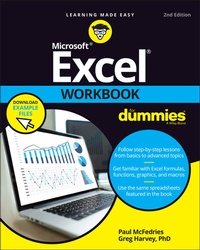
Excel Workbook For Dummies
Description

Looking for easy-to-understand, practical guidance on how to go from Excel newbie to number crunching pro? Excel Workbook For Dummies is the hands-on tutorial you've been waiting for.
This step-by-step guide is packed with exercises that walk you through the basic and advanced functions and formulas included in Excel. At your own speed, you'll learn how to enter data, format your spreadsheet, and apply the mathematical and statistical capabilities of the program.
Work through the book from start to finish or, if you'd prefer, jump right to the section that's giving you trouble, whether that's data visualization, macros, analysis, or anything else. You can also:
- Brush up on and practice time-saving keyboard shortcuts for popular commands and actions
- Get a handle on multi-functional and practical pivot tables with intuitive practice exercises
- Learn to secure your data with spreadsheet password protections
Perfect for new users of Excel, Excel Workbook For Dummies is also the ideal resource for those who know their way around a spreadsheet but need a refresher on some of the more advanced features of this powerful program.
More details
Other editions
Additional editions
Content
- Intro
- Title Page
- Copyright Page
- Table of Contents
- Introduction
- About This Book
- Conventions Used in This Book
- Foolish Assumptions
- Beyond the Book
- Icons Used in This Book
- Where to Go from Here
- Part 1 Building Worksheets
- Chapter 1 Getting Familiar with the Excel Interface
- Launching Excel
- Identifying the Parts of the Excel Window
- Selecting Commands in the Backstage View
- Selecting Commands from the Ribbon
- Adding a custom tab to the Excel Ribbon
- Adding commands to groups on your custom tab
- Selecting Commands on the Quick Access Toolbar
- Displaying the Quick Access toolbar
- Customizing the Quick Access toolbar
- Adding more commands to the Quick Access toolbar
- Chapter 2 Entering the Worksheet Data
- Opening a New Workbook
- Moving Around the Workbook
- Moving within the displayed area
- Moving to a new area of the worksheet
- Moving to a different sheet in the workbook
- Selecting Cell Ranges
- Making Cell Entries
- Entering data in a single cell
- Entering data in a range
- Filling in a data series with the fill handle
- Copying a formula with the fill handle
- Saving the Spreadsheet Data in a Workbook File
- Chapter 3 Formatting the Worksheet
- Resizing Columns and Rows
- Making column widths suit the data
- Manipulating the height of certain rows
- Cell Formatting Techniques
- Formatting cells with the Ribbon's Home tab
- Formatting cells with the Format Cells dialog box
- Using cell styles
- Using conditional formatting
- Hiding Columns and Rows
- Chapter 4 Printing Worksheet Reports
- Previewing Pages in the Worksheet and Backstage View
- Adjusting Page Breaks
- Adding Headers and Footers
- Adding Print Titles to a Report
- Modifying the Print Settings for a Report
- Printing All or Part of the Workbook
- Printing a range
- Printing the entire workbook
- Printing charts in the worksheet
- Printing the worksheet formulas
- Chapter 5 Modifying the Worksheet
- Finding and Identifying the Region That Needs Editing
- Selecting the Ranges to Edit
- Editing Data Entries
- Deleting and Inserting Data and Cells
- Moving and Copying Data and Cells
- Adding Notes to the Worksheet
- Using Find and Replace and Spell Checking
- Editing Multiple Worksheets
- Part 2 Using Formulas and Functions
- Chapter 6 Building Formulas
- Building Formulas
- Building formulas by hand
- Building formulas with built-in functions
- Editing formulas
- Altering the natural order of operations
- Using External Reference Links
- Controlling When Formulas Are Recalculated
- Chapter 7 Copying and Correcting Formulas
- Copying Formulas with Relative References
- Copying Formulas with Absolute References
- Copying Formulas with Mixed References
- Using Range Names in Formulas
- Building Array Formulas
- Tracing and Eliminating Formula Errors
- Dealing with Circular References
- Chapter 8 Creating Date and Time Formulas
- Constructing Date and Time Formulas
- Working with Simple Date Functions
- Working with Excel's Fancier Date Functions
- Working with the Time Functions
- Chapter 9 Financial Formulas and Functions
- Working with Financial Functions
- Using the Basic Investment Functions
- Figuring the Depreciation of an Asset
- Chapter 10 Using Math Functions
- Rounding Off Values
- Finding Products, Powers, and Square Roots
- Doing Fancier Sums
- Summing products, squares, and their differences
- Conditional totals
- Chapter 11 Using Common Statistical Functions
- Computing Averages
- Finding the Highest and Lowest Values
- Counting Cells
- Using the Statistical Functions in Analysis ToolPak Add-in
- Chapter 12 Using Lookup Functions
- Looking Up Stuff with XLOOKUP
- Returning Single Values from a Lookup Table
- Performing a horizontal lookup
- Performing a vertical lookup
- Chapter 13 Using Logical Functions
- Working with the Logical Functions
- Constructing Decision-Making Formulas
- Choosing between alternate values
- Selecting between alternate calculations
- Nesting IF functions
- Constructing Error-Trapping Formulas
- Chapter 14 Text Formulas and Functions
- Constructing Text Formulas
- Using Text Functions
- Part 3 Working with Graphics
- Chapter 15 Charting Worksheet Data
- Understanding Excel Charts
- Creating Charts
- Formatting Charts
- Editing Charts
- Chapter 16 Adding Graphics to Worksheets
- Understanding Graphic Objects
- Adding Various Types of Graphic Objects
- Inserting prefab art
- Importing graphics files
- Adding graphic shapes and text boxes
- Constructing WordArt
- Constructing SmartArt
- Part 4 Managing and Securing Data
- Chapter 17 Building and Maintaining Tables
- Creating a Table
- Adding records to a new table
- Editing records in the data form
- Sorting Tables
- Using sorting keys
- Sorting a table on multiple keys
- Sorting the fields (columns) in a table
- Subtotaling a Table
- Filtering a Table
- Querying External Database Tables
- Chapter 18 Protecting Workbooks and Worksheet Data
- Password-Protecting the Workbook
- Protecting the Worksheet
- Doing Data Entry in a Protected Worksheet
- Protecting the Entire Workbook
- Part 5 Doing Data Analysis
- Chapter 19 Performing What-If Analysis
- Performing What-If Analysis with Data Tables
- Creating a single-variable data table
- Creating a two-variable data table
- Analyzing Data with Scenarios
- Goal Seeking in a Worksheet
- Creating Complex Models with Solver
- Chapter 20 Generating PivotTables
- Working with PivotTables
- Creating PivotTables
- Modifying the PivotTable
- Modifying the PivotTable formatting
- Pivoting the PivotTable's fields
- Changing the PivotTable summary function and adding calculated fields
- Creating PivotCharts
- Part 6 Macros and Visual Basic for Applications
- Chapter 21 Using Macros
- Creating Macros
- Recording and playing back macros
- Recording macros with relative cell references
- Assigning Macros to the Quick Access Toolbar
- Assigning Macros to the Ribbon
- Chapter 22 Using the Visual Basic Editor
- Using the Visual Basic Editor
- Editing a recorded macro
- Adding a dialog box that processes user input
- Creating User-Defined Functions
- Using a custom function in your worksheet
- Saving custom functions in add-in files
- Part 7 The Part of Tens
- Chapter 23 Top Ten Features in Excel
- The Excel Ribbon and Backstage View
- Conditional Formatting
- PivotTable Filtering with Slicers
- Home Tab Formatting and Editing
- Insert Tab Charting
- Format as Table
- The Zoom Slider on the Status Bar
- Page Layout View
- Style Galleries
- Live Preview
- Chapter 24 Top Ten Tips for Using Excel Like a Pro
- Generating New Workbooks from Templates
- Organizing Data on Different Worksheets
- Creating Data Series with AutoFill
- Using Range Names
- Freezing Column and Row Headings
- Preventing Data Entry Errors with Data Validation
- Trapping Error Values
- Saving Memory by Using Array Formulas
- Using Outlines to Control the Display of Data
- Using View Side by Side to Work with Two Workbooks
- Index
- EULA
