

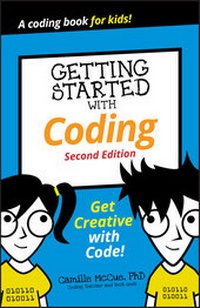
Getting Started with Coding
Get Creative with Code!
2nd Edition
Published on 16. September 2019
160 pages
978-1-119-64164-3 (ISBN)
Description

An introduction to coding for kids
Coding know-how is the coolest new tool kids can add to their creativity toolboxes--and all they need to get started is a computer connected to the internet and the lessons in this book. Easy!
The book offers fun step-by-step projects to create games, animations, and other digital toys while teaching a bit about coding along the way. Plus, each project has an end goal to instill confidence and a sense of accomplishment in young coders once the project comes to life.
* Create simple applications in Scratch to learn how to build things with coding
* Experiment with "real" coding with tools built in JavaScript
* Use free online tools
* Share what you build with friends, family, and teachers
Get creative and get coding!
Coding know-how is the coolest new tool kids can add to their creativity toolboxes--and all they need to get started is a computer connected to the internet and the lessons in this book. Easy!
The book offers fun step-by-step projects to create games, animations, and other digital toys while teaching a bit about coding along the way. Plus, each project has an end goal to instill confidence and a sense of accomplishment in young coders once the project comes to life.
* Create simple applications in Scratch to learn how to build things with coding
* Experiment with "real" coding with tools built in JavaScript
* Use free online tools
* Share what you build with friends, family, and teachers
Get creative and get coding!
More details
Other editions
Additional editions
Book
10/2019
2nd Edition
Wiley
€10.90
Shipment within 15-20 days
Content
- Intro
- Title Page
- Copyright Page
- Contents
- Introduction
- About This Book
- What's New in the Second Edition
- About You
- About the Icons
- Project 1: Get Started
- Coding QuickStart
- A Hello World! example
- What's an algorithm?
- Sequence, selection, and repetition
- Flowcharting
- Picking a Language
- Using a Dashboard (IDE)
- Setting Up Your Account in Scratch
- Getting Around in Scratch
- Using the Code Tab in Scratch
- Getting Around in MakeCode
- Using the Code Toolbox in MakeCode
- Fixing Errors
- Debugging in Scratch
- Debugging in MakeCode
- Getting Help
- Project 2: Jungle Chat
- Brainstorm
- Flowchart
- Start a New Project
- Add a Backdrop
- Add Animal Sprites
- Add Text-to-Speech Commands
- Code the Monkey to Run When Clicked
- Code the Monkey to Ask the User's Name
- Make and Give the Greeting
- Code the Monkey to Play a Sound
- Code the Snake to Play a Sound You Record
- Code the Toucan to Play a Sound from the Sound Library
- Enhance Your Scene
- Save, Test, and Debug Your Program
- Share Your Program with the World
- Big Ideas in the Project
- Project 3: Freeze the Pops
- Brainstorm
- Flowchart
- Start a New Project
- Make a Variable
- Code Button A to Measure and Show the Temperature
- Continue Coding Button A to Show If the Pops Are Frozen
- Save, Test, and Debug Your Program
- Transfer Your Program to the micro:bit
- Put Your micro:bit in the Freezer
- Enhance Your Gadget
- Big Ideas in the Project
- Project 4: Jellyfish Jumble
- Brainstorm
- Flowcharts
- Start a New Project
- Add a Backdrop
- Add a Jellyfish Sprite and Custom Costumes
- Make a Mr. Jelly Sprite and a Fake Sprite
- Code the Green Flag Blocks
- Background
- Mr. Jelly
- Fake and the fakers
- Code the Faker Clones to Swish
- Code Mr. Jelly to Know He's Been Found
- Enhance Your Scene
- Save, Test, and Debug Your Program
- Share Your Program with the World
- Big Ideas in the Project
- Project 5: Card War
- Brainstorm
- Flowcharts
- Start a New Project
- Make a Variable
- Code on shake to Make and Send Your Number
- Code an on radio received Block to Identify a Winner
- Save, Test, and Debug Your Program
- Transfer Your Program to the micro:bit
- Enhance Your Gadget
- Big Ideas in the Project
- Project 6: Avoid the Asteroids
- Brainstorm
- Flowcharts
- Green flag flowchart
- Robot flowchart
- Start a New Project
- Add Three Backdrops
- Add a Robot Sprite
- Add an Asteroid Sprite
- Make DENTS and TIMER Variables
- Add Background Music from the Sound Library
- Code the Green Flag Blocks
- Background
- Robot
- Asteroids
- Build your Asteroid Field
- Code Key Control of the Robot
- Enhance Your Scene
- Save, Test, and Debug Your Program
- Share Your Program with the World
- Big Ideas in the Project
- Project 7: Get FancY
- Programming Your Own Ideas
- Getting inspiration from Scratchers
- Getting inspiration from MakeCode projects
- Looking at daily human challenges
- Entering some contests
- Getting Your Scratch Programs into the World
- Sharing a project in Scratch
- Starting your own Scratch studio
- Making Your Gadgets Real
- Putting a program on the micro:bit board
- Adding more hardware
- Upping Your Game
- At-home learning
- Camps and clubs
- Books
- Souping Up User Interfaces in Scratch
- Painting your own images
- Finding images online
- Recording your own sounds
- Finding sounds online
- Next Steps
- Coding at school
- Coding in college
- Coding as a career
- EULA
