

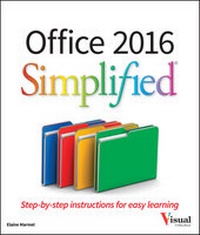
Office 2016 Simplified
Published on 9. October 2015
408 pages
978-1-119-07494-6 (ISBN)
Description

Start learning the latest in Office
Office Simplified is the quick, easy, full-color guide to the new features and tools of the latest version of Office. With a clear, highly visual, introductory style of instruction, this book gives you step-by-step directions alongside illustrative screen shots to help you learn Microsoft's bestselling productivity software. You'll take a tour through all Office applications, and learn how the new tools can make your workday easier. The simplified approach eliminates unnecessary information, focusing instead on the essentials you need to know to get things done. Organized for easy navigation, this helpful guide is designed to be used both as a start-to-finish tutorial and as a handy desk reference when you run into unfamiliar territory.
Whether you're upgrading from a previous version or using the Office suite of applications for the first time, this book has you covered every step of the way. You'll find the answers you need, new tools you can use, and the step-by-step guidance that helps you get it right on the first try.
* Get acquainted with the Office workflow
* Walk through Word, Excel, PowerPoint, Outlook, and Publisher
* Follow along with practical examples to tackle dozens of tasks
* Compose documents, create spreadsheets, organize your email, and more
This book provides the ideal rundown of Microsoft Office's full feature set and capabilities. Even experienced users may learn something they never realized they were missing. If you need to get things done with minimal interruption to your workflow, Office Simplified will get you up to speed quickly and easily.
More details
Other editions
Additional editions
Person
Content
- Intro
- Title Page
- Copyright Page
- Table of Contents
- Part I Office Features
- Chapter 1 Office Basics
- Start and Exit Office Applications
- Navigate the Program Windows
- Work with Backstage View
- Change the Color Scheme
- Find a Ribbon Command
- Work with the Ribbon
- Customize the Quick Access Toolbar
- Using an Office Program on a Tablet PC
- Chapter 2 Working with Files
- Create a New File
- Save a File
- Open a File
- Print a File
- Email a File
- Select Data
- Cut, Copy, and Paste Data
- Arrange Windows
- Chapter 3 Office Graphics Tools
- Insert a Picture
- Insert an Online Picture
- Resize and Move Objects
- Understanding Graphics Modification Techniques
- Chapter 4 Working with Office Files Online
- Office and the Cloud
- Sign In to Office 365
- Share a Document from Office
- Download Apps from the Office Store
- Sign In to OneDrive
- Using an Online App in OneDrive
- Using an Office Program from OneDrive
- Upload a Document to OneDrive
- Share a Document Using OneDrive
- Part II Word
- Chapter 5 Adding Text
- Change Word's Views
- Type and Edit Text
- Insert Quick Parts
- Insert Symbols
- Create a Blog Post
- Chapter 6 Formatting Text
- Change the Font, Size, and Color
- Align Text
- Set Line Spacing
- Indent Text
- Set Tabs
- Set Margins
- Create Lists
- Copy Formatting
- Clear Formatting
- Format with Styles
- Using a Template
- Chapter 7 Adding Extra Touches
- Insert an Online Video
- Assign a Theme
- Add Borders
- Create Columns
- Insert a Table
- Apply Table Styles
- Insert Table Rows or Columns
- Add Headers and Footers
- Insert Footnotes and Endnotes
- Insert Page Numbers and Page Breaks
- Generate a Table of Contents
- Create a Bibliography
- Chapter 8 Reviewing Documents
- Work in Read Mode View
- Find and Replace Text
- Scan Document Content
- Check Spelling and Grammar
- Work with AutoCorrect
- Using Word's Thesaurus and Dictionary
- Translate Text
- Track and Review Document Changes
- Lock and Unlock Tracking
- Work with Comments
- Part III Excel
- Chapter 9 Building Spreadsheets
- Enter Cell Data
- Select Cells
- Faster Data Entry with AutoFill
- Turn On Text Wrapping
- Center Data Across Columns
- Adjust Cell Alignment
- Change the Font and Size
- Change Number Formats
- Increase or Decrease Decimals
- Add Cell Borders and Shading
- Format Data with Styles
- Apply Conditional Formatting
- Add Columns and Rows
- Resize Columns and Rows
- Freeze Column and Row Titles On-Screen
- Name a Range
- Clear or Delete Cells
- Split and Format a Column of Data
- Chapter 10 Worksheet Basics
- Add a Worksheet
- Name a Worksheet
- Change Page Setup Options
- Move and Copy Worksheets
- Delete a Worksheet
- Find and Replace Data
- Create a Table
- Filter or Sort Table Information
- Analyze Data Quickly
- Understanding Data Analysis Choices
- Track and Review Worksheet Changes
- Insert a Comment
- Chapter 11 Working with Formulas and Functions
- Understanding Formulas
- Create a Formula
- Apply Absolute and Relative Cell References
- Understanding Functions
- Apply a Function
- Total Cells with AutoSum
- Audit a Worksheet for Errors
- Chapter 12 Working with Charts
- Create a Chart
- Move and Resize Charts
- Change the Chart Type
- Change the Chart Style
- Change the Chart Layout
- Add Chart Elements
- Format Chart Objects
- Change the Chart Data
- Using Sparklines to View Data Trends
- Part IV PowerPoint
- Chapter 13 Creating a Presentation
- Create a New Presentation
- Create a Photo Album Presentation
- Change PowerPoint Views
- Insert Slides
- Change the Slide Layout
- Change the Slide Size
- Chapter 14 Populating Presentation Slides
- Add and Edit Slide Text
- Change the Font, Size, and Color
- Apply a Theme
- Set Line Spacing
- Align Text
- Add a Text Box to a Slide
- Add a Table to a Slide
- Add a Chart to a Slide
- Add a Video Clip to a Slide
- Move a Slide Object
- Resize a Slide Object
- Chapter 15 Assembling and Presenting a Slide Show
- Reorganize Slides
- Reuse a Slide
- Define Slide Transitions
- Add Animation Effects
- Record Narration
- Insert a Background Song
- Create Speaker Notes
- Rehearse a Slide Show
- Run a Slide Show
- Review a Presentation
- Package Your Presentation on a CD
- Present Online
- Part V Access
- Chapter 16 Database Basics
- Understanding Database Basics
- Create a Database Based on a Template
- Create a Blank Database
- Create a New Table
- Change Table Views
- Add a Field to a Table
- Delete a Field from a Table
- Hide a Field in a Table
- Move a Field in a Table
- Create a Form
- Change Form Views
- Move a Field in a Form
- Delete a Field in a Form
- Apply a Database Theme
- Chapter 17 Adding, Finding, and Querying Data
- Add a Record to a Table
- Add a Record to a Form
- Navigate Records in a Form
- Search for a Record Using a Form
- Delete a Record from a Table
- Delete a Record Using a Form
- Sort Records
- Filter Records
- Apply Conditional Formatting
- Perform a Simple Query
- Create a Report
- Part VI Outlook
- Chapter 18 Organizing with Outlook
- Navigate in Outlook
- Schedule an Appointment
- Create a New Contact
- Create a New Task
- Add a Note
- Customize the Navigation Bar
- Peek at Appointments and Tasks
- Search for Outlook Items
- Work with the To-Do Bar
- Link Contacts
- Chapter 19 Emailing with Outlook
- Compose and Send a Message
- Send a File Attachment
- Read an Incoming Message
- Reply To or Forward a Message
- Add a Sender to Your Outlook Contacts
- Delete a Message
- Work with Conversations
- Screen Junk Email
- Part VII Publisher
- Chapter 20 Publisher Basics
- Create a Publication
- Zoom In and Out
- Add Text
- Add a New Text Box
- Swap Pictures
- Save a Publication for Photo Center Printing
- Chapter 21 Fine-Tuning a Publication
- Change the Font, Size, and Color
- Apply a Text Effect
- Change Text Alignment
- Add a Border
- Control Text Wrap
- Link Text Boxes
- Edit the Background
- Part VIII OneNote
- Chapter 22 Taking Notes with OneNote
- Navigate OneNote
- Type and Draw Notes
- Insert and Format a Table
- Attach Files to Notes
- Create a Quick Note
- Insert a Screen Clipping
- Record an Audio Note
- Chapter 23 Organizing and Sharing Notes
- Create a New Notebook
- Create a New Section
- Create a New Page
- Rename a Section or Page
- Group Sections
- Search Notes
- Search for Recent Edits
- Set Synchronization Options
- Share Notes with People Who Do Not Have OneNote
- Index
- EULA
