

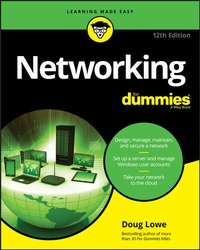
Networking For Dummies
12th Edition
Published on 14. July 2020
480 pages
978-1-119-74867-0 (ISBN)
Description

Set up a secure network at home or the office
Fully revised to cover Windows 10 and Windows Server 2019, this new edition of the trusted Networking For Dummies helps both beginning network administrators and home users to set up and maintain a network. Updated coverage of broadband and wireless technologies, as well as storage and back-up procedures, ensures that you'll learn how to build a wired or wireless network, secure and optimize it, troubleshoot problems, and much more.
From connecting to the Internet and setting up a wireless network to solving networking problems and backing up your data--this #1 bestselling guide covers it all.
* Build a wired or wireless network
* Secure and optimize your network
* Set up a server and manage Windows user accounts
* Use the cloud--safely
Written by a seasoned technology author--and jam-packed with tons of helpful step-by-step instructions--this is the book network administrators and everyday computer users will turn to again and again.
Fully revised to cover Windows 10 and Windows Server 2019, this new edition of the trusted Networking For Dummies helps both beginning network administrators and home users to set up and maintain a network. Updated coverage of broadband and wireless technologies, as well as storage and back-up procedures, ensures that you'll learn how to build a wired or wireless network, secure and optimize it, troubleshoot problems, and much more.
From connecting to the Internet and setting up a wireless network to solving networking problems and backing up your data--this #1 bestselling guide covers it all.
* Build a wired or wireless network
* Secure and optimize your network
* Set up a server and manage Windows user accounts
* Use the cloud--safely
Written by a seasoned technology author--and jam-packed with tons of helpful step-by-step instructions--this is the book network administrators and everyday computer users will turn to again and again.
More details
Other editions
Additional editions
Person
Doug Lowe is the bestselling author of Networking For Dummies and Networking All-in-One Desk Reference For Dummies. His 50+ books include more than 30 in the For Dummies series. He has demystified everything from Microsoft Office and memory management to client/server computing and creating web pages.
Content
1 - Title Page [Seite 5]
2 - Copyright Page [Seite 6]
3 - Table of Contents [Seite 9]
4 - Introduction [Seite 21]
4.1 - About This Book [Seite 21]
4.2 - Foolish Assumptions [Seite 22]
4.3 - Icons Used in This Book [Seite 23]
4.4 - Beyond the Book [Seite 23]
4.5 - Where to Go from Here [Seite 24]
5 - Part 1 Getting Started with Networking [Seite 25]
5.1 - Chapter 1 Let's Network! [Seite 27]
5.1.1 - Defining a Network [Seite 28]
5.1.2 - Why Bother with a Network? [Seite 31]
5.1.2.1 - Sharing files [Seite 31]
5.1.2.2 - Sharing resources [Seite 31]
5.1.2.3 - Sharing programs [Seite 32]
5.1.2.4 - Sharing messages [Seite 32]
5.1.3 - Servers and Clients [Seite 33]
5.1.4 - Dedicated Servers and Peers [Seite 33]
5.1.5 - What Makes a Network Tick? [Seite 35]
5.1.6 - It's Not a Personal Computer Anymore! [Seite 36]
5.1.7 - The Network Administrator [Seite 37]
5.1.8 - What Have They Got That You Don't Got? [Seite 38]
5.2 - Chapter 2 Configuring Windows and Mac Clients [Seite 41]
5.2.1 - Configuring Windows Network Connections [Seite 42]
5.2.2 - Joining a Windows Computer to a Domain [Seite 47]
5.2.3 - Configuring Mac Network Settings [Seite 49]
5.2.4 - Joining a Mac Computer to a Domain [Seite 53]
5.3 - Chapter 3 Life on the Network [Seite 57]
5.3.1 - Distinguishing between Local Resources and Network Resources [Seite 58]
5.3.2 - What's in a Name? [Seite 58]
5.3.3 - Logging on to the Network [Seite 60]
5.3.4 - Understanding Shared Folders [Seite 62]
5.3.5 - Four Good Uses for a Shared Folder [Seite 63]
5.3.5.1 - Store files that everybody needs [Seite 63]
5.3.5.2 - Store your own files [Seite 64]
5.3.5.3 - Make a temporary resting place for files on their way to other users [Seite 64]
5.3.5.4 - Back up your local hard drive [Seite 65]
5.3.6 - Oh, the Network Places You'll Go [Seite 65]
5.3.7 - Mapping Network Drives [Seite 67]
5.3.8 - Using a Network Printer [Seite 70]
5.3.8.1 - Adding a network printer [Seite 71]
5.3.8.2 - Printing to a network printer [Seite 72]
5.3.8.3 - Playing with the print queue [Seite 73]
5.3.9 - Logging off the Network [Seite 75]
5.4 - Chapter 4 More Ways to Use Your Network [Seite 77]
5.4.1 - Sharing Your Stuff [Seite 77]
5.4.2 - Enabling File and Printer Sharing [Seite 78]
5.4.3 - Sharing a Folder [Seite 79]
5.4.4 - Using the Public Folder [Seite 81]
5.4.5 - Sharing a Printer [Seite 82]
5.4.6 - Using Microsoft Office on a Network [Seite 84]
5.4.6.1 - Accessing network files [Seite 84]
5.4.6.2 - Using workgroup templates [Seite 85]
5.4.6.3 - Networking an Access database [Seite 87]
5.4.7 - Working with Offline Files [Seite 88]
6 - Part 2 Designing Your Network [Seite 93]
6.1 - Chapter 5 Planning a Network [Seite 95]
6.1.1 - Making a Network Plan [Seite 95]
6.1.2 - Being Purposeful [Seite 96]
6.1.3 - Taking Stock [Seite 97]
6.1.3.1 - What you need to know [Seite 97]
6.1.3.2 - Programs that gather information for you [Seite 99]
6.1.4 - To Dedicate or Not to Dedicate: That Is the Question [Seite 100]
6.1.4.1 - File servers [Seite 101]
6.1.4.2 - Print servers [Seite 101]
6.1.4.3 - Web servers [Seite 102]
6.1.4.4 - Mail servers [Seite 102]
6.1.4.5 - Database servers [Seite 103]
6.1.4.6 - Application servers [Seite 103]
6.1.4.7 - License servers [Seite 103]
6.1.5 - Choosing a Server Operating System [Seite 103]
6.1.6 - Planning the Infrastructure [Seite 104]
6.1.7 - Drawing Diagrams [Seite 104]
6.2 - Chapter 6 Dealing with TCP/IP [Seite 107]
6.2.1 - Understanding Binary [Seite 108]
6.2.1.1 - Counting by ones [Seite 108]
6.2.1.2 - Doing the logic thing [Seite 109]
6.2.2 - Introducing IP Addresses [Seite 110]
6.2.2.1 - Networks and hosts [Seite 110]
6.2.2.2 - The dotted-decimal dance [Seite 111]
6.2.3 - Classifying IP Addresses [Seite 111]
6.2.3.1 - Class A addresses [Seite 112]
6.2.3.2 - Class B addresses [Seite 113]
6.2.3.3 - Class C addresses [Seite 113]
6.2.4 - Subnetting [Seite 114]
6.2.4.1 - Subnets [Seite 115]
6.2.4.2 - Subnet masks [Seite 116]
6.2.4.3 - The great subnet roundup [Seite 117]
6.2.4.4 - Private and public addresses [Seite 118]
6.2.5 - Understanding Network Address Translation [Seite 118]
6.2.6 - Configuring Your Network for DHCP [Seite 119]
6.2.6.1 - Understanding DHCP [Seite 120]
6.2.6.2 - DHCP servers [Seite 120]
6.2.6.3 - Understanding scopes [Seite 121]
6.2.6.4 - Feeling excluded? [Seite 122]
6.2.6.5 - Reservations suggested [Seite 123]
6.2.6.6 - How long to lease? [Seite 124]
6.2.7 - Managing a Windows Server 2019 DHCP Server [Seite 124]
6.2.8 - Configuring a Windows DHCP Client [Seite 125]
6.2.9 - Using DNS [Seite 126]
6.2.9.1 - Domains and domain names [Seite 126]
6.2.9.2 - Fully qualified domain names [Seite 128]
6.2.10 - Working with the Windows DNS Server [Seite 129]
6.2.11 - Configuring a Windows DNS Client [Seite 130]
6.3 - Chapter 7 Oh, What a Tangled Web We Weave: Cables and Switches [Seite 131]
6.3.1 - What Is Ethernet? [Seite 132]
6.3.2 - All about Cable [Seite 134]
6.3.2.1 - Cable categories [Seite 136]
6.3.2.2 - What's with the pairs? [Seite 137]
6.3.2.3 - To shield or not to shield [Seite 137]
6.3.2.4 - When to use plenum cable [Seite 138]
6.3.2.5 - Sometimes solid, sometimes stranded [Seite 138]
6.3.2.6 - Installation guidelines [Seite 139]
6.3.2.7 - The tools you need [Seite 140]
6.3.2.8 - Pinouts for twisted-pair cables [Seite 141]
6.3.2.9 - RJ-45 connectors [Seite 142]
6.3.2.10 - Crossover cables [Seite 144]
6.3.2.11 - Wall jacks and patch panels [Seite 144]
6.3.3 - Understanding Switches [Seite 146]
6.3.3.1 - Comparing managed and unmanaged switches [Seite 146]
6.3.3.2 - Daisy-chaining switches [Seite 148]
6.3.3.3 - Stacking switches [Seite 148]
6.3.3.4 - Looking at distribution switches and access switches [Seite 149]
6.3.4 - Powering Up with Power over Ethernet [Seite 150]
6.3.5 - Looking at Three Types of Network Rooms [Seite 151]
6.4 - Chapter 8 Setting Up a Wireless Network [Seite 153]
6.4.1 - Diving into Wireless Networking [Seite 154]
6.4.2 - A Little High School Electronics [Seite 155]
6.4.2.1 - Waves and frequencies [Seite 155]
6.4.2.2 - Wavelength and antennas [Seite 157]
6.4.2.3 - Spectrums and the FCC [Seite 157]
6.4.3 - Eight-Oh-Two-Dot-Eleventy Something: Understanding Wireless Standards [Seite 159]
6.4.4 - Home on the Range [Seite 160]
6.4.5 - Using Wireless Network Adapters [Seite 161]
6.4.6 - Setting Wireless Access Points [Seite 162]
6.4.6.1 - Infrastructure mode [Seite 162]
6.4.6.2 - Multifunction WAPs [Seite 163]
6.4.7 - Roaming Capabilities [Seite 164]
6.4.7.1 - Wireless bridging [Seite 164]
6.4.7.2 - Ad-hoc networks [Seite 165]
6.4.8 - Configuring a Wireless Access Point [Seite 165]
6.4.8.1 - Basic configuration options [Seite 166]
6.4.8.2 - DHCP configuration [Seite 166]
6.4.9 - Connecting to a Wireless Network [Seite 167]
6.4.10 - Paying Attention to Wireless Network Security [Seite 169]
6.5 - Chapter 9 Connecting to the Internet [Seite 175]
6.5.1 - Connecting to the Internet [Seite 175]
6.5.1.1 - Connecting with cable or DSL [Seite 176]
6.5.1.2 - Connecting with high-speed private lines [Seite 177]
6.5.1.3 - Sharing an Internet connection [Seite 178]
6.5.2 - Securing Your Connection with a Firewall [Seite 179]
6.5.2.1 - Using a firewall [Seite 179]
6.5.2.2 - Comparing residential gateways to firewall routers [Seite 181]
6.5.2.3 - Looking at the built-in Windows firewall [Seite 181]
6.5.3 - Providing a Backup Internet Connection [Seite 183]
7 - Part 3 Working with Servers [Seite 185]
7.1 - Chapter 10 Virtualizing Your Network [Seite 187]
7.1.1 - Understanding Virtualization [Seite 187]
7.1.2 - Understanding Hypervisors [Seite 189]
7.1.3 - Understanding Virtual Disks [Seite 191]
7.1.4 - Understanding Network Virtualization [Seite 193]
7.1.5 - Looking at the Benefits of Virtualization [Seite 194]
7.1.6 - Choosing Virtualization Hosts [Seite 196]
7.1.7 - Understanding Windows Server 2019 Licensing [Seite 196]
7.1.8 - Introducing Hyper-V [Seite 198]
7.1.8.1 - Understanding the Hyper-V hypervisor [Seite 198]
7.1.8.2 - Understanding virtual disks [Seite 199]
7.1.9 - Enabling Hyper-V [Seite 200]
7.1.10 - Getting Familiar with Hyper-V [Seite 201]
7.1.11 - Creating a Virtual Switch [Seite 202]
7.1.12 - Creating a Virtual Disk [Seite 204]
7.1.13 - Creating a Virtual Machine [Seite 208]
7.1.14 - Installing an Operating System [Seite 212]
7.2 - Chapter 11 Setting Up a Windows Server [Seite 215]
7.2.1 - Planning a Windows Server Installation [Seite 216]
7.2.1.1 - Checking system requirements [Seite 216]
7.2.1.2 - Reading the release notes [Seite 216]
7.2.1.3 - Considering your licensing options [Seite 216]
7.2.1.4 - Deciding your TCP/IP configuration [Seite 217]
7.2.1.5 - Choosing workgroups or domains [Seite 217]
7.2.2 - Running Setup [Seite 218]
7.2.3 - Adding Server Roles and Features [Seite 223]
7.2.4 - Creating a New Domain [Seite 228]
7.3 - Chapter 12 Managing Windows User Accounts [Seite 233]
7.3.1 - Understanding How Active Directory Is Organized [Seite 234]
7.3.1.1 - Objects [Seite 234]
7.3.1.2 - Domains [Seite 235]
7.3.1.3 - Organizational units [Seite 235]
7.3.1.4 - Trees [Seite 236]
7.3.1.5 - Forests [Seite 236]
7.3.2 - Understanding Windows User Accounts [Seite 236]
7.3.2.1 - Local accounts versus domain accounts [Seite 236]
7.3.2.2 - User account properties [Seite 237]
7.3.3 - Creating a New User [Seite 237]
7.3.4 - Setting User Properties [Seite 240]
7.3.4.1 - Changing the user's contact information [Seite 240]
7.3.4.2 - Setting account options [Seite 241]
7.3.4.3 - Specifying logon hours [Seite 243]
7.3.4.4 - Restricting access to certain computers [Seite 243]
7.3.4.5 - Setting the user's profile information [Seite 244]
7.3.5 - Resetting User Passwords [Seite 245]
7.3.6 - Disabling and Enabling User Accounts [Seite 246]
7.3.7 - Deleting a User [Seite 246]
7.3.8 - Working with Groups [Seite 247]
7.3.8.1 - Creating a group [Seite 247]
7.3.8.2 - Adding a member to a group [Seite 248]
7.3.9 - Creating a Logon Script [Seite 250]
7.4 - Chapter 13 Managing Network Storage [Seite 251]
7.4.1 - Understanding Disk Storage [Seite 251]
7.4.1.1 - Hard disk drives [Seite 251]
7.4.1.2 - Solid state drives to the rescue! [Seite 254]
7.4.1.3 - It's a RAID! [Seite 254]
7.4.1.4 - Three ways to attach disks to your servers [Seite 256]
7.4.2 - Focusing on File Servers [Seite 257]
7.4.2.1 - Understanding permissions [Seite 257]
7.4.2.2 - Understanding shares [Seite 259]
7.4.3 - Managing Your File Server [Seite 260]
7.4.3.1 - Using the New Share Wizard [Seite 261]
7.4.3.2 - Sharing a folder without the wizard [Seite 265]
7.4.3.3 - Granting permissions [Seite 267]
8 - Part 4 Managing Your Network [Seite 271]
8.1 - Chapter 14 Welcome to Network Management [Seite 273]
8.1.1 - What a Network Administrator Does [Seite 274]
8.1.2 - Choosing the Part-Time Administrator [Seite 275]
8.1.3 - The Three "Ups" of Network Management [Seite 276]
8.1.4 - Managing Network Users [Seite 277]
8.1.5 - Acquiring Software Tools for Network Administrators [Seite 278]
8.1.6 - Building a Library [Seite 279]
8.1.7 - Pursuing Certification [Seite 280]
8.1.8 - Helpful Bluffs and Excuses [Seite 281]
8.2 - Chapter 15 Supporting Your Users [Seite 283]
8.2.1 - Establishing the Help Desk's Charter [Seite 284]
8.2.2 - Tracking Support Tickets [Seite 285]
8.2.3 - Deciding How to Communicate with Users [Seite 287]
8.2.4 - Using Remote Assistance [Seite 288]
8.2.4.1 - Enabling Remote Assistance [Seite 289]
8.2.4.2 - Inviting someone to help you via a Remote Assistance session [Seite 290]
8.2.4.3 - Responding to a Remote Assistance invitation [Seite 293]
8.2.5 - Creating a Knowledge Base [Seite 295]
8.2.6 - Creating a Self-Service Help Portal [Seite 295]
8.2.7 - Using Satisfaction Surveys [Seite 296]
8.2.8 - Tracking Help Desk Performance [Seite 298]
8.2.9 - Using Help Desk Management Software [Seite 299]
8.3 - Chapter 16 Using Group Policy [Seite 301]
8.3.1 - Understanding Group Policy [Seite 301]
8.3.2 - Enabling Group Policy Management on Windows Server 2019 [Seite 302]
8.3.3 - Creating Group Policy Objects [Seite 303]
8.3.4 - Filtering Group Policy Objects [Seite 309]
8.3.5 - Forcing Group Policy Updates [Seite 312]
8.4 - Chapter 17 Managing Software Deployment [Seite 313]
8.4.1 - Understanding Software Licenses [Seite 314]
8.4.2 - Using a License Server [Seite 317]
8.4.3 - Deploying Network Software [Seite 318]
8.4.3.1 - Deploying software manually [Seite 318]
8.4.3.2 - Running Setup from a network share [Seite 319]
8.4.3.3 - Installing silently [Seite 320]
8.4.3.4 - Creating an administrative installation image [Seite 321]
8.4.3.5 - Pushing out software with Group Policy [Seite 322]
8.4.4 - Keeping Software Up to Date [Seite 322]
8.5 - Chapter 18 Managing Mobile Devices [Seite 325]
8.5.1 - The Many Types of Mobile Devices [Seite 326]
8.5.2 - Considering Security for Mobile Devices [Seite 327]
8.5.3 - Managing iOS Devices [Seite 328]
8.5.3.1 - Understanding the iPhone [Seite 328]
8.5.3.2 - Understanding the iPad [Seite 329]
8.5.3.3 - Integrating iOS devices with Exchange [Seite 329]
8.5.3.4 - Configuring an iOS device for Exchange email [Seite 331]
8.5.4 - Managing Android Devices [Seite 334]
8.5.4.1 - Looking at the Android OS [Seite 334]
8.5.4.2 - Perusing Android's core applications [Seite 335]
8.5.4.3 - Integrating Android with Exchange [Seite 336]
9 - Part 5 Securing Your Network [Seite 337]
9.1 - Chapter 19 Welcome to Cybersecurity Network [Seite 339]
9.1.1 - Do You Need Security? [Seite 340]
9.1.2 - The Three Pillars of Cybersecurity [Seite 341]
9.1.3 - Two Approaches to Security [Seite 342]
9.1.4 - Physical Security: Locking Your Doors [Seite 343]
9.1.5 - Securing User Accounts [Seite 344]
9.1.5.1 - Obfuscating your usernames [Seite 344]
9.1.5.2 - Using passwords wisely [Seite 345]
9.1.5.3 - Generating passwords For Dummies [Seite 346]
9.1.5.4 - Secure the Administrator account [Seite 348]
9.1.6 - Managing User Security [Seite 348]
9.1.6.1 - User accounts [Seite 349]
9.1.6.2 - Built-in accounts [Seite 350]
9.1.6.3 - User rights [Seite 351]
9.1.6.4 - Permissions (who gets what) [Seite 351]
9.1.6.5 - Group therapy [Seite 352]
9.1.6.6 - User profiles [Seite 353]
9.1.6.7 - Logon scripts [Seite 354]
9.1.7 - Securing the Human Firewall [Seite 354]
9.2 - Chapter 20 Hardening Your Network [Seite 357]
9.2.1 - Firewalls [Seite 357]
9.2.2 - The Many Types of Firewalls [Seite 359]
9.2.2.1 - Packet filtering [Seite 359]
9.2.2.2 - Stateful packet inspection (SPI) [Seite 361]
9.2.2.3 - Circuit-level gateway [Seite 362]
9.2.2.4 - Application gateway [Seite 362]
9.2.2.5 - Next-generation firewall [Seite 363]
9.2.3 - Virus Protection [Seite 363]
9.2.3.1 - What is a virus? [Seite 363]
9.2.3.2 - Antivirus programs [Seite 365]
9.2.3.3 - Safe computing [Seite 366]
9.2.4 - Patching Things Up [Seite 366]
9.3 - Chapter 21 Securing Your Email [Seite 369]
9.3.1 - Defining Spam [Seite 370]
9.3.2 - Sampling the Many Flavors of Spam [Seite 371]
9.3.3 - Using Antispam Software [Seite 372]
9.3.4 - Understanding Spam Filters [Seite 373]
9.3.5 - Looking at Three Types of Antispam Software [Seite 376]
9.3.5.1 - On-premises antispam [Seite 376]
9.3.5.2 - Antispam appliances [Seite 377]
9.3.5.3 - Cloud-based antispam services [Seite 378]
9.3.6 - Minimizing Spam [Seite 379]
9.4 - Chapter 22 Backing Up Your Data [Seite 381]
9.4.1 - 3-2-1: The Golden Rule of Backups [Seite 381]
9.4.2 - How Often Should You Back Up Your Data? [Seite 383]
9.4.3 - Choosing Where to Back Up Your Data [Seite 384]
9.4.4 - Establishing Two Key Backup Objectives [Seite 385]
9.4.5 - Backing Up to Tape [Seite 386]
9.4.6 - Understanding Backup Software [Seite 387]
9.4.7 - Examining File-Based Backups [Seite 388]
9.4.7.1 - Full backups [Seite 389]
9.4.7.2 - Copy backups [Seite 390]
9.4.7.3 - Incremental backups [Seite 390]
9.4.7.4 - Differential backups [Seite 391]
9.4.8 - Backup and Virtualization [Seite 391]
9.4.9 - Verifying Tape Reliability [Seite 393]
9.4.10 - Keeping Backup Equipment Clean and Reliable [Seite 394]
9.4.11 - Setting Backup Security [Seite 395]
9.5 - Chapter 23 Planning for Disaster [Seite 397]
9.5.1 - Assessing Different Types of Disasters [Seite 398]
9.5.1.1 - Environmental disasters [Seite 399]
9.5.1.2 - Deliberate disasters [Seite 399]
9.5.1.3 - Disruption of services [Seite 400]
9.5.1.4 - Equipment failure [Seite 400]
9.5.1.5 - Other disasters [Seite 401]
9.5.2 - Analyzing the Impact of a Disaster [Seite 401]
9.5.3 - Developing a Business Continuity Plan [Seite 402]
9.5.4 - Holding a Fire Drill [Seite 403]
10 - Part 6 More Ways to Network [Seite 405]
10.1 - Chapter 24 Accommodating Remote Users [Seite 407]
10.1.1 - Using Outlook Web App [Seite 408]
10.1.2 - Using a Virtual Private Network [Seite 409]
10.1.2.1 - Looking at VPN security [Seite 410]
10.1.2.2 - Understanding VPN servers and clients [Seite 411]
10.1.3 - Connecting with Remote Desktop Connection [Seite 413]
10.1.3.1 - Enabling Remote Desktop Connection [Seite 414]
10.1.3.2 - Connecting remotely [Seite 415]
10.1.3.3 - Using keyboard shortcuts for Remote Desktop [Seite 417]
10.2 - Chapter 25 Life in Cloud City [Seite 419]
10.2.1 - Introducing Cloud Computing [Seite 420]
10.2.2 - Looking at the Benefits of Cloud Computing [Seite 421]
10.2.3 - Detailing the Drawbacks of Cloud Computing [Seite 422]
10.2.4 - Examining Three Basic Kinds of Cloud Services [Seite 423]
10.2.4.1 - Applications [Seite 424]
10.2.4.2 - Platforms [Seite 424]
10.2.4.3 - Infrastructure [Seite 425]
10.2.5 - Public Clouds versus Private Clouds [Seite 425]
10.2.6 - Introducing Some of the Major Cloud Providers [Seite 426]
10.2.6.1 - Amazon [Seite 426]
10.2.6.2 - Google [Seite 427]
10.2.6.3 - Microsoft [Seite 427]
10.2.7 - Getting into the Cloud [Seite 428]
10.3 - Chapter 26 Going Hybrid [Seite 429]
10.3.1 - What Is a Hybrid Cloud? [Seite 429]
10.3.2 - What Are the Benefits of Hybrid Cloud? [Seite 431]
10.3.2.1 - Elasticity [Seite 431]
10.3.2.2 - Flexibility [Seite 432]
10.3.2.3 - Agility [Seite 432]
10.3.2.4 - Innovation [Seite 432]
10.3.2.5 - Operational efficiency [Seite 432]
10.3.3 - Integrating Identity [Seite 433]
10.3.3.1 - Azure Active Directory [Seite 433]
10.3.3.2 - Single sign-on [Seite 434]
10.3.4 - Looking at Hybrid Cloud Virtualization Platforms [Seite 436]
11 - Part 7 The Part of Tens [Seite 439]
11.1 - Chapter 27 Ten Networking Commandments [Seite 441]
11.1.1 - I. Thou Shalt Back Up Thy Data Religiously [Seite 441]
11.1.2 - II. Thou Shalt Protect Thy Network from Infidels [Seite 442]
11.1.3 - III. Thou Shalt Train Up Thy Users in the Ways of Safe Computing [Seite 442]
11.1.4 - IV. Thou Shalt Keepeth Thy Network Drive Pure and Cleanse It of Old Files [Seite 443]
11.1.5 - V. Thou Shalt Not Tinker with Thine Network Configuration unless Thou Knowest What Thou Art Doing [Seite 443]
11.1.6 - VI. Thou Shalt Not Covet Thy Neighbor's Network [Seite 443]
11.1.7 - VII. Thou Shalt Not Take Down Thy Network without Proper Notification [Seite 444]
11.1.8 - VIII. Thou Shalt Keep an Adequate Supply of Spare Parts [Seite 444]
11.1.9 - IX. Thou Shalt Not Steal Thy Neighbor's Program without a License [Seite 444]
11.1.10 - X. Thou Shalt Write Down Thy Network Configuration upon Tablets of Stone [Seite 445]
11.2 - Chapter 28 Ten Big Network Mistakes [Seite 447]
11.2.1 - Skimping on Hardware [Seite 447]
11.2.2 - Turning Off or Restarting a Server Computer While Users Are Logged On [Seite 448]
11.2.3 - Deleting Important Files on the Server [Seite 449]
11.2.4 - Copying a File from the Server, Changing It, and Then Copying It Back [Seite 449]
11.2.5 - Sending Something to the Printer Again Just Because It Didn't Print the First Time [Seite 450]
11.2.6 - Assuming That the Server Is Safely Backed Up [Seite 450]
11.2.7 - Connecting to the Internet without Considering Security Issues [Seite 450]
11.2.8 - Plugging in a Wireless Access Point without Asking [Seite 451]
11.2.9 - Thinking You Can't Work Just Because the Network Is Down [Seite 451]
11.2.10 - Running Out of Space on a Server [Seite 452]
11.2.11 - Always Blaming the Network [Seite 453]
11.3 - Chapter 29 Ten Things You Should Keep in Your Closet [Seite 455]
11.3.1 - Duct Tape [Seite 455]
11.3.2 - Tools [Seite 456]
11.3.3 - Patch Cables [Seite 456]
11.3.4 - Cable Ties and Velcro [Seite 456]
11.3.5 - Twinkies [Seite 457]
11.3.6 - Replacement Parts [Seite 457]
11.3.7 - Cheap Network Switches [Seite 458]
11.3.8 - The Complete Documentation of the Network on Tablets of Stone [Seite 458]
11.3.9 - The Network Manuals and Disks [Seite 458]
11.3.10 - Ten Copies of This Book [Seite 459]
12 - Index [Seite 461]
13 - EULA [Seite 483]
2 - Copyright Page [Seite 6]
3 - Table of Contents [Seite 9]
4 - Introduction [Seite 21]
4.1 - About This Book [Seite 21]
4.2 - Foolish Assumptions [Seite 22]
4.3 - Icons Used in This Book [Seite 23]
4.4 - Beyond the Book [Seite 23]
4.5 - Where to Go from Here [Seite 24]
5 - Part 1 Getting Started with Networking [Seite 25]
5.1 - Chapter 1 Let's Network! [Seite 27]
5.1.1 - Defining a Network [Seite 28]
5.1.2 - Why Bother with a Network? [Seite 31]
5.1.2.1 - Sharing files [Seite 31]
5.1.2.2 - Sharing resources [Seite 31]
5.1.2.3 - Sharing programs [Seite 32]
5.1.2.4 - Sharing messages [Seite 32]
5.1.3 - Servers and Clients [Seite 33]
5.1.4 - Dedicated Servers and Peers [Seite 33]
5.1.5 - What Makes a Network Tick? [Seite 35]
5.1.6 - It's Not a Personal Computer Anymore! [Seite 36]
5.1.7 - The Network Administrator [Seite 37]
5.1.8 - What Have They Got That You Don't Got? [Seite 38]
5.2 - Chapter 2 Configuring Windows and Mac Clients [Seite 41]
5.2.1 - Configuring Windows Network Connections [Seite 42]
5.2.2 - Joining a Windows Computer to a Domain [Seite 47]
5.2.3 - Configuring Mac Network Settings [Seite 49]
5.2.4 - Joining a Mac Computer to a Domain [Seite 53]
5.3 - Chapter 3 Life on the Network [Seite 57]
5.3.1 - Distinguishing between Local Resources and Network Resources [Seite 58]
5.3.2 - What's in a Name? [Seite 58]
5.3.3 - Logging on to the Network [Seite 60]
5.3.4 - Understanding Shared Folders [Seite 62]
5.3.5 - Four Good Uses for a Shared Folder [Seite 63]
5.3.5.1 - Store files that everybody needs [Seite 63]
5.3.5.2 - Store your own files [Seite 64]
5.3.5.3 - Make a temporary resting place for files on their way to other users [Seite 64]
5.3.5.4 - Back up your local hard drive [Seite 65]
5.3.6 - Oh, the Network Places You'll Go [Seite 65]
5.3.7 - Mapping Network Drives [Seite 67]
5.3.8 - Using a Network Printer [Seite 70]
5.3.8.1 - Adding a network printer [Seite 71]
5.3.8.2 - Printing to a network printer [Seite 72]
5.3.8.3 - Playing with the print queue [Seite 73]
5.3.9 - Logging off the Network [Seite 75]
5.4 - Chapter 4 More Ways to Use Your Network [Seite 77]
5.4.1 - Sharing Your Stuff [Seite 77]
5.4.2 - Enabling File and Printer Sharing [Seite 78]
5.4.3 - Sharing a Folder [Seite 79]
5.4.4 - Using the Public Folder [Seite 81]
5.4.5 - Sharing a Printer [Seite 82]
5.4.6 - Using Microsoft Office on a Network [Seite 84]
5.4.6.1 - Accessing network files [Seite 84]
5.4.6.2 - Using workgroup templates [Seite 85]
5.4.6.3 - Networking an Access database [Seite 87]
5.4.7 - Working with Offline Files [Seite 88]
6 - Part 2 Designing Your Network [Seite 93]
6.1 - Chapter 5 Planning a Network [Seite 95]
6.1.1 - Making a Network Plan [Seite 95]
6.1.2 - Being Purposeful [Seite 96]
6.1.3 - Taking Stock [Seite 97]
6.1.3.1 - What you need to know [Seite 97]
6.1.3.2 - Programs that gather information for you [Seite 99]
6.1.4 - To Dedicate or Not to Dedicate: That Is the Question [Seite 100]
6.1.4.1 - File servers [Seite 101]
6.1.4.2 - Print servers [Seite 101]
6.1.4.3 - Web servers [Seite 102]
6.1.4.4 - Mail servers [Seite 102]
6.1.4.5 - Database servers [Seite 103]
6.1.4.6 - Application servers [Seite 103]
6.1.4.7 - License servers [Seite 103]
6.1.5 - Choosing a Server Operating System [Seite 103]
6.1.6 - Planning the Infrastructure [Seite 104]
6.1.7 - Drawing Diagrams [Seite 104]
6.2 - Chapter 6 Dealing with TCP/IP [Seite 107]
6.2.1 - Understanding Binary [Seite 108]
6.2.1.1 - Counting by ones [Seite 108]
6.2.1.2 - Doing the logic thing [Seite 109]
6.2.2 - Introducing IP Addresses [Seite 110]
6.2.2.1 - Networks and hosts [Seite 110]
6.2.2.2 - The dotted-decimal dance [Seite 111]
6.2.3 - Classifying IP Addresses [Seite 111]
6.2.3.1 - Class A addresses [Seite 112]
6.2.3.2 - Class B addresses [Seite 113]
6.2.3.3 - Class C addresses [Seite 113]
6.2.4 - Subnetting [Seite 114]
6.2.4.1 - Subnets [Seite 115]
6.2.4.2 - Subnet masks [Seite 116]
6.2.4.3 - The great subnet roundup [Seite 117]
6.2.4.4 - Private and public addresses [Seite 118]
6.2.5 - Understanding Network Address Translation [Seite 118]
6.2.6 - Configuring Your Network for DHCP [Seite 119]
6.2.6.1 - Understanding DHCP [Seite 120]
6.2.6.2 - DHCP servers [Seite 120]
6.2.6.3 - Understanding scopes [Seite 121]
6.2.6.4 - Feeling excluded? [Seite 122]
6.2.6.5 - Reservations suggested [Seite 123]
6.2.6.6 - How long to lease? [Seite 124]
6.2.7 - Managing a Windows Server 2019 DHCP Server [Seite 124]
6.2.8 - Configuring a Windows DHCP Client [Seite 125]
6.2.9 - Using DNS [Seite 126]
6.2.9.1 - Domains and domain names [Seite 126]
6.2.9.2 - Fully qualified domain names [Seite 128]
6.2.10 - Working with the Windows DNS Server [Seite 129]
6.2.11 - Configuring a Windows DNS Client [Seite 130]
6.3 - Chapter 7 Oh, What a Tangled Web We Weave: Cables and Switches [Seite 131]
6.3.1 - What Is Ethernet? [Seite 132]
6.3.2 - All about Cable [Seite 134]
6.3.2.1 - Cable categories [Seite 136]
6.3.2.2 - What's with the pairs? [Seite 137]
6.3.2.3 - To shield or not to shield [Seite 137]
6.3.2.4 - When to use plenum cable [Seite 138]
6.3.2.5 - Sometimes solid, sometimes stranded [Seite 138]
6.3.2.6 - Installation guidelines [Seite 139]
6.3.2.7 - The tools you need [Seite 140]
6.3.2.8 - Pinouts for twisted-pair cables [Seite 141]
6.3.2.9 - RJ-45 connectors [Seite 142]
6.3.2.10 - Crossover cables [Seite 144]
6.3.2.11 - Wall jacks and patch panels [Seite 144]
6.3.3 - Understanding Switches [Seite 146]
6.3.3.1 - Comparing managed and unmanaged switches [Seite 146]
6.3.3.2 - Daisy-chaining switches [Seite 148]
6.3.3.3 - Stacking switches [Seite 148]
6.3.3.4 - Looking at distribution switches and access switches [Seite 149]
6.3.4 - Powering Up with Power over Ethernet [Seite 150]
6.3.5 - Looking at Three Types of Network Rooms [Seite 151]
6.4 - Chapter 8 Setting Up a Wireless Network [Seite 153]
6.4.1 - Diving into Wireless Networking [Seite 154]
6.4.2 - A Little High School Electronics [Seite 155]
6.4.2.1 - Waves and frequencies [Seite 155]
6.4.2.2 - Wavelength and antennas [Seite 157]
6.4.2.3 - Spectrums and the FCC [Seite 157]
6.4.3 - Eight-Oh-Two-Dot-Eleventy Something: Understanding Wireless Standards [Seite 159]
6.4.4 - Home on the Range [Seite 160]
6.4.5 - Using Wireless Network Adapters [Seite 161]
6.4.6 - Setting Wireless Access Points [Seite 162]
6.4.6.1 - Infrastructure mode [Seite 162]
6.4.6.2 - Multifunction WAPs [Seite 163]
6.4.7 - Roaming Capabilities [Seite 164]
6.4.7.1 - Wireless bridging [Seite 164]
6.4.7.2 - Ad-hoc networks [Seite 165]
6.4.8 - Configuring a Wireless Access Point [Seite 165]
6.4.8.1 - Basic configuration options [Seite 166]
6.4.8.2 - DHCP configuration [Seite 166]
6.4.9 - Connecting to a Wireless Network [Seite 167]
6.4.10 - Paying Attention to Wireless Network Security [Seite 169]
6.5 - Chapter 9 Connecting to the Internet [Seite 175]
6.5.1 - Connecting to the Internet [Seite 175]
6.5.1.1 - Connecting with cable or DSL [Seite 176]
6.5.1.2 - Connecting with high-speed private lines [Seite 177]
6.5.1.3 - Sharing an Internet connection [Seite 178]
6.5.2 - Securing Your Connection with a Firewall [Seite 179]
6.5.2.1 - Using a firewall [Seite 179]
6.5.2.2 - Comparing residential gateways to firewall routers [Seite 181]
6.5.2.3 - Looking at the built-in Windows firewall [Seite 181]
6.5.3 - Providing a Backup Internet Connection [Seite 183]
7 - Part 3 Working with Servers [Seite 185]
7.1 - Chapter 10 Virtualizing Your Network [Seite 187]
7.1.1 - Understanding Virtualization [Seite 187]
7.1.2 - Understanding Hypervisors [Seite 189]
7.1.3 - Understanding Virtual Disks [Seite 191]
7.1.4 - Understanding Network Virtualization [Seite 193]
7.1.5 - Looking at the Benefits of Virtualization [Seite 194]
7.1.6 - Choosing Virtualization Hosts [Seite 196]
7.1.7 - Understanding Windows Server 2019 Licensing [Seite 196]
7.1.8 - Introducing Hyper-V [Seite 198]
7.1.8.1 - Understanding the Hyper-V hypervisor [Seite 198]
7.1.8.2 - Understanding virtual disks [Seite 199]
7.1.9 - Enabling Hyper-V [Seite 200]
7.1.10 - Getting Familiar with Hyper-V [Seite 201]
7.1.11 - Creating a Virtual Switch [Seite 202]
7.1.12 - Creating a Virtual Disk [Seite 204]
7.1.13 - Creating a Virtual Machine [Seite 208]
7.1.14 - Installing an Operating System [Seite 212]
7.2 - Chapter 11 Setting Up a Windows Server [Seite 215]
7.2.1 - Planning a Windows Server Installation [Seite 216]
7.2.1.1 - Checking system requirements [Seite 216]
7.2.1.2 - Reading the release notes [Seite 216]
7.2.1.3 - Considering your licensing options [Seite 216]
7.2.1.4 - Deciding your TCP/IP configuration [Seite 217]
7.2.1.5 - Choosing workgroups or domains [Seite 217]
7.2.2 - Running Setup [Seite 218]
7.2.3 - Adding Server Roles and Features [Seite 223]
7.2.4 - Creating a New Domain [Seite 228]
7.3 - Chapter 12 Managing Windows User Accounts [Seite 233]
7.3.1 - Understanding How Active Directory Is Organized [Seite 234]
7.3.1.1 - Objects [Seite 234]
7.3.1.2 - Domains [Seite 235]
7.3.1.3 - Organizational units [Seite 235]
7.3.1.4 - Trees [Seite 236]
7.3.1.5 - Forests [Seite 236]
7.3.2 - Understanding Windows User Accounts [Seite 236]
7.3.2.1 - Local accounts versus domain accounts [Seite 236]
7.3.2.2 - User account properties [Seite 237]
7.3.3 - Creating a New User [Seite 237]
7.3.4 - Setting User Properties [Seite 240]
7.3.4.1 - Changing the user's contact information [Seite 240]
7.3.4.2 - Setting account options [Seite 241]
7.3.4.3 - Specifying logon hours [Seite 243]
7.3.4.4 - Restricting access to certain computers [Seite 243]
7.3.4.5 - Setting the user's profile information [Seite 244]
7.3.5 - Resetting User Passwords [Seite 245]
7.3.6 - Disabling and Enabling User Accounts [Seite 246]
7.3.7 - Deleting a User [Seite 246]
7.3.8 - Working with Groups [Seite 247]
7.3.8.1 - Creating a group [Seite 247]
7.3.8.2 - Adding a member to a group [Seite 248]
7.3.9 - Creating a Logon Script [Seite 250]
7.4 - Chapter 13 Managing Network Storage [Seite 251]
7.4.1 - Understanding Disk Storage [Seite 251]
7.4.1.1 - Hard disk drives [Seite 251]
7.4.1.2 - Solid state drives to the rescue! [Seite 254]
7.4.1.3 - It's a RAID! [Seite 254]
7.4.1.4 - Three ways to attach disks to your servers [Seite 256]
7.4.2 - Focusing on File Servers [Seite 257]
7.4.2.1 - Understanding permissions [Seite 257]
7.4.2.2 - Understanding shares [Seite 259]
7.4.3 - Managing Your File Server [Seite 260]
7.4.3.1 - Using the New Share Wizard [Seite 261]
7.4.3.2 - Sharing a folder without the wizard [Seite 265]
7.4.3.3 - Granting permissions [Seite 267]
8 - Part 4 Managing Your Network [Seite 271]
8.1 - Chapter 14 Welcome to Network Management [Seite 273]
8.1.1 - What a Network Administrator Does [Seite 274]
8.1.2 - Choosing the Part-Time Administrator [Seite 275]
8.1.3 - The Three "Ups" of Network Management [Seite 276]
8.1.4 - Managing Network Users [Seite 277]
8.1.5 - Acquiring Software Tools for Network Administrators [Seite 278]
8.1.6 - Building a Library [Seite 279]
8.1.7 - Pursuing Certification [Seite 280]
8.1.8 - Helpful Bluffs and Excuses [Seite 281]
8.2 - Chapter 15 Supporting Your Users [Seite 283]
8.2.1 - Establishing the Help Desk's Charter [Seite 284]
8.2.2 - Tracking Support Tickets [Seite 285]
8.2.3 - Deciding How to Communicate with Users [Seite 287]
8.2.4 - Using Remote Assistance [Seite 288]
8.2.4.1 - Enabling Remote Assistance [Seite 289]
8.2.4.2 - Inviting someone to help you via a Remote Assistance session [Seite 290]
8.2.4.3 - Responding to a Remote Assistance invitation [Seite 293]
8.2.5 - Creating a Knowledge Base [Seite 295]
8.2.6 - Creating a Self-Service Help Portal [Seite 295]
8.2.7 - Using Satisfaction Surveys [Seite 296]
8.2.8 - Tracking Help Desk Performance [Seite 298]
8.2.9 - Using Help Desk Management Software [Seite 299]
8.3 - Chapter 16 Using Group Policy [Seite 301]
8.3.1 - Understanding Group Policy [Seite 301]
8.3.2 - Enabling Group Policy Management on Windows Server 2019 [Seite 302]
8.3.3 - Creating Group Policy Objects [Seite 303]
8.3.4 - Filtering Group Policy Objects [Seite 309]
8.3.5 - Forcing Group Policy Updates [Seite 312]
8.4 - Chapter 17 Managing Software Deployment [Seite 313]
8.4.1 - Understanding Software Licenses [Seite 314]
8.4.2 - Using a License Server [Seite 317]
8.4.3 - Deploying Network Software [Seite 318]
8.4.3.1 - Deploying software manually [Seite 318]
8.4.3.2 - Running Setup from a network share [Seite 319]
8.4.3.3 - Installing silently [Seite 320]
8.4.3.4 - Creating an administrative installation image [Seite 321]
8.4.3.5 - Pushing out software with Group Policy [Seite 322]
8.4.4 - Keeping Software Up to Date [Seite 322]
8.5 - Chapter 18 Managing Mobile Devices [Seite 325]
8.5.1 - The Many Types of Mobile Devices [Seite 326]
8.5.2 - Considering Security for Mobile Devices [Seite 327]
8.5.3 - Managing iOS Devices [Seite 328]
8.5.3.1 - Understanding the iPhone [Seite 328]
8.5.3.2 - Understanding the iPad [Seite 329]
8.5.3.3 - Integrating iOS devices with Exchange [Seite 329]
8.5.3.4 - Configuring an iOS device for Exchange email [Seite 331]
8.5.4 - Managing Android Devices [Seite 334]
8.5.4.1 - Looking at the Android OS [Seite 334]
8.5.4.2 - Perusing Android's core applications [Seite 335]
8.5.4.3 - Integrating Android with Exchange [Seite 336]
9 - Part 5 Securing Your Network [Seite 337]
9.1 - Chapter 19 Welcome to Cybersecurity Network [Seite 339]
9.1.1 - Do You Need Security? [Seite 340]
9.1.2 - The Three Pillars of Cybersecurity [Seite 341]
9.1.3 - Two Approaches to Security [Seite 342]
9.1.4 - Physical Security: Locking Your Doors [Seite 343]
9.1.5 - Securing User Accounts [Seite 344]
9.1.5.1 - Obfuscating your usernames [Seite 344]
9.1.5.2 - Using passwords wisely [Seite 345]
9.1.5.3 - Generating passwords For Dummies [Seite 346]
9.1.5.4 - Secure the Administrator account [Seite 348]
9.1.6 - Managing User Security [Seite 348]
9.1.6.1 - User accounts [Seite 349]
9.1.6.2 - Built-in accounts [Seite 350]
9.1.6.3 - User rights [Seite 351]
9.1.6.4 - Permissions (who gets what) [Seite 351]
9.1.6.5 - Group therapy [Seite 352]
9.1.6.6 - User profiles [Seite 353]
9.1.6.7 - Logon scripts [Seite 354]
9.1.7 - Securing the Human Firewall [Seite 354]
9.2 - Chapter 20 Hardening Your Network [Seite 357]
9.2.1 - Firewalls [Seite 357]
9.2.2 - The Many Types of Firewalls [Seite 359]
9.2.2.1 - Packet filtering [Seite 359]
9.2.2.2 - Stateful packet inspection (SPI) [Seite 361]
9.2.2.3 - Circuit-level gateway [Seite 362]
9.2.2.4 - Application gateway [Seite 362]
9.2.2.5 - Next-generation firewall [Seite 363]
9.2.3 - Virus Protection [Seite 363]
9.2.3.1 - What is a virus? [Seite 363]
9.2.3.2 - Antivirus programs [Seite 365]
9.2.3.3 - Safe computing [Seite 366]
9.2.4 - Patching Things Up [Seite 366]
9.3 - Chapter 21 Securing Your Email [Seite 369]
9.3.1 - Defining Spam [Seite 370]
9.3.2 - Sampling the Many Flavors of Spam [Seite 371]
9.3.3 - Using Antispam Software [Seite 372]
9.3.4 - Understanding Spam Filters [Seite 373]
9.3.5 - Looking at Three Types of Antispam Software [Seite 376]
9.3.5.1 - On-premises antispam [Seite 376]
9.3.5.2 - Antispam appliances [Seite 377]
9.3.5.3 - Cloud-based antispam services [Seite 378]
9.3.6 - Minimizing Spam [Seite 379]
9.4 - Chapter 22 Backing Up Your Data [Seite 381]
9.4.1 - 3-2-1: The Golden Rule of Backups [Seite 381]
9.4.2 - How Often Should You Back Up Your Data? [Seite 383]
9.4.3 - Choosing Where to Back Up Your Data [Seite 384]
9.4.4 - Establishing Two Key Backup Objectives [Seite 385]
9.4.5 - Backing Up to Tape [Seite 386]
9.4.6 - Understanding Backup Software [Seite 387]
9.4.7 - Examining File-Based Backups [Seite 388]
9.4.7.1 - Full backups [Seite 389]
9.4.7.2 - Copy backups [Seite 390]
9.4.7.3 - Incremental backups [Seite 390]
9.4.7.4 - Differential backups [Seite 391]
9.4.8 - Backup and Virtualization [Seite 391]
9.4.9 - Verifying Tape Reliability [Seite 393]
9.4.10 - Keeping Backup Equipment Clean and Reliable [Seite 394]
9.4.11 - Setting Backup Security [Seite 395]
9.5 - Chapter 23 Planning for Disaster [Seite 397]
9.5.1 - Assessing Different Types of Disasters [Seite 398]
9.5.1.1 - Environmental disasters [Seite 399]
9.5.1.2 - Deliberate disasters [Seite 399]
9.5.1.3 - Disruption of services [Seite 400]
9.5.1.4 - Equipment failure [Seite 400]
9.5.1.5 - Other disasters [Seite 401]
9.5.2 - Analyzing the Impact of a Disaster [Seite 401]
9.5.3 - Developing a Business Continuity Plan [Seite 402]
9.5.4 - Holding a Fire Drill [Seite 403]
10 - Part 6 More Ways to Network [Seite 405]
10.1 - Chapter 24 Accommodating Remote Users [Seite 407]
10.1.1 - Using Outlook Web App [Seite 408]
10.1.2 - Using a Virtual Private Network [Seite 409]
10.1.2.1 - Looking at VPN security [Seite 410]
10.1.2.2 - Understanding VPN servers and clients [Seite 411]
10.1.3 - Connecting with Remote Desktop Connection [Seite 413]
10.1.3.1 - Enabling Remote Desktop Connection [Seite 414]
10.1.3.2 - Connecting remotely [Seite 415]
10.1.3.3 - Using keyboard shortcuts for Remote Desktop [Seite 417]
10.2 - Chapter 25 Life in Cloud City [Seite 419]
10.2.1 - Introducing Cloud Computing [Seite 420]
10.2.2 - Looking at the Benefits of Cloud Computing [Seite 421]
10.2.3 - Detailing the Drawbacks of Cloud Computing [Seite 422]
10.2.4 - Examining Three Basic Kinds of Cloud Services [Seite 423]
10.2.4.1 - Applications [Seite 424]
10.2.4.2 - Platforms [Seite 424]
10.2.4.3 - Infrastructure [Seite 425]
10.2.5 - Public Clouds versus Private Clouds [Seite 425]
10.2.6 - Introducing Some of the Major Cloud Providers [Seite 426]
10.2.6.1 - Amazon [Seite 426]
10.2.6.2 - Google [Seite 427]
10.2.6.3 - Microsoft [Seite 427]
10.2.7 - Getting into the Cloud [Seite 428]
10.3 - Chapter 26 Going Hybrid [Seite 429]
10.3.1 - What Is a Hybrid Cloud? [Seite 429]
10.3.2 - What Are the Benefits of Hybrid Cloud? [Seite 431]
10.3.2.1 - Elasticity [Seite 431]
10.3.2.2 - Flexibility [Seite 432]
10.3.2.3 - Agility [Seite 432]
10.3.2.4 - Innovation [Seite 432]
10.3.2.5 - Operational efficiency [Seite 432]
10.3.3 - Integrating Identity [Seite 433]
10.3.3.1 - Azure Active Directory [Seite 433]
10.3.3.2 - Single sign-on [Seite 434]
10.3.4 - Looking at Hybrid Cloud Virtualization Platforms [Seite 436]
11 - Part 7 The Part of Tens [Seite 439]
11.1 - Chapter 27 Ten Networking Commandments [Seite 441]
11.1.1 - I. Thou Shalt Back Up Thy Data Religiously [Seite 441]
11.1.2 - II. Thou Shalt Protect Thy Network from Infidels [Seite 442]
11.1.3 - III. Thou Shalt Train Up Thy Users in the Ways of Safe Computing [Seite 442]
11.1.4 - IV. Thou Shalt Keepeth Thy Network Drive Pure and Cleanse It of Old Files [Seite 443]
11.1.5 - V. Thou Shalt Not Tinker with Thine Network Configuration unless Thou Knowest What Thou Art Doing [Seite 443]
11.1.6 - VI. Thou Shalt Not Covet Thy Neighbor's Network [Seite 443]
11.1.7 - VII. Thou Shalt Not Take Down Thy Network without Proper Notification [Seite 444]
11.1.8 - VIII. Thou Shalt Keep an Adequate Supply of Spare Parts [Seite 444]
11.1.9 - IX. Thou Shalt Not Steal Thy Neighbor's Program without a License [Seite 444]
11.1.10 - X. Thou Shalt Write Down Thy Network Configuration upon Tablets of Stone [Seite 445]
11.2 - Chapter 28 Ten Big Network Mistakes [Seite 447]
11.2.1 - Skimping on Hardware [Seite 447]
11.2.2 - Turning Off or Restarting a Server Computer While Users Are Logged On [Seite 448]
11.2.3 - Deleting Important Files on the Server [Seite 449]
11.2.4 - Copying a File from the Server, Changing It, and Then Copying It Back [Seite 449]
11.2.5 - Sending Something to the Printer Again Just Because It Didn't Print the First Time [Seite 450]
11.2.6 - Assuming That the Server Is Safely Backed Up [Seite 450]
11.2.7 - Connecting to the Internet without Considering Security Issues [Seite 450]
11.2.8 - Plugging in a Wireless Access Point without Asking [Seite 451]
11.2.9 - Thinking You Can't Work Just Because the Network Is Down [Seite 451]
11.2.10 - Running Out of Space on a Server [Seite 452]
11.2.11 - Always Blaming the Network [Seite 453]
11.3 - Chapter 29 Ten Things You Should Keep in Your Closet [Seite 455]
11.3.1 - Duct Tape [Seite 455]
11.3.2 - Tools [Seite 456]
11.3.3 - Patch Cables [Seite 456]
11.3.4 - Cable Ties and Velcro [Seite 456]
11.3.5 - Twinkies [Seite 457]
11.3.6 - Replacement Parts [Seite 457]
11.3.7 - Cheap Network Switches [Seite 458]
11.3.8 - The Complete Documentation of the Network on Tablets of Stone [Seite 458]
11.3.9 - The Network Manuals and Disks [Seite 458]
11.3.10 - Ten Copies of This Book [Seite 459]
12 - Index [Seite 461]
13 - EULA [Seite 483]
