

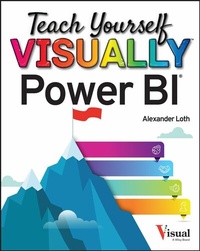
Teach Yourself VISUALLY Power BI
1st Edition
Published on 31. March 2023
256 pages
978-1-119-90378-9 (ISBN)
Description

A comprehensive and fully visual guide to Microsoft Power BI
Teach Yourself VISUALLY Power BI collects all the resources you need to master the everyday use of Microsoft's powerful data visualization software and delivers them in a single, easy-to-use volume. Fully illustrated, step-by-step instructions are combined with crystal-clear screenshots that walk you through the basic and advanced functions of Microsoft Power BI.
Teach Yourself VISUALLY Power BI offers the best visual learning techniques with complete source material about the interface and substance of Power BI, as well as:
* Stepwise guidance on working with, transforming, and processing data sources
* Instructions for customizing data visualizations to create informative and presentation-ready charts and graphs
* Full-color, two-page tutorials on the more advanced features of Power BI, including app integrations and data access with DAX
The fastest, easiest way for visual learners to get a handle on Microsoft Power BI, Teach Yourself VISUALLY Power BI is a can't-miss resource, loaded with useful tips for newbies and experts alike.
Teach Yourself VISUALLY Power BI collects all the resources you need to master the everyday use of Microsoft's powerful data visualization software and delivers them in a single, easy-to-use volume. Fully illustrated, step-by-step instructions are combined with crystal-clear screenshots that walk you through the basic and advanced functions of Microsoft Power BI.
Teach Yourself VISUALLY Power BI offers the best visual learning techniques with complete source material about the interface and substance of Power BI, as well as:
* Stepwise guidance on working with, transforming, and processing data sources
* Instructions for customizing data visualizations to create informative and presentation-ready charts and graphs
* Full-color, two-page tutorials on the more advanced features of Power BI, including app integrations and data access with DAX
The fastest, easiest way for visual learners to get a handle on Microsoft Power BI, Teach Yourself VISUALLY Power BI is a can't-miss resource, loaded with useful tips for newbies and experts alike.
More details
Other editions
Additional editions
Content
- Cover
- Title Page
- Copyright Page
- Table of Contents
- Chapter 1 Getting Started with Power BI
- What Is Power BI?
- Understanding the Different Components of Power BI
- Understanding Power BI as Part of the Power Platform
- Install Power BI Desktop
- Install Power BI Desktop
- Start and Pin Power BI Desktop
- Start and Pin Power BI Desktop
- Start Power BI Desktop
- Pin Power BI Desktop
- Explore the Power BI Workspace
- Explore the Power BI Workspace (continued)
- Chapter 2 Connecting Power BI to Your Data
- Grasp How Power Query Editor Works with Power BI Desktop
- Connect Power BI Desktop to a Local File
- Connect Power BI Desktop to a Local File
- Save, Close, and Open Power BI Reports
- Save, Close, and Open Power BI Reports
- Save and Close a Report
- Open a Report
- Start Working with the Sample Dataset
- Start Working with the Sample Dataset
- Open the Sample Dataset in Power Query Editor
- Check the Data Type of Each Column
- Change the Data Type of a Column
- Start Working with the Sample Dataset (continued)
- Start Working with the Sample Dataset (continued)
- View the Column Distribution and Column Quality
- Correct Errors
- Connect to a Power BI Dataset
- Connect to a Power BI Dataset
- Connect to a SharePoint List
- Connect to a SharePoint List
- Connect to a SharePoint List (continued)
- Connect to a SharePoint List (continued)
- Connect to a SQL Server Database
- Connect to a SQL Server Database
- Connect to a SQL Server Database (continued)
- Connect to a SQL Server Database (continued)
- Chapter 3 Cleaning and Shaping Data
- Remove Duplicate Values
- Remove Duplicate Values
- Replace Values in a Column
- Replace Values in a Column
- Split a Column Using a Delimiter
- Split a Column Using a Delimiter
- Group Data
- Group Data
- Add a Calculated Column
- Add a Calculated Column
- Add an Index Column
- Add an Index Column
- Chapter 4 Modeling Data in Model View
- Create Dimension Tables
- Create Dimension Tables
- Create a Dimension Column for Segments
- Create Dimension Tables (continued)
- Create Dimension Tables (continued)
- Create a Dimension Table for Countries
- Create Relationships Between Tables
- Create Relationships Between Tables
- Create Relationships Between Tables (continued)
- Create Relationships Between Tables (continued)
- Create a Star Schema
- Create a Star Schema
- Create a Hierarchical Schema
- Create a Hierarchical Schema
- Lay Out the Tables for a Parent-Child Hierarchical Schema
- Create a Hierarchical Schema (continued)
- Create a Hierarchical Schema (continued)
- Create the Relationships Between the Tables
- Create a Hierarchical Schema (continued)
- Create a Hierarchical Schema (continued)
- Using the Properties Pane
- Configure Table Properties
- Configure Column Properties
- Chapter 5 Creating Basic Visualizations
- Create a Bar Chart
- Create a Bar Chart
- Apply Filters to Visuals
- Apply Filters to Visuals
- Apply a Filter
- Remove a Filter
- Format the Y-Axis of a Bar Chart
- Format the Y-Axis of a Bar Chart
- Format the X-Axis of a Bar Chart
- Format the X-Axis of a Bar Chart
- Add and Format the Data Category of a Bar Chart
- Add and Format the Data Category of a Bar Chart
- Move a Bar Chart's Legend and Add Gridlines
- Move a Bar Chart's Legend and Add Gridlines
- Move the Legend
- Add Gridlines
- Add a Zoom Slider and Update Bar Colors
- Add a Zoom Slider and Update Bar Colors
- Add a Zoom Slider
- Update Bar Colors
- Add Data Labels to a Bar Chart
- Add Data Labels to a Bar Chart
- Add an Image to the Plot Area Background
- Add an Image to the Plot Area Background
- Create a Line Chart or Area Chart
- Create a Line Chart or Area Chart
- Format the Axes of a Line or Area Chart
- Format the Axes of a Line or Area Chart
- Add a Legend to a Line or Area Chart
- Add a Legend to a Line or Area Chart
- Add a Legend
- Format a Legend
- Move the Legend and Add Gridlines to a Line or Area Chart
- Move the Legend and Add Gridlines to a Line or Area Chart
- Move the Legend
- Add Gridlines
- Add a Zoom Slider and Steps to a Line or Area Chart
- Add a Zoom Slider and Steps to a Line or Area Chart
- Add a Zoom Slider
- Add Steps to a Line Chart or Area Chart
- Add Data Markers and Labels to a Line or Area Chart
- Add Data Markers and Labels to a Line or Area Chart
- Add Data Markers
- Add Data Labels
- Format the Data Labels of a Line or Area Chart
- Format the Data Labels of a Line or Area Chart
- Chapter 6 Creating Advanced Data Visualizations
- Create and Format a Gauge Chart
- Create and Format a Gauge Chart
- Create and Format a Gauge Chart (continued)
- Create and Format a Gauge Chart (continued)
- Create and Format a KPI Visual
- Create a KPI Visual
- Create and Format a KPI Visual (continued)
- Create and Format a KPI Visual (continued)
- Create a Matrix Visual
- Create a Matrix Visual
- Format a Matrix Visual
- Format a Matrix Visual
- Format the Values and Column Headers of a Matrix Visual
- Format the Values and Column Headers of a Matrix Visual
- Format the Row Headers of a Matrix Visual
- Format the Row Headers of a Matrix Visual
- Format the Row Subtotals and Grand Totals of a Matrix Visual
- Format the Row Subtotals and Grand Totals of a Matrix Visual
- Format the Specific Column and Cell Elements of a Matrix Visual
- Format the Specific Column and Cell Elements of a Matrix Visual
- Create a Waterfall Chart
- Create a Waterfall Chart
- Format a Waterfall Chart
- Format a Waterfall Chart
- Format the X-Axis and Legend of a Waterfall Chart
- Format the X-Axis and Legend a Waterfall Chart
- Add and Format Breakdowns in a Waterfall Chart
- Add and Format Breakdowns in a Waterfall Chart
- Create, Format, and Label a Funnel Chart
- Create, Format, and Label a Funnel Chart
- Create, Format, and Label a Funnel Chart (continued)
- Create, Format, and Label a Funnel Chart (continued)
- Create a Pie Chart or Donut Chart
- Create a Pie Chart or Donut Chart
- Format a Pie Chart or Donut Chart
- Format a Pie Chart or Donut Chart
- Create a Treemap Chart
- Create a Treemap Chart
- Format a Treemap Chart
- Format a Treemap Chart
- Chapter 7 Showing Geographic Data on Maps
- Create a Proportional Symbol Map
- Create a Proportional Symbol Map
- Create a Choropleth Map
- Create a Choropleth Map
- Add Conditional Formatting to a Choropleth Map
- Add Conditional Formatting to a Choropleth Map
- Enable Power BI's Preview Features
- Enable Power BI's Preview Features
- Create an Isarithmic Map
- Create an Isarithmic Map
- Create a Skyscraper Map
- Create a Skyscraper Map
- Chapter 8 Using Calculated Columns and DAX
- Understanding DAX and Why You Should Use It
- Add All Numbers in a Column
- Add All Numbers in a Column
- Perform Division
- Perform Division
- Check a Condition
- Check a Condition
- Count the Number of Cells in a Column
- Count the Number of Cells in a Column
- Return the Average of All Numbers in a Column
- Return the Average of All Numbers in a Column
- Join Two Text Strings into One Text String
- Join Two Text Strings into One Text String
- Apply Conditional Formatting in Tables
- Apply Conditional Formatting in Tables
- Apply Conditional Formatting in Tables (continued)
- Apply Conditional Formatting in Tables (continued)
- Chapter 9 Using Analytics and Machine Learning
- Identify Outliers
- Identify Outliers
- Find Groups of Similar Data by Clustering
- Find Groups of Similar Data by Clustering
- Create a Dataflow
- Create a Dataflow
- Create a Dataflow (continued)
- Create a Dataflow (continued)
- Apply Binary Prediction with AutoML
- Apply Binary Prediction with AutoML
- Apply Binary Prediction with AutoML (continued)
- Apply Binary Classification with AutoML (continued)
- Chapter 10 Creating Interactive Reports
- Planning to Create a Report
- Start a Report and Add a Title
- Start a Report and Add a Title
- Add Visuals to a Report
- Add Visuals to a Report
- Add Visuals to a Report (continued)
- Add Visuals to a Report (continued)
- Add Slicers to a Report
- Add a Slicer to a Report
- Control Which Visuals and Slicers Interact
- Control Which Visuals and Sliders Interact
- Enable and Control Drill-Through Actions
- Enable and Control Drill-Through Actions
- Enable and Control Drill-Through Actions (continued)
- Enable and Control Drill-Through Actions (continued)
- Split a Page into Sections
- Split a Page into Sections
- Split a Page into Sections (continued)
- Split a Page into Sections (continued)
- Add Bookmarks and Navigation to a Report
- Add Bookmarks to a Report
- Add Bookmarks to a Report
- Add Bookmarks and Navigation to a Report (continued)
- Add Bookmarks and Navigation to a Report (continued)
- Add Page Navigation to a Report
- Chapter 11 Publishing Reports and Dashboards
- Set Up a Workspace
- Set Up a Workspace
- Ask Questions About the Data
- Ask Questions About the Data
- Publish a Report to the Power BI Service
- Publish a Report to the Power BI Service
- Set Up Row-Level Security
- Set Up Row-Level Security
- Add Tiles to a Dashboard
- Add Tiles to a Dashboard
- Share a Dashboard
- Share a Dashboard
- Schedule Data Refreshes
- Schedule Data Refreshes
- Publish a Report to the Web
- Publish a Report to the Web
- Index
- EULA
