

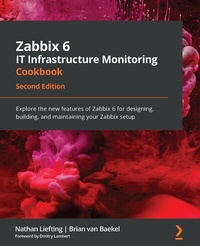
Zabbix 6 IT Infrastructure Monitoring Cookbook
Description

Key Features
Find out how you can leverage some of the most exciting features of Zabbix 6
Perform professional IT infrastructure and application monitoring on multiple platforms
Discover easy-to-follow, practical solutions to problems in network monitoring with Zabbix
Book DescriptionThis updated second edition of the Zabbix 6 IT Infrastructure Monitoring Cookbook brings you new recipes, updated with Zabbix 6 functionality. You'll learn how to set up Zabbix with built-in high availability, use the improved Business Service Monitoring, set up automatic reporting, and create advanced triggers. Zabbix offers useful insights into your infrastructure performance and issues and enables you to enhance your monitoring setup with its powerful features. This book covers hands-on, easy-to-follow recipes for using Zabbix 6 to monitor effectively the performance of devices and applications over the network. You'll start by working your way through the installation and most prominent features of Zabbix and make the right design choices for building a scalable and easily manageable environment. This Zabbix book contains recipes for building items and triggers for different types of monitoring, building templates, and using Zabbix proxies. Next, you'll use the Zabbix API for customization and manage your Zabbix server and database efficiently. Finally, you'll find quick solutions to the common and not-so-common problems that you may encounter in your Zabbix monitoring work. By the end of this book, you'll be able to use Zabbix for all your monitoring needs and build a solid Zabbix setup by leveraging its key functionalities.What you will learn
Implement your high-availability Zabbix setup
Build templates and explore the different types of monitoring available in Zabbix 6
Use Zabbix proxies to scale your environment effectively
Work with custom integrations and the Zabbix API
Set up advanced triggers and effective alerting
Maintain your Zabbix setup for scaling, backups, and upgrades
Discover how to perform advanced Zabbix database management
Monitor cloud-based products such as Amazon Web Services (AWS), Azure, and Docker
Who this book is forThis book is for IT engineers who want to get started with Zabbix and anyone with an intermediate-level understanding of Zabbix looking to extend their knowledge. Although not necessary, prior experience with Zabbix will help you to make the most of this book.
All prices
More details
Other editions
Additional editions
Persons
Nathan Liefting, also known as Larcorba, is an IT consultant, trainer, and content creator (artist) with over 6 years of professional experience in IT. His experience ranges from managing networks running EVPN/VXLAN to Linux environments and programming. Nathan began working with Zabbix in 2016 when Zabbix 2 was still in use and Zabbix 3 had just been released. He currently works for Opensource ICT Solutions BV in the Netherlands as a Zabbix trainer and consultant, designing and building professional Zabbix environments and Zabbix components for some of the biggest companies worldwide.Baekel Brian van :
Brian van Baekel discovered the power of Zabbix early in his career as a network engineer. Since then, he has been working with Zabbix in various large environments, earning his official Zabbix Certified Trainer certification in early 2017. In 2018, Brian founded Opensource ICT Solutions BV in the Netherlands and Opensource ICT Solutions LLC in the US, focusing on building Zabbix environments globally. In 2021, the business expanded further with a subsidiary in the United Kingdom, dedicated entirely to the Zabbix product. All companies provide support, training, and consultancy services, ensuring Brian works with the Zabbix product around the clock. Fun fact: Even his cat is named Zabbix.
Content
Installing Zabbix and Getting Started Using the Frontend
Getting Things Ready with Zabbix User Management
Setting Up Zabbix Monitoring
Working with Triggers and Alerts
Building Your Own Structured Templates
Visualizing Data, Inventory, and Reporting
Using Discovery for Automatic Creation
Setting Up Zabbix Proxies
Integrating Zabbix with External Services
Extending Zabbix Functionality with Custom Scripts and the Zabbix API
Maintaining Your Zabbix Setup
Advanced Zabbix Database Management
Bringing Zabbix to the Cloud with Zabbix Cloud Integration
Chapter 1: Installing Zabbix and Getting Started Using the Frontend
Zabbix 6 is like a continuation of Zabbix 5, as this time around we aren't looking at big UI changes. However, in Zabbix 6, you will still find a lot of improvements, both to the UI and core components. For example, the introduction of high availability for the Zabbix server. We will detail all of the important changes throughout the book.
In this chapter, we will install the Zabbix server and explore the Zabbix UI to get you familiar with it. We will go over finding your hosts, triggers, dashboards, and more to make sure you feel confident diving into the deeper material later on in this book. The Zabbix UI has a lot of options to explore, so if you are just getting started, don't get overwhelmed. It's quite structurally built and once you get the hang of it, I am confident you will find your way without issues. You will learn all about these subjects in the following recipes:
- Installing the Zabbix server
- Setting up the Zabbix frontend
- Enabling Zabbix server high availability
- Using the Zabbix frontend
- Navigating the Zabbix frontend
Technical requirements
We'll be starting this chapter with an empty Linux (virtual) machine. Feel free to choose a RHEL- or Debian-based Linux distribution. We will then set up a Zabbix server from scratch on this host.
So before jumping in, make sure you have your Linux host at the ready.
Installing the Zabbix server
Before doing anything within Zabbix, we need to install it and get ready to start working with it. In this recipe, we are going to discover how to install Zabbix server 6.
Getting ready
Before we actually install the Zabbix server, we are going to need to fulfill some prerequisite requirements. We will be using MariaDB mostly throughout this book. MariaDB is popular and a lot of information is available on the use of it with Zabbix.
At this point, you should have a prepared Linux server in front of you running either a RHEL- or Debian-based distribution. I'll be installing CentOS and Ubuntu 20.04 on my server; let's call them lar-book-centos and lar-book-ubuntu.
When you have your server ready, we can start the installation process.
How to do it.
- Let's start by adding the Zabbix 6.0 repository to our system.
For RHEL-based systems:
rpm -Uvh https://repo.zabbix.com/zabbix/6.0/rhel/8/x86_64/zabbix-release-6.0-1.el8.noarch.rpm
dnf clean all
For Ubuntu systems:
wget https://repo.zabbix.com/zabbix/6.0/ubuntu/pool/main/z/zabbix-release/zabbix-release_6.0-1+ubuntu20.04_all.deb
dpkg -i zabbix-release_6.0-1+ubuntu20.04_all.deb
apt update
- Now that the repository is added, let's add the MariaDB repository on our server:
wget https://downloads.mariadb.com/MariaDB/mariadb_repo_setup
chmod +x mariadb_repo_setup
./mariadb_repo_setup
- Then install and enable it using the following commands:
For RHEL-based systems:
dnf install mariadb-server
systemctl enable mariadb
systemctl start mariadb
For Ubuntu systems:
apt install mariadb-server
systemctl enable mariadb
systemctl start mariadb
- After installing MariaDB, make sure to secure your installation with the following command:
/usr/bin/mariadb-secure-installation
- Make sure to answer the questions with yes (Y) and configure a root password that's secure.
- Run through the secure installation setup and make sure to save your password somewhere. It's highly recommended to use a password vault.
- Now, let's install our Zabbix server with MySQL support.
For RHEL-based systems:
dnf install zabbix-server-mysql zabbix-sql-scripts
For Ubuntu systems:
apt install zabbix-server-mysql zabbix-sql-scripts
- With the Zabbix server installed, we are ready to create our Zabbix database. Log in to MariaDB with the following:
mysql -u root -p
- Enter the password you set up during the secure installation and create the Zabbix database with the following commands. Do not forget to change password in the second command:
create database zabbix character set utf8mb4 collate utf8mb4_bin;
create user zabbix@localhost identified by 'password';
grant all privileges on zabbix.* to zabbix@localhost identified by 'password';
flush privileges;
quit
Tip
For those who might require it, Zabbix does also support utf8mb4 now. We've changed utf8 to utf8mb4 in the command above and everything will work. For a reference, check the Zabbix support ticket here: https://support.zabbix.com/browse/ZBXNEXT-3706.
- Now we need to import our Zabbix database scheme to our newly created Zabbix database:
zcat /usr/share/doc/zabbix-sql-scripts/mysql/server.sql.gz | mysql -u zabbix -p zabbix
Important Note
At this point, it might look like you are stuck and the system is not responding. Do not worry though as it will just take a while to import the SQL scheme.
We are now done with the preparations for our MariaDB side and are ready to move on to the next step, which will be configuring the Zabbix server:
- The Zabbix server is configured using the Zabbix server config file. This file is located in /etc/zabbix/. Let's open this file with our favorite editor; I'll be using Vim throughout the book:
vim /etc/zabbix/zabbix_server.conf
- Now, make sure the following lines in the file match your database name, database user username, and database user password:
DBName=zabbix
DBUser=zabbix
DBPassword=password
Tip
Before starting the Zabbix server, you should configure SELinux or AppArmor to allow the use of the Zabbix server. If this is a test machine, you can use a permissive stance for SELinux or disable AppArmor, but it is recommended to not do this in production.
- All done; we are now ready to start our Zabbix server:
systemctl enable zabbix-server
systemctl start zabbix-server
- Check whether everything is starting up as expected with the following:
systemctl status zabbix-server
- Alternatively, monitor the log file, which provides a detailed description of the Zabbix startup process:
tail -f /var/log/zabbix/zabbix_server.log
- Most of the messages in this file are fine and can be ignored safely, but make sure to read well and see if there are any issues with your Zabbix server starting.
How it works.
The Zabbix server is the main process for our Zabbix setup. It is responsible for our monitoring, problem alerting, and a lot of the other tasks described in this book. A complete Zabbix stack consists of at least the following:
- A database (MySQL, PostgreSQL, or Oracle)
- A Zabbix server
- Apache or NGINX running the Zabbix frontend with PHP 7.2+, but PHP 8 is currently not supported
We can see the components and how they communicate with each other in the following figure:
Figure 1.1 - Zabbix setup communications diagram
We've just set up the Zabbix server and database; by running these two, we are basically ready to start monitoring. The Zabbix server communicates with the Zabbix database to write collected values to it.
There is still one problem though: we cannot configure our Zabbix server to do anything. For this, we are going to need our Zabbix frontend, which we'll set up in the next recipe.
Setting up the Zabbix frontend
The Zabbix frontend is the face of our server. It's where we will configure all of our hosts, templates, dashboards, maps, and everything else. Without it, we would be blind to what's going on, on the server side. So, let's set up our Zabbix frontend in this recipe.
Getting ready
We are going to set up the Zabbix frontend using Apache. Before starting with this recipe, make sure you are running the Zabbix server on a Linux distribution of your choice. I'll be using the lar-book-centos and lar-book-ubuntu hosts in these recipes to show the setup process on CentOS 8 and Ubuntu 20.
How to do it.
- Let's jump right in and install the frontend. Issue the following command to get started.
For RHEL-based systems:
dnf install zabbix-web-mysql zabbix-apache-conf
For Ubuntu systems:
apt install zabbix-frontend-php zabbix-apache-conf
Tip
Don't forget to allow ports 80 and 443 in your firewall if...
