

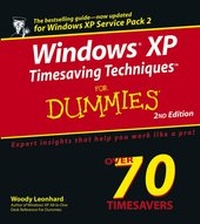
Windows XP Timesaving Techniques For Dummies
2nd Edition
Published on 14. January 2005
592 pages
978-0-7645-9617-9 (ISBN)
Description

Computers were supposed to save us time, but Windows XP users knowhow often the opposite seems to be true. What if you could get alist of shortcuts that would save you time every single day?Windows XP Timesaving Techniques For Dummies, 2nd Editionincludes 70 of them, great tips and tricks that make Windows workfaster, more reliably, and more like the way you work.
Collected and tested by Windows guru Woody Leonhard, thesetimesavers are organized into groups of related tasks so you canquickly find the ones that will help you at any given time. You canset up your desktop and launch your programs in the way that makessense for you, take back control of the Internet and e-mail, manageyour music and visual media, and protect your system in a fewsimple steps. You'll find no-nonsense advice on
* Eliminating irritating programs that start automatically
* Speeding up the restart or shutdown process
* Streamlining searches, the Start menu, and Outlook Express
* Strengthening your firewall and zapping scumware
* Adjusting your monitor to reduce eyestrain
* Reducing download time for photos
* Enhancing the performance of your network
* Making online shopping faster as well as safer
* Scheduling maintenance chores to run while you sleep
From the most basic to somewhat advanced tricks designed forpower users, this grocery list of timesavers has something forevery Windows XP user-- including you!
More details
Other editions
Additional editions
Woody Leonhard | Justin Leonhard
Windows XP Timesaving Techniques For Dummies
Book
01/2005
2nd Edition
Hungry Minds Inc,U.S.
€21.90
Article exhausted; check different version
Persons
Woody Leonhard: Curmudgeon, critic, and perennial"Windows Victim," Woody Leonhard runs a fiercelyindependent Web site devoted to delivering the truth about Windowsand Office, whether Microsoft likes it or not. Withup-to-the-nanosecond news, observations, tips and help,AskWoody.com has become the premiere source of unbiased informationfor people who actually use the products.
In the past decade, Woody has written more than two dozen books,drawing an unprecedented six Computer Press Association awards andtwo American Business Press awards. Woody was one of the firstMicrosoft Consulting Partners and is a charter member of theMicrosoft Solutions Provider organization. He's widely quoted-- and reviled -- on the Redmond campus.
Justin Leonhard: Lives with his dad in Phuket, Thailand.Justin contributed to Windows XP All-in-One Desk Reference ForDummies. He frequently helps Woody with various writingprojects and keeps the office network going. Justin is anaccomplished scuba diver, budding novelist, and the best video gameplayer for miles. He was admitted to Mensa International at the ageof 14.
Content
- Intro
- Windows XP Timesaving Techniques For Dummies, 2nd Edition
- About the Authors
- Dedication
- Author's Acknowledgments
- Contents at a Glance
- Table of Contents
- Introduction
- About This Book
- Foolish Assumptions
- What's in This Book
- Conventions Used in This Book
- Icons Used in This Book
- Where to Go from Here
- Part I: No-Bull Installation and Setup
- Technique 1: Getting the Latest Version of Windows
- Installing Service Pack 2
- Setting Up Service Pack 2
- Recovering from SP2 Problems
- Choosing Between XP Home and XP Professional
- Upgrading Quickly
- Transferring Files and Settings
- Technique 2: Running the Activation Gauntlet
- Understanding Activation, Registration, and Passport
- Activating Windows XP the Right Way
- Registering for Fun and Profit
- Signing Up for Passport (And Hotmail)
- Staying on Top of Privacy Issues
- Technique 3: Retrieving Your Product Key
- Unlocking the Secrets of the Windows XP Product Key
- Locating the Key
- Reconstructing the Product Key
- Verifying Your Product Key
- Technique 4: Installing a Legal Copy of Windows XP over a Bootleg
- Nailing Pirate Product Keys
- Updating Your Key the Easy Way
- Toughing It Out the Hard Way
- Part II: Making Windows Lean and Clean
- Technique 5: Making Windows Work Faster
- Bypassing the Logon Screen
- Monitoring System Performance
- Eliminating the # 1 Bottleneck: Memory Drain
- No-Nonsense Tweaking
- Technique 6: Shut Down, Restart, and Switch Users Quickly
- Creating a Fast Shut Down Icon
- Creating an Icon to Abort a Fast Shut Down
- Creating an Icon to Restart Your Computer Quickly
- Using Shut Down and Restart Options
- Creating an Icon to Switch Users
- Technique 7: Saving Time (And Your Eyes) On-Screen
- Applying Basic, Vision-Saving Tactics
- Understanding How Characters Appear On-Screen
- Screen Resolution and Zoom on CRTs
- Fine-Tuning ClearType
- Setting Up Multiple Monitors
- Technique 8: Stopping a Thief with Your Welcome Screen
- Choosing a Branding Approach
- Building a Pre-Logon Screen
- Modifying the Windows Welcome Screen
- Technique 9: Rapid Power Passwords
- Understanding Password Limitations
- Requiring a Password to Log On
- Looking at Passwords from a Cracker's Point of View
- Changing and Deleting Passwords
- Keeping Your Password Alive
- Technique 10: Windows Power Management
- Understanding the Standards
- Using Stand By and Hibernate
- Forcing Power Off on Shut Down
- Timesaving Settings for Power Users
- Technique 11: Keeping Programs from Starting Automatically
- Recognizing You Have a Problem
- Finding and Eliminating Auto-Starting Programs
- Preventing New Auto-Starters
- Technique 12: Removing and Reinstalling Programs
- Removing Programs Thoroughly
- Updating the Add or Remove Programs List
- Cleaning Up before a Reinstall
- Adding Windows Components
- Using Non-Microsoft Replacements
- Nixing Windows Messenger (And Other Hidden Programs)
- Part III: Convincing Windows to Work Your Way
- Technique 13: Streamlining the Start Menu
- Navigating the Start Menu
- Pinning and Unpinning
- Reining In the All Programs Submenu
- Cascading to Save Time
- Technique 14: Building a Power Desktop
- Desktop Brevity: The Soul of Wit
- Adding Other Icons - Maybe
- Avoiding Active Content
- Trimming the New Right-Click Menu
- Generating One-Click E-Mail
- Starting Multiple Programs at Once
- Arranging Multiple Windows Side-by-Side
- Technique 15: Tricking Out the Taskbar
- Customizing the Taskbar
- Grouping Windows
- Blitzing the Address Bar
- Navigating from the Taskbar
- Technique 16: Launching Your Most-Used Programs Quickly
- Using the Quick Launch Toolbar
- Making the Quick Launch Toolbar Appear
- Adding Programs to the Quick Launch Toolbar
- Making Room for More Programs on the Quick Launch Toolbar
- Auto-Hiding the Taskbar
- Changing Quick Launch Screen Tips
- Opening Documents Quickly
- Opening Web Pages Quickly
- Adding a Blank E-Mail Message to the Quick Launch Toolbar
- Creating New, Template-Based Documents Quickly
- Technique 17: Making Programs Run Your Way
- Running a Program when Windows Starts
- Allowing Other Users to Run Your Programs
- Bringing Back Word's Last Document
- Technique 18: Using Built-In Keyboard Shortcuts
- Shortcuts Everybody Needs
- Important Windows Key Combinations
- A Grab-Bag of Application Shortcuts
- Odds 'n' (Sometimes Useful) Ends
- Technique 19: Making Your Own Keyboard Shortcuts
- Putting Custom Hot Keys to Work for You
- Knowing What You Can't Do with Hot Keys
- Creating and Organizing Hot Keys
- Undoing Hot Keys
- Using ActiveWords for Expanded Hot Keys
- Technique 20: Exploring Effectively
- Making Windows Show Filename Extensions
- Customizing Explorer for Speed
- Choosing the Right View
- Setting Folders' Behavior
- Copying Files Quickly
- Changing Filename Associations
- Renaming Files En Masse
- Customizing the Open and Save As Dialog Boxes
- Technique 21: Finding the Files You Want Fast
- Speeding Up Searches
- Engaging Your Brain Before the Search
- Running a Simple Advanced Search
- Searching for Contents and Metadata
- Employing Wildcards
- Saving and Reusing Searches
- Finding Files That Got Lost
- Advanced Searching with Copernic
- Technique 22: Listing Files Quickly
- Getting Started by Fixing a Windows Bug
- Showing Directory Listings
- Listing Files by Filename Extension
- Printing a File List Automatically
- Getting Rid of Listing Entries
- Part IV: Making the Most of Internet and E-Mail
- Technique 23: Customizing Internet Explorer
- Speeding Up IE
- Finding Uncommon Methods for Common Tasks
- Controlling Favorites - Directly
- Keeping IE under Control
- Technique 24: Saving Time with Google
- Using the Google Toolbar
- Using Google Effectively
- Technique 25: Locating and Sharing Files on the Internet
- Deciding What Files Are Worth Sharing
- Understanding How File Sharing Works
- Downloading and Installing Shareaza
- Finding the Good Stuff
- Technique 26: Keeping Messenger in Line
- Saving or Shooting the Messenger?
- Getting the Skinny on User IDs
- Setting Up Your Messenger Account
- Making Contact
- Using the Fancier Features
- Technique 27: Polyglot IMing with Trillian
- Weighing Trillian Against the Competition
- Installing Trillian
- Using Trillian
- Technique 28: Streamlining Outlook Express
- Arranging Your OE Desktop
- Disabling Windows Messenger Automatic Sign-In
- Making OE Wait to Send and Receive
- Dealing with Read Receipts
- Reducing Clutter in Your Contacts List
- Using Signatures the Smart Way
- Using a Business Card
- Organizing Contacts in Folders
- Setting Up Outlook Express for More Than One User
- Dealing with E-Mail Attachment Security
- Removing the "You Have Messages" Notice
- Technique 29: Zapping Junk Mail
- Understanding Spam
- Phishing Phor Phun and Prophit
- Avoiding Spammeisters and Phishers
- Fighting Back
- Technique 30: Protecting Your Kids
- Evaluating Parental Control Software
- Going Beyond Parental Control Software
- Settling on a Workable Plan
- Part V: Optimizing Your Musical Entertainment
- Technique 31: Using Windows Media Player
- Installing WMP 10
- Tweaking WMP
- Running WMP
- Technique 32: No-Nonsense Music Gathering
- Adding Music to the Media Library
- Ripping CDs You Own
- Technique 33: Buying Music on the Web
- What's Going On Here?
- Sorting through the Stores
- So It "Plays for Sure"?
- Technique 34: Tuning In the Radio
- Tuning In a Station
- Technique 35: Creating Your Own Music CDs
- Choosing the Type of CD to Burn
- Picking Songs to Go on the CD
- Burning the CD or DVD
- Dealing with Hard Drive Space Issues
- Technique 36: Transferring Music to MP3 Players
- Choosing an MP3 Player
- Copying Files to an MP3 Player
- Keeping Backups
- Part VI: Having Fun and Saving Time with Visual Media
- Technique 37: Taking Snapshots with a Webcam
- Taking the Shot
- Setting Up the Shot - F/11 and Be There
- Using Time Delay
- Technique 38: Recording Video with a Webcam
- Installing Windows Movie Maker 2
- Setting Up and Recording a Video
- Recovering from a WMM 2 Freeze
- Technique 39: Editing Your Home Movies
- Importing and Combining Clips
- Understanding the Limitations of WMM
- Trimming Clips
- Using Transitions and Effects
- Adding Titles and Credits
- Saving the Movie
- Technique 40: Managing Pictures from a Digital Camera
- Transferring Pictures to Your PC Automatically
- Transferring Pictures with Windows Explorer
- Using a Camera's Memory Card as a Storage Device on Your PC
- Technique 41: Doing More with Your Pics
- Putting Your Pic on the Desktop
- Using Your Pictures for a Screen Saver Slideshow
- Burning Pictures on a CD
- Burning a Slideshow on a CD
- Recovering Deleted Pictures on Your Camera
- Technique 42: Decreasing Picture Download Times
- Understanding Digital Pic File Sizes
- Changing the Resolution of Pictures
- Technique 43: Printing and Posting Pictures
- Using the Photo Printing Wizard
- Posting Pics on the Web
- Technique 44: Using a Scanner Effectively
- Getting Your Scanner to Work
- Producing Quality Scans
- Part VII: Ensuring Peak Network Performance
- Technique 45: Installing a Small Network
- Putting the Pieces Together
- Preparing for the Network Setup Wizard
- Running the Network Setup Wizard
- Checking the Pieces
- Understanding Addresses
- Technique 46: Securing Your Wireless Network
- Running the Wireless Network Setup Wizard
- Making Manual Changes
- Technique 47: Adding and Configuring a New User
- Grasping User Accounts
- Creating a New Account
- Modifying an Account
- Using the Hidden Administrator Account
- Hobbling the Guest Account
- Technique 48: Sharing Drives and Folders
- Keeping File Sharing Simple
- Using the Four Levels of Protection
- Part VIII: Fast Security Techniques
- Technique 49: Protecting Your PC from Viruses While You Sleep
- Understanding Viruses
- Protecting Yourself - Quickly
- Avoiding Hoaxes
- Technique 50: Plugging and Unplugging Windows Firewall
- Coping with Windows Firewall
- Changing Firewall Settings
- Constructing a Firewall Lockdown Icon
- Technique 51: Building a Better Firewall
- Understanding Firewalls
- What to Look for in a Software Firewall
- Using Windows Firewall
- Installing ZoneAlarm
- Honing ZoneAlarm
- Checking the Logs
- Technique 52: Zapping Scumware
- What Is Scum?
- Running Spybot-S& D
- Knowing When You've Been Slimed
- Going Beyond Spybot
- Technique 53: Canning Adware and Obnoxious Cookies
- Understanding Cookies
- Zapping Advertising Junk with Ad-Aware
- Using Internet Explorer's Built-In Cookie Catchers
- Technique 54: Checking Your Security Perimeter
- Approaching Your Security Perimeter
- Running Steve Gibson's ShieldsUp!
- Running Microsoft's Baseline Security Analyzer
- Part IX: Keeping Your PC Alive
- Technique 55: Updating Windows on Your Own Terms
- Reining In Windows Update
- Downloading the Big Updates
- Checking for Small Updates
- Retrieving and Installing a Declined Update
- Technique 56: Running Disk Chores While You Sleep
- Setting Up an Account for Scheduler
- Running Disk Cleanup Manually
- Scheduling Automatic Cleanups
- Technique 57: Keeping Your Hard Drive in Shape
- Scanning Your Hard Drive
- Running Check Disk Automatically
- Running Defrag Automatically
- Technique 58: Updating Drivers Safely
- Understanding Drivers
- Choosing Your Drivers Wisely
- Updating a Driver
- Rolling Back a Bad Driver
- Technique 59: Running Periodic Maintenance
- Making Your Maintenance Shopping List
- Weekly Cleaning
- Monthly Cleaning
- Fixing Components As Needed
- Technique 60: Making Backups - Fast
- Understanding XP Home's Backup Limitations
- Creating a Backup
- Scheduling Backups
- Restoring a Backup
- Alternatives to Windows Backup
- Technique 61: Requesting Remote Assistance
- Using Remote Assistance Wisely - Quickly
- Coping with Remote Assistance Limitations
- Requesting Remote Assistance
- Sending a Remote Assistance SOS Using IM
- Fine-Tuning Remote Assistance
- Technique 62: Getting Help Fast
- Exploring the Help and Support Center
- Using Help Effectively
- Getting to Help Sections - Quickly
- Using Other Help Sources
- Part X: Fast (Nearly Painless) Disaster Recovery
- Technique 63: Getting Your PC to Boot When It Doesn't Want To
- Running the System File Checker
- Falling Back to Safe Mode
- Using Recovery Console
- Technique 64: Restoring Your System after Calamitous Change
- Understanding System Restore's Limitations
- Creating a Restore Point
- Restoring to a Restore Point - Quickly
- Technique 65: Recovering a Lost Password
- Creating a Password Reset Disk
- Using Your Password Reset Disk
- Getting Around Your Own Password
- Technique 66: Surviving the Blue Screen of Death
- Encountering a Blue Screen of Death
- Starting with Common-Sense Approaches
- Digging into Specific Errors
- Technique 67: Creating a Startup Disk
- Getting the CD You Deserve
- Creating a Boot File Bypass Disk
- Using DOS Boot Disks - If You Can
- Creating Windows XP Setup Disks
- Part XI: The Scary ( Or Fun!) Stuff
- Technique 68: Changing the Registry without Getting Burned
- Don't Mess with This?
- Understanding the Registry
- Backing Up Data the Registry Way
- Making Changes Safely
- Running My Favorite Quick Registry Tweak
- Technique 69: Updating Windows' Registered Owner
- Seeing Who Owns Your PC
- Changing the Owner and Organization
- Technique 70: Speeding Up Scanning for Squishable Files
- Scanning for Squishers
- Speeding Up the Scan
- Technique 71: Using Program Compatibility Modes
- Scanning for Program Compatibility
- Setting Compatibility Modes
- Installing the Retro Way
- Technique 72: Fast, Easy, and Safe Online Shopping
- Searching Reliable E-Tailers
- Paying It Safe
- Complaining Effectively
- Mastering eBay
- Index
