

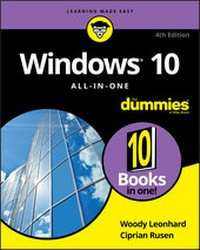
Windows 10 All-in-One For Dummies
4th Edition
Published on 21. December 2020
992 pages
978-1-119-68058-1 (ISBN)
Description

Dig into the ins and outs of Windows 10
Computer users have been "doing Windows" since the 1980s. That long run doesn't mean everyone knows the best-kept secrets of the globally ubiquitous operating system. Windows 10 All-in-One For Dummies, 4th Edition offers a deep guide for navigating the basics of Windows 10 and diving into more advanced features.
Authors and recognized Windows experts Ciprian Rusen and Woody Leonhard deliver a comprehensive and practical resource that provides the knowledge you need to operate Windows 10, along with a few shortcuts to make using a computer feel less like work.
This book teaches you all about the most important parts of Windows 10, including:
* Installing and starting a fresh Windows 10 installation
* Personalizing Windows 10
* Using Universal Apps in Windows 10
* How to control your system through the Control Panel in Windows 10
* Securing Windows 10 against a universe of threats
Windows 10 All-in-One For Dummies, 4th Edition is perfect for business users of Windows 10 who need to maximize their productivity and efficiency with the operating system. It also belongs on the bookshelf of anyone who hopes to improve their general Windows 10 literacy, from the complete novice to the power-user.
Computer users have been "doing Windows" since the 1980s. That long run doesn't mean everyone knows the best-kept secrets of the globally ubiquitous operating system. Windows 10 All-in-One For Dummies, 4th Edition offers a deep guide for navigating the basics of Windows 10 and diving into more advanced features.
Authors and recognized Windows experts Ciprian Rusen and Woody Leonhard deliver a comprehensive and practical resource that provides the knowledge you need to operate Windows 10, along with a few shortcuts to make using a computer feel less like work.
This book teaches you all about the most important parts of Windows 10, including:
* Installing and starting a fresh Windows 10 installation
* Personalizing Windows 10
* Using Universal Apps in Windows 10
* How to control your system through the Control Panel in Windows 10
* Securing Windows 10 against a universe of threats
Windows 10 All-in-One For Dummies, 4th Edition is perfect for business users of Windows 10 who need to maximize their productivity and efficiency with the operating system. It also belongs on the bookshelf of anyone who hopes to improve their general Windows 10 literacy, from the complete novice to the power-user.
More details
Other editions
Additional editions
Persons
Woody Leonhard was one of the first Microsoft Consulting Partners and Microsoft beta testers. His monthly Q&A columns in ZD Smart Business magazine have one million readers, and he has been honored with multiple Computer Press Awards.
Ciprian Rusen is co-founder and chief editor of Digital Citizen, a tech-focused blog at digitalcitizen.life. He is also the author of a number of technology books on Windows, Microsoft Office, and other topics.
Ciprian Rusen is co-founder and chief editor of Digital Citizen, a tech-focused blog at digitalcitizen.life. He is also the author of a number of technology books on Windows, Microsoft Office, and other topics.
Content
- Intro
- Title Page
- Copyright Page
- Table of Contents
- Introduction
- About This Book
- Foolish Assumptions
- Icons Used in This Book
- Beyond the Book
- Where to Go from Here
- Book 1 Starting Windows 10
- Chapter 1 Windows 10 4 N00bs
- Hardware and Software
- Why Do PCs Have to Run Windows?
- A Terminology Survival Kit
- What, Exactly, Is the Web?
- Getting inside the Internet
- What is the World Wide Web?
- Who pays for all this stuff?
- Buying a Windows 10 Computer
- Inside the big box
- Inside a touch-sensitive tablet
- Screening
- Managing disks and drives
- Making PC connections
- Futzing with video, sound, and multitudinous media
- Ultrabooks and convertibles
- What's Wrong with Windows 10?
- Chapter 2 Windows 10 for the Experienced
- If You Just Upgraded from Windows 7 or 8.1 to Windows 10
- A Brief History of Windows 10
- Exploring the Versions of Windows 10
- The Different Kinds of Windows Programs, Er, Apps
- What's New for the XP Crowd
- Improved performance
- Better video
- A genuinely better browser is emerging
- Cortana
- Other improvements
- What's New for Windows 7 Users
- Getting the hang of the new Start menu
- Exploring new stuff in the old-fashioned desktop
- What's New for Windows 8 and 8.1 Users
- What's New for All of Windows
- The Start menu
- Microsoft Edge
- Search
- Cortana
- Virtual desktops and task view
- Security improvements
- Game mode and Xbox
- Other Windows 10 apps
- What you lose
- Do You Need Windows 10?
- Chapter 3 Which Version?
- Counting the Editions
- Buying the right version the first time
- Narrowing the choices
- Choosing 32 Bit versus 64 Bit
- Which Version of Windows Are You Running?
- Book 2 Personalizing Windows
- Chapter 1 Getting Around in Windows
- Windows' New Beginnings
- A tale of two homes
- Switching to tablet mode and back
- Navigating around the Desktop
- Keying Keyboard Shortcuts
- Chapter 2 Changing the Lock and Login Screens
- Working with the Lock Screen
- Using your own picture
- Adding and removing apps on the lock screen
- Logging On Uniquely
- Using a picture password
- Creating a PIN
- Windows Hello
- Bypassing passwords and login
- Chapter 3 Working with the Action/Notification Center
- What Is the Action Center?
- What, Exactly, Is a Notification?
- Working with Notifications
- Working with Settings Shortcuts
- Chapter 4 Controlling Users
- Why You Need Separate User Accounts
- Choosing Account Types
- What's a standard account?
- What's an administrator account?
- Choosing between standard and administrator accounts
- What's Good and Bad about Microsoft Accounts
- Adding Users
- Changing Accounts
- Changing other users' settings
- Changing your own settings
- Switching Users
- The Changing Environment
- Chapter 5 Microsoft Account: To Sync or Not to Sync?
- What, Exactly, Is a Microsoft Account?
- Deciding Whether You Want a Microsoft Account
- Setting Up a Microsoft Account
- Setting up a Hotmail/Outlook.com account
- Making any email address a Microsoft account
- Stop Using Your Microsoft Account
- Taking Care of Your Microsoft Account
- Controlling Sync
- Chapter 6 Privacy Control
- Why You Should Be Concerned
- Privacy Manifesto
- The past: Watson to WER
- Customer Experience Improvement Program
- Feedback & Diagnostics tab and DiagTrack
- Denial ain't nuthin' but a river
- Knowing What Connections Windows Prefers
- Controlling Location Tracking
- Blocking all location tracking
- Blocking location tracking in an app
- Minimizing Privacy Intrusion
- Book 3 Working on the Desktop
- Chapter 1 Running Your Desktop from Start to Finish
- Tripping through Windows 10's Three Personas
- Working with the Traditional Desktop
- Changing the background
- Cleaning up useless icons and programs
- Mousing with Your Mouse
- What's up, dock?
- Changing the mouse
- Starting with the Start button
- Touching on the Taskbar
- Working with Files and Folders
- Using File Explorer
- Navigating
- Viewing
- Creating files and folders
- Modifying files and folders
- Showing filename extensions
- Sharing folders
- Using the \Public folder
- Recycling
- Creating Shortcuts
- Keying Keyboard Shortcuts
- Sleep: Perchance to Dream
- Chapter 2 Personalizing the Start Menu
- Touring the Start Menu
- Modifying the Start Menu
- Changing your picture
- Manipulating the Most Used section
- Controlling the left-side lists
- Circumnavigating the Start apps list
- Resizing the Start Menu
- Changing Tiles on the Start Menu
- Organizing Your Start Menu Tiles
- Add, add, add your tiles
- Forming and naming your groups
- Chapter 3 Personalizing the Desktop and Taskbar
- Decking out the Desktop
- Resolving Desktop Resolution
- Setting the screen resolution
- Changing the size of text, apps, and other items
- Using magnification
- Putting Icons and Shortcuts on the Desktop
- Creating shortcuts
- Arranging icons on the desktop
- Tricking out the Taskbar
- Anatomy of the taskbar
- Jumping
- Changing the taskbar
- Working with the taskbar
- Chapter 4 Internet Explorer, Chrome, and Firefox
- Which Browser Is Best?
- Considering security
- Looking at privacy
- Picking a browser
- Setting a browser as your default
- Using Internet Explorer on the Desktop
- Navigating in IE
- Changing the home page
- Dealing with cookies
- Why you should stop using IE
- Customizing Firefox
- Installing Firefox
- Browsing privately in Firefox
- Bookmarking with the Fox
- Changing the default search engine
- Adding Firefox's best add-ons
- Optimizing Google Chrome
- Installing Chrome
- Navigating in Chrome
- Searching on the Web
- Finding what you're looking for
- Using Advanced Search
- Pulling out Google parlor tricks
- Referring to Internet Reference Tools
- Internet speed test
- DNSstuff
- Monitis Traceroute
- Down for everyone or just me?
- The Wayback Machine
- Chapter 5 Hey, Cortana!
- The Cortana Backstory
- Make Cortana Respond to "Hey, Cortana"
- Setting up Cortana
- Using Cortana Settings
- Useful or Fun Commands for Cortana
- Chapter 6 Maintaining Your System
- Rolling Back with the Three Rs
- Creating Password Reset Questions
- Establishing password security questions
- Using password recovery questions
- Making Windows Update Work
- Maintaining Drives
- What is formatting?
- Introducing hard-drive-maintenance tools
- Running an error check
- Defragmenting a drive
- Maintaining Solid-State Drives
- Zipping and Compressing
- Compressing with NTFS
- Zipping the easy way with compressed (zipped) folders
- Book 4 Using the Built-in Windows 10 Apps
- Chapter 1 Using the Mail and Calendar Apps
- Choosing a Mail/Calendar App
- Comparing email programs
- Comparing Calendar apps
- Choosing the right package
- Drilling Down on Windows 10 Mail
- Creating a new message
- Searching for email in the Mail app
- Mail Settings
- Adding a new email account
- Setting extra options
- Avoiding Calendar App Collisions
- Adding Calendar items
- Struggling with Calendar shortcomings
- Beyond Email
- Chapter 2 Keeping Track of People
- The Contact List in Windows 10
- Putting Contacts in the People App
- Adding accounts to People
- Editing a contact
- Adding people in People
- Putting a Contact on the Taskbar
- Alternatives to the Win10 People App
- Chapter 3 Zooming the Photos App and Beyond
- Discovering What the Windows 10 Photos App Can Do
- Touring Photos
- Editing Photos
- Setting Settings
- Adding Photos
- Importing Pictures from a Camera or an External Drive
- Working with Albums
- Storing and Managing Photos Online
- Chapter 4 Noting OneNote
- Getting Started in OneNote with or without a Pen
- Setting Up Notebooks, Sections, Pages
- Embellishing on a OneNote Page
- Sending to OneNote
- Setting Settings
- Chapter 5 Maps, Music, Movies - and TV
- Making Maps
- Basic map functions
- Navigating with the Maps app
- Taking a map offline
- Get Your Groove Music On
- Getting Your Music and Movies into the Apps
- Running around the Groove Music App
- Finding music and playlists
- Running around the Movies & TV App
- Book 5 Connecting with the Windows 10 Apps
- Chapter 1 Introducing Edge
- A Walk through Microsoft Edge
- Working with the Immersive Reader
- A Sampler of Edge Settings
- Adding Edge Extensions
- Chapter 2 Using Skype in Windows 10
- Signing Up with Skype
- Making First Contact
- Adding a Contact
- Settings
- Making Group Calls
- Recording Calls
- A Few Tips from Skype-ologists
- Exploring Skype Alternatives
- Chapter 3 Navigating the Microsoft Store
- Checking out What a Universal Windows App Can Do
- Browsing the Microsoft Store
- Searching the Microsoft Store
- Updating Your Microsoft Store Apps
- Chapter 4 Games, Games, and Games
- Searching the Store for Games
- Enabling Game Mode
- Using the Game Bar
- Testing Your Connection to Xbox Live Services
- Bringing Back the Classics
- Book 6 Socializing and Sharing from Windows 10
- Chapter 1 Using OneDrive
- What Is OneDrive?
- Setting Up a OneDrive Account
- The Four States of OneDrive Data
- Changing the States of OneDrive Data
- Sharing OneDrive Files and Folders
- Chapter 2 Getting Started with Facebook
- Choosing a Facebook App
- Signing Up for a Facebook Account
- Choosing basic Facebook privacy settings
- Interpreting the Facebook interface lingo
- Building a Great Timeline
- Using the Facebook Apps for Windows 10
- Chapter 3 Getting Started with Twitter
- Understanding Twitter
- Setting Up a Twitter Account
- Tweeting for Beginners
- Beware hacking
- Using the @ sign and Reply
- Retweeting for fun and profit
- Direct Messaging
- Hooking Twitter into Windows
- Chapter 4 Getting Started with LinkedIn
- Signing Up for LinkedIn
- Using LinkedIn for Fun and Profit
- Book 7 Controlling Your System
- Chapter 1 Settings, Settings, and More Settings
- Introducing the Settings App
- Spelunking through the Control Panel
- Putting Shortcuts to Settings on Your Desktop
- God Mode
- Installing New Languages
- Chapter 2 Troubleshooting and Getting Help
- Troubleshooting the Easy Way
- Troubleshooting the Hard Way
- Tackling installation problems
- Problems with installing updates
- System Stability and Reliability Monitor
- Windows Sandbox
- Tricks to Using Windows Help
- The problem(s) with Windows Help
- Using different kinds of help
- How to Really Get Help
- Snapping and Recording Your Problems
- Taking snaps that snap
- Recording live
- Connecting to Remote Assistance
- Understanding the interaction
- Making the connection
- Limiting an invitation
- Troubleshooting Remote Assistance
- Getting Help Online
- Chapter 3 Working with Libraries
- Understanding Libraries
- Making Your Libraries Visible
- Working with Your Default Libraries
- Customizing Libraries
- Adding a folder to a library
- Changing a library's default save location
- Creating Your Own Library
- Chapter 4 Storing in Storage Spaces
- Understanding the Virtualization of Storage
- Setting Up Storage Spaces
- Working with Storage Spaces
- Storage Space Strategies
- Chapter 5 Taking Control of Updates and Upgrades
- The Case Against Windows Automatic Update
- Terminology 101
- The Great Divide: Home versus Pro
- Keeping Your Windows 10 Machine Protected From Updates
- Postponing Windows 10 Updates
- Keep Up on the Problems
- Stopping Windows 10 Updates from Rebooting Your PC
- Chapter 6 Running the Built-In Applications
- Setting Alarms & Clock
- Getting Free Word Processing
- Running Notepad
- Writing with WordPad
- Taming the Character Map
- Calculating - Free
- Painting
- Chapter 7 Working with Printers
- Installing a Printer
- Attaching a local printer
- Connecting a network printer
- Using the Print Queue
- Displaying a print queue
- Pausing and resuming a print queue
- Pausing, restarting, and resuming a document
- Canceling a document
- Troubleshooting Printing
- Catching a Runaway Printer
- Book 8 Maintaining Windows 10
- Chapter 1 File History, Backup, Data Restore, and Sync
- What Happened to the Windows 7 Backup?
- The Future of Reliable Storage Is in the Cloud
- Backing Up and Restoring Files with File History
- Setting up File History
- Restoring data from File History
- Changing File History settings
- Storing to and through the Cloud
- Considering cloud storage privacy concerns
- Reaping the benefits of backup and storage in the cloud
- Choosing an online backup and sharing service
- Chapter 2 A Fresh Start: Restore and Reset
- The Three R's - and an SF and a GB
- Resetting Your PC
- Resetting Your PC to Factory Settings
- Starting Fresh
- Restoring to an Earlier Point
- Enabling System Protection
- Creating a restore point
- Rolling back to a restore point
- Entering the Windows Recovery Environment
- Chapter 3 Monitoring Windows
- Viewing Events
- Using Event Viewer
- Events worthy - and not worthy - of viewing
- Gauging System Reliability
- Chapter 4 Using System Tools
- Tasking Task Manager
- Task Manager Processes
- Task Manager Performance
- Task Manager App History
- Task Manager Startup and Autoruns
- Task Manager Details and Services
- Managing Startup Apps from Settings
- Installing a Second Hard Drive
- Running a Virtual Machine
- Book 9 Securing Windows 10
- Chapter 1 Spies, Spams, and Scams Are Out to Get You
- Understanding the Hazards - and the Hoaxes
- The primary infection vectors
- Zombies and botnets
- Phishing
- 419 scams
- I'm from Microsoft, and I'm here to help
- 0day exploits
- Staying Informed
- Relying on reliable sources
- Ditching the hoaxes
- Is My Computer Infected?
- Evaluating telltale signs
- Where did that message come from?
- What to do next
- Shunning scareware
- Getting Protected
- Protecting against malware
- Disabling Java and Flash
- Using your credit card safely online
- Defending your privacy
- Reducing spam
- Dealing with Data Breaches
- Chapter 2 Fighting Viri and Scum
- Basic Windows Security Do's and Don'ts
- Making Sense of Malware
- Deciphering Browsers' Inscrutable Warnings
- Chrome
- Firefox
- Chapter 3 Running Built-In Security Programs
- Working with Windows Security
- Adjusting Windows Security
- Running Windows Security manually
- Controlling Folder Access
- Judging SmartScreen
- Booting Securely with UEFI
- A brief history of BIOS
- How UEFI is different from/better than BIOS
- How Windows 10 uses UEFI
- Controlling User Account Control
- Poking at Windows Defender Firewall
- Understanding Firewall basic features
- Speaking your firewall's lingo
- Peeking into your firewall
- Making inbound exceptions
- Chapter 4 Top Security Helpers
- Deciding about BitLocker
- Managing Your Passwords
- Using password managers
- Which is better: Online or in-hand?
- Rockin' RoboForm
- Liking LastPass
- Keeping Your Other Programs Up to Date
- Blocking Java and Flash in Your Browser
- Fighting Back at Tough Scumware
- Securing Your Communication with PIA
- What's a VPN?
- Setting up a VPN
- Book 10 Enhancing Windows 10
- Chapter 1 Working Remotely with Windows 10
- Enabling Remote Desktop Connections
- Connecting with Remote Desktop Connection
- Connecting a Second Monitor
- Installing a Webcam
- Adding Clocks to the Taskbar
- Chapter 2 Using Android, iPhone, and Kindle with Windows 10
- What, Exactly, Is Android?
- Getting clear on Android
- Making Windows talk to your Android phone or tablet
- Linking an Android Smartphone to a PC
- Linking an iPhone to a PC
- Turning a Smartphone into a Webcam for Your PC
- Running iTunes on Windows - or Maybe Not
- Deciding whether to use iTunes for Windows
- Installing iTunes
- Setting up iTunes
- Moving files from Windows 10 to an iPhone
- Controlling Windows 10 from an iPhone or iPad
- Wrangling E-Book Files
- Introducing popular e-book formats
- Reading e-book files on your PC
- Organizing your e-book files with calibre
- Getting Media from Your PC to Your Kindle
- Emailing books from your PC to your Kindle
- Receiving emailed books from a friend
- Adding music to your Kindle
- Chapter 3 Getting Started with Gmail, Google Apps, and Drive
- Finding Alternatives to Windows with Google
- Setting Up Gmail
- Moving an Existing Account to Gmail
- Using the Google Apps
- Moving Your Domain to Google
- Chapter 4 Using Web-Based Outlook.com (nee Hotmail)
- Getting Started with Outlook.com
- Bringing Some Sanity to Outlook.com Organization
- Handling Outlook.com Failures
- Importing Outlook.com Messages into Gmail
- Weighing the Alternatives
- Chapter 5 Best Free Windows Add-Ons
- Windows Apps You Absolutely Must Have
- File History
- VLC Media Player
- LastPass
- Recuva
- The Best of the Rest - All Free
- Nextpad (Notepad replacement)
- Ninite
- Revo Uninstaller
- Paint.net
- 7-Zip
- qBittorrent
- Dropbox, Google Drive, OneDrive, or . . .
- Other interesting free software
- You may not need to buy Microsoft Office
- Don't Pay for Software You Don't Need!
- Windows 10 has all the antivirus software you need
- Windows 10 doesn't need a disk defragger
- Windows 10 doesn't need a disk partitioner
- Windows 10 doesn't need a Registry cleaner
- Windows 10 doesn't need a backup program
- Don't turn off services or hack your Registry
- Index
- EULA
