

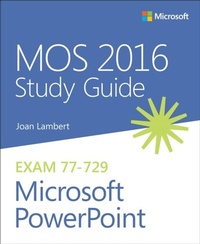
MOS 2016 Study Guide for Microsoft PowerPoint
1st Edition
Published on 4. November 2016
176 pages
978-1-5093-0057-0 (ISBN)
Description

Advance your everyday proficiency with PowerPoint 2016.
And earn the credential that proves it!
Demonstrate your expertise with Microsoft PowerPoint! Designed to help you practice and prepare for Microsoft Office Specialist (MOS): PowerPoint 2016 certification, this official Study Guide delivers:
In-depth preparation for each MOS objective
Detailed procedures to help build the skills measured by the exam
Hands-on tasks to practice what you've learned
Practice files and sample solutions
Sharpen the skills measured by these objectives:
Create and manage presentations
Insert and format text, shapes, and images
Insert tables, charts, SmartArt, and media
Apply transitions and animations
Manage multiple presentations
About MOS
A Microsoft Office Specialist (MOS) certification validates your proficiency with Microsoft Office programs, demonstrating that you can meet globally recognized performance standards. Hands-on experience with the technology is required to successfully pass Microsoft Certification exams.
And earn the credential that proves it!
Demonstrate your expertise with Microsoft PowerPoint! Designed to help you practice and prepare for Microsoft Office Specialist (MOS): PowerPoint 2016 certification, this official Study Guide delivers:
In-depth preparation for each MOS objective
Detailed procedures to help build the skills measured by the exam
Hands-on tasks to practice what you've learned
Practice files and sample solutions
Sharpen the skills measured by these objectives:
Create and manage presentations
Insert and format text, shapes, and images
Insert tables, charts, SmartArt, and media
Apply transitions and animations
Manage multiple presentations
About MOS
A Microsoft Office Specialist (MOS) certification validates your proficiency with Microsoft Office programs, demonstrating that you can meet globally recognized performance standards. Hands-on experience with the technology is required to successfully pass Microsoft Certification exams.
More details
Series
Language
English
Place of publication
Boston
United States
Publishing group
Microsoft Press,U.S.
Target group
Professional and scholarly
ISBN-13
978-1-5093-0057-0 (9781509300570)
Copyright in bibliographic data and cover images is held by Nielsen Book Services Limited or by the publishers or by their respective licensors: all rights reserved.
Schweitzer Classification
Other editions
Additional editions
Joan Lambert
MOS 2016 Study Guide for Microsoft PowerPoint
Book
02/2017
Microsoft Press
€41.03
Shipment within 10-20 days
Persons
Joan Lambert has worked closely with Microsoft technologies since 1986, and in the training and certification industry since 1997. As President and CEO of Online Training Solutions, Inc. (OTSI), Joan guides the translation of technical information and requirements into useful, relevant, and measurable resources for people who are seeking certification of their computer skills or who simply want to know how to get things done efficiently.
Joan is the author or coauthor of more than four dozen books about Windows and Office (for Windows, Mac, and iPad), five generations of Microsoft Office Specialist certification study guides, video-based training courses for SharePoint and OneNote, QuickStudy guides for Windows and Office, and the GO! series book for Outlook 2016.
Blissfully based in America's Finest City, Joan is a Microsoft Certified Professional, Microsoft Office Specialist Master (for all versions of Office since Office 2003), Microsoft Certified Technology Specialist (for Windows and Windows Server), Microsoft Certified Technology Associate (for Windows), Microsoft Dynamics Specialist, and Microsoft Certified Trainer.
Joan is the author or coauthor of more than four dozen books about Windows and Office (for Windows, Mac, and iPad), five generations of Microsoft Office Specialist certification study guides, video-based training courses for SharePoint and OneNote, QuickStudy guides for Windows and Office, and the GO! series book for Outlook 2016.
Blissfully based in America's Finest City, Joan is a Microsoft Certified Professional, Microsoft Office Specialist Master (for all versions of Office since Office 2003), Microsoft Certified Technology Specialist (for Windows and Windows Server), Microsoft Certified Technology Associate (for Windows), Microsoft Dynamics Specialist, and Microsoft Certified Trainer.
Content
Introduction
Taking a Microsoft Office Specialist exam
Exam 77-729: Microsoft PowerPoint 2016
Objective group 1: Create and manage presentations
Objective 1.1: Create a presentation
Objective 1.2: Insert and format slides
Objective 1.3: Modify slides, handouts, and notes
Objective 1.4: Order and group slides
Objective 1.5: Change presentation options and views
Objective 1.6: Configure a presentation for print
Objective 1.7: Configure and present a slide show
Objective group 2: Insert and format text, shapes, and images
Objective 2.1: Insert and format text
Objective 2.2: Insert and format shapes and text boxes
Objective 2.3: Insert and format images
Objective 2.4: Order and group objects
Objective group 3: Insert tables, charts, SmartArt, and media
Objective 3.1: Insert and format tables
Objective 3.2: Insert and format charts
Objective 3.3: Insert and format SmartArt graphics
Objective 3.4: Insert and manage media
Objective group 4: Apply transitions and animations
Objective 4.1: Apply slide transitions
Objective 4.2: Animate slide content
Objective 4.3: Set timing for transitions and animations
Objective group 5: Manage multiple presentations
Objective 5.1: Merge content from multiple presentations
Objective 5.2: Finalize presentations
Index
About the author
Taking a Microsoft Office Specialist exam
Exam 77-729: Microsoft PowerPoint 2016
Objective group 1: Create and manage presentations
Objective 1.1: Create a presentation
Objective 1.2: Insert and format slides
Objective 1.3: Modify slides, handouts, and notes
Objective 1.4: Order and group slides
Objective 1.5: Change presentation options and views
Objective 1.6: Configure a presentation for print
Objective 1.7: Configure and present a slide show
Objective group 2: Insert and format text, shapes, and images
Objective 2.1: Insert and format text
Objective 2.2: Insert and format shapes and text boxes
Objective 2.3: Insert and format images
Objective 2.4: Order and group objects
Objective group 3: Insert tables, charts, SmartArt, and media
Objective 3.1: Insert and format tables
Objective 3.2: Insert and format charts
Objective 3.3: Insert and format SmartArt graphics
Objective 3.4: Insert and manage media
Objective group 4: Apply transitions and animations
Objective 4.1: Apply slide transitions
Objective 4.2: Animate slide content
Objective 4.3: Set timing for transitions and animations
Objective group 5: Manage multiple presentations
Objective 5.1: Merge content from multiple presentations
Objective 5.2: Finalize presentations
Index
About the author
