

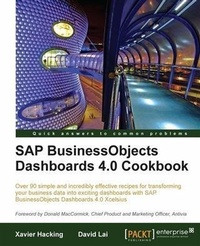
SAP BusinessObjects Dashboards 4.0 Cookbook
Over 90 simple and incredibly effective recipes for transforming your business data into exciting dashboards with SAP BusinessObjects Dashboards 4.0 Xcelsius
1st Edition
Published on 13. January 2025
352 pages
978-1-84968-179-7 (ISBN)
Description

Over 90 simple and incredibly effective recipes for transforming your business data into exciting dashboards with SAP BusinessObjects Dashboards 4.0 XcelsiusKey Features - Learn valuable Dashboard Design best practices and tips through easy to follow recipes
- Become skilled in using and configuring all Dashboard Design components
- Learn how to apply Dynamic Visibility to enhance your dashboards
- Get introduced to the most important add-ons available for Dashboard Design with the most up to date information for Dashboards 4.0
Book DescriptionXcelsius 2008 was recently included in SAP's BusinessObjects 4.0 family, rebranding "Xcelsius Enterprise" as "SAP BusinessObjects Dashboards 4.0". With features like flexible design and what-if scenarios, the powerful dashboarding software allows enterprises to make business decisions at a glance, and this book allows you to go far beyond the basics of these techniques. This cookbook full of practical and applicable recipes will enable you to use the full latest capabilities of Dashboard Design to visually transform your business data. A wide range of recipes will equip you with the knowledge and confidence to perform tasks like configuring charts, creating drill- downs, making component colors dynamic, using alerts in maps, building pop-up screens, setting up What-If scenarios, and many more.The recipes begin by covering best practices for using the Dashboard Design spreadsheet, the data-model, and the connection with the components on the canvas, later moving on to some from-the-trenches tricks for using Excel within Dashboard Design. The book then guides you through the exploration of various data visualization components and dashboard interactivity, as well as offering recipes on using alerts, dashboard connectivity, and making the most of the aesthetics of the dashboard. Finally, the recipes conclude by considering the most important add-ons available for Dashboard Design and enabling you to perform relevant and useful tasks straight away.What you will learn - Become fully equipped with best practices for using the Dashboard Design spreadsheet
- Present data using the wide variety of data visualization components
- Learn how to make dashboard components interactive for an enhanced user experience
- Take advantage of Dynamic Visibility features on the dashboard
- Master manipulating the look and feel of your dashboards
- Gain confidence in using alerts on charts and other components
- Get to grips with advanced Dashboard Design components like the Trend Analyzer, Fisheye Picture Menu, History Component, and the Canvas Component
- Optimize the user experience of the dashboard
- Connect your dashboard to live data sources
- Export and publish the Dashboard Design model into several environments.
- Learn about the most applicable add-ons available for your dashboard requirements.
- Master setting up alerts on charts, gauges, maps and scorecards
Who this book is forIf you are a developer with a good command and knowledge of creating dashboards, but are not yet an advanced Dashboard Design user, then this is the perfect book for you. You should have a good working knowledge of Microsoft Excel as well as knowledge of basic dashboard practices, though experience of Dashboard Design as a specific dashboard tool is not essential.
- Become skilled in using and configuring all Dashboard Design components
- Learn how to apply Dynamic Visibility to enhance your dashboards
- Get introduced to the most important add-ons available for Dashboard Design with the most up to date information for Dashboards 4.0
Book DescriptionXcelsius 2008 was recently included in SAP's BusinessObjects 4.0 family, rebranding "Xcelsius Enterprise" as "SAP BusinessObjects Dashboards 4.0". With features like flexible design and what-if scenarios, the powerful dashboarding software allows enterprises to make business decisions at a glance, and this book allows you to go far beyond the basics of these techniques. This cookbook full of practical and applicable recipes will enable you to use the full latest capabilities of Dashboard Design to visually transform your business data. A wide range of recipes will equip you with the knowledge and confidence to perform tasks like configuring charts, creating drill- downs, making component colors dynamic, using alerts in maps, building pop-up screens, setting up What-If scenarios, and many more.The recipes begin by covering best practices for using the Dashboard Design spreadsheet, the data-model, and the connection with the components on the canvas, later moving on to some from-the-trenches tricks for using Excel within Dashboard Design. The book then guides you through the exploration of various data visualization components and dashboard interactivity, as well as offering recipes on using alerts, dashboard connectivity, and making the most of the aesthetics of the dashboard. Finally, the recipes conclude by considering the most important add-ons available for Dashboard Design and enabling you to perform relevant and useful tasks straight away.What you will learn - Become fully equipped with best practices for using the Dashboard Design spreadsheet
- Present data using the wide variety of data visualization components
- Learn how to make dashboard components interactive for an enhanced user experience
- Take advantage of Dynamic Visibility features on the dashboard
- Master manipulating the look and feel of your dashboards
- Gain confidence in using alerts on charts and other components
- Get to grips with advanced Dashboard Design components like the Trend Analyzer, Fisheye Picture Menu, History Component, and the Canvas Component
- Optimize the user experience of the dashboard
- Connect your dashboard to live data sources
- Export and publish the Dashboard Design model into several environments.
- Learn about the most applicable add-ons available for your dashboard requirements.
- Master setting up alerts on charts, gauges, maps and scorecards
Who this book is forIf you are a developer with a good command and knowledge of creating dashboards, but are not yet an advanced Dashboard Design user, then this is the perfect book for you. You should have a good working knowledge of Microsoft Excel as well as knowledge of basic dashboard practices, though experience of Dashboard Design as a specific dashboard tool is not essential.
More details
Other editions
Additional editions
David Lai | Xavier Hacking
SAP Businessobjects Dashboards 4.0 Cookbook
Book
05/2011
Packt Publishing
€69.40
Shipment within 3-4 weeks
Content
- Intro
- SAP BusinessObjects Dashboards 4.0 Cookbook
- Table of Contents
- SAP BusinessObjects Dashboards 4.0 Cookbook
- Credits
- Foreword
- About the Authors
- Acknowledgement
- Acknowledgement
- About the Reviewers
- www.PacktPub.com
- Support files, eBooks, discount offers and more
- Why subscribe?
- Free access for Packt account holders
- Instant updates on new Packt books
- Preface
- What is SAP Business Objects Dashboards (formerly Xcelsius)?
- What this book covers
- What you need for this book
- Who this book is for
- Conventions
- Reader feedback
- Customer support
- Errata
- Piracy
- Questions
- 1. Staying in Control
- Introduction
- Making the spreadsheet more readable with colors
- Getting ready
- How to do it...
- How it works...
- There's more...
- Making the spreadsheet more readable with comments
- Getting ready
- How to do it...
- How it works...
- Making the spreadsheet more readable using borders
- Getting ready
- How to do it...
- There's more...
- Toolbar border button
- Use multiple worksheets
- Place your logic wisely
- Using named ranges
- How to do it...
- How it works...
- There is more...
- Defined named ranges
- Name Manager
- Selecting all worksheet cells with one click
- How to do it...
- How it works...
- There's more...
- Copying the formatting of one cell to another cell or range
- How to do it...
- How it works...
- There's more...
- Debugging your spreadsheets
- How to do it...
- How it works...
- There's more...
- Navigation between worksheets
- How to do it...
- How it works...
- Grouping the canvas components
- Getting ready
- How to do it...
- How it works...
- There's more...
- Hiding components
- Locking components
- 2. Data Visualization
- Introduction
- Adding a line chart to your dashboard
- Getting ready
- How to do it...
- How it works...
- There's more...
- Manually binding data
- Hide/show series
- Other charts: bar chart and column chart
- Other charts: area chart
- Other charts: stacked charts
- Using the bullet chart
- Getting ready
- How to do it...
- How it works...
- There is more...
- Using sparklines
- Getting ready
- How to do it...
- How it works...
- There's more...
- Header labels
- Show low and high values
- Using the combination chart
- Getting ready
- How to do it...
- How it works...
- There is more...
- Using the pie chart
- Getting ready
- How to do it...
- How it works...
- Using the XY chart
- Getting ready
- How to do it...
- How it works...
- Using the bubble chart
- Getting ready
- How to do it...
- How it works...
- Using the radar chart
- Getting ready
- How to do it...
- How it works...
- There is more...
- Using the OHLC chart and candlestick chart
- Getting ready
- How to do it...
- How it works...
- Sorting series
- Getting ready
- How to do it...
- How it works...
- There is more...
- Zooming in on charts
- Getting ready
- How to do it...
- How it works...
- Scaling the y-axis
- Getting ready
- How to do it...
- How it works...
- There is more...
- Variable maximum limits
- Allow Zoom Out Only
- Using the tree map
- Getting ready
- How to do it...
- How it works...
- Showing a trend without a chart
- Getting ready
- How to do it...
- How it works
- Displaying raw data
- Getting ready
- How to do it...
- How it works...
- Illustrating single values
- Getting ready
- How to do it...
- How it works...
- There is more...
- Scaling
- 3. From a Static to an Interactive Dashboard
- Introduction
- Drilling down from a chart
- Getting ready
- How to do it...
- How it works...
- There's more...
- Selecting your data from a list
- Getting ready
- How to do it...
- How it works...
- There's more...
- See also
- Using the Filter Selector component for hierarchies
- Getting ready
- How to do it...
- How it works...
- There's more...
- Alternative hierarchy selection method
- Getting ready
- How to do it...
- How it works...
- See also
- Using Filtered Rows
- How to do it...
- How it works...
- Using maps to select data of an area or country
- How to do it...
- How it works...
- There's more...
- Adding a MacOSX loading dock to your dashboard
- How to do it...
- How it works...
- There's more...
- Resetting your data (reset button)
- How to do it...
- How it works...
- Making selections from a custom image (push button and image component)
- How to do it...
- How it works...
- See Also
- Inputting data values
- Getting ready
- How to do it...
- How it works...
- See also
- Using Play Selector/Play Control
- Getting ready
- How to do it...
- How it works...
- See also
- Opening up a Web Intelligence report using dashboard parameters
- Getting ready
- How to do it...
- How it works...
- There's more...
- See also
- Selecting calendar dates
- Getting ready
- How to do it...
- How it works...
- See also
- Using sliders to create a what-if scenario
- Getting ready
- How to do it...
- How it works...
- See also
- 4. Dynamic Visibility
- Introduction
- Switching between different charts
- Getting ready
- How to do it...
- How it works...
- There's more...
- Other components
- Status values
- Building a pop-up screen
- Getting ready
- How to do it...
- How it works...
- There's more...
- Creating a mouse-over help text pop-up
- Getting ready
- How to do it...
- How it works
- Password protecting your dashboard
- Getting ready
- How to do it...
- How it works...
- 5. Using Alerts
- Introduction
- Adding alerts to a column chart
- Getting ready
- How to do it...
- How it works...
- See also
- There's more...
- Using alerts in a gauge
- Getting ready
- How to do it...
- How it works...
- Making alert ranges dynamic
- Getting ready
- How to do it...
- How it works...
- There's more...
- See Also
- Displaying alerts on a map
- Getting ready
- How to do it...
- How it works...
- There's more...
- See also
- Displaying alerts of different thresholds on a map
- Getting ready
- How to do it...
- How it works...
- See also
- Using bindable colors to control alert coloring from a central location
- Getting ready
- How to do it...
- How it works...
- See also
- Using alerts in a scorecard
- Getting ready
- How to do it...
- How it works...
- See also
- 6. Advanced Components
- Introduction
- Printing your dashboard
- Getting ready
- How to do it...
- How it works...
- Grouping and organizing components with the canvas container
- Getting ready
- How to do it...
- How it works...
- Using dashboard scenarios
- Getting ready
- How to do it...
- How it works...
- There is more...
- Using the grid component
- Getting ready
- How to do it...
- How it works...
- There is more...
- Creating a slide show
- Getting ready
- How to do it...
- How it works...
- There is more...
- Using the panel set component
- Getting ready
- How to do it...
- How it works...
- There is more...
- Linking to files instead of embedding
- Panel behavior
- Using the history component
- Getting ready
- How to do it...
- How it works...
- There's more...
- Data insertion with the Source data component
- Getting ready
- How to do it...
- How it works...
- Analyzing trends
- Getting ready
- How to do it...
- How it works...
- There is more...
- 7. Dashboard Look and Feel
- Introduction
- Changing the look of a chart
- Getting ready
- How to do it...
- How it works...
- See also
- Adding a background to your dashboard
- Getting ready
- How to do it...
- How it works...
- There's more...
- Using color schemes
- Getting ready
- How to do it...
- How it works...
- There's more...
- Sharing a color scheme
- Getting ready
- How to do it...
- How it works...
- Working with themes
- How to do it...
- How it works...
- Making component colors dynamic
- How to do it...
- How it works...
- There's more...
- Using the panel container
- How to do it...
- How it works...
- There's more...
- Using the tab set container
- How to do it...
- How it works...
- There's more...
- Making tables look pretty
- Getting ready
- How to do it...
- How it works...
- See Also
- Smart use of quadrants
- Getting ready
- How to do it...
- How it works...
- See Also
- 8. Dashboard Connectivity
- Introduction
- Creating a news ticker with Excel XML Maps
- Getting ready
- How to do it...
- How it works...
- There is more...
- Adding the Developer tab
- Usage tab
- Connection Refresh button
- Using Query as a WebService (QaaWS)
- Getting ready
- How to do it...
- How it works...
- There is more...
- Using prompts
- Methods
- Using Live Office connection
- Getting ready
- How to do it...
- How it works...
- There is more...
- Using prompts
- Connecting to SAP BW
- Getting ready
- How to do it...
- How it works...
- There is more...
- Using variables and filters
- Other Output Values
- Returned data format
- Using Universe queries
- Getting ready
- How to do it...
- How it works...
- There is more...
- Query Prompt Selector
- Query Refresh button
- Passing values from dashboard to dashboard with Flash Variables
- Getting ready
- How to do it...
- How it works...
- There is more...
- Using multiple variables
- Passing multiple values
- Accessing dashboards with live data outside of Infoview using CELogonToken
- Getting ready
- How to do it...
- How it works...
- How does Dashboard Design consume CELogonToken?
- CELogonToken at runtime
- Step-by-step code explanation
- 9. Exporting and Publishing
- Introduction
- Exporting to a standard SWF, PPT, PDF, and so on
- Getting ready
- How to do it...
- How it works...
- There's more...
- Exporting to SAP Business Objects Enterprise
- Getting ready
- How to do it...
- How it works...
- There's more...
- See Also
- Publishing to SAP BW
- Getting ready
- How to do it...
- How it works...
- There is more...
- Housing your dashboard in Dashboard Builder
- Getting ready
- How to do it...
- How it works...
- There's more...
- Creating Adobe Air Applets from Dashboard Design dashboard
- Getting ready
- How to do it...
- How it works...
- See also
- 10. Top Third-Party Add-ons
- Introduction
- Managing add-ons in Dashboard Design
- Getting ready
- How to do it...
- Connecting to CSV-files with the CSV-connector
- Getting ready
- How to do it...
- How it works...
- There is more...
- Calculations
- Exporting data to a CSV file
- Integrating Google Maps with the GMaps plugin
- Getting ready
- How to do it...
- How it works...
- There is more...
- More features
- XGlobe and XYahooMap
- Connecting to Salesforce.com with DashConn
- Getting ready
- How to do it...
- How it works...
- There is more...
- Salesforce.com Data Manager Connection
- Working Mode settings
- Transferring data between dashboards with Data Sharer
- Getting ready
- How to do it...
- How it works...
- Presenting micro charts in a tree grid
- Getting ready
- How to do it...
- How it works...
- There is more...
- Data grid
- More information
- Integrating Web Intelligence with Antivia XWIS
- Getting ready
- How to do it...
- How it works...
- There is more...
- Antivia Slice and Dice component
- Antivia Export component
- Alerts
- Antivia Timer component
- Taking the dashboard offline
- A. Real World Dashboard Case Studies
- What-if scenario: mortgage calculator
- Getting ready
- How to do it...
- How it works...
- Sales/profit dashboard example
- Getting ready
- How to do it...
- How it works...
- B. Additional Resources-Supported Excel Functions and System/Software Requirements
- Online resources
- Supported Excel functions
- System and software requirements
- Index
