

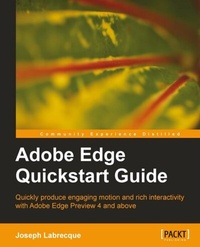
Adobe Edge Quickstart Guide
Quickly produce engaging motion and rich interactivity with Adobe Edge Preview 4 and above with this book and ebook
1st Edition
Published on 13. January 2025
136 pages
978-1-84969-331-8 (ISBN)
Description

Quickly produce engaging motion and rich interactivity with Adobe Edge Preview 4 and above with this book and ebookKey Features - Learn to use Adobe's newest application to create engaging motion and rich interactivity
- Familiarize yourself with the Edge interface and unleash your creativity through standard HTML, CSS, and JavaScript
- Add motion and interactivity to your websites using Web standards
- A quickstart guide for creating engaging content with Adobe Edge
Book DescriptionWith the advent of HTML5 and CSS3, web designers can now create sophisticated animations without the need of additional plugins such as Flash. However, there hasn't been an easy way for creating animations with web standards until now. This book enables even those with little knowledge of HTML or programming web content to freely create a variety of rich compositions involving motion and interactivity.Learning Adobe Edge will quickly get you up and running with this professional authoring software to create highly engaging content which targets HTML5, CSS, and JavaScript. Content created in Adobe Edge does not rely on a plugin ñ so it can be run within any standard browserñ even on mobile.Learning Adobe Edge begins with an overview of the shifting web landscape and the Edge application. We then move on through the variety of panels and toolsets available, and explore the many options we have when creating motion and interactivity using Edge.The book presents the reasoning behind engaging, standards-based web content and how Edge fills the need for professional tooling in this area. In the book we'll examine content creation and how to achieve fluid animation and advanced transitioning through the Edge timeline. Sprinkled throughout the book are tips and references for those coming to Edge from a background in Flash Professional. Whether you are coming to Edge from Flash Professional or are totally new to motion graphics on the web, Adobe Edge Quickstart Guide provides a solid foundation of motion and interactivity concepts and techniques along with a set of demo assets to build upon.What you will learn - Gain an understanding of the shifting Web landscape
- Effectively compare Adobe Edge to Adobe Flash Professional motion tools
- Become familiar with all elements of the Edge application interface
- Use the drawing tools in Edge to create and manipulate elements on the Stage
- Import rich graphics for use in Adobe Edge compositions
- Animate a range of elements with full transitioning through timeline keyframes
- Employ JavaScript to add interactivity to your project through Actions and Triggers
- Author a range of expressive compositions using nothing but web standards
Who this book is forIf you are interested in creating engaging motion and interactive compositions using web standards with professional tooling, then this book is for you. Those with a background in Flash Professional wanting to get started quickly with Adobe Edge will also find this book useful.
- Familiarize yourself with the Edge interface and unleash your creativity through standard HTML, CSS, and JavaScript
- Add motion and interactivity to your websites using Web standards
- A quickstart guide for creating engaging content with Adobe Edge
Book DescriptionWith the advent of HTML5 and CSS3, web designers can now create sophisticated animations without the need of additional plugins such as Flash. However, there hasn't been an easy way for creating animations with web standards until now. This book enables even those with little knowledge of HTML or programming web content to freely create a variety of rich compositions involving motion and interactivity.Learning Adobe Edge will quickly get you up and running with this professional authoring software to create highly engaging content which targets HTML5, CSS, and JavaScript. Content created in Adobe Edge does not rely on a plugin ñ so it can be run within any standard browserñ even on mobile.Learning Adobe Edge begins with an overview of the shifting web landscape and the Edge application. We then move on through the variety of panels and toolsets available, and explore the many options we have when creating motion and interactivity using Edge.The book presents the reasoning behind engaging, standards-based web content and how Edge fills the need for professional tooling in this area. In the book we'll examine content creation and how to achieve fluid animation and advanced transitioning through the Edge timeline. Sprinkled throughout the book are tips and references for those coming to Edge from a background in Flash Professional. Whether you are coming to Edge from Flash Professional or are totally new to motion graphics on the web, Adobe Edge Quickstart Guide provides a solid foundation of motion and interactivity concepts and techniques along with a set of demo assets to build upon.What you will learn - Gain an understanding of the shifting Web landscape
- Effectively compare Adobe Edge to Adobe Flash Professional motion tools
- Become familiar with all elements of the Edge application interface
- Use the drawing tools in Edge to create and manipulate elements on the Stage
- Import rich graphics for use in Adobe Edge compositions
- Animate a range of elements with full transitioning through timeline keyframes
- Employ JavaScript to add interactivity to your project through Actions and Triggers
- Author a range of expressive compositions using nothing but web standards
Who this book is forIf you are interested in creating engaging motion and interactive compositions using web standards with professional tooling, then this book is for you. Those with a background in Flash Professional wanting to get started quickly with Adobe Edge will also find this book useful.
All prices
More details
Other editions
Additional editions
Joseph Labrecque
Adobe Edge QuickStart Guide
Book
03/2012
Packt Publishing
€38.80
Shipment within 3-4 weeks
Person
Labrecque Joseph :
Joseph Labrecque is a creative developer, designer, and educator with nearly two decades of experience creating expressive web, desktop, and mobile solutions. He joined the University of Colorado Boulder College of Media, Communication and Information as faculty with the Department of Advertising, Public Relations and Media Design in Autumn 2019. His teaching focuses on creative software, digital workflows, user interaction, and design principles and concepts. Before joining the faculty at CU Boulder, he was associated with the University of Denver as adjunct faculty and as a senior interactive software engineer, user interface developer, and digital media designer. Labrecque has authored a number of books and video course publications on design and development technologies, tools, and concepts through publishers which include LinkedIn Learning, Apress, Peachpit, Packt, and Adobe. He has spoken at large design and technology conferences such as Adobe MAX and for a variety of smaller creative communities. He is also the founder of Fractured Vision Media, LLC; a digital media production studio and distribution vehicle for a variety of creative works. Joseph is an Adobe Education Leader, Adobe Community Expert, and member of Adobe Partners by Design. He holds a bachelor's degree in communication from Worcester State University and a master's degree in digital media studies from the University of Denver.
Joseph Labrecque is a creative developer, designer, and educator with nearly two decades of experience creating expressive web, desktop, and mobile solutions. He joined the University of Colorado Boulder College of Media, Communication and Information as faculty with the Department of Advertising, Public Relations and Media Design in Autumn 2019. His teaching focuses on creative software, digital workflows, user interaction, and design principles and concepts. Before joining the faculty at CU Boulder, he was associated with the University of Denver as adjunct faculty and as a senior interactive software engineer, user interface developer, and digital media designer. Labrecque has authored a number of books and video course publications on design and development technologies, tools, and concepts through publishers which include LinkedIn Learning, Apress, Peachpit, Packt, and Adobe. He has spoken at large design and technology conferences such as Adobe MAX and for a variety of smaller creative communities. He is also the founder of Fractured Vision Media, LLC; a digital media production studio and distribution vehicle for a variety of creative works. Joseph is an Adobe Education Leader, Adobe Community Expert, and member of Adobe Partners by Design. He holds a bachelor's degree in communication from Worcester State University and a master's degree in digital media studies from the University of Denver.
Content
- Intro
- Adobe Edge Quickstart Guide
- Table of Contents
- Adobe Edge Quickstart Guide
- Credits
- About the Author
- About the Reviewer
- www.PacktPub.com
- Support files, eBooks, discount offers and more
- Why Subscribe?
- Free Access for Packt account holders
- Preface
- What this book covers
- What you need for this book
- Who this book is for
- Conventions
- Reader feedback
- Customer support
- Downloading the example code
- Errata
- Piracy
- Questions
- 1. Introduction to Adobe Edge
- Why we need Adobe Edge
- Flash Player restrictions
- The relationship between Adobe Edge and Adobe Flash Professional
- Comparisons with Adobe Flash Professional
- Stage
- Timeline
- Keyframes
- Symbols
- Library
- Actions
- HTML technology maturity
- Mobile deployment
- What Adobe Edge can be used for
- Web animation
- Interactive content
- The history of Adobe Edge
- The inner workings of Edge
- HTML, CSS, and JavaScript
- HTML
- CSS
- JavaScript
- How jQuery is used in Edge
- JSON
- The Adobe Edge Runtime
- Getting started
- Installing Adobe Edge
- The Adobe Edge welcome screen
- Creating a new Edge Project
- Save
- Save As.
- Edge project file structure
- Summary
- 2. The Edge Application Interface
- Application interface overview
- The application window
- Customizing the Edge panel layout
- Managing workspaces
- The Edge menu system
- File
- Edit
- View
- Modify
- Timeline
- Window
- Help
- The Edge Toolbar
- Selection tool
- Transform tool
- Rectangle tool
- Rounded Rectangle tool
- Text tool
- Background Color and Border Color
- The Stage
- The Edge Timeline
- Panels in Edge
- Elements panel
- Library panel
- Properties panel
- Actions panel
- Summary
- 3. Working with Edge Tools and Managing Assets
- Using the drawing tools
- The Rectangle tool
- Using the Rectangle tool
- The Rounded Rectangle tool
- Using the Rounded Rectangle tool
- The Text tool
- Using the Text tool
- Using web fonts
- The Selection and Transform tools
- Using the Selection tool
- Properties shared by all element types
- ID
- Tag
- Element Display
- Location
- Size
- Opacity
- Transform Origin
- Rotate
- Skew
- Scale
- Clip
- Properties unique to rectangle elements
- Overflow
- Background Color
- Border Color
- Border Thickness
- Border Style
- Border Radius
- Properties unique to text elements
- Font Name
- Font Size
- Font Size Units
- Text Color
- Bold
- Italic
- Underline
- Align Left
- Align Center
- Align Right
- Properties unique to image elements
- Source
- Position
- Properties unique to symbol elements
- Playback Actions
- Scrub
- Properties available with the Stage
- Composition ID
- Document Title
- Overflow
- Autoplay
- Background Color
- Width
- Height
- Color tools
- Importing external assets
- What is SVG?
- Importing SVG images
- What is a bitmap?
- Importing bitmap Images
- Working with imported assets
- Converting assets into symbols
- Create a Symbol
- Summary
- 4. Creating Motion with Edge
- Animation within Edge
- The Edge Timeline
- Playback controls
- Time
- Search
- Timeline options
- Timeline controls
- The Playhead
- The Mark
- Zoom controls
- Keyframes
- Creating motion
- Animating with the Playhead
- Animating with the Mark
- Editing Transition
- Duration
- Delay
- End
- Easing
- Example: Animating a website header
- Project setup, asset import, and general layout
- Animating elements
- Animating the background
- Animating the cover art (do this for each cover art image)
- Animating the title text
- Summary
- 5. Adding Interactivity to an Edge Composition
- Working with Actions
- The Timeline Actions layer
- Working with Triggers
- Working with Labels
- Applying Actions to the Stage
- Applying Actions to individual elements
- Overview: The Adobe Edge Runtime APIs
- Document Object Model events
- Mouse events
- Touch events
- Virtual mouse events
- Timeline events
- Example: Adding interactivity to a website header
- Creating the Text element
- Adding interactivity to the Title
- Adding interactivity to the album art
- Completing the final website header composition
- Summary
- 6. Additional Resources
- Using an Edge composition within an existing website
- Online resources
- About the forthcoming book: Learning Adobe Edge
- Learning Adobe Edge
- Robust motion and interactivity through web standards
- What you will learn
- Index

