

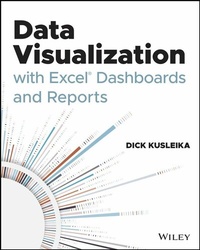
Data Visualization with Excel Dashboards and Reports
Description

Most Excel books do a nice job discussing the individual functions and tools that can be used to create an "Excel Report". Titles on Excel charts, Excel pivot tables, and other books that focus on "Tips and Tricks" are useful in their own right; however they don't hit the mark for most data analysts. The primary reason these titles miss the mark is they are too focused on the mechanical aspects of building a chart, creating a pivot table, or other functionality. They don't offer these topics in the broader picture by showing how to present and report data in the most effective way.
What are the most meaningful ways to show trending? How do you show relationships in data? When is showing variances more valuable than showing actual data values? How do you deal with outliers? How do you bucket data in the most meaningful way? How do you show impossible amounts of data without inundating your audience? In Data Visualization with Excel Reports and Dashboards, readers will get answers to all of these questions. Part technical manual, part analytical guidebook; this title will help Excel users go from reporting data with simple tables full of dull numbers, to creating hi-impact reports and dashboards that will wow management both visually and substantively. This book offers a comprehensive review of a wide array of technical and analytical concepts that will help users create meaningful reports and dashboards.
After reading this book, the reader will be able to:
* Analyze large amounts of data and report their data in a meaningful way
* Get better visibility into data from different perspectives
* Quickly slice data into various views on the fly
* Automate redundant reporting and analyses
* Create impressive dashboards and What-If analyses
* Understand the fundamentals of effective visualization
* Visualize performance comparisons
* Visualize changes and trends over time
More details
Other editions
Additional editions
Person
DICK KUSLEIKA is a 12-year Microsoft Excel MVP and the principal contributor at the Daily Dose of Excel Blog.
Content
Introduction xxi
Part I Display Data on a Dashboard 1
Chapter 1 Dashboard Basics 3
Determining When to Use a Dashboard 3
What Is a Dashboard? 5
Key Performance Indicators 6
Establishing User Requirements 6
Types of End Users 7
Assembling the Data 8
PivotTables 8
The GETPIVOTDATA Worksheet Function 13
Worksheet Functions 14
The VLOOKUP Function 14
The XLOOKUP Function 15
The INDEX and MATCH Functions 16
The SUMPRODUCT Function 17
Array Formulas 19
Tables 20
Structured Table Referencing 23
Text to Columns 24
Removing Duplicates 26
Building the Dashboard 28
Organizing Elements 28
Varying Elements 30
Showing Trends 31
Formatting the Dashboard 33
Number Formats 36
Chapter 2 Dashboard Case Studies 39
Monitoring Progress 39
Case Study: Monitoring a Software Project 40
Planning and Layout 40
Collecting the Data 42
Building the Visual Elements 43
Laying Out the Dashboard 54
Displaying Key Performance Indicators 55
Case Study: Human Resources KPIs 55
Planning and Layout 56
Collecting the Data 57
Building the Visual Elements 58
Laying Out the Dashboard 69
Reporting Financial Information 72
Case Study: Financial Information and Ratios 72
Planning and Layout 72
Collecting the Data 73
Building the Visual Elements 75
Laying Out the Dashboard 83
Chapter 3 Organizing Data for Dashboards 87
Separating Data Layers 87
Source Data Layer 89
Staging and Analysis Layer 90
Presentation Layer 91
Working with External Data 92
Power Query vs. Power Pivot 92
Text Files 92
Excel Files 98
Access Databases 105
SQL Server Databases 111
Transforming Data in Power Query 114
Managing Columns and Rows 116
Transforming Columns 119
Transforming Data Types 119
Transforming Numbers 121
Splitting Columns 123
Part II Visualization Primer 127
Chapter 4 The Fundamentals of Eff ective Visualization 129
Creating an Effective Visualization 129
Keep It to a Single Screen 130
Make It Attractive 131
Tell the Story Quickly 131
Make the Story Consistent with the Data 133
Choose the Proper Chart 135
Driving Meaning with Color 137
How to Use Color 137
Varying Color as Data Values Vary 137
Using Sharp Contrast to Highlight Data 138
Grouping Data with Color 139
Tips on Color Use 140
Use White Space 140
Use a Simple Color Pallet 141
Use Colors That Are Consistent with the Data 141
Use Enough Contrast 141
Use Non-data Pixels When Necessary 142
Focusing Attention on Text 142
Fonts 142
Legends 143
Axes 144
Data Labels 145
Showing Insights with Charts 146
Comparisons 146
Compositions 147
Relationships 149
Chapter 5 Non-chart Visualizations 151
Understanding Custom Number Formats 151
The Four Sections of a Format 152
Special Characters 153
Digit Placeholders 153
Commas and Periods 154
Text 154
Underscore 155
Asterisk 156
Escaping Special Characters 156
The Accounting Number Format 156
Date and Time Formats 158
Conditional Custom Number Formats 159
Using Icons 160
Color Scales 160
Data Bars 165
Icon Sets 167
Creating Sparklines 170
Types of Sparklines 170
Creating a Sparkline 171
Sparkline Groups 172
Customize a Sparkline 172
Changing the Source Data 173
Changing the Color and Thickness 174
Adjusting the Axis 175
Chapter 6 Using Shapes to Create Infographics 179
Working with Shapes 179
Inserting Shapes 180
Customizing Shapes 182
Framing Data with Shapes 185
Creating a Banner 186
Creating a Binder Tab 188
Working with Multiple Shapes 191
Creating Simple Charts with Shapes 193
Creating Custom Infographics 195
Adding Other Illustrations 196
Part III Tell a Story with Visualization 203
Chapter 7 Visualizing Performance Comparisons 205
Single Measurements 206
Column Charts 207
Case Study: Sales by Quarter 210
Bullet Charts 212
Case Study: Expenses vs. Budget 212
Clustered Column Charts 216
Case Study: Production Defects 217
Funnel Charts 218
Case Study: Sales Conversion 219
XY Charts 221
Case Study: Temperature vs. Sales 222
Bubble Charts 225
Case Study: Home Mortgages 226
Dot Plot Charts 228
Case Study: Production Output 229
Chapter 8 Visualizing Parts of a Whole 239
Pie Charts 239
Doughnut Charts 241
Case Study: Sales by Region 242
Waffle Charts 244
Case Study: Employee Participation by Benefit 245
Sunburst Charts 249
Case Study: Manufacturing Process Time Study 250
Histograms 252
Case Study: Restaurant Ticket Totals 254
Treemap Charts 256
Case Study: Insurance Policy Averages 257
Waterfall Charts 259
Case Study: Net Income 261
Chapter 9 Visualizing Changes Over Time 265
Line Charts 266
Case Study: Sales by Product Category 268
Column Charts with Variances 273
Case Study: Houses Sold by Month 274
Combination Charts 280
Case Study: Freight Revenue vs. Miles 281
Line Charts with Differences 284
Case Study: Current vs. Prior Quarter Revenue 285
Side-by-Side Box Plots 288
Case Study: Salaries by Department 290
Animated Charts 292
PivotCharts 293
Staging Area Formulas 295
Chart Animation Macros 299
Chart Automation 302
Manipulating Chart Objects 302
Creating Panel Charts 307
Index 317
CHAPTER 1
Dashboard Basics
In This Chapter
- Determining When to Use a Dashboard
- Establishing User Requirements
- Assembling the Data
- Building the Dashboard
- Formatting the Dashboard
Dashboards have never been more popular. We have more data available to us all the time and better visualization tools than ever before. At its core, a dashboard is a collection of charts. But it's much more than that. If you put some charts on a page, you would technically have a dashboard, but perhaps not a very good one. Creating a good dashboard takes some preparation, knowledge, and skill. In this chapter, I introduce you to dashboards and the concepts, skills, and best practices you'll need to create them.
Determining When to Use a Dashboard
Dashboards are used to present data. Data can be thought to be at various stages: raw, aggregated, analyzed, and presented. The stage your data is in depends on where it comes from and what you plan to do with it. There are many levels of aggregation and an infinite number of ways to analyze or present data. For example, an invoice is an aggregation of invoice lines and a sales report is an aggregation of invoices. Relative to an invoice, the invoice lines are raw data but relative to the sales report, the invoices are the raw data. Figure 1.1 shows data in its various stages.
Figure 1.1: Data shown raw, aggregated, and analyzed and presented
Raw data is data that hasn't been processed. It can be transactions that come out of an accounting system, sales information from a point of sale, or readings from a measuring device like tank levels or temperatures. If you're starting with raw data, you will have to do some aggregating and possibly some analyzing before it's ready for a dashboard.
NOTE
A workbook containing the charts in the figures for this chapter is named Chapter1Figures.xls x and can be found on this book's companion website at www.wiley.com/go/datavizwithexcel/.
Aggregated data has been grouped and summarized in some way. A report of units produced by month sums the units produced each week or each day. And that may be a sum of units produced by shifts for a day. In many cases, dashboard builders start with aggregated data.
Dashboards tell a story about the underlying data. Analyzing data is determining what stories the data tells and which of those stories is worth telling. Analyzing is more than just drawing conclusions from the data. It's also understanding the nature of the data and what questions the data raises. It's common during data analysis to have to take a step back and aggregate the data in a different way.
Finally, there's the presentation stage, where dashboards live. The dashboard building process can start at any stage. If you get the source data from a data analyst, the story to tell may have already been determined and it's just a matter of presenting that story in an effective way. Conversely, if you start with raw data, you'll need to first aggregate and then analyze the data to make those determinations.
Dashboards are constantly evolving. At one time they were only static visuals telling one story. Now, dashboards include self-service business intelligence (BI) tools that either tell multiple stories or allow the users to find the meaning in the data themselves. With Microsoft's Power BI tool and its integration into Excel with Power Pivot and Power Query, self-service BI is becoming more mainstream and accessible.
CROSS-REFERENCE
Power Pivot, Power Query, and Power BI are introduced in Chapter 3, "Organizing Data for Dashboards."
What Is a Dashboard?
A dashboard is one or more visual elements that tell a story about related data. A report that aggregates data isn't a dashboard because it's not telling a story. That's typically called a report or table, although these terms are often used to mean the same thing. For our purposes, a dashboard must contain visual elements and not just a list of data.
The story is the most important aspect of a dashboard. It comes from analyzing the data to determine what's important about it. Key performance indicators (KPIs) are commonly displayed on dashboards. KPIs are ready-made stories for your dashboard to tell. I briefly discuss KPIs in the next section. A common pitfall in dashboard building is to start with a conclusion. The person requesting the dashboard may have an agenda or preconceived notion of what that data should say. But the data should drive the story, not the other way around. Try to reframe the conclusion as a question. If someone wants you to create a dashboard that shows that sales decreased because of bad weather, you can turn that into a question like "How does average daily temperature correlate with daily sales?" or "How much do we sell on rainy days vs. sunny days?"
The underlying data on a dashboard is related, but how it's related depends on who's looking at it. A member of the Human Resources department's dashboard might use data related to employee retention like hiring rate, firing rate, layoffs, voluntary terminations, and retirements. The human resources manager may have a dashboard that's a level above, such as more aggregated employee retention data along with payroll costs and benefit engagement. The person in charge of all administration in a company would look at human resources data next to finance, accounting, and legal data. At the top level of a company, data from administration, operations, and research and development is related.
Key Performance Indicators
How KPIs are determined and what makes a good one is well beyond the scope of this book. An organization's leaders will develop KPIs based on what they know about the organization. If you're running a for-profit business, net income is an important measurement and you don't have to analyze the data to know that it's something you'll want to look at. KPIs are unique to each organization, but similar organizations will have similar KPIs. Finance departments are interested in net income, free cash flow, and working capital. And manufacturers are interested in units produced and line utilization.
Establishing User Requirements
Don't start building a dashboard until you have a plan. Just like building a house, if you start without a plan, you may have to tear it down and start over. To make your plan, start by finding out what the end users need. There are at least three users you'll want to talk to before you begin: the person requesting the dashboard, the person providing the data, and the end user. All these users may be one person, and that person may even be you.
Get as much detail as you can from the person requesting the dashboard. If they have a general idea of what they want, now is the time to probe for details to get a clear picture. As I mentioned in the previous section, the requester might be starting with a conclusion in mind. Try to turn that conclusion into a question or series of questions so you're on the same page.
Questions about the source data are sometimes overlooked but shouldn't be. Find out where the data is coming from and if it's already been aggregated or analyzed. Depending on your project, you may want to try to get the data in as raw a form as possible in case you have to change direction once you get started. It's a lot easier to aggregate raw data in a different way but almost impossible to disaggregate it.
Determine if the data is coming from inside or outside of the organization, who maintains it, and how often it's updated. Financial data from an accounting system may only be available monthly or quarterly. Other types of data, like data from a point of sale, may be able to be queried in real time.
If you don't have the data you need, your dashboard project might turn into two projects: a data-collection project and a dashboard project. You may find that not only is the data not readily available, it doesn't exist at all. If the organization doesn't track defects from the production line, there may be no way to get historical data. In that case, you could set up a system to start tracking the data you need, which would delay how quickly a dashboard could be created. Having this conversation early in the project helps set the expectations of all the stakeholders.
Types of End Users
You can divide end users by how they intend to use the dashboard to get a better understanding of how to construct it. Monitors use dashboards to see the state of an organization or project at a given time. You use your car's dashboard to monitor speed, fuel levels, and trouble alerts. Deciders use dashboards to determine if they should take one action, another action, or no action at all. A production manager might use a dashboard of sales and line utilization data to determine if a third shift is necessary.
Planners are people at the highest levels of an organization that determine the direction of the organization. They are looking at broader trends, and the actions they take are more policy based. Planners might look at operating results by division to determine how to allocate resources for the next five years. Presenters use dashboards to present information. A dashboard presented at a shareholder meeting may be used to simply give shareholders information they...
