

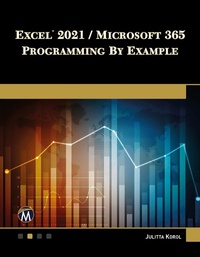
Excel 2021 / Microsoft 365 Programming By Example
1st Edition
Published on 21. December 2022
1072 pages
978-1-68392-885-0 (ISBN)
Description

Updated for Excel 2021 and based on the bestselling editions from previous versions, Excel 2021 / Microsoft 365 Programming by Example is a practical, how-to book on Excel programming, suitable for readers already proficient with the Excel user interface. If you are looking to automate Excel routine tasks, this book will progressively introduce you to programming concepts via numerous illustrated hands-on exercises. More advanced topics are demonstrated via custom projects.
From recording and editing a macro and writing VBA code from scratch to programming the Ribbon interface and working with XML documents, this book takes you on a programming journey that will change the way you work with Excel. The book provides information on performing automatic operations on files, folders, and other Microsoft Office applications. It also covers proper use of eventprocedures, testing and debugging, and guides you through programming more advanced Excel features, such as working with VBA classes and raising your own events in standalone class modules. Includes companion files with source code, hands-on projects, and figures.
FEATURES:
- Updated for Excel 2021 / Microsoft 365 and previous versions
- Includes 29 chapters and more than 275 applied examples and 10 projects
- Provides a practical coverage of using Web queries, HTML, XML, and VBScript
- Companion files with color screen captures, source code, and projects in the text
More details
Language
English
Place of publication
Berlin
United States
Target group
Professional and scholarly
US School Grade: College Graduate Student
File size
44,51 MB
ISBN-13
978-1-68392-885-0 (9781683928850)
Copyright in bibliographic data and cover images is held by Nielsen Book Services Limited or by the publishers or by their respective licensors: all rights reserved.
Schweitzer Classification
Other editions
Additional editions
Julitta Korol
Excel 2021 / Microsoft 365 Programming By Example
Book
12/2022
1st Edition
Mercury Learning & Information
€64.95
Article not available at the moment
Julitta Korol
Excel 2021 / Microsoft 365 Programming By Example
E-Book
12/2022
1st Edition
Mercury Learning and Information
€73.99
Available for download
Content
- Cover
- Title
- Copyright Page
- Contents
- Acknowledgments
- Introduction
- Part I Excel VBA Primer
- Chapter 1 Excel Macros: A Quick Start in Excel VBA Programming
- Macros and VBA
- Excel Macro-Enabled File Formats
- Macro Security Settings
- Enabling the Developer Tab in Excel
- Using the Built-In Macro Recorder
- Planning a Macro
- Recording a Macro
- Using Relative or Absolute References in Macros
- Editing Recorded Macros
- Macro Comments
- Cleaning Up the Macro Code
- Running a Macro
- Testing and Debugging a Macro
- Saving and Renaming a Macro
- Printing Macro Code
- Improving Your Recorded Macros
- Creating a Master Macro
- Various Methods of Running Macros
- Running the Macro Using a Keyboard Shortcut
- Running the Macro from the Quick Access Toolbar
- Running the Macro from a Worksheet Button
- Summary
- Chapter 2 Excel Programming Environment: A Quick Overview of its Tools and Features (VBE)
- Understanding the Project Explorer Window
- Understanding the Properties Window
- Understanding the Code Window
- Setting the VBE Options
- Syntax and Programming Assistance
- List Properties/Methods
- List Constants
- Parameter Info
- Quick Info
- Complete Word
- Indent/Outdent
- Comment Block/Uncomment Block
- Using the Object Browser
- Locating Procedures with the Object Browser
- Using the VBA Object Library
- Using the Immediate Window
- Obtaining Information in the Immediate Window
- Working with Worksheet Cells and Ranges
- Using the Range Property
- Using the Cells Property
- Using the Offset Property
- Using the Resize Property
- Using the End Property
- Moving, Copying, and Deleting Cells
- Working with Rows and Columns
- Obtaining Information about the Worksheet
- Entering Data and Formatting Cells
- Returning Information Entered in a Worksheet
- Finding Out about Cell Formatting
- Working with Workbooks and Worksheets
- Working with Windows
- Working with the Excel Application
- Summary
- Chapter 3 Excel VBA Fundamentals: A Quick Reference to Writing VBA Code
- Excel Objects, Properties, and Methods
- Microsoft Excel Object Model
- Writing Simple and Complex VBA Statements
- Breaking Up Long VBA Statements
- Saving Results of VBA Statements
- Introducing Data Types
- Using Variables
- How to Create Variables
- How to Declare Variables
- Specifying the Data Type of a Variabl
- Assigning Values to Variables
- Forcing Declaration of Variables
- Understanding the Scope of Variables
- Procedure-Level (Local) Variables
- Module-Level Variables
- Project-Level Variables
- Lifetime of Variables
- Finding a Variable Definition
- Determining a Data Type of a Variable
- Using Constants
- Built-In Constants
- Converting between Data Types
- Using Static Variables in VBA Procedures
- Using Object Variables in VBA Procedures
- Using Specific Object Variables
- Summary
- Chapter 4 Excel VBA Procedures: A Quick Guide to Writing Function Procedures
- Understanding Function Procedures
- Creating a Function Procedure
- Various Methods of Running Function ProceduresVarious Methods of Running Function Procedures
- Running a Function Procedure from a Worksheet
- Running a Function Procedure from Another VBA Procedure
- Ensuring Availability of Your Custom Functions
- Passing Arguments to Function Procedures
- Specifying Argument Types
- Passing Arguments by Reference and Value
- Using Optional Arguments
- Testing a Function Procedure
- Locating Built-In Functions
- Getting to Know the MsgBox Function
- Returning Values from the MsgBox Function
- Getting to Know the InputBox Function
- Determining and Converting Data Types
- Using the InputBox Method
- Summary
- Chapter 5 Adding Decisions to Excel VBA Programs: A Quick Introduction to Conditional Statements
- Relational and Logical Operators
- Using If...Then Statement
- Using If...Then...Else Statement
- Using If...Then...ElseIf Statement
- Nested If.Then Statements
- Using the Select Case Statement
- Using Is with the Case Clause
- Specifying a Range of Values in a Case Clause
- Specifying Multiple Expressions in a Case Clause
- Writing a VBA Procedure with Multiple Condition
- Using Conditional Logic in Function Procedures
- Summary
- Chapter 6 Adding Repeating Actions to Excel VBA Programs: A Quick Introduction to Looping Statements
- Introducing Looping Statements
- Understanding Do...While and Do...Until Loops
- Avoiding Infinite Loops
- Executing a Procedure Line by Line
- Understanding While...Wend Loop
- Understanding For...Next Loop
- Understanding For...Each...Next Loop
- Exiting Loops Early
- Using a Do.While Statement
- Using Loops and Conditionals
- Summary
- Chapter 7 Storing Multiple Values in Excel VBA Programs: A Quick Introduction to Working with Arrays
- Understanding Arrays
- Declaring Arrays
- Array Upper and Lower Bounds
- Initializing and Filling an Array
- Filling an Array Using Individual Assignment Statements
- Filling an Array Using the Array Function
- Filling an Array Using For.Next Loop
- Using a One-Dimensional Array
- Using a Two-Dimensional Array
- Using a Dynamic Array
- Using Array Functions
- The Array Function
- The IsArray Function
- The Erase Function
- The LBound and UBound Functions
- Troubleshooting Errors in Arrays
- Using the ParamArray Keyword
- Data Entry with an Array
- Sorting an Array with Excel
- Summary
- Chapter 8 Keeping Track of Multiple Values in Excel VBA Programs: A Quick Introduction to Creating and Using Collections
- Working with Built-in Collections
- Creating Your Own Collection
- Adding Objects to a Custom Collection
- Determining the Number of Items in your Collection
- Accessing Items in a Collection
- Removing Items from a Collection
- Updating Items in a Collection
- Returning a Collection from a Function
- Using Custom and Built-in Collections Together
- Collections Versus Arrays
- Watching Execution of Your VBA Procedures
- Summary
- Chapter 9 Excel Tools for Testing and Debugging: A Quick Introduction to Testing VBA Programs
- Testing VBA Procedures
- Stopping a Procedure
- Using Breakpoints
- When to Use a Breakpoint
- Using the Immediate Window in Break Mode
- Using the Stop and Assert Statements
- Using the Watch Window
- Removing Watch Expressions
- Using Quick Watch
- Using the Locals Windows and the Call Stack Dialog Box
- Navigating with Bookmarks
- Trapping Errors
- Using the Err Object
- Setting Error Trapping Options in a VBA Project
- Stepping through VBA Procedures
- Stepping Over a Procedure and Running to Cursor
- Setting the Next Statement
- Showing the Next Statement
- Stopping and Resetting VBA Procedures
- Terminating a Procedure based on a Condition
- Summary
- Part II Manipulating Files and Folders with VBA
- Chapter 10 File and Folder Manipulation with VBA
- Manipulating Files and Folders
- Finding Out the Name of the Active Folder
- Changing the Name of a File or Folder
- Checking the Existence of a File or Folder
- Finding Out the Date and Time the File Was Modified
- Finding Out the Size of a File (the FileLen Function)
- Returning and Setting File Attributes (the GetAttr and SetAttr Functions)
- Changing the Default Folder or Drive (the ChDir and ChDrive Statements)
- Creating and Deleting Folders (the MkDir and RmDir Statements)
- Copying Fils (the FileCopy Statement)
- Deleting Files (the Kill Statement)
- Summary
- Chapter 11 File and Folder Manipulation with Windows Script Host (WSH)
- Referencing the Microsoft Scripting Runtime
- Finding Information about Files with WSH
- Methods and Properties of FileSystemObject
- Properties of the File Object
- Properties of the Folder Object
- Properties of the Drive Object
- Creating a Text File Using WSH
- Performing Other Operations with WSH
- Running Other Applications
- Obtaining Information about Windows
- Retrieving Information about the User, Domain, or Computer
- Creating Shortcuts
- Listing Shortcut Files
- Summary
- Chapter 12 Using Low- Level File Access
- File Access Types
- Working with Sequential Files
- Reading Data Stored in Sequential File
- Reading a File Line by Line
- Reading Characters from Sequential Files
- Reading Delimited Text Files
- Writing Data to Sequential Files
- Using Write # and Print # Statements
- Working with Random-Access Files
- Working with Binary Files
- Summary
- Part III Controlling Other Applications with VBA
- Chapter 13 Using Excel VBA to Interact with Other Applications
- Launching Applications Using the Shell Function
- Moving between Applications
- Controlling Another Application with the SendKeys Statement
- Using VBA to Work with Microsoft PowerShell
- Other Methods of Controlling Applications
- Understanding Automation
- Understanding Linking and Embedding
- COM and Automation
- Understanding Binding
- Late Binding
- Early Binding
- Establishing a Reference to a Type Library
- Creating Automation Objects
- Using the CreateObject Function
- Using the GetObject Function
- Opening an Existing Word Document
- Using the New Keyword
- Using Automation to Access Microsoft Outlook
- Summary
- Chapter 14 Using Excel with Microsoft Access
- Object Libraries
- Setting Up References to Object Libraries
- Connecting to Access
- Opening an Access Database
- Using Automation to Connect to an Access Database
- Using DAO to Connect to an Access Database
- Using ADO to Connect to an Access Database
- Performing Access Tasks from Excel
- Creating a New Access Database with DAO
- Opening an Access Form
- Opening an Access Report
- Creating a New Access Database with ADO
- Running a Select Query
- Running a Parameter Query
- Calling an Access Function
- Retrieving Access Data into an Excel Worksheet
- Retrieving Data with the GetRows Method
- Retrieving Data with the CopyFromRecordset Method
- Retrieving Data with the TransferSpreadsheet Method
- Using the OpenDatabase Method
- Creating a Text File from Access Data
- Creating a Query Table from Access Data
- Creating an Embedded Chart from Access Data
- Transferring the Excel Worksheet to an Access Database
- Linking an Excel Worksheet to an Access Database
- Importing an Excel Worksheet to an Access Database
- Placing Excel Data in an Access Table
- Summary
- Part IV Enhancing the User Experience
- Chapter 15 Event-Driven Programming
- Introduction to Event Procedures
- Writing Your First Event Procedure
- Enabling and Disabling Events
- Event Sequences
- Worksheet Events
- Worksheet_Activate()
- Worksheet_Deactivate()
- Worksheet_SelectionChange(ByVal Target As Range)
- Worksheet_Change(ByVal Target As Range)
- Worksheet_Calculate()
- Worksheet_BeforeDoubleClick (ByVal Target As Range, Cancel As Boolean)
- Worksheet_BeforeRightClick (ByVal Target As Range, Cancel As Boolean)
- Workbook Events
- Workbook_Activate()
- Workbook_Deactivate()
- Workbook_Open ()
- Workbook_BeforeSave(ByVal SaveAsUI As Boolean, Cancel As Boolean)
- Workbook_BeforePrint(Cancel As Boolean)
- Workbook_BeforeClose(Cancel As Boolean)
- Workbook_NewSheet(ByVal Sh As Object)
- Workbook_WindowActivate(ByVal Wn As Window)
- Workbook_WindowResize(ByVal Wn As Window)
- Pivottable Events
- Chart Events
- Writing Event Procedures for a Chart Located on a Chart Sheet
- Chart_Activate()
- Chart_Deactivate()
- Chart_Select(ByVal ElementID As Long, ByVal Arg1 As Long, ByVal Arg2 As Long)
- Chart_Calculate()
- Chart_BeforeRightClick()
- Chart_MouseDown(ByVal Button As Long, ByVal Shift As Long, ByVal x As Long, ByVal y As Long)
- Writing Event Procedures for Embedded Charts
- Events Recognized by the Application Object
- Query Table Events
- Other Excel Events
- OnTime Method
- OnKey Method
- Summary
- Chapter 16 Using Dialog Boxes
- Excel Dialog Boxes
- File Open and File Save As Dialog Boxes
- Filtering Files
- Selecting Files
- GetOpenFilename and GetSaveAsFilename Methods
- Using the GetOpenFilename Method
- Using the GetSaveAsFilename Method
- Summary
- Chapter 17 Creating Custom Forms
- Creating Forms
- Tools for Creating User Forms
- Default Toolbox Controls
- Placing Controls on a Form
- Setting Grid Options
- Sample Application: Info Survey
- Setting Up the Custom Form
- Inserting a New Form and Setting Up the Initial Properties
- Changing the Size of the Form
- Adding Buttons, Checkboxes, and Other Controls to a Form
- Changing Control Names and Properties
- Setting the Tab Order
- Preparing a Worksheet to Store Custom Form Data
- Displaying a Custom Form
- Understanding Form and Control Events
- Writing VBA Procedures to Respond to Form and Control Events
- Writing a Procedure to Initialize the Form
- Writing a Procedure to Populate the Listbox Control
- Writing a Procedure to Control Option Buttons
- Writing Procedures to Synchronize the Text Box with the Spin Button
- Writing a Procedure that Closes the User Form
- Transferring Form Data to the Worksheet
- Using the Info Survey Application
- UserForm: Modal versus Modeless
- Summary
- Chapter 18 Formatting Worksheets with VBA
- Performing Basic Formatting Tasks with VBA
- Formatting Numbers
- Formatting Text
- Formatting Dates
- Formatting Columns and Rows
- Formatting Headers and Footers
- Formatting Cell Appearance
- Removing Formatting from Cells and Ranges
- Performing Advanced Formatting Tasks with VBA
- Conditional Formatting Using VBA
- Conditional Formatting Rule Precedence
- Deleting Rules with VBA
- Using Data Bars
- Using Color Scales
- Using Icon Sets
- Formatting with Themes
- Formatting with Shapes
- Formatting with Sparklines
- Understanding Sparkline Groups
- Programming Sparklines with VBA
- Formatting with Styles
- Summary
- Chapter 19 Context Menu Programming and Ribbon Customizations
- Working with Context Menus
- Modifying a Built-In Context Menu
- Removing a Custom Item from a Context Menu
- Disabling and Hiding Items on a Context Menu
- Adding a Context Menu to a Command Button
- Finding a FaceID Value of an Image
- A Quick Overview of the Ribbon Interface
- Ribbon Programming with XML and VBA
- Creating the Ribbon Customization XML Markup
- Loading Ribbon Customizations
- Errors on Loading Ribbon Customizations
- Using Images in Ribbon Customizations
- About Tabs, Groups, and Controls
- Using Various Controls in Ribbon Customizations
- Creating Toggle Buttons
- Creating Split Buttons, Menus, and Submenus
- Creating Checkboxes
- Creating Edit Boxes
- Creating Combo Boxes and Drop-Downs
- Creating a Gallery Control
- Creating a Dialog Box Launcher
- Disabling a Control
- Repurposing a Built-In Control
- Refreshing the Ribbon
- The CommandBar Object and the Ribbon
- Tab Activation and Group Auto-Scaling
- Customizing the Backstage View
- Customizing the Quick Access Toolbar (QAT)
- Modifying Context Menus Using Ribbon Customizations
- Summary
- Chapter 20 Printing and Sending Email from Excel
- Controlling the Page Setup
- Controlling the Settings on the Page Layout Tab
- Controlling the Settings on the Margins Tab
- Controlling the Settings on the Header/Footer Tab
- Controlling the Settings on the Sheet Tab
- Retrieving Current Values from the Page Setup Dialog Box
- Previewing a Worksheet
- Changing the Active Printer
- Printing a Worksheet with VBA
- Disabling Printing and Print Previewing
- Using Printing Events
- Sending Email from Excel
- Sending Email Using the SendMail Method
- Sending Email Using the MsoEnvelope Object
- Sending Bulk Email from Excel via Outlook
- Summary
- Part V Excel Tools for Data Analysis
- Chapter 21 Using and Programming Excel Tables
- Understanding Excel Tables
- Creating a Table Using Built-in Commands
- Creating a Table Using VBA
- Understanding Column Headings in the Table
- Multiple Tables in a Worksheet
- Working with the Excel ListObject
- Filtering Data in Excel Tables Using AutoFilter
- Filtering Data in Excel Tables Using Slicers
- Deleting Worksheet Tables
- Summary
- Chapter 22 Programming PivotTables and PivotCharts
- Creating a PivotTable Report
- Removing PivotTable Detail Worksheets with VBA
- Creating a PivotTable Report with VBA
- Creating a PivotTable Report from an Access Database
- Using the CreatePivotTable Method of the PivotCache Object
- Formatting, Grouping, and Sorting a PivotTable Report
- Hiding Items in a PivotTable
- Adding Calculated Fields and Items to a PivotTable
- Creating a PivotChart Report Using VBA
- Understanding and Using Slicers
- Creating Slicers Manually
- Working with Slicers Using VBA
- Data Model Functionality and PivotTables
- Programmatic Access to the Data Model
- Summary
- Chapter 23 Getting and Transforming Data in Excel 2019
- Using the Get Data Button
- Understanding Power Queries
- Step 1: Get Data from an Excel Workbook
- Step 2: Adding, Renaming, and Moving a New Column
- Step 3: Loading Data from a Text File
- Step 4: Combining Data using Append Query
- Step 5: Data Cleanup
- Step 6: Shaping Data into Final Output
- Using the Advanced Editor
- Power Query vs Excel Formula Language and Excel VBA
- Learning about various M Language Functions
- Creating a Query from a Table
- The Get Data and VBA Support
- Additional Learning Resources for Using the Get Data Feature
- Summary
- Part VI Taking Charge of Programming Environment
- Chapter 24 Programming the Visual Basic Editor (VBE)
- The Visual Basic Editor Object Model
- Understanding the VBE Objects
- Accessing the VBA Project
- Finding Information about a VBA Project
- VBA Project Protection
- Working with Modules
- Listing All Modules in a Workbook
- Adding a Module to a Workbook
- Removing a Module
- Deleting All Code from a Module
- Deleting Empty Modules
- Copying (Exporting/Importing) a Module
- Copying (Exporting/Importing) All Modules
- Working with Procedures
- Listing All Procedures in All Modules
- Adding a Procedure
- Deleting a Procedure
- Creating an Event Procedure
- Working with UserForms
- Creating and Manipulating UserForms
- Copying UserForms Programmatically
- Working with References
- Understanding Early Binding and Late Binding
- Creating a List of References
- Adding a Reference
- Removing a Reference
- Checking for Broken References
- Working with Windows
- Working with VBE Menus and Toolbars
- Generating a Listing of VBE CommandBars and Controls
- Adding a CommandBar Button to the VBE
- Removing a CommandBar Button from the VBE
- Summary
- Chapter 25 Calling Windows API Functions from VBA
- Understanding the Windows API Library Files
- How to Declare a Windows API Function
- Passing Arguments to API Functions
- Understanding the API Data Types and Constants
- Integer
- Long
- String
- Structure
- Any
- Using Constants with Windows API Functions
- Excel 64-Bit and W indows API
- Accessing Windows API Documentation
- Using Windows API Functions in Excel
- Summary
- Part VII Advanced Concepts in Excel VBA
- Chapter 26 Creating Classes in VBA
- Important Terminology
- Creating and Using Custom Objects
- Member Variables in a Class Module
- Defining the Properties for the Class
- Writing Property Procedures
- Writing Class Methods
- Creating an Instance of a Class
- Creating a Custom Application
- Event Procedures in the Class Module
- Creating a Form for Data Collection
- Creating a Worksheet for Data Output
- Writing Code behind the UserForm
- Working with the Custom CEmployee Class
- Watching the Execution of Your Custom Application
- Summary
- Part VIII Working Together: VBA, HTML, XML, and the REST API
- Chapter 27 HTML Programming and Web Queries
- Creating Hyperlinks Using VBA
- Creating and Publishing HTML Files Using VBA
- Web Queries
- Creating and Running Web Queries with VBA
- Dynamic Web Queries
- Refreshing Data
- Summary
- Chapter 28 Using XML in Excel 2021
- What Is XML?
- Well-Formed XML Documents
- Validating XML Documents
- Editing and Viewing an XML Document
- Opening an XML Document in Excel
- Working with XML Maps
- Working with XML Tables
- Exporting an XML Table
- XML Export Precautions
- Validating XML Data
- Programming XML Maps
- Adding an XML Map to a Workbook
- Deleting Existing XML Maps
- Exporting and Importing Data via an XML Map
- Binding an XML Map to an XML Data Source
- Refreshing XML Tables from an XML Data Source
- Viewing the XML Schema
- Creating XML Schema Files
- Using XML Events
- The XML Document Object Model
- Working with XML Document Nodes
- Retrieving Information from Element Nodes
- XML via ADO
- Saving an ADO Recordset to Disk as XML
- Loading an ADO Recordset
- Saving an ADO Recordset into the DOMDocument60 Object
- Understanding Namespaces
- Understanding Open XML Files
- Manipulating Open XML Files with VBA
- Summary
- Chapter 29 Excel and API
- Introduction to a VBA Dictionary Object
- Accessing the VBA Dictionary
- Adding a Reference to the Microsoft Scripting Runtime Library
- Working with the Dictionary Object's Properties and Methods
- Dictionary versus Collection
- Introduction to Regular Expressions
- Character Matching in RegExp Patterns
- Quantifiers in RegExp Patterns
- Using the RegExp Object in VBA
- The RegExp Object Declaration
- The RegExp Object's Properties
- The RegExp Object's Methods
- Writing VBA procedures using the RegExp Object
- Introduction to the REST API
- Accessing REST APIs with VBA
- Methods and Properties of the XMLHTTPRequest Object
- Making a Basic GET Request
- The Overview of JSON
- Loading JSON Data into Excel
- Parsing JSON with Third-Party Libraries
- Summary
- Index
