

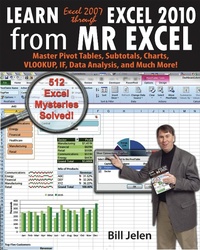
Learn Excel 2007 through Excel 2010 From MrExcel
Master Pivot Tables, Subtotals, Charts, VLOOKUP, IF, Data Analysis and Much More - 512 Excel Mysteries Solved
Published on 12. July 2011
866 pages
978-1-61547-204-8 (ISBN)
Description

Updating the previous edition's tips to make them compatible with Excel 2010, and featuring tips that are only available in Excel 2010, this new edition of Mr. Excel's popular software guide even incorporates suggestions sent in by readers. Each featured topic has a problem statement and description, followed by a broad strategy for solving the problem. Mr. Excel then walks readers through the specific steps to solve the issue. Alternate strategies are also provided, along with common "e;gotchas"e; that trip users up, leaving readers with not only answers to their specific dilemmas but also new and quicker ways to use formulas and spreadsheets.
More details
Other editions
Additional editions
Bill Jelen
Learn Excel 97-2010 from Mr Excel
Book
07/2011
3rd Edition
Holy Macro! Books
€61.48
Article exhausted; check different version
Content
- Front Cover
- Copyright
- Table of Contents
- Dedication
- About the Author
- Foreword
- The Excel Environment
- Find Icons on the Ribbon
- Seriously, I Really Can't Find This
- Where Are My Macros?
- What Happened to Tools, Options?
- Customizing the Ribbon
- Go Wide
- Minimize the Ribbon to Make Excel Feel a Bit More Like Excel 2003
- Use a Wheel Mouse to Scroll Through The Ribbon Tabs
- Why Do The Charting Ribbon Tabs Keep Disappearing?
- Use Dialog Launchers to Access the Excel 2003 Dialog
- Icon, Dropdowns, and Hybrids
- All Commands Start at the Top (Except for 2 Controls at the Bottom)
- Make Your Most-Used Icons Always Visible
- The Alt Keystrokes Still Work in 2010 (If You Type Them Slowly Enough)
- Use New Keyboard Shortcuts to Access the Ribbon
- Why Do I Have Only 65,536 Rows?
- Which File Format Should I Use?
- Share Files with People Who Are Still Using Excel 97 Through Excel 2003
- Why Does The File Menu Cover The Entire Screen?
- How Do I Close The File Menu?
- Increase the Number of Workbooks in the Recent Documents List
- I Just Want The Old Print Preview Back
- Change All Print Settings in Excel 2010
- Use Live Preview
- Get Quick Access to Formatting Options Using the Mini Toolbar
- What Is Protected Mode?
- Use a Trusted Location to Prevent Excel's Constant Warnings
- My Manager Wants Me to Create a New Expense Report from Scratch
- Open a Saved File Whose Name You Cannot Recall
- Open a Copy of a Workbook
- Excel'S Obsession with Security Has Hampered Linked Workbooks
- Use a Workspace to Remember What Workbooks to Open
- Open Excel with Ctrl+Alt+X
- Have Excel Always Open Certain Workbook(s)
- Set up Excel Icons to Open a Specific File on Startup
- Use a Macro to Customize Startup
- Control Settings for Every New Workbook and Worksheet
- Automatically Move the Cell Pointer in a Direction After Entering a Number
- Return to the First Column After Typing the Last Column
- Enter Data in a Circle (Or Any Pattern)
- How to See Headings as You Scroll Around a Report
- How to See Headings and Row Labels as You Scroll Around a Report
- I Navigate by Sliding the Scrollbar and Now the Slider Has Become Tiny
- Jump to the Edge of the Data
- Jump to Next Corner of Selection
- Zoom with the Wheel Mouse
- Copy a Formula to All Data Rows
- Copy the Characters from a Cell Instead of Copying an Entire Cell
- A Faster Way To Paste Special
- Hide the Paste Options in Excel 2007
- Quickly Turn a Range on Its Side
- Quickly Rearrange Rows Or Columns
- Copy Cells from One Worksheet to Many Other Worksheets
- Quickly Copy Worksheets
- Find Text Numbers
- Why Can't Excel Find a Number?
- Mix Formatting In A Single Cell
- Enter a Series of Months, Days, or More by Using the Fill Handle
- Have the Fill Handle Fill Your List of Part Numbers
- Teach Excel to Fill A, B, C
- Use Excel as a Word Processor
- Add Excel to Word
- Use Hyperlinks to Create an Opening Menu for a Workbook
- Arrange Windows to See Two or More Open Workbooks
- Compare Two Worksheets Side by Side
- Spell check a Region
- Stop Excel from AutoCorrecting Certain Words
- Use AutoCorrect to Enable a Shortcut
- Why Won't the Track Changes Feature Work in Excel?
- Translate with Excel
- I am a Lobbyist Writing Policy Papers for the White House
- How to Print Titles at the Top of Each Page
- Print a Letter at the Top of Page 1 and Repeat Headings at the Top of Each Subsequent Page
- How to Print Page Numbers at the Bottom of Each Page
- How to Make a Wide Report Fit to One Page Wide by Many Pages Tall
- Add a Printable Watermark
- Print Multiple Ranges
- Add a Page Break at Each Change in Customer
- Save My Worksheet as a PDF File
- Send an Excel File as an Attachment
- Save Excel Data as a Text File
- Use a Laser Printer to Have Excel Calculate Faster
- Close All Open Workbooks
- I Just Closed an Unsaved Workbook
- Roll Back to an AutoSaved Version
- Have Excel Talk to You
- Enter Special Symbols
- What Do All the Triangles Mean?
- Why does Excel Insert Cell Addresses When I Edit In a RefEdit Box?
- Beware of Excel Starter
- Edit your Excel Workbooks on the Web
- Collaborate in an Excel Workbook
- Embed Your Dashboard in a Blog Post
- Print all Excel Keyboard Shortcuts
- Get Free Excel Help
- CALCULATING WITH EXCEL
- Start a Formula with = or +
- Three Methods of Entering Formulas
- Use Parentheses to Control the Order of Calculations
- Long Formulas in the Formula Bar
- Copy a Formula That Contains Relative References
- Copy a Formula While Keeping One Reference Fixed
- Create a Multiplication Table
- Calculate a Sales Commission
- Simplify the Entry of Dollar Signs in Formulas
- Learn R1C1 Referencing to Understand Formula Copying
- Create Easier-to-Understand Formulas with Named Ranges
- Use Named Constants to Store Numbers
- Total Without Using a Formula
- Add or Multiply Two Columns Without Using Formulas
- Join Two Text Columns
- Join Text with a Date or Currency
- Sort on One Portion of an Account ID
- How to Isolate the Center Portion of an Account ID
- How to Isolate Everything Before a Dash in a Column by Using Functions
- How to Use Functions to Isolate Everything After a Dash in a Column
- How to Use Functions to Isolate Everything After the Second Dash in a Column
- How to Separate a Part Number into Three Columns
- Excel Is Randomly Parsing Pasted Data
- I Lose Leading Zeroes From CSV Files
- Open CSV File With Dates in D/M/Y Format
- Parse Data With Leader Lines
- Parse Multi-Line Cells
- Change Smith, Jane to Jane Smith
- Convert Numbers to Text
- Fill a Cell with Repeating Characters
- CLEAN Hasn't Kept Up With The Times
- Add the Worksheet Name as a Title
- Use AutoSum to Quickly Enter a Total Formula
- AutoSum Doesn't Always Predict My Data Correctly
- Use the AutoSum Button to Enter Averages, Min, Max, and Count
- Ditto The Formula Above
- The Count Option of the AutoSum Dropdown Doesn't Appear to Work
- Total the Red Cells
- Automatically Number a List of Employees
- Discover New Functions Using the fx Button
- Get Help on Any Function While Entering a Formula
- Yes, Formula Autocomplete Is Cool, if You Can Stop Entering the Opening Parentheses
- Use F9 in the Formula Bar to Test a Formula
- Quick Calculator
- When Entering a Formula, You Get the Formula Instead of the Result
- You Change a Cell in Excel but the Formulas Do Not Calculate
- Calculate One Range
- Why Use the Intersection Operator?
- Find the Longest Win Streak
- Add B5 On All Worksheets
- Consider Formula Speed
- Exact Formula Copy
- Calculate a Loan Payment
- Calculate Many Scenarios for Loan Payments
- Back into an Answer Using Goal Seek
- Create an Amortization Table
- Do 40 What-if Analyses Quickly
- What-If For 3 Or More Variables
- Rank Scores
- Rank a List Without Ties
- Sorting with a Formula
- Round Numbers
- Round to the Nearest $0.05 with MROUND
- Round Prices to the Next Highest $5
- Round 0.5 towards Even Per ASTM-E29
- Separate the Integer From the Decimals
- Why Is This Price Showing $27.85000001 Cents?
- Calculate a Percentage of Total
- Calculate a Running Percentage of Total
- Use the ^ Sign for Exponents
- Raise a Number to a Fraction to Find the Square or Third Root
- Calculate a Growth Rate
- Find the Area of a Circle
- Figure Out Lottery Probability
- Help Your Kids with Their Math
- Convert Units
- Match Web Colors with HEX2DEC
- Find the Second Largest Value
- Format Every Other Row in Green
- Use IF to Calculate a Bonus
- IF with Two Conditions
- Tiered Commission Plan with IF
- Display Up/Down Arrows
- Stop Showing Zeroes in Cell Links
- Calculate Sales Over Quota
- Count Records That Match a Criterion
- Build a Table That Will Count by Criteria
- Sum Records That Match a Criterion
- Can the Results of a Formula Be Used in SUMIF?
- Calculate Based on Multiple Conditions
- Avoid Errors Using IFERROR
- Multiple Conditions Using SUMPRODUCT
- Use VLOOKUP to Join Two Tables
- Every VLOOKUP Ends in False
- Lookup Table Does Not Have to Be Sorted
- Beware of #N/A from VLOOKUP
- Add New Items to the Middle Of Your Lookup Table
- Consider Naming the Lookup Table
- Remove Leading and Trailing Spaces
- Your Lookup Table Can Go Across
- Copy a VLOOKUP Across Many Columns
- INDEX Sounds Like AN Inane Function
- You Already Know MATCH, Really!
- INDEX Sounds Like an Inane Function - II
- VLOOKUP Left
- Fast Multi-Column VLOOKUP
- Return the Next Larger Value in a LOOKUP
- Two-Way Lookup
- Combine Formulas into a Mega-Formula
- Combine Two Lists Using VLOOKUP
- Watch for Duplicates When Using VLOOKUP
- Return the Last Entry
- Return the Last Matching Value
- Sum All of the LOOKUPs
- Embed a Small Lookup Table In Formula
- I Don't Want to Use a Lookup Table to Choose One of Five Choices
- Lookup Two Values
- Add Comments to a Formula
- Create Random Numbers
- Randomly Sequence a List
- Play Dice Games with Excel
- Generate Random Without Repeats
- Calculate a Moving Average
- Calculate a Trendline Forecast
- Build a Model to Predict Sales Based on Multiple Regression
- Measure the Accuracy of a Sales Forecast
- Switching Columns into Rows Using a Formula
- SUM a Range that is C5 Rows Tall
- Whatever Happened to the @@ Function?
- Tables Are Like a Database in Excel
- Dealing with Table Formulas
- Rename Your Tables
- Charts , VLOOKUP & Pivots Expand With The Table
- Before Deleting a Cell, Find out if Other Cells Rely on It
- Calculate a Formula in Slow Motion
- Which Cells Flow into This Cell?
- Color all Precedents or Dependents
- Monitor Distant Cells
- Use Real Dates
- How Can I Tell If Have Real Dates?
- Convert Text Dates to Real Dates
- Format Dates
- Format Dates As Quarters or Weeks
- Display Monthly Dates
- Add a Column to Show Month or Weekday
- Calculate First of Month
- Calculate the Last Day of the Month
- Calculate Invoice Due Dates
- Calculate Receivable Aging
- Now, OR Today?
- Find the Last Sunday Of the Month
- Calculate Work Days
- Calculate Age in Years, Months, Days
- Coerce an Array of Dates from 2 Dates
- Use Real Times
- Strangeness of TIme Formatting
- Convert Time to Decimal Hours
- Calculate with Time
- Enter Minutes and Seconds
- Convert Text to Time
- Can Excel Track Negative Time?
- Fill Blanks With Value Above
- WRANGLING DATA
- How to Set up Your Data for Easy Sorting and Subtotals
- How to Fit a Multiline Heading into One Cell
- No Tiny Blank Columns Between Columns
- How to Sort Data
- Sort Days of the Week
- Sort a Report into a Custom Sequence
- Sort All Red Cells to the Top of a Report
- Sort Pictures With Data
- Quickly Filter a List to Certain Records
- Use Search While Filtering
- Filter by Selection
- Use AutoSum After Filtering
- Filter Only Some Columns
- Find the Unique Values in a Column
- Use Advanced Filter
- Replace Multiple Filter Criteria with a Single Row of Formulas
- Add Subtotals to a Data set
- Use Group & Outline Buttons to Collapse Subtotaled Data
- Manually Apply Groups
- Copy Just Totals from Subtotaled Data
- Sort Largest Customers to the Top
- Select 100 Columns in Subtotals
- Enter a Grand Total of Data Manually Subtotaled
- Add Other Text to the Subtotal Lines
- Subtotals by Product Within Region
- Format the Subtotal Rows
- My Manager Wants a Blank Line After Each Subtotal
- Subtotal One Column and COUNT Another Column
- Can You Get Medians?
- Horizontal Subtotals
- Be Wary
- Send Error Reports
- Help Make Excel 2014 Better
- Remove Blank Rows from a Range
- Remove Blanks from a Range While Keeping the Original Sequence
- double Space Your Data Set
- Use Find to Find an Asterisk
- Use an Ampersand in a Header
- Hide Zeros & Other Custom Number Formatting Tricks
- Use Consolidation to Combine Two Lists
- Combine Four Quarterly Reports
- Find Total Sales by Customer by Combining Duplicates
- Remove Duplicates
- Protect Cells That Contain Formulas
- Find Differences In Two Lists
- Number Each Record for a Customer, Starting at 1 for a New Customer
- Add a Group Number to Each Set of Records That Has a Unique Customer Number
- Deal with Data in Which Each Record Takes Five Physical Rows
- Add a Customer Number to Each Detail Record
- Use a Built-in Data Entry Form
- Cell AutoComplete Stopped Working
- Use a Pivot Table to Summarize Detailed Data
- Your Manager Wants Your Report Changed
- Add or Remove Fields from an Existing Pivot Table
- Summarize Pivot Table Data by Three Measures
- Why Does the Pivot Table Field List Keep Disappearing?
- Move or Change Part of a Pivot Table
- See Detail Behind One Number in a Pivot Table
- Use Multiple Value Fields as a Column or Row Field
- Update Data Behind a Pivot Table
- Convert Your Data to a Table Before Adding Records
- Create a Flattened Pivot Table for Reuse
- Replace Blanks in a Pivot Table with Zeros
- Collapse and Expand Pivot Fields
- Specify a Number Format for a Pivot Table Field
- Preserve Column Widths
- Show Yes/No in a Pivot Table
- Format Pivot Tables with the Gallery
- None of the 46,273 Built-In Styles Do What My Manager Asks For
- Select Pivot Table Parts For Formatting
- Apply Conditional Formatting to a Pivot Table
- Can I Save Formatting in a Template?
- Manually Re-sequence the Order of Data in a Pivot Table
- Present a Pivot Table in High-to-Low Order by Revenue
- Group Daily Dates by Month in a Pivot Table
- Create a Year-Over-Year Report
- Group by Week in a Pivot Table
- Limit a Pivot Report to Show Just the Top 5 Customers
- Build a Better Top Five Using Groups
- Build a Better Top Five with A Filter Hack
- Why Aren't the Cool New Filters Available in My Pivot Table?
- Limit a Report to Just One Region
- Create an Ad-Hoc Reporting Tool
- Create a Report for Every Customer
- Create Pivot Charts
- Add Visual Filters to a Pivot Table
- Run Many Pivot Tables From one SLicer
- Group Employees Into Age Bands
- Create a Frequency Distribution
- Grouping 1 Pivot Table Groups Them All
- Reduce Size 50% Before Sending
- Drag Fields to the Pivot Table
- Why Can't Co-Workers with Excel 2003 Use My Pivot Table?
- Create a Report That Shows Count, Min, Max, Average, Etc.
- Better Calculations with Show Values As
- Pivot Ranks Don't Match RANK()
- Calculated Fields in a Pivot Table
- Add a Calculated Item to Group Items in a Pivot Table
- Group Text Fields to BUild Territories INstead of Using Calculated Items
- Calculations Outside of Pivot Tables
- Show Customer Account & Name
- Show Months with Zero Sales
- Create a Unique List of Customers with a Pivot Table
- Use a Pivot Table to Compare Two Lists
- Use a Pivot Table When There Is No Numeric Data
- Report Text in a Pivot Table
- Fix Misspelled Customer Names
- Create a Pivot Table from Access Data
- Whatever Happened to Multiple Consolidation Ranges in Pivot Tables?
- Five Reasons to Use PowerPivot
- Get the Correct Version of PowerPivot
- Get Excel Data Into PowerPivot
- Why Can't I Edit Data in PowerPivot?
- Import External Data to PowerPivot
- Define Relationships Between Tables
- Adding Calculations In PowerPivot
- Refer to a Related Table in a Formula
- Hide Fields in PowerPivot
- Missing the Point: Sorting & Filtering
- Pivot Table, Pivot Charts, Tables & Charts, Charts & Charts
- Using the PowerPivot Field List
- PowerPivot Arranges Your Slicers
- Month Names Don't Sort in PowerPivot
- Feature X Won't Work in PowerPivot
- Using Calculations Other Than Sum
- Replace Calculated Fields with DAX
- Calculate() is Like SUMIFS()
- Unapply a Filter Using DAX
- Unfilter Using Time Intelligence
- Using MAXX, MINX, and SUMX
- Convert PowerPivot to Formulas
- January Actuals and February Plan
- Web Queries Fail with Web 2.0
- Use Easy-XL for Data Wrangling
- MAKING THINGS LOOK GOOD
- Create a Chart with One Click
- Teach Excel Your Favorite Chart
- Move a Chart
- Copy a Chart Detached from the Data
- Add New Data to a Chart
- Begin Formatting The Chart on Design
- Continue Formatting with Layout
- Legend At the Top
- Display an Axis in Millions Using the Layout Tab's Built-in Menus
- Display an Axis in Trillions Using the More Options Choice
- Select Anything on a Chart to Format
- The Format Dialog Box Offers a New Trick
- Use Meaningful Chart Titles
- Avoid 3-D Chart Types
- Prevent the Drop to Zero
- Explode One Slice of the Pie
- Chart On a Coin
- Move Small Pie Slices To Second Chart
- Add a Trendline to a Chart
- See Detail on Large & Small Data Points
- Chart Two Series with Differing Orders of Magnitude
- Interactive Chart to SHow Next Customer
- Tie the Chart Title to a Cell
- Use an Invisible Series to Float COlumns
- Use Rogue Series for Shading
- Two Stacked, One Clustered Column
- Conditional Format a Chart
- Scatter Charts are Versatile But Require a Different Workflow
- When do I Use Which Chart Type?
- Create Tiny Charts with Sparklines
- Sparklines Are Not Scaled Together
- What is the Win Loss Sparkline For?
- Labeling Sparklines
- Shade the Normal Range in a Sparkline
- Convert a Table of Numbers to a Visualization
- Control Values for Each Icon
- Add Icons to Only the Good Cells
- Data Bars Options in Excel 2010
- Comparative Histogram
- Select Every Kid in Lake Wobegon
- Color All Sales Green for a Day if Total Sales Exceed $1,000
- There is a Font Optimized for Excel
- Show Checkmarks in Excel
- Use the Border Tab in Format Cells
- Double Underline a Grand Total
- Where Are My Excel 2003 Colors?
- Transform Black-and-White Spreadsheets to Color by Using a Table
- Fit a Slightly Too-Large Value in a Cell
- Turn Off Wrap Text in Pasted Data
- Delete All Pictures in Pasted Data
- Prevent Long Text from Spilling
- Show Two Values in a Split Cell
- For Each Cell in Column A, Have Three Rows in Column B
- Show Results as Fractions
- Better SCientific Notation
- Fill a Cell with Asterisks
- I type 152 and get 1.52
- Use Cell Styles to Change Formats
- Add Your Own Styles
- Share Styles Between Workbooks
- Move Columns by Sorting Left to Right
- Move Columns Using Insert Cut Cells
- Move Rows or Columns with Shift Drag
- Change the Width of All Columns with One Command
- Copy Column Widths to a New Range
- Copy Row Heights
- Use White Text to Hide Data
- Hide Values Using a Number Format
- Hide and Unhide Data
- Group Columns Instead of Hiding Them
- Hide Error Cells When Printing
- Unhide All Sheets
- Organize Your Worksheet Tabs with Color
- Copy Formatting to a New Range
- Copy Without Changing Borders
- Power Up Format Painter
- Fill FOrmatting
- Change All Red Font Cells to Blue Font
- Replace Partially Bold Cells
- Change the Look of Your Workbook with Document Themes
- Create Your Own Theme
- Change the Background of a Worksheet
- Add a Printable Background to a Worksheet
- Remove Hyperlinks Automatically Inserted by Excel
- Select a Hyperlink Cell Without Following the Hyperlink
- Pasted URLs Don't Become Hyperlinks
- Debug Using a Printed Spreadsheet
- Leave Helpful Notes with Cell Comments
- Change the Appearance of Cell Comments
- Control How Your Name Appears in Comments
- Force Certain Comments to Be Always Visible to Provide a Help System to Users of Your Spreadsheet
- Change the Comment Shape to a Star
- Add a Pop-up Picture of an Item in a Cell
- Add a Pop-up Picture to Multiple Cells
- Build Complex Reports Where Columns in Section 1 Don't Line Up with Section 2
- Paste a Live Picture of a Cell
- Add Formatting to Pictures in Excel
- Remove Picture Background
- Inserting a Screen Shot in Excel 2010
- Draw an Arrow to Visually Illustrate That Two Cells Are Connected
- Add Connectors to Join Shapes
- Circle a Cell on Your Worksheet
- Draw Perfect Circles
- Add Text to Any Closed Shape
- Place Cell Contents in a Shape
- Rotate a Shape
- Create Dozens of Lightning Bolts
- Make a Logo into a Shape
- Draw Business Diagrams with Excel
- Choose the Right Type of SmartArt
- Use the Text Pane to Build SmartArt
- Change a SmartArt Layout
- Format SmartArt
- Switch to the Format Tab to Format Individual Shapes
- Use Cell Values as the Source for SmartArt Content
- Add WordArt to a Worksheet
- Chart and SmartArt Text Is Automatically WordArt
- Use MapPoint to Plot Data on a Map
- Add a Dropdown to a Cell
- Configure Validation to "Ease up"
- Use Validation to Create Dependent Lists
- Add a ToolTip to a Cell to Guide the Person Using the Workbook
- Combine Validation with AutoComplete
- Afterword
- Index
- Back Cover
