

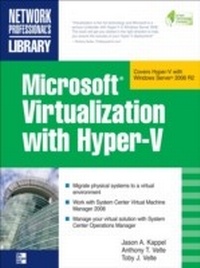
Microsoft Virtualization with Hyper-V
Manage Your Datacenter with Hyper-V, Virtual PC, Virtual Server, and Application Virtualization
1st Edition
Published on 30. July 2009
544 pages
978-0-07-161404-7 (ISBN)
Description

Implement a Hyper-V virtualization solutionMicrosoft Virtualization with Hyper-V shows you how to deploy Microsoft's next-generation hypervisor-based server virtualization technology in a corporate environment. Youll get step-by-step guidelines for getting Hyper-V up and running, followed by best practices for building a larger, fault-tolerant solution using System Center Virtual Machine Manager 2008. This hands-on guide explains how to migrate physical systems to the virtual environment, use System Center Operations Manager, and secure, back up, and restore your Hyper-V solution.Plan and implement a Hyper-V installationConfigure Hyper-V components Install and configure System Center Virtual Machine Manager 2008Create and manage virtual machines Back up and restore virtual machines Monitor, back up, and restore the virtual solutionSecure your Hyper-V environmentUnderstand the virtual desktop infrastructureUse third-party virtualization tools for Hyper-V
More details
Other editions
Additional editions
Jason Kappel | Anthony Velte | Toby Velte
Microsoft Virtualization with Hyper-V
Manage Your Datacenter with Hyper-V, Virtual PC, Virtual Server, and Application Virtualization
Book
10/2009
Osborne/McGraw-Hill
€63.00
Article not available at the moment
Content
- Cover Page
- Microsoft® Virtualization with Hyper-V
- Copyright
- Dedication
- About the author
- Contents
- Acknowledgments
- Introduction
- 1 Virtualization Overview
- History of Virtualization
- Mainframes
- VMware
- Connectix
- Microsoft
- What Is Virtualization?
- Why Virtualize?
- What Should I Virtualize?
- Windows Server 2008 Hyper-V High-Level Architecture
- Versions of Windows Server 2008
- What Is Windows Server 2008 Hyper-V?
- 2 Planning and Installation
- The Planning Phase
- Requirements
- What Do I Need to Know?
- Processor
- Disk
- Memory
- Network
- The Microsoft Assessment and Planning Toolkit
- How Does the MAP Tool Assess Systems?
- Windows Management Instrumentation (WMI)
- Using the Microsoft Assessment and Planning Toolkit
- The Design Phase
- Core Datacenter
- Hub Locations
- Branch Offices
- Choices
- The Build Phase
- Scaling Your Host Server
- Installing Hyper-V
- Roles
- System Requirements
- GUI or Core
- Installing Hyper-V on the Full Version of Windows Server 2008
- Installing Hyper-V on the Core Version of Windows Server 2008
- 3 Configuring Hyper-V Components
- Hyper-V Manager
- Networking
- Networking Options
- VLAN Tagging and Hyper-V
- Design Considerations
- Creating and Managing Networks
- Storage
- Hyper-V Storage Options
- Tiered Storage
- RAID Levels
- HBA
- SAN Features
- Design Considerations
- High Availability
- Overview of Windows Server 2008 High Availability Options for Hyper-V
- Hyper-V High-Availability Scenarios
- Configuring Hyper-V Host High Availability
- 4 Planning and Designing System Center Virtual Machine Manager 2008
- The Dynamic Systems Initiative
- Design with DSI
- Interoperability
- The System Center Suite
- Dynamic IT
- System Center and Dynamic IT
- Microsoft System Center Products
- System Center Configuration Manager
- System Center Operations Manager
- System Center Data Protection Manager
- System Center Essentials
- System Center Virtual Machine Manager 2008
- SCVMM Features
- SCVMM High-Level Architecture
- Designing SCVMM
- Intelligent Placement
- System Center Operations Manager Integration
- 5 Installing and Configuring Systems Center Virtual Machine Manager 2008
- SCVMM on a Single System
- Hardware Requirements
- Software Prerequisites
- SCVMM on Multiple Servers
- Virtual Machine Manager Server Installation Requirements
- SQL Server
- Hardware Requirements
- Software Prerequisites
- Configuring SQL Server
- Library Server
- Software Prerequisites
- Hardware Requirements
- Self-Service Web Portal Server
- Software Prerequisites
- Hardware Requirements
- Administrator Console
- Hardware Requirements
- Software Requirements
- Virtual Machine
- Virtual Server 2005
- Windows Server 2008
- Non-Windows Systems
- Installing System Center Virtual Machine Manager 2008
- VMM Configuration Analyzer
- Prerequisite for VMM Configuration Analyzer
- Install the Microsoft Baseline Configuration Analyzer
- Installation
- Installing the Administrator Console
- Installing the Self-Service Portal
- 6 Configuring Systems Center Virtual Machine Manager 2008
- Configuring SCVMM
- The SCVMM 2008 Console
- Configuring SCOM Integration
- Configure SCOM in VMM
- Configuring Reporting
- Configuring PRO
- Adding Hosts to SCVMM
- Host Groups
- Configuring User Access
- Creating a Delegated Administrator
- Creating a Self-Service User
- Configuring VMware Integration
- Adding VMware Virtual Center to SCVMM
- Adding a VMware ESX host to SCVMM
- 7 Creating and Managing Virtual Machines
- What Is a Virtual Machine?
- Components of a Virtual Machine
- Templates and Profiles
- Hardware Profile
- Guest OS Profile
- Templates
- Creating Virtual Machines
- Creating a Virtual Machine with Hyper-V Manager
- Creating a Highly Available Virtual Machine
- Creating a New Virtual Machine with SCVMM 2008
- Creating a Virtual Machine in the Self-Service Portal
- Conducting a Physical-to-Virtual Conversion Using SCVMM 2008
- Virtual-to-Virtual Conversion
- 8 Managing Your Virtual Machines
- Virtual Machine State
- Starting a Virtual Machine
- Stopping a Virtual Machine
- Pausing a Virtual Machine
- Saving Virtual Machine State
- Copying a Virtual Machine
- Copy the VHD File
- Export/Import a Virtual Machine
- Connecting to a Virtual Machine
- Connecting to a Virtual Machine Using Hyper-V Manager
- Remote Management Using Hyper-V Tools
- Virtual Machine Additions
- Installing Integration Components with Hyper-V Manager
- Installing Guest Services in SCVMM 2008
- Checkpoints and Snapshots
- Snapshots
- Checkpoints
- Migrations
- Quick Migration
- VMotion
- Offline Servicing
- Getting Ready
- Installing the Tool
- Configuring the Tool
- 9 Backing Up, Restoring, and Disaster Recovery for Your Virtual Machines
- Backup Primer
- Determining Your Needs
- The Data Repository
- Backup Media
- Backup Methods
- Other Backup Styles
- Tape Rotation
- Virtual Tape Library
- LUN or Storage Replication
- Backup Solutions
- Backup Scenarios
- Backup Host Only
- Back Up Only the Virtual Machine
- Backup Host and the Virtual Machine
- Backups with Windows Server
- Shadow Copies
- Windows Server Backup
- Creating a Backup with Windows Server Backup
- System Center Data Protection Manager 2007 with Hyper-V
- Installation Prerequisites
- Software Prerequisites
- Hardware Prerequisites
- Installing System Center Data Protection Manager
- Creating a Virtual Machine Backup with SCDPM 2007 SP1
- Disaster Recovery
- DRP
- Sites
- How Virtualization Helps
- Restoring
- Restoring a Virtual Machine with Windows Server Backup
- Restoring a Virtual Machine with System Center Data Protection Manager 2007 SP1
- 10 Monitoring Your Virtual Solution
- Monitoring
- Performance Monitoring
- Hyper-V Performance Counters
- Performance and Reliability Monitor
- System Center Operations Manager 2007
- 11 Hyper-V Security
- Security Basics
- Network Security
- Firewalls
- Firewall Basics
- How Firewalls Work
- Virtual Private Networks
- Access Devices
- Access Lists
- IPSec
- IDS Network Access Control
- Network Security Threats
- Operating System Security
- Application Security 101
- Defense in Depth
- Windows Server 2008 Security Features
- New and Improved
- A Closer Look at Features
- Hyper-V-Designed for Security
- Virtualization Solution Security
- Protecting the Host
- Protecting Guest Systems
- 12 Virtual Desktop Infrastructure
- What Is a Virtual Desktop Infrastructure?
- Why VDI and What Am I Going to Use It For?
- Security and Centralization
- Speed of Deployment and Reliability
- Cost Reduction
- Virtual Desktop Infrastructure Components
- Host
- Connection Broker
- Endpoints
- The Dynamic Desktop
- Microsoft App-V
- Windows Server 2008 Terminal Services RemoteApp
- Citrix XenApp
- VDI Architecture with Dynamic Applications
- A Third-Party Virtualization Tools for Hyper-V
- Overview
- Hardware Providers
- B Windows Server 2008 Hyper-V Command-Line Reference
- PowerShell Commands
- WMI Commands
- BIOS Classes
- Input Classes
- Integration Components Classes
- Memory Classes
- Networking Classes
- Processor Classes
- Profile Registration Classes
- Resource Management Classes
- Serial Devices Classes
- Storage Classes
- Video Classes
- Virtual System Classes
- Virtual System Management Classes
- Command-Line Example-Snapshots
- Taking the Snapshot
- Applying a Snapshot
- Deleting a Snapshot
- Index
