

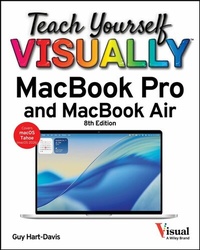
Teach Yourself VISUALLY MacBook Pro and MacBook Air
Description

The visual learner's guide to getting up and running with your Apple laptop
Teach Yourself VISUALLY MacBook Pro and MacBook Air covers all the vital information you need to start working on your MacBook. With this highly illustrated and easy-to-follow guide, you'll learn to navigate the macOS interface like a pro, customize your desktop with the widgets you need, and get your MacBook working with iCloud, your iPhone, and your iPad. This book's graphical, step-by-step instructions walk you through everything from installation to troubleshooting, helping you to get the most out of the investment you've made in your MacBook.
This fully updated edition helps you become a power user of the latest MacBook models and exploit the features in macOS Tahoe, Apple's state-of-the-art operating system, and the apps that come with it. If you prefer to learn visually, this is the book you need.
Discover how to:
- Perform everyday tasks quickly and easily
- Customize settings to make macOS and its apps work the way you prefer
- Communicate via audio and video with FaceTime, via instant messaging with Messages, and via email with Mail
- Organize your life with Calendar, Contacts, Reminders, Notes, and Maps
- Make the most of your iCloud account
Instead of confusing tech-speak and vague instructions, this guide is packed with screenshots, easy-to-follow instructions, and a practical sensibility. Grab Teach Yourself VISUALLY MacBook Pro and MacBook Air and explore all that your MacBook can do.
More details
Other editions
Additional editions
Content
Chapter 1 Getting Started with Your MacBook
Understanding the MacBook Pro and MacBook Air 4
Set Up Your MacBook 8
Start Your MacBook and Log In 12
Explore the macOS Desktop 14
Point and Click with the Trackpad 18
Connect to a Wireless Network 20
Give Commands 22
Open, Close, and Manage Windows 24
Using Control Center 26
Using Notifications 28
Add Widgets to Your Desktop 30
Put Your MacBook to Sleep and Wake It Up 32
Log Out, Shut Down, and Resume 33
Chapter 2 Configuring Your MacBook
Change the Wallpaper 36
Set Up a Screen Saver 38
Configure Battery and Sleep Settings 40
Customize the Dock 42
Configure the Menu Bar 44]Configure Control Center 46
Add or Remove Desktop Spaces 48
Create Hot Corners to Control Screen Display 50
Make the Screen Easier to See 52
Configure the Appearance, Accent, and Highlight 56
Configure the Keyboard 58
Configure the Trackpad or Other Pointing Device 60
Configure iCloud Settings 62
Add a Second Display 64
Using an iPad as an Extra Display 66
Connect External Devices 68
Explore Other Important Settings 70
Chapter 3 Sharing Your MacBook with Others
Create a User Account 74
Configure Your MacBook for Multiple Users 76
Share Your MacBook with Fast User Switching 78
Set Up Family Sharing 80
Turn On Screen Time for a Child 84
Configure Downtime 85
Set Time Limits for Apps and Websites 86
Make Apps Always Available to a User 88
Apply Content and Privacy Restrictions 90
Review a User's Actions 92
Chapter 4 Running Apps
Open an App and Quit It 96
Install an App 98
Run an App Full Screen 100
Set Apps to Run Automatically at Login 102
Move, Resize, Fill, and Arrange Windows 104
Switch Quickly Among Apps 106
Switch Apps Using Mission Control 108
Enable and Configure Stage Manager 110
Switch Apps Using Stage Manager 112
Set Up Dictation and Read & Speak 114
Using Dictation and Read & Speak 116
Configure and Invoke Siri 118
Perform Tasks with Siri 120
Remove Apps 122
Identify Problem Apps 124
Force a Crashed App to Quit 125
Revert to an Earlier Version of a Document 126
Chapter 5 Managing Your Files and Folders
Explore Your MacBook's File System 130
Using the Finder's Views 132
Work with Finder Tabs 134
View a File with Quick Look 136
Organize Your Desktop Files with Stacks 138
Search for a File or Folder 140
Create a New Folder 142
Rename a File or Folder 143
Copy a File 144
Move a File 146
View the Information About a File or Folder 148
Organize Your Files with Tags 150
Work with Zip Files 152
Using the Trash 154
Configure Finder Settings 156
Customize the Finder Toolbar 158
Customize the Finder Sidebar 159
Chapter 6 Surfing the Web
Open Safari and Customize Your Start Page 162
Open a Web Page 164
Follow a Link to a Web Page 165
Open Several Web Pages at Once 166
Navigate Among Web Pages 168
Return to a Recently Visited Page 170
Play Music and Videos on the Web 172
Set Your Home Page and Search Engine 174
Create Bookmarks for Web Pages 176
Using Reader View and Reading List 178
Organize Safari Tabs into Tab Groups 180
Download a File 182
Create and Use Safari Profiles 184
Chapter 7 Sending and Receiving E-Mail
Set Up Your E-Mail Accounts 188
Send an E-Mail Message 190
eceive and Read Your Messages 192
Reply to or Forward a Message 194
Send and Receive Files via E-Mail 196
View E-Mail Messages by Conversations 198
Block and Unblock Contacts 200
Reduce the Amount of Spam You Receive 202
Chapter 8 Chatting and Calling
Configure the Messages App 206
Chat with a Contact 208
Send and Receive Files with Messages 210
Sign In to FaceTime and Choose Settings 212
Make and Receive FaceTime Calls 214
Phone and Text from Your Mac 216
Chapter 9 Organizing Your Life
Manage Your Apple Account and iCloud Account 220
Navigate the Calendar App 222
Create a New Calendar 224
Create an Event 226
Share an iCloud Calendar with Other People 228
Subscribe to a Shared Calendar 230
Add Someone to Your Contacts 232
Organize Contacts into Lists 234
Create Notes 236
Track Your Commitments with Reminders 240
Make the Most of the Maps App 244
Chapter 10 Enjoying Music, Video, and Books
Add Your Music to the Music App 248
Set Up Home Sharing 250
Play Songs 252
Create Playlists 254
Create Smart Playlists 256
Listen to Apple Radio and Internet Radio 258
Enjoy Podcasts 260
Play Videos with the TV App 262
Read Books 264
Chapter 11 Making the Most of Your Photos
Import Photos 268
Browse Your Photos 270
Select Photos from Bursts 272
Crop a Photo 274
Rotate or Straighten a Photo 276
Improve a Photos Colors 278
Add Filters to Photos 280
Create Photo Albums 282
Create and Play Slide Shows 284
E-Mail a Photo 286
Shoot Photos or Movies of Yourself 288
Chapter 12 Networking, Security, and Troubleshooting
Transfer Files Using AirDrop 292
Connect to a Shared Folder 294
Share a Folder 296
Connect to a Shared or Network Printer 298
Tighten Your MacBooks Security 300
Choose Privacy Settings for Location Services 302
Reclaim Space by Emptying the Trash 304
Keep macOS Current by Applying Updates 306
Keep Your Apps Up to Date 308
Back Up Your Files 310
Recover Files from Backup 312
Deal with macOS Crashes and Worse 314
Index 316
Chapter 1
Getting Started with Your MacBook
Apple's MacBook laptops are among the best portable computers you can get. The powerful MacBook Pro and the lightweight MacBook Air enable you to work - or play - anywhere that suits you. Each MacBook comes with macOS, Apple's easy-to-use operating system. This chapter shows you how to set up your MacBook, navigate the macOS interface, and perform essential actions.
Understanding the MacBook Pro and MacBook Air
Point and Click with the Trackpad
Open, Close, and Manage Windows
Put Your MacBook to Sleep and Wake It Up
Log Out, Shut Down, and Resume
Understanding the MacBook Pro and MacBook Air
MacBook is the family name for Apple's laptop computers. As of this writing, the MacBook family consists of the powerful MacBook Pro models and the slim and lightweight MacBook Air models.
Each MacBook has similar core features, such as the display for viewing information and the keyboard and trackpad for entering data and controlling the computer. Beyond that, the MacBook models differ in various ways - from design, size, and weight to screen size, memory and storage capacity, and processor type and speed.
Identify Your MacBook's Main Features
Display
The MacBook's display provides a sharp, bright, and colorful view into all that you do.
Camera
The built-in camera enables you to videoconference, take photos, and more.
Keyboard
Along with the standard letter and number keys, the keyboard provides modifier keys - such as , , and - to control your MacBook. The keyboard has a backlight that illuminates automatically when you are using the MacBook in dim light, enabling you to see what you are doing.
Trackpad
The trackpad enables you to manipulate objects on the screen using finger gestures. The entire trackpad is also the button that you click or double-click to give commands. On most MacBook models, you can also use a pressing movement called Force Touch to access commands quickly.
USB-C Ports
The USB-C ports enable you to connect your MacBook to its power adapter and to other devices, such as external drives, external displays, iPhones, and iPads.
Microphones
The microphones enable you to use your MacBook for audio and video calls without needing to connect a headset.
Speakers
The speakers enable you to listen to music or other audio.
Identify the Ports on the MacBook Pro Models
Analog/Digital Audio In/Out
All the MacBook models include an analog/digital audio in/out port that enables you to connect an external microphone, headphones, or speakers. Beyond that, some MacBook Pro models feature MagSafe charging ports, an HDMI graphics port, and an SDXC card slot.
This port looks like a standard analog headphone port, but it works for both analog and digital audio and combines audio output and audio input. For analog audio output, simply connect headphones or analog speakers. For digital audio output, use a TOSLINK cable to connect digital audio equipment, such as surround-sound speakers. For audio input, connect a microphone or other sound input device.
MagSafe 3 Port
Connect the MacBook's power adapter to this port. The MagSafe 3 connector attaches magnetically, providing a secure connection but detaching easily if force is applied - for example, if someone's foot snags the power cord.
SDXC Card Slot
You can insert SDHC, SDXC, and other types of SD cards here so you can store files or transfer files to or from your MacBook.
The SDXC card slot accepts regular-size SD cards, which are 32mm × 24mm × 2.1mm. To use a miniSD card or a microSD card, get an adapter.
Standard-size SDXC cards protrude from the SDXC slot. This makes them easy to remove but even easier to damage if you leave them in the slot while transporting your MacBook. If you need to leave an SD card in the slot, get a microSD card and a low-profile adapter such as those made by BaseQi (www.baseqi.com).
USB-C Ports
The MacBook Pro models include two or three USB-C ports for connecting your USB devices. To connect a device that uses a cable with the flat, rectangular USB-A connector, you will need a USB-C-to-USB-A converter or a device that includes such a converter. If you need to connect multiple USB-A devices, consider getting a docking station that includes multiple USB-A ports.
HDMI Port
The 16-inch MacBook Pro includes one HDMI port for connecting an external display of up to 4K resolution or 8K resolution, depending on the model.
The current MacBook Air and MacBook Pro models include a row of hardware function keys above the keyboard. These keys are marked F1 through F12; each has a dedicated function, such as changing screen brightness or controlling media playback.
Some MacBook Pro models have the Touch Bar instead of the hardware function keys. The Touch Bar is a multitouch control strip whose contents change to suit the current app or selection. Some users find the Touch Bar convenient, but others prefer to have the physical function keys.
Meet Your MacBook's Keyboard
Decrease Brightness
Press to decrease the screen's brightness.
Increase Brightness
Press to increase the screen's brightness.
Mission Control
Press to open Mission Control so you can quickly move between working spaces.
Search
Press to open or close the Spotlight Search pane.
Dictation
Press to start Dictation.
Keyboard Backlight
Press to adjust the keyboard backlight.
Previous/Rewind
Press to move to the previous item or rewind in Music and other applications.
Play/Pause
Press to play or pause Music and other applications.
Next/Fast-Forward
Press to move to the next item or fast-forward in Music and other applications.
Mute
Press to mute your MacBook.
Volume Down
Press to turn the volume down.
Volume Up
Press to turn the volume up.
Power/Touch ID Button
Press the Power button to turn on your MacBook; press and hold the Power button to force your MacBook to turn off. For Touch ID, place your registered finger on the button without pressing.
Shift
Press to type capital letters or the symbols that appear on the upper part of the keys.
Globe/Alternate Function
Hold down / while pressing a function key to perform the alternate task.
Control
Press to give keyboard shortcuts.
Option
Press to give keyboard shortcuts.
Command
Press to give keyboard shortcuts.
Arrow Keys
Press , , , and to move the pointer around the screen.
Understanding and Using the Touch Bar
The Touch Bar is a flat sensor strip that replaces the row of physical function keys with virtual keys and controls that change depending on the app and the actions available to you. If your MacBook Pro has the Touch Bar, you may be able to take a wide variety of actions from the Touch Bar by using the buttons and other controls that appear on it.
Unfortunately, as of this writing, macOS Tahoe appears not to support the Touch Bar fully. Many users of Touch Bar-equipped MacBook Pro models report partial or complete loss of Touch Bar functionality after upgrading to macOS Tahoe. However, Apple has not officially announced that it is deprecating the Touch Bar, so support may improve.
This section shows you four examples of how the Touch Bar changes. First, the Touch Bar can display keys for the dedicated functions of the hardware function keys:
When the Photos app is active, the Touch Bar can display controls for navigating among photos and performing common operations, such as marking a photo as a favorite, enhancing a photo, and rotating a photo:
Apps that enable you to manipulate color can display slider controls on the Touch Bar:
When you need to perform calculations, the Touch Bar can display buttons for common operations:
Set Up Your MacBook
If you have just bought your MacBook, you need to set up macOS and create your user account before you can use it. Your user account is where you store your files and settings on the MacBook.
This section shows you the key decisions you make when setting up your MacBook. The first user account you create is an administrator account, which can create other accounts later for other users. You may also choose to create a personal account for yourself, leaving the administrator account strictly for administration.
Begin...
