

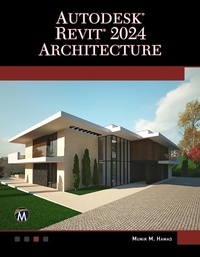
Autodesk (R) Revit (R) 2024 Architecture
Looking Inward to Move Forward
1st Edition
Published on 15. June 2023
578 pages
978-1-68392-924-6 (ISBN)
Description

Covering all of the major techniques, this book uses both metric and imperial units to illustrate the myriad drawing and editing tools for this popular application. Use the companion files to set up drawing exercises and projects and to see all of the book's figures. Autodesk Revit 2024 Architecture includes over 50 "e;mini-workshops"e; that complete small projects from concept through actual plotting. Solving all of these workshops will help to master Revit Architecture from beginning to end, without overlooking any of the basic commands and functions.FEATURESUses both metric and imperial units to illustrate the myriad drawing and editing tools or this popular applicationIncludes over 50 "e;mini-workshops"e; and hundreds of figures that complete small projectsHelps you to prepare for the Revit Architecture Certified Professional examExercises and projects included for use as a textbook
More details
Language
English
Place of publication
Berlin
United States
Target group
Professional and scholarly
US School Grade: College Graduate Student
File size
45,43 MB
ISBN-13
978-1-68392-924-6 (9781683929246)
Copyright in bibliographic data and cover images is held by Nielsen Book Services Limited or by the publishers or by their respective licensors: all rights reserved.
Schweitzer Classification
Other editions
Additional editions
Munir Hamad
Autodesk (R) Revit (R) 2024 Architecture
Book
07/2023
1st Edition
Mercury Learning & Information
€69.00
Article not available at the moment
Munir Hamad
Autodesk® Revit® 2024 Architecture
E-Book
06/2023
1st Edition
Mercury Learning and Information
€92.49
Available for download
Content
- Cover
- Title
- Copyright Page
- Contents
- Book Purpose and Objectives
- Preface
- Exercises
- Chapter 1 Introduction to Revit 2024
- CAD vs. BIM
- Revit Architecture
- Starting Revit 2024
- Understanding the Revit 2024 Interface
- File Menu
- Quick Access Toolbar
- Ribbons
- Info Center
- View Area
- Properties
- Project Browser
- View Control Bar
- Status Bar
- Options Bar
- Zooming in Revit
- 3D and Camera in Revit
- Steering Wheel
- Zoom
- Orbit
- Pan
- Rewind
- Center
- Look
- Up/Down
- Walk
- Create New Project
- Open Existing Project
- Closing File(s)
- Exercise 1-1 Introducing Revit 2024
- Chapter Review
- Chapter Review Answers
- Chapter 2 How to Draw and Modify in Revit
- Intoduction
- Drawing in Revit 2024
- Temporary Dimensions
- Alignment Lines
- Snaps
- Draw Context Panel
- Selecting in Revit
- Delete Command
- Exercise 2-1 Drawing and Selecting
- Some Modifying Commands
- Move Command
- Copy Command
- Rotate Command
- Mirror Command
- Array Command
- Linear Array
- Radial Array
- Exercise 2-2 Some Modifying Commands
- Chapter Review
- Chapter Review Answers
- Chapter 3 Project Preparation
- Introduction
- Project Information and Project Units
- Project Information
- Project Units
- Creating Levels
- Exercise 3-1 Project Information, Units, and Adding Levels
- Importing a CAD File
- Creating Gridlines
- Creating Columns
- Exercise 3-2 Import CAD, Gridlines, and Columns
- Chapter Review
- Chapter Review Answers
- Chapter 4 All You Need to Know About Walls
- Introduction
- Wall Families
- System Families
- Component Families
- Inputting Walls
- Wall Controls and Temporary Dimensions
- Exercise 4-1 Inputting the Outside Wall
- Additional Modifying Commands
- Align command
- Trim/Extend to Corner
- Trim/Extend Single Element and Trim/Extend Multiple Elements
- Split Element
- Split with Gap
- Match Type Properties
- Create Similar
- Cut Profile
- Underlay
- Exercise 4-2 Additional Modifying Commands
- Wall Profile
- Hide and Unhide Elements
- Exercise 4-3 Wall Profile
- Slanted Walls
- Snap Between 2 Points
- Exercise 4-4 Slanted Wall
- Tapered Walls
- Exercise 4-5 Tapered Wall
- Chapter Review
- Chapter Review Answers
- Chapter 5 Inserting Doors and Windows
- Introduction
- Inserting Doors and Windows Using Pre-Loaded Families
- Loading Door and Window Families
- Customizing Door and Window Sizes
- Special Techniques for Doors and Windows
- Reveal Constraint
- Exercise 5-1 Inserting Doors and Windows
- Chapter Review
- Chapter Review Answers
- Chapter 6 Creating and Controlling Curtain Walls
- Introduction
- All You Need to Know A bout Curtain Walls
- Controlling Curtain Gridlines
- Moving Existing Curtain Gridlines
- Adding New Curtain Grid Lines
- Deleting Curtain Grid Lines
- Controlling Curtain Grid Lines Using Properties
- Add/Remove Segments
- Adding and Controlling Mullions
- Selecting a Group of Mullions
- Adding Storefronts
- Curtain Panles
- Replacing Panels
- Panel Material
- Hiding and Isolating Elements
- Curtain Walls Inside Slanted Walls
- Exercise 6-1 Creating and Manipulating Curtain Walls
- Chapter Review
- Chapter Review Answers
- Chapter 7 Creating Floors
- Introduction
- Creating Floors by Selecting Walls or Sketching
- Joining Geometry
- How to Create a Shaft Opening in Floors
- Creating a Floor with Slopes
- One-Direction Slope
- Slope for Drainage
- Underlay and Linework
- Exercise 7-1 Creating Floors
- Chapter Review
- Chapter Review Answers
- Chapter 8 Creating Roofs
- Introduction
- Roof by Footprint
- Slope Arrow
- Attach the Top or Base of the Wall to the Roof
- Exercise 8-1 Creating a Roof by Footprint
- Roof by Extrusion
- Reference Plane
- Exercise 8-2 Creating a Roof by Extrusion
- Chapter Review
- Chapter Review Answers
- Chapter 9 Components and Ceiling
- Introduction
- Placing Components
- Exercise 9-1 Placing Components
- Creating a Ceiling - Introduction
- Creating a Ceiling - Automatic
- Creating a Ceiling - Sketch
- Creating a Ceiling - Ceiling Soffit
- Exercise 9-2 Creating Ceiling
- Chapter Review
- Chapter Review Answers
- Chapter 10 Creating Stairs, Ramps, and Railings
- Introduction
- Creating Stairs - First Look
- Creating Stairs - Standard Stairs
- Creating Stairs - Sketching Stairs
- Creating Stairs - Connect Levels
- Editing Stairs
- Editing Sketched Stairs
- Creating Ramps
- Creating Railings
- Modify Existing Railing
- Create New Railing
- Exercise 10-1 Creating Stairs, Ramps, and Railings
- Chapter Review
- Chapter Review Answers
- Chapter 11 Creating and Manipulating Views
- Introduction
- Creating Duplicates
- Duplicate
- Duplicate with Detailing
- Duplicate as a Dependent
- Renaming View
- Crop Region
- Annotation Crop
- Creating Callouts
- Rectangular Shape
- Sketch
- For Both Types
- Control Visibility / Graphics
- Exercise 11-1 Views - Part 1
- Creating Elevations
- Creating Sections
- 3D Section Box
- Orient to View
- Selection Box
- View Range
- Plan Region
- Exercise 11-2 Views - Part 2
- Depth Cueing
- Exercise 11-3 Depth Cueing
- Chapter Review
- Chapter Review Answers
- Chapter 12 Annotation and Legends
- Introduction
- Creating Dimensions
- Aligned
- Linear
- Angular
- Radial and Diameter
- Arc Length
- Spot Elevation
- Spot Slope
- Measure Command
- Writing Text
- Annotation Text
- Annotation Text Family
- Model Text
- Editing Dimensions and Annotation Text
- Delete Single Aligned Dimension
- Exercise 12-1 Dimension and Text
- Creating Legends
- How to Create a Legend View?
- Insert Legend Components
- Insert Symbols
- Exercise 12-2 Creating Legends
- Chapter Review
- Chapter Review Answers
- Chapter 13 Visualize in Revit and Printing
- Dealing with Cameras
- How to Create a Camera
- View Size
- Recent Target
- Exercise 13-1 Perspectives
- Creating Walkthroughs
- How to Create a Walkthrough
- How to View and Modify a Walkthrough
- How to Set Walkthrough Frames
- How to Export a Walkthrough
- Exercise 13-2 Creating Walkthroughs
- Solar Studies: Introduction
- Solar Study Types
- How to Create Still Solar Studies
- How to create Single Day Solar Studies
- How to Create Multi-Day Solar Studies
- Exercise 13-3 Solar Studies
- Rendering in Revit - Introduction
- Render Command in Revit
- Quality
- Output Settings
- Lighting
- Background
- Image
- Display
- Render and Render Region
- Render and Lights
- Setting Up Light Groups
- Adding Trees and People
- Exercise 13-4 Rendering in Revit
- Creating Sheets
- Printing
- Exercise 13-5 Creating Sheets
- Chapter Review
- Chapter Review Answers
- Chapter 14 Creating Schedules
- Creating Schedules
- Fields
- Filter
- Sorting/Grouping
- Formatting
- Appearance
- Modifying Schedules
- Including an Image in Your Schedule
- Calculated Value
- Exercise 14-1 Creating and Modifying Schedules
- Schedule Key Styles
- Reusing Schedules
- Exercise 14-2 Scheduling Key Styles & Reusing Schedules
- Creating Project Parameters
- Creating Fields From Formulas
- Conditional Formatting
- Creating Material Takeoff Schedules
- Split Schedule Across Sheets
- CSV Export for Schedule
- Exercise 14-3 Creating Material Takeoff Schedules
- Chapter Review
- Chapter Review Answers
- Chapter 15 Project Phasing, Design Options, and Path of Travel
- Project Phasing
- Phases and Elements
- How to Demolish Elements
- Creating Phases
- Exercise 15-1 Using Phases
- Design Options
- How to Set Up Design Options
- How to Add Existing Elements to Design Options
- How to Add New Elements to a Design Option
- How to View Design Options
- Delete Design Options
- Exercise 15-2 Design Options
- Path of Travel
- Tagging
- Scheduling Path of Travel
- Reveal Obstacles
- Add/Delete Waypoint
- Multiple Paths
- One Way Indicator
- People Content
- Spartial Grid
- Exercise 15-3 Path of Travel
- Chapter Review
- Chapter Review Answers
- Chapter 16 Toposolids in Revit
- Introduction
- Project Base Point and Survey Point
- Project Base Point
- Survey Point
- Creating Toposolids
- From Sketch
- From CAD Import
- From CSV File Import
- Editing Toposurfaces
- Contour Display
- Creating Property Lines
- Creating Building Pads
- Exercise 16-1A Creating Toposolid Using CAD Import
- Exercise 16-1B Creating Topsolid Using Sketching
- Editing Toposolids
- Creating Subdivision
- Creating a Site
- Annotating Toposolids
- Spot Elevations and Spot Coordinates
- Site and Parking Components
- Exercise 16-2 Modifying Toposolids
- Chapter Review
- Chapter Review Answers
- Chapter 17 Creating Rooms and Areas
- Introduction to Creating Rooms
- Creating and Modifying Rooms
- To create Rooms One by One
- To Create All Rooms in One Step
- Room Separation Lines
- Modifying Rooms
- Adding Room Tags
- Room Schedule
- Room Settings
- Exercise 17-1 Creating Rooms
- Creating Areas
- Creating Area Plan
- Placing Area Boundaries
- Adding Areas
- Tagging Areas
- Exercise 17-2 Creating Areas
- Creating Color Schemes
- Creating a New Color Scheme
- Color Scheme By Value
- Color Scheme By Range
- Exercise 17-3 Creating Color Schemes
- Chapter Review
- Chapter Review Answers
- Chapter 18 Tagging and Detailing
- Introduction
- How to Add Tags in Revit
- Tag by Category
- Material Tag
- Exercise 18-1 Adding Tags
- Creating Details
- Creating a Detail View from Scratch
- Callout or Section as Starting Point
- Starting with an AutoCAD File
- Exercise 18-2 Creating Details
- Chapter Review
- Chapter Review Answers
- Chapter 19 Creating Groups and Revit Links
- Creating Groups
- How to Create a Group - Method One
- How to Create a Group - Method Two
- Adding Groups
- How to Add Groups from Project Browser
- Add Groups from Ribbon
- How to Attach Detail Group to Model Group
- Modifying Groups
- Editing Groups
- Groups in Other Projects
- How to Open a File as a Group in Another Open File
- Exercise 19-1 Using Groups
- Linking Models - Introduction
- Linking Models
- Managing Links
- Visibility / Graphics Overrides in Linked Models
- Display Settings in Linked Model
- Linked Model Conversion
- How to copy Individual Items in a Linked File to the Host File
- Exercise 19-2 Linking Models
- Coordinating Across Disciplines
- Copying and Monitoring Elements
- Coordinating Monitored Elements
- Interference Checking
- Linking Other File Types
- Exercise 19-3 Coordinating across Disciplines
- Chapter Review
- Chapter Review Answers
- Chapter 20 Importing and Exporting Files in Revit
- Importing/Linking CAD Files
- How to Import or Link a Vector File
- Importing Lineweight
- Manipulating Imported CAD Files
- Query Imported CAD Files
- Deleting Layers
- Exploding Imported Files
- Modifying the Visibility of Imported Files
- Importing Raster Image Files
- Editing Raster Files
- Importing PDF Files
- Exercise 20-1 Working with Imported Files
- Exporfting Files
- Exporting CAD Format Files
- How to Create an Export Setup
- How to Create a New Set of Views/Sheets to Export
- Exporting PDF Files
- Exercise 20-2 Exporting Files
- Chapter Review
- Chapter Review Answers
- Chapter 21 Creating Masses in Revit
- Introduction
- Place Mass Command
- Exercise 21-1 Basic Mass Elements
- In-Place Mass & Conceptual Mass
- Setting Work Planes
- Creating Mass Forms
- Creating an Extrusion
- Creating a Revolve
- Creating a Sweep
- Creating a Blend
- Creating a Swept Blend
- Creating a Loft
- Void Forms
- Manipulating Conceptual Mass
- X-Ray - Adding Profiles and Edges
- Edit Profile
- Add Edge and Profile
- Divide Surface
- Exercise 21-2 In-Place Masses
- Creating Walls, Floors, and Roofs from Masses
- Exercise 21-3 Creating Walls, Floors, and Roofs from Masses
- Chapter Review
- Chapter Review Answers
- Chapter 22 Customizing Walls, Roofs, Floors, and Compound Ceilings
- Introduction
- Customizing Basic Wall Types
- Wrapping (Only for Walls)
- Using Profiles on Walls, Roofs, and Floors
- Exercise 22-1 Creating Basic Wall Types
- Vertically Compound Walls
- Permanent Wall Sweeps and Reveals
- Exercise 22-2 Creating Vertically Compound Walls
- Vertically Stacked Walls
- Embedding a Wall inside Another Wall
- Exercise 22-3 Creating Stacked and Embedded Walls
- Create Parts
- Exercise 22-4 Create Parts
- Chapter Review
- Chapter Review Answers
- Chapter 23 Creating Families in Revit
- Introduction to Creating Families
- Parametric Framework
- Exercise 23-1 Coffee Table Framework
- Creating the 3D Elements of the Family
- Adding Controls
- Adding Openings
- Adding Model and Symbolic Lines
- Exercise 23-2 Creating 3D Elements of the Family
- Family Types - Sizes and Materials
- Setting Sizes
- Assigning Materials
- Exercise 23-3 Family Types - Sizes and Materials
- Chapter Review
- Chapter Review Answers
- Chapter 24 Customizing Doors, Windows, and Railing Families
- Customizing Existing Doors and Windows
- Visibility Settings
- Exercise 24-1 Creating a Custom Door
- Exercise 24-2 Creating a Custom Window
- Creating Custom Railings
- Rail Structure (Non-Continuous)
- Baluster Placement
- Exercise 24-3 Creating Custom Railings
- Chapter Review
- Chapter Review Answers
- Chapter 25 Worksets and Shared Views
- Introduction to Worksets
- How to Create a Central File
- How to Assign Elements to Worksets
- Creating a Local File
- Functions to Help Control Worksets
- Active Workset
- Gray Inactive Worksets
- Synchronize
- Reload Latest
- Worksharing Display Options
- Exercise 25-1 Creating and Controlling Worksets
- Shared Views-Introduction
- Shared Views
- Follow Up on comments
- Exercise 25-2 Shares Views
- Chapter Review
- Chapter Review Answers
- Index
