

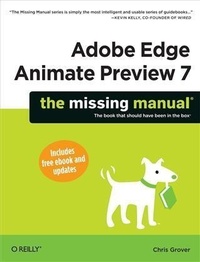
Adobe Edge Animate Preview 7: The Missing Manual
Published on 17. September 2012
282 pages
978-1-4493-4295-1 (ISBN)
Description

Want to create animated graphics for iPhone, iPad, and the Web, using familiar Adobe features? Youve come to the right guide. Adobe Edge Animate Preview 7: The Missing Manual shows you how to build HTML5 graphics with Adobe visual tools. No programming experience? No problem. Adobe Edge Animate writes all the code for you. With this book, youll be designing great-looking web elements in no time.The important stuff you need to know:Get to know the workspace. Learn how Adobe Edge Animate performs its magic.Create and import graphics. Make drawings with Animates tools, or use art youve designed in other programs.Work with text. Build menus, label buttons, provide instructions, and perform other tasks.Jump into animation. Master Animates elements, properties, and timeline panels.Make it interactive. Use triggers and actions to give users control over their web experience.Dig into JavaScript. Customize your projects by tweaking your code.Once you purchase this book, you can stay on top of future Adobe Edge Animate Preview releases by downloading the ebook edition on oreilly.com for free.
More details
Other editions
Additional editions
Chris Grover
Adobe Edge Animate Preview 7: The Missing Manual
Book
10/2012
1st Edition
O'Reilly
€24.00
Shipment within 10-20 days
Content
- Intro
- Introduction
- Part One: Working with the Stage
- Chapter 1: Introducing Adobe Edge Animate
- Creating and Saving Edge Animate Projects
- A Tour of the Animate Workspace
- Building Your First Animation
- Chapter 2: Creating and Animating Art
- Setting the Stage
- Creating Art in Animate
- Aligning, Distributing, and Arranging Elements
- A Rectangular Animation
- Rounded Rectangles: More than Meets the Eye
- Adding Drop Shadows to Graphics
- Clipping the Bits That Need Trimming
- Importing Art
- On/Off: Another Way to Show and Hide Elements
- Chapter 3: Adding and Formatting Text
- Adding Text to Your Project
- Changing Text-Specific Properties
- Using Web Fonts
- Changing Other Text Properties
- Clipping Text Around the Edges
- Making That Headline Drop In
- Dealing with the Template
- Adding Some Bounce
- Adding Links to Text
- HTML Tags in Animate
- Part Two: Animation with Edge Animate
- Chapter 4: Learning Timeline and Transition Techniques
- Introducing the Timeline
- Understanding Elements' Timeline Controls
- Using Timeline Keyboard Shortcuts
- Creating Transitions
- Animating a Filmstrip
- Dealing with Timeline Claustrophobia
- Chapter 5: Triggering Actions
- Elements, Triggers, and Actions
- Triggering Actions in Other Elements
- Triggers and Actions for the Stage and Timeline
- Timeline Triggers and Tricks
- Sliding Show Revisited
- Non-Linear Thinking and Design
- Timeline Button Controls
- Triggers for iPhones and Androids
- Chapter 6: Working Smart with Symbols
- About Symbols
- Building with Symbols
- Nesting Symbols within Symbols
- Working with Symbol Timelines
- Animating a Symbol on the Stage
- Create a Button Symbol with Rollover Action
- Moving Symbols Between Projects
- Building a Drop-Down Menu System
- Creating Text Callouts with Rollover Action
- Part Three: Edge Animate with HTML5 and JavaScript
- Chapter 7: Working with Basic HTML and CSS
- Reading HTML Documents
- Reading CSS Files
- Reading the HTML Animate Creates
- Opening an HTML Document in Animate
- Placing Your Composition in an HTML Document
- Centering an Animate Composition
- Placing Two Animate Compositions on the Same Page
- Chapter 8: Controlling Your Animations with JavaScript and jQuery
- A Very Brief History of JavaScript and jQuery
- Sleuthing Through the JavaScript Animate Creates
- JavaScript and jQuery Basics
- Natural Selection the jQuery Way
- "this" and "sym" Are Special Words
- Chapter 9: Helpful JavaScript Tricks
- More Showing and Hiding Tricks
- Swapping Images in Animate
- Identifying and Changing Elements and Symbols
- Identifying Elements within Symbols
- Playing a Symbol's Timeline
- Using Conditional Statements
- Part Four: Appendixes
- Appendix A: Installation and Help
- Appendix B: Menu by Menu
- File
- Edit
- View
- Modify
- Timeline
- Window
- Help
- Index
