

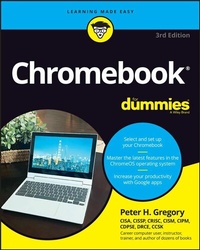
Chromebook For Dummies
Description

Chromebook For Dummies, Third Edition, is your easy-to-follow guide to the low-cost alternative to a traditional laptop. This beginner's manual walks you through setting up your Chromebook, transitioning from using a traditional computer, and customizing the system to fit your needs. In case you're wondering, the Chromebook can be used for anything you'd normally do online--checking email, browsing websites, watching videos. This book takes you through all of it, giving you the latest updates on new Chromebook hardware and software features. Navigate apps, apply advanced settings and features, and turn to this guide time and again as you customize and optimize your Chromebook's performance.
* Get all the basics on using your Chromebook, in easy-to-follow Dummies style
* Set up and start using your Chromebook with ease
* Learn about the latest features in the Chrome operating system
* Discover the benefits of Chromebook versus traditional laptops
New and novice Chromebook users will love this approachable intro to Google's little portable computer.
More details
Other editions
Additional editions
Person
Content
Part 1: Getting Started with Chromebook 5
Chapter 1: Choosing and Setting Up Your Chromebook 7
Chapter 2: Working with the Chromebook Desktop 19
Chapter 3: Surveying the Chrome Browser 33
Chapter 4: Getting Your Hands on the Keyboard and Touchpad 49
Chapter 5: Finding and Exploring Chromebook Apps 67
Chapter 6: Working with Gmail and Google Calendar 77
Chapter 7: Working with Files and Google Drive 105
Part 2: Harnessing Business Power with the Chromebook 121
Chapter 8: Writing with Word Processing. 123
Chapter 9: Summarizing Spreadsheets 149
Chapter 10: Preparing Presentations 185
Chapter 11: Using Other Office Tools 221
Part 3: The Chromebook Recreational Vehicle 239
Chapter 12: Managing Your Music 241
Chapter 13: Having Fun with Photos 261
Chapter 14: Playing Video on the Chromebook 277
Chapter 15: Chatting with Friends and Family 297
Chapter 16: Reading Ebooks on the Chromebook 319
Part 4: Advanced Chromebook Settings 335
Chapter 17: Customizing Your Chromebook 337
Chapter 18: Securing Your Chromebook 357
Chapter 19: Troubleshooting Your Chromebook 383
Part 5: The Part of Tens 401
Chapter 20: Ten (Plus One) Hardware Features to Consider When Buying a Chromebook 403
Chapter 21: Ten (Plus One) Handy Chromebook Shortcuts 411
Chapter 22: Ten Great ChromeOS Apps 417
Chapter 23: Ten Chromebook Security Tips 423
Index 429
Chapter 1
Choosing and Setting Up Your Chromebook
IN THIS CHAPTER
Understanding what makes a Chromebook tick
Selecting your very own Chromebook
Using your Chromebook for the first time
Switching to Chromebook from Windows, Mac, or Linux
Google rocked the computer world in 2011 with the introduction of the Chromebook because there was nothing on the market quite like it. It was, and still is, an affordable laptop that offers an internet-centric platform. Today, more than 50 million Chromebooks are used in classrooms by teachers and students in blended learning environments that allow students to have unlimited access to educational resources. Chromebooks are also increasingly being used by businesses, remote workers, and digital nomads that need an inexpensive laptop that allows them to work from the office, home, or the nearest coffee shop. The Chromebook has evolved far from its humble beginnings and will likely be the only laptop you need.
In this chapter, I discuss what makes the Chromebook so compelling compared to other personal computers on the market. I also take an in-depth look at how to set up your Chromebook and prepare you to transition to Chromebook from Windows, Mac, or Linux.
A Chromebook is very easy to use and understand. Easier, I'd say, than a Windows computer or even a Mac. In fact, a Chromebook is about as easy to use as an iPhone, iPad, or Android.
Checking Under the Hood of the Chromebook
In short, a Chromebook is a laptop computer running Google's proprietary operating system, ChromeOS.
The operating system (OS) is the software that manages and schedules your computer's primary tasks and functions. You may have a little experience with other popular operating systems such as Windows, Linux, or macOS. Smartphones and tablets also have operating systems; Apple's iPhone OS is called iOS, iPadOS runs on Apple iPads, and the OS that runs on Android tablets and phones is called, um, Android.
ChromeOS is an operating system developed by Google to work primarily with web-based software on laptop and tablet computers. Your experience using your Chromebook will be very similar to previous experiences you may have had surfing the web with the Chrome web browser (or any browser). The Chrome web browser shares many similarities with other web browsers on the market, like Firefox, Edge, and Safari. (See Figure 1-1.)
Illustration courtesy of Peter H. Gregory
FIGURE 1-1: The Google Chrome web browser.
Except for the Chromebook Pixel Go, Google isn't manufacturing Chromebooks directly. Instead, Google has licensed several major laptop manufacturers to create them. Manufacturers such as Acer, ASUS, HP, Lenovo, Dell, Toshiba, and Samsung are all making their own Chromebooks with their own technical specifications. They all come with ChromeOS pre-installed.
The software
Much of what you will do on your Chromebook happens in the Chrome web browser. This is because many of the applications you will use on your Chromebook actually reside on the internet. This is one of the things that sets Chromebook apart from other computers: You don't need to install most applications on a Chromebook; instead, you access them from the internet. You find applications through the Chrome Web Store (dubbed CWS) and add them to your Launcher, which, in many cases, means nothing more than creating a bookmark for quick access through your Chrome web browser. This approach can be limiting in some cases, but these cases are rare. Thanks to the vast nature of Google's global computing ecosystem, thousands of great applications are at your fingertips.
Although some Chromebook applications offer offline features and functionality, you need an internet connection to initially set up your Chromebook and be able to take advantage of everything your Chromebook has to offer. You may assume that Chromebooks are designed for an "always online" lifestyle, but once you have set up your Chromebook, you can definitely do things with it while offline as well.
The hardware
Unlike all other computers on the market that run macOS, Windows, or Linux, not much software is installed on your Chromebook, which means that your Chromebook doesn't need to have vast amounts of hard drive space, memory, or processing power. Most Chromebooks have 4 gigabytes (GB) of memory, at least 80GB of hard drive space, and a low-power processor.
The reduced technical features mean that Chromebooks use less power, which means longer battery life. It also means that Chromebooks have a drastically lower price tag than other computers. This explains why Google is gaining such a large share of the laptop market. For the things that most people do, a Chromebook is more than adequate and far less costly.
If you prefer a desktop computer running ChromeOS, plenty are available. These computers are called Chromeboxes. If you own or are thinking about getting a Chromebox instead of a Chromebook, 99 percent of everything you read in this book will still apply to you because most of what's in this book is about ChromeOS - the same OS that runs on Chromebooks and Chromeboxes.
Choosing a Chromebook
Given the online nature of ChromeOS, Chromebooks do not require extremely high-powered hardware to provide an excellent user experience. Even so, the great variety of manufacturers, models, and hardware specifications available can make choosing a Chromebook somewhat tricky.
If you are not yet familiar with computer terms like hard drives, RAM, SD card slots, or HDMI ports, you don't really need to understand any of these things to buy a Chromebook that will work for you. If you are shopping for your first Chromebook (even if it's the first computer you have ever purchased), go to a store with a good selection (three or more models) of Chromebooks and knowledgeable salespeople. If you buy the least expensive model with a screen size you can live with, you probably won't be disappointed. If you do want to understand the inner details of Chromebooks and make your purchase decision based on RAM, hard drive size, and ports, flip over to Chapter 20 for all those details.
Another helpful way to decide which Chromebook to purchase is to research models online. PC Magazine and other well-known publications have good reviews on Chromebook models that can help you pick one.
Setting Up Your Chromebook
You should have a wireless internet service when setting up your Chromebook. If you're using a stationary (home or public) wireless internet network or a portable device with an internet hotspot, you probably need to know the following:
- The network name (like Smith Family Wi-Fi or ATT034)
- The network password (usually a bunch of random letters and numbers, often printed on a sticker on your internet router)
If you don't already have a Google Account, you'll also need a landline phone or smartphone handy to verify your new account while you set up your Chromebook.
Turning on your device
Regardless of the brand you choose, the Chromebook is built for speed - and you'll notice this speed the first time you turn on your device! To turn on your Chromebook, you may simply need to plug in the power cord and open the laptop. If your Chromebook doesn't turn on automatically, locate the Power button, which may be found on the top-right corner of the keyboard itself, or on the side or back of the Chromebook. Look for the familiar power logo consisting of a circle with an intersecting vertical line. Figure 1-2 shows the Power button on the Lenovo C330 and the Samsung 303C. The Power button on your Chromebook is probably similar to one of these.
Photos courtesy of Peter H. Gregory
FIGURE 1-2: The Power button on two different Chromebook models: the Lenovo C330 (a) and the Samsung 303C (b).
When you turn on the device for the first time, a Chrome logo pops up on the screen, and within seconds, the computer powers on and displays the Welcome window. Click Get Started to begin setup.
I recently unboxed an HP Flagship 14 Chromebook and went through the setup. In addition to guiding me through the setup visually, it also spoke to me in a friendly, mechanical voice.
Selecting a language
When the Welcome window appears, it will most likely say Welcome in the English language. If you want to change your Chromebook to work in your language, click on the current language. The Choose Language and Keyboard window displays. When you click on Language, a list of available languages appears, and when you click on Keyboard, a list appears. (I wish it had an option for Pirate English. "Select your languaaaarge, matey!")
Connecting to the internet
Next, you need to select a network to connect to the internet. If no network is available, I suggest holding off on attempting to set up your Chromebook until you can connect to an internet source.
If you're using a mobile device that can provide an internet hotspot, it's time to turn on the hotspot and find the network name and password.
You need to know the network name and possibly the password to connect your Chromebook to the internet for the first time. Just follow these steps:...
