

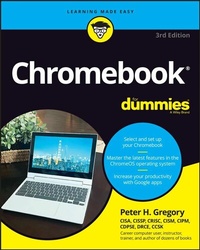
Chromebook For Dummies
Description

The return of the bestselling Chromebook guide on the market
Chromebook For Dummies, Third Edition, is your easy-to-follow guide to the low-cost alternative to a traditional laptop. This beginner's manual walks you through setting up your Chromebook, transitioning from using a traditional computer, and customizing the system to fit your needs. In case you're wondering, the Chromebook can be used for anything you'd normally do online-checking email, browsing websites, watching videos. This book takes you through all of it, giving you the latest updates on new Chromebook hardware and software features. Navigate apps, apply advanced settings and features, and turn to this guide time and again as you customize and optimize your Chromebook's performance.
- Get all the basics on using your Chromebook, in easy-to-follow Dummies style
- Set up and start using your Chromebook with ease
- Learn about the latest features in the Chrome operating system
- Discover the benefits of Chromebook versus traditional laptops
New and novice Chromebook users will love this approachable intro to Google's little portable computer.
Peter H. Gregory is a senior director of cybersecurity at GCI General Communication, Inc. He is the author of more than fifty books on information security and emerging technology and is an expert in privacy policy, standards and compliance, risk management, and cybersecurity risk assessments.
More details
Other editions
Additional editions
Content
- Intro
- Title Page
- Copyright Page
- Table of Contents
- Introduction
- About This Book
- Foolish Assumptions
- Icons Used in This Book
- Beyond the Book
- Where to Go from Here
- Part 1 Getting Started with Chromebook
- Chapter 1 Choosing and Setting Up Your Chromebook
- Checking Under the Hood of the Chromebook
- The software
- The hardware
- Choosing a Chromebook
- Setting Up Your Chromebook
- Turning on your device
- Selecting a language
- Connecting to the internet
- Agreeing to the Terms of Service
- Adult or child user
- Logging In for the First Time
- Logging in using an existing Google Account
- Creating a new Google Account
- Using Chromebook as a guest
- Transitioning to a Chromebook from Mac, Linux, or Windows
- Where to Go Next
- Chapter 2 Working with the Chromebook Desktop
- Accessing the Chromebook Shelf
- Using the Launcher: Chromebook's Start Button
- Navigating the Launcher
- Organizing Launcher Icons
- Setting Up App Shortcuts
- Pinning app shortcuts to your shelf
- Removing app shortcuts from your shelf
- Getting the Scoop in the Status Area
- Taking Charge of Window Controls
- Multitasking with Multiple Windows
- Setting Up a Printer
- Direct connect printing
- Wi-Fi printing
- Chapter 3 Surveying the Chrome Browser
- Navigating the Chrome Browser
- Sizing the Chrome window
- Working with tabs
- Using the Omnibox and the navigation buttons
- Saving your place with the bookmark bar
- Customizing and Controlling Chrome
- Managing bookmarks
- Managing your history and downloads
- Erasing your browsing history
- Going incognito
- Changing Search Engine Providers
- Using Other Browsers
- Chapter 4 Getting Your Hands on the Keyboard and Touchpad
- The Chromebook Keyboard at a Glance
- Using Shortcut Key Combinations
- Configuring Keyboard Settings
- Reconfiguring keyboard keys
- Turning shortcut keys into function keys
- Changing your keyboard language
- Using the Touchpad
- Finger gestures
- Touchpad and keyboard combinations
- Customizing Touchpad Settings
- Changing the touchpad speed
- Adjusting the touchpad click settings
- Changing scroll directions
- Connecting a Mouse or Keyboard
- Chapter 5 Finding and Exploring Chromebook Apps
- Exploring Chromebook's Pre-Installed Apps
- Storing data in the cloud with Google Drive
- Word processing with Docs
- Using spreadsheets with Sheets
- Making presentations with Slides
- Taking notes with Keep
- Organizing and playing music with YouTube Music
- Communicating with Google Voice
- Emailing with Gmail
- Organizing your schedule with Calendar
- Remotely accessing with Chrome Remote Desktop
- Reading with Google Play Books
- Getting directions with Maps
- Finding More Apps with the Chrome Web Store
- The Google Play Store
- Installing apps
- Checking app safety
- Managing installed apps
- Updating apps
- Finding out what apps you have installed
- Removing apps
- Chapter 6 Working with Gmail and Google Calendar
- Gmail for Chromebook
- Launching Gmail
- Navigating Gmail
- Customizing your view
- Adding a theme
- Sending Email with Gmail
- Checking out the New Message window
- Writing an email
- Styling text
- Attaching files to an email
- Customizing your email view
- Creating an email signature
- Reading Email
- Replying to email
- Organizing your Inbox
- Setting up a vacation responder
- Using Google Calendar
- Customizing your calendar view
- Creating additional calendars
- Creating a calendar event
- Updating and deleting an event
- Inviting others to your event
- Sharing calendars
- Chapter 7 Working with Files and Google Drive
- Finding Files with the Files App
- Navigating Files
- Creating and navigating folders
- Moving files and folders
- Searching for files
- Deleting files and folders
- Adding and Using External Storage
- Working with Google Drive
- Starting Google Drive
- Using Google Drive
- Uploading files to Google Drive
- Uploading files to Google Drive from a Mac, PC, or Linux system
- Using Google Drive with Your Smartphone or Tablet
- Collaborating with Drive
- Using Google Drive offline
- Part 2 Harnessing Business Power with the Chromebook
- Chapter 8 Writing with Word Processing
- Navigating Google Docs
- Surveying the Docs user interface
- Changing your view
- Working with Text
- Moving around your document
- Looking for text in your document
- Copying and pasting text
- Moving text by cutting and pasting
- Formatting Text
- Changing fonts
- Adding new fonts
- Removing fonts from the Font menu
- Styling fonts
- Text size
- Applying bold, italics, underline, or strikethrough
- Coloring your text
- Aligning your text
- Clearing formatting
- Saving Documents
- Naming your document
- Exporting documents
- Collaborating in Docs
- Tracking Document Revisions
- Using Docs Offline
- Chapter 9 Summarizing Spreadsheets
- Navigating Google Sheets
- Surveying the Sheets menu area
- Working with the spreadsheet area
- Customizing your view
- Working with Data
- Moving around in a spreadsheet
- Copying and pasting data
- Moving data with Cut and Paste
- Using Autofill to save time
- Formatting Data
- Working with fonts
- Adding new fonts
- Removing fonts from the Font menu
- Styling your data
- Changing font size
- Applying bold, italics, underline, or strikethrough to your content
- Coloring your content
- Changing alignment
- Wrapping text in a cell
- Clearing formatting
- Customizing Your Spreadsheet
- Adding and deleting rows and columns
- Adding a new row or column
- Deleting a row or column
- Resizing columns and rows
- Hiding columns and rows
- Merging cells
- Formatting numbers
- Grouping cells with colors and borders
- Performing Calculations with Formulas
- Using basic mathematical formulas
- Adding formulas to calculate values in cells
- Working with spreadsheet functions
- Saving Documents
- Naming your document
- Exporting documents
- Collaboration with Sheets
- Tracking Versions of Your Spreadsheet
- Using Sheets Offline
- Chapter 10 Preparing Presentations
- Navigating Google Slides
- Creating your presentation
- Surveying the Slides menu area
- The Applications menu
- The Edit toolbar
- The slide navigator
- The slide editor
- Customizing your view
- Styling Your Presentation
- Changing background color or background image
- Applying a different theme
- Working with Text
- Adding and deleting text boxes
- Resizing, moving, and rotating a text box
- Resizing
- Moving
- Rotating
- Copying and pasting text boxes
- Formatting text
- Adding and removing new fonts
- Changing text size
- Applying boldface, italics, underline, or strikethrough
- Coloring your text
- Aligning your text
- Clearing formatting
- Working with Images
- Adding images to your presentation
- Resizing, rotating, and relocating images
- Resizing
- Moving
- Rotating
- Cropping images
- Viewing Presentations in Presentation Mode
- Presenting on additional displays
- Using Presenter view
- Saving Presentations
- Naming your presentation
- Exporting your presentation
- Collaborating in Slides
- Tracking Revisions
- Using Slides Offline
- Chapter 11 Using Other Office Tools
- Getting Started with Microsoft 365
- Verifying your Microsoft 365 account
- OneDrive File Storage
- Outlook Email
- Outlook Calendar
- Outlook Contacts
- Word
- Excel
- PowerPoint
- OneNote
- Collaborating in OneDrive
- Working with PDF Documents
- Part 3 The Chromebook Recreational Vehicle
- Chapter 12 Managing Your Music
- Getting Started with YouTube Music
- Creating a Standard Account
- Upgrading to a Premium Account
- Accessing Music in YouTube Music
- YouTube Music Library
- Playing Music on YouTube Music
- YouTube Music Radio
- Searching for an artist's station
- Uploading music
- Creating playlists
- Sharing playlists
- Playing music on external devices
- Enjoying Streaming Music with Pandora
- Streaming with Spotify
- Amping Up Amazon Music
- Rocking with Apple Music
- High-End Listening with Tidal
- Chapter 13 Having Fun with Photos
- Navigating the Chromebook Camera
- Taking a Picture
- Using the camera timer
- Scanning documents and QR codes
- Transferring Photos Taken with a Smartphone to Your Chromebook
- Transferring Photos from Other Devices to Your Chromebook
- Viewing Photos on Your Chromebook
- Viewing Photos on a Television
- Deleting Photos
- Deleting photos stored locally on a Chromebook
- Deleting photos from Google Photos
- Editing Photos
- Sharing Photos
- Chapter 14 Playing Video on the Chromebook
- Creating a Video with Your Chromebook
- Watching Videos on a Chromebook
- Navigating the Chromebook Video Player
- Skipping around a video
- Activating full screen mode
- Adjusting the volume
- Using Other Video Players on a Chromebook
- Playing Videos from an Android Phone or iPhone on a Chromebook
- Transferring a Video from a Dashcam or Another Device to a Chromebook
- Getting Started with Google TV
- Navigating Google TV
- Purchasing movies and TV shows
- Playing movies and TV shows
- Casting to a smart TV
- Exploring YouTube
- Navigating YouTube
- Playing and pausing video
- Activating full screen mode
- Adjusting the volume
- Casting YouTube to a smart TV
- Gaming on Chromebooks
- Browser games
- Android games
- Chapter 15 Chatting with Friends and Family
- Instant Messaging with Google Chat
- Using spaces in Chat
- Sharing files in Chat
- Incoming message requests
- Video conferencing in Chat
- Gathering with Google Meet
- Setting up a meeting right now
- Joining a meeting by invitation
- Scheduling a meeting for later
- Meeting in Google Meet
- Sharing your screen
- Meeting host controls
- Calling and Texting with Google Voice
- Setting up Google Voice
- Sending text messages with Google Voice
- Making a call with Google Voice
- Other Google Voice features
- Videoconferencing with Zoom
- Zooming over to Zoom
- Joining a Zoom call
- Starting your own Zoom call
- Other Text and Video Applications
- Working with Google Contacts
- Adding contacts
- Viewing and editing contacts
- Chapter 16 Reading Ebooks on the Chromebook
- Navigating Google Play Books
- Searching and purchasing books
- Previewing a book
- Reading and Listening to Ebooks
- Reading in Full screen mode
- Personalizing your view
- Using bookmarks
- Viewing the definition of a word
- Reading ebooks offline
- Reading ebooks on the Google Play Books website
- Listening to Audiobooks
- Using Amazon Kindle on your Chromebook
- Purchasing Kindle books
- Reading Kindle books
- Reading Kindle books offline
- Part 4 Advanced Chromebook Settings
- Chapter 17 Customizing Your Chromebook
- Customizing Your Display Settings
- Changing your wallpaper
- Changing your screen resolution
- Using the Night Light feature
- Using an external display
- Customizing Your Shelf
- Hiding your shelf
- Changing the position of your shelf
- Connecting Bluetooth Devices to Your Chromebook
- Managing Notifications
- Using Hey Google!
- Other Chromebook Customizations
- Chapter 18 Securing Your Chromebook
- Conducting User Management
- Adding and deleting users
- Hiding users on the login screen
- Guest mode
- Using Google 2-Step Verification
- Using Google Authenticator
- Obtaining ultimate security with Google Advanced Protection
- Managing and Protecting Your Passwords
- Using an online password vault
- Storing passwords in the Chrome browser
- Storing passwords in a hard-copy book
- Locking Your Screen
- Setting a secure wake-from-Sleep mode
- Unlocking your Chromebook with a PIN
- Protecting Your Network Traffic with VPN
- Keeping Your Chromebook Up-to-Date
- Protection from Viruses and Other Malware
- Protecting Your Chromebook from Prying Eyes and Thieves
- Cover your webcam
- Use a privacy screen filter
- Preventing the theft of your Chromebook
- Chapter 19 Troubleshooting Your Chromebook
- Resolving Internet-Connectivity Problems
- Looking into Browser Issues
- Resolving Power Problems
- Finding Help Online
- Powerwashing Your Chromebook
- Using the Chromebook Recovery Utility
- Part 5 The Part of Tens
- Chapter 20 Ten (Plus One) Hardware Features to Consider When Buying a Chromebook
- Screen
- Processor
- Memory
- Storage Capacity
- Webcam
- Internet Connection
- Battery
- SD Card Slot
- HDMI Port
- USB Ports (Including USB-C)
- Backlit Keyboard
- Chapter 21 Ten (Plus One) Handy Chromebook Shortcuts
- Search from the Launcher
- Do a Quick Reboot
- Control Chromebook with the Omnibox
- Lock Your Screen
- Launch Apps in the Shelf
- Do a Barrel Roll
- View Chromebook Tasks
- See All Your Open Windows
- Perform Math, Conversions, and Definitions with Search
- Use a Proxy for the Delete Key
- Give Google Assistant a Nudge
- Chapter 22 Ten Great ChromeOS Apps
- Wordscapes
- Angry Birds
- Chrome Remote Desktop
- Canva
- Sketchbook
- Dashlane Password Manager
- Speedtest
- Microsoft Word Online
- WeatherBug
- Podcast Addict
- Chapter 23 Ten Chromebook Security Tips
- Lock Your Chromebook when You're Away
- Use Strong, Complex Passwords
- Use a Web-Based Password Vault
- Use Multifactor Authentication Everywhere You Can
- Get a Screen Privacy Filter
- Block Malicious Websites with an Anti-Malware Program
- Update the Security on Your Wi-Fi Access Point
- Back Up Your Local Data
- Use a VPN If You Use Public Wi-Fi Routinely
- Keep Your Chromebook Up-to-Date
- Index
- EULA
