

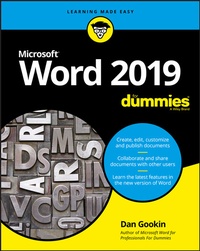
Word 2019 For Dummies
1st Edition
Published on 16. October 2018
400 pages
978-1-119-51408-4 (ISBN)
Description

The bestselling beginner's guide to Microsoft Word
Whether you've used older versions of this popular program or have never processed a single word, this hands-on guide gets you going with the latest version of Microsoft Word. In no time, you'll begin editing, formatting, proofing, and dressing up your Word documents like a pro.
In this leading book about the world's number one word processing application, Dan Gookin talks about using Microsoft Word in friendly, easy-to-follow terms. Focusing on the needs of the beginning Word user, it provides everything you need to know about Word--without any painful jargon.
* Covers the new and improved features found in the latest version of Word
* Create your own templates
* Explains why you can't always trust the spell checker
* Offers little-known keyboard shortcuts
If you're new to Word and want to spend more time on your actual work rather than figuring out how to make it work for you, this new edition of Word X For Dummies has you covered.
Whether you've used older versions of this popular program or have never processed a single word, this hands-on guide gets you going with the latest version of Microsoft Word. In no time, you'll begin editing, formatting, proofing, and dressing up your Word documents like a pro.
In this leading book about the world's number one word processing application, Dan Gookin talks about using Microsoft Word in friendly, easy-to-follow terms. Focusing on the needs of the beginning Word user, it provides everything you need to know about Word--without any painful jargon.
* Covers the new and improved features found in the latest version of Word
* Create your own templates
* Explains why you can't always trust the spell checker
* Offers little-known keyboard shortcuts
If you're new to Word and want to spend more time on your actual work rather than figuring out how to make it work for you, this new edition of Word X For Dummies has you covered.
More details
Other editions
Additional editions
Content
- Intro
- Title Page
- Copyright Page
- Table of Contents
- Introduction
- About This Book
- How to Use This Book
- Foolish Assumptions
- What's Not Here
- Icons Used in This Book
- Where to Go from Here
- Part 1 Your Introduction to Word
- Chapter 1 Hello, Word!
- Start Your Word Day
- Starting Word the traditional way
- Starting Word the best way
- Opening a document to start Word
- Behold the Word Program
- Working the Word Start screen
- Examining Word's main screen
- Working the Ribbon
- Showing and hiding the Ribbon
- Working with Word on a tablet
- Changing the document view
- Making text look larger or smaller
- End Your Word Day
- Quitting Word
- Closing a document without quitting Word
- Setting Word aside
- Chapter 2 The Typing Chapter
- Input Devices Galore
- Using the PC keyboard
- Working an onscreen keyboard
- Understanding the mouse pointer
- Keyboard Do's and Don'ts
- Following the insertion pointer
- Whacking the spacebar
- Backing up and erasing
- Pressing the Enter key
- Stuff That Happens While You Type
- Watching the status bar
- Observing page breaks
- Working collapsible headers
- Dealing with spots and clutter in the text
- Understanding colorful underlines
- Part 2 Your Basic Word
- Chapter 3 To and Fro in a Document
- Document Scrolling
- Working the vertical scroll bar
- Using the horizontal scroll bar
- Using the mouse wheel to scroll
- Move the Insertion Pointer
- Commanding the insertion pointer
- Moving in small increments
- Moving from beginning to end
- Return to the Previous Edit
- Go to Wherever with the Go To Command
- Chapter 4 Text Editing
- Remove Text You Don't Want
- Deleting single characters
- Deleting a word
- Deleting more than a word
- Split and Join Paragraphs
- Making two paragraphs from one
- Making one paragraph from two
- Soft and Hard Returns
- Undo Mistakes with Undo Haste
- Undoing the Undo command with Redo
- Using the Repeat command
- Chapter 5 Search for This, Replace It with That
- Text Happily Found
- Finding a tidbit o' text
- Scouring your document with Advanced Find
- Finding stuff you can't type
- Replace Found Text
- Chapter 6 Blocks o' Text
- Meet Mr. Block
- Mark a Block of Text
- Using the keyboard to select text
- Marking a block with the mouse
- Using the F8 key to mark a block
- Blocking the whole dang-doodle document
- Deselecting a block
- Manipulate a Block of Text
- Copying a block
- Moving a block
- Setting the pasted text format
- Using the mouse to copy or move a block
- Viewing the Clipboard
- Chapter 7 Spell It Write
- Check Your Spelling
- Fixing a misspelled word
- Dealing with incorrectly flagged words
- AutoCorrect in Action
- Undoing an AutoCorrect correction
- Adding a new AutoCorrect entry
- Adjusting AutoCorrect settings
- Grammar Be Good
- All-at-Once Document Proofing
- Reviewing all those errors
- Rechecking a document
- Document Proofing Settings
- Customizing the custom dictionary
- Disabling automatic proofing
- Curtailing grammar checking
- Hiding all proofing errors in a document
- Chapter 8 Documents New, Saved, and Opened
- Some Terms to Get Out of the Way
- Behold! A New Document
- Save Your Stuff!
- Saving a document for the first time
- Dealing with document-save errors
- Saving or updating a document
- Saving automatically on OneDrive
- Forgetting to save before you quit
- Open a Document
- Using the Open command
- Opening one document inside another
- Recover a Draft
- Chapter 9 Publish Your Document
- Your Document on Paper
- Previewing before printing
- Printing the entire document
- Printing a specific page
- Printing a range of pages
- Printing on both sides of the page
- Printing odd and even pages
- Printing a block
- Printing more than one copy of something
- Choosing another printer
- Canceling a print job
- Electronically Publishing Your Document
- Preparing a document for publishing
- Making a PDF
- Exporting your document
- Part 3 Fun with Formatting
- Chapter 10 Character Formatting
- Text-Formatting Techniques
- Basic Text Formats
- Selecting a font
- Applying character formats
- Text Transcending Teensy to Titanic
- Setting the text size
- Nudging text size
- More Colorful Text
- Coloring the text
- Shading the background
- Change Text Case
- Clear Character Formatting
- Behold the Font Dialog Box
- Chapter 11 Paragraph Formatting
- Paragraph-Formatting Rules and Regulations
- Formatting a paragraph
- Locating the paragraph-formatting commands
- Justification and Alignment
- Line up on the left!
- Everyone center!
- Line up on the right!
- Line up on both sides!
- Make Room Before, After, or Inside Paragraphs
- Setting the line spacing
- Making space between paragraphs
- Paragraph Indentation Madness
- Indenting the first line of a paragraph
- Making a hanging indent (an outdent)
- Indenting a whole paragraph
- Using the ruler to adjust indents
- Chapter 12 Tab Formatting
- Once Upon a Tab
- Seeing tab characters
- Seeing tab stops
- Using the ruler to set tab stops
- Using the Tabs dialog box to set tabs
- The Standard Left Tab Stop
- Creating a basic tabbed list
- Creating a 2-tab paragraph thing
- The Center Tab Stop
- The Right Tab Stop
- Making a right-stop, left-stop list
- Building a 2-column right-stop list
- The Decimal Tab
- The Bar Tab
- Fearless Leader Tabs
- Tab Stop, Be Gone!
- Chapter 13 Page Formatting
- Describe That Page
- Setting page size
- Changing orientation (landscape or portrait)
- Setting the page margins
- Using the Page Setup dialog box
- Page Numbering
- Adding an automatic page number
- Starting with a different page number
- Numbering with Roman numerals
- Removing page numbers
- New Pages from Nowhere
- Starting text on a new page
- Inserting a blank page
- Page Background Froufrou
- Coloring pages
- Printing colored pages
- Adding a watermark
- Chapter 14 More Page Formatting
- Slice Your Document into Sections
- Understanding sections
- Creating a section
- Using sections
- Removing a section break
- That First Page
- Adding a cover page
- Inserting a cover page manually
- Headers and Footers
- Using a preset header or footer
- Creating a custom header or footer
- Working with multiple headers and footers
- Removing a header or a footer
- Chapter 15 Style Formatting
- The Big Style Overview
- Finding the styles
- Using a style
- Discovering the current style
- Removing style formatting
- Make Your Own Styles
- Creating a style
- Using the Create New Style from Formatting dialog box
- Modifying a style
- Assigning a shortcut key to a style
- Deleting a style
- Style Tips and Tricks
- Changing the Normal style
- Creating heading styles
- Customizing the Style Gallery
- Chapter 16 Template and Themes Formatting
- Instant Documents with Templates
- Using a template to start a new document
- Changing a document's associated template
- Templates of Your Own
- Creating a template based on a document you already have
- Making a new template from scratch
- Modifying a template
- The Theme of Things
- Applying a document theme
- Modifying or creating a theme
- Chapter 17 Random Drawer Formatting
- Weird and Fun Text Effects
- Steal This Format!
- Automatic Formatting
- Enjoying automagical text
- Formatting tricks for paragraphs
- Undoing an AutoFormat
- Center a Page, Top to Bottom
- Part 4 Spruce Up a Dull Document
- Chapter 18 They're Called Borders
- The Basics of Borders
- Putting borders around a paragraph
- Boxing multiple paragraphs
- Removing borders
- The Borders and Shading Dialog Box
- Creating a fancy title
- Boxing text
- Applying a page border
- Stick a thick line between paragraphs
- Chapter 19 Able Tables
- Put a Table in Your Document
- Working with tables in Word
- Creating a table
- Un-creating a table
- Deleting a table
- Text in Tables
- Typing text in a table
- Selecting in a table
- Aligning text in a cell
- Table Modification
- Adding or removing rows or columns
- Adjusting row and column size
- Merging cells
- Splitting cells
- Making the table pretty
- Adding a table caption
- Chapter 20 Columns of Text
- All about Columns
- Making 2-column text
- Building a trifold brochure
- Giving up on columns
- Column Termination
- Changing column formats
- Placing a column break
- Chapter 21 Lots of Lists
- Lists with Bullets and Numbers
- Making a bulleted list
- Numbering a list
- Creating a multilevel numbered list
- Numbering lines on a page
- Document Content Lists
- Creating a table of contents
- Building an index
- Adding a list of figures
- Footnotes and Endnotes
- Chapter 22 Here Come the Graphics
- Graphical Goobers in the Text
- Copying and pasting an image
- Plopping down a picture
- Slapping down a shape
- Sticking things into a shape
- Using WordArt
- Image Layout
- Wrapping text around an image
- Floating an image
- Keeping an image with text
- Image Editing
- Resizing an image
- Cropping an image
- Rotating an image
- Changing an image's appearance
- Image Arrangement
- Moving an image hither and thither
- Aligning graphics
- Shuffling images front or back
- Grouping images
- Chapter 23 Insert Tab Insanity
- Characters Foreign and Funky
- Nonbreaking spaces and hyphens
- Typing characters such as Ü, Ç, and Ñ
- Inserting special characters and symbols
- Spice Up a Document with a Text Box
- Fun with Fields
- Understanding fields
- Adding some useful fields
- Updating a field
- Changing a field
- Viewing a field's raw data
- Deleting fields
- The Date and Time
- Adding the current date or time
- Using the PrintDate field
- Part 5 The Rest of Word
- Chapter 24 Multiple Documents, Windows, and File Formats
- Multiple Document Mania
- Arranging open document windows
- Comparing two documents side by side
- Viewing one document in multiple windows
- Using the old split-screen trick
- Many, Many Document Types
- Understanding document formats
- Opening a non-Word document
- Updating an older Word document
- Chapter 25 Word for Writers
- Organize Your Thoughts
- Entering Outline view
- Typing topics in the outline
- Rearranging topics
- Demoting and promoting topics
- Expanding and collapsing topics
- Adding a text topic
- Printing an outline
- Large Documents
- Creating a master document
- Splitting a document
- Dan's Writing Tips
- Choosing the best word
- Counting every word
- Writing for writers
- Chapter 26 Let's Work This Out
- Comments on Your Text
- Adding a comment
- Replying to a comment
- Showing or hiding comments
- Perusing comments one at a time
- Printing comments (or not)
- Deleting comments
- The Yellow Highlighter
- Look What They've Done to My Text, Ma
- Comparing two versions of a document
- Tracking changes as they're made
- Reviewing changes
- Collaborate on the Internet
- Sharing a document
- Checking updates
- Chapter 27 Mail Merge Mania
- About Mail Merge
- Understanding Word's mail merge jargon
- Reviewing the mail merge process
- Using the Mail Merge Wizard
- The Main Document
- Creating a mail merge form letter
- Creating mail merge email messages
- Creating mail merge envelopes
- The Recipient List
- Building a new recipient list
- Using an already created recipient list
- Grabbing a recipient list from Outlook
- Editing a recipient list
- Fold in the Fields
- Preview the Merged Documents
- Mail Merge, Ho!
- Merging to a new set of documents
- Merging to the printer
- Merging to email
- Chapter 28 Labels and Envelopes
- Labels Everywhere
- Printing sheets of identical labels
- Printing an address list
- Instant Envelope
- Chapter 29 A More Custom Word
- A Better Status Bar
- The Quick Access Toolbar
- Adding buttons to the Quick Access toolbar
- Editing the Quick Access toolbar
- Removing items from the Quick Access toolbar
- Customize the Ribbon
- Part 6 The Part of Tens
- Chapter 30 The Ten Commandments of Word
- Thou Shalt Remember to Save Thy Work
- Thou Shalt Not Use Spaces Unnecessarily
- Thou Shalt Not Abuse the Enter Key
- Thou Shalt Not Neglect Keyboard Shortcuts
- Thou Shalt Not Manually Number Thy Pages
- Thou Shalt Not Force a New Page
- Thou Shalt Not Forget Thy Undo Command
- Honor Thy Printer
- Thou Shalt Have Multiple Document Windows Before Thee
- Neglecteth Not Windows
- Chapter 31 Ten Cool Tricks
- Side-to-Side Page Movement
- Automatic Save with AutoRecover
- Accelerate the Ribbon
- Ancient Word Keyboard Shortcuts
- Build Your Own Fractions
- Electronic Bookmarks
- Lock Your Document
- The Drop Cap
- Map Your Document
- Sort Your Text
- Chapter 32 Ten Bizarre Things
- Equations
- Video in Your Document
- Hidden Text
- The Developer Tab
- Hyphenation
- Document Properties
- Document Version History
- Collect-and-Paste
- Click-and-Type
- Translations
- Chapter 33 Ten Automatic Features Worthy of Deactivation
- Bye-Bye, Start Screen
- Restore the Traditional Open and Save Dialog Boxes
- Turn Off the Mini Toolbar
- Select Text by Letter
- Disable Click-and-Type
- Paste Plain Text Only
- Disable AutoFormat Features (×4)
- Index
- EULA
