

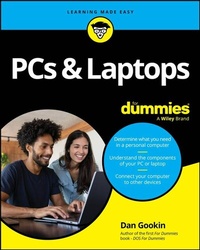
PCs & Laptops For Dummies
Description

A one-stop guide to making the most of your desktop PC or laptop computer
PCs and Laptops For Dummies is the essential user's guide to the features your PC or laptop has to offer-and how to use them successfully. With this book as your coach, you can jump over technological hurdles with ease, navigating the hardware and software of your personal computer. Regardless of what brand of computer you use, you'll learn to navigate the latest version of Windows. You'll also explore how PCs, laptops, and other mobile devices can be used together, and how to keep your data secure. This Dummies guide is your first step toward computer-whiz status, saving you time and energy with everything in one place.
- Learn about Microsoft Windows, the operating system for PC and laptop
- Discover PC and laptop features you never knew about, and get your devices to play nicely together
- Identify the specs and features you need, so you can purchase a computer that's a fit for you
- Get easy-to-understand information, advice, and tricks at your fingertips
This is the perfect Dummies guide for PC or laptop users at home or at work who need a go-to guide for their hardware and software questions.
More details
Other editions
Additional editions
Person
Dan Gookin wrote the very first For Dummies book in 1991. The author of several bestsellers, Dan enjoys worldwide success with books that have been translated into 32 languages and have more than 11 million copies in print. Dan is also author of Word For Dummies and C Programming For Dummies.
Content
- Intro
- Title Page
- Copyright Page
- Table of Contents
- Introduction
- About This Book
- Foolish Assumptions
- Where to Start
- Conventions Used in This Book
- Icons Used in This Book
- Where to Go from Here
- Part 1 Hello, Computer!
- Chapter 1 Computer 101
- The Fast Idiot
- What a computer does
- Hardware and software
- Doubtless, You Have Some Questions
- "What is a PC?"
- "Do I need a laptop?"
- "Can you be more specific?"
- "Why not just use a tablet or smartphone instead of a computer?"
- "Seriously, can a computer explode?"
- Buy That Computer!
- Step 1: Determine what you want the computer to do
- Step 2: Choosing between a desktop and a laptop
- Step 3: Calculate how much hardware you need
- Step 4: Locate service and support
- Step 5: Buy it!
- What to Do with Old Computers
- Disposing of a geezer desktop PC
- Discarding that old laptop
- A Final Thing to Remember
- Chapter 2 The PC Tour
- The Many Shapes of PC
- Around the Desktop PC
- Exploring a typical computer system
- Finding interesting things on the box's front
- Stuff found on a desktop PC's rump
- The I/O panel
- Laptop Exploration
- Chapter 3 Setup, Connections, and Power
- Desktop PC Assembly
- Finding a place for the computer box
- Setting the monitor
- Laptop Setup
- The Plug-In Guide
- Plugging in the monitor
- Attaching the keyboard and mouse to a desktop PC
- Connecting to a wired network
- Hooking up a printer
- Adding audio stuff
- It Must Have Power
- Plugging everything into a power strip
- Taking advantage of a UPS
- Using the UPS (a short play)
- Chapter 4 To Turn On a Computer
- Turn On the Computer
- Powering on a desktop PC
- Turning on a laptop
- Here Comes Windows
- Identifying yourself
- Staring at the desktop
- Working the taskbar
- Accessing the Start menu
- Settings and Controls
- Summoning the Action Center
- Using the Settings app
- Visiting the Control Panel
- Chapter 5 To Turn Off a Computer
- Goodnight, Computer
- Finding the Windows power options
- Putting the computer to sleep
- Hibernating the computer
- Shutting down the computer
- Restarting the PC
- Locking Windows
- Signing out of Windows
- Switching to another user
- Shutdown Options and Configuration
- Setting the power button's function
- Determining what happens when you shut a laptop's lid
- Should You Leave the Computer On All the Time?
- "I want to leave my computer off all the time"
- "I want to leave my computer on all the time"
- Keeping a laptop on all the time
- Part 2 A Non-Nerdy Guide to Computer Hardware
- Chapter 6 A Peek Inside the Box
- Computer Guts
- Looking under the hood
- Powering Mr. Computer
- Lurking on the motherboard
- Storing mass storage devices
- The Processor Rules the Motherboard
- Understanding the processor's role
- Naming PC processors
- Measuring processor speed
- Discovering your PC's processor
- Your Computer Is Also a Timepiece
- Chapter 7 Computer Memory
- Random Access Memory
- One Byte at a Time
- Memory Chips and Dips
- Memory Q&A
- "How much memory is in my PC right now?"
- "Do I have enough memory?"
- "Does my PC have enough memory?"
- "Can I test whether my PC has enough memory?"
- "Can I add memory to my computer?"
- "Will the computer ever run out of memory?"
- "What is virtual memory?"
- "What is video memory?"
- Chapter 8 Disks and Drives
- The Mass Storage System
- Reviewing mass storage types
- Measuring mass storage
- Connecting mass storage
- Removable Media
- Adding storage
- Ejecting storage media
- Unmounting an external drive
- Mass Storage Alphabet Soup
- Handing out drive letters
- Exploring drive icons and names
- Checking drive capacity
- Using mass storage
- Chapter 9 The PC's Graphics System
- Graphical Guts
- Discovering the display adapter
- Attaching the monitor
- The Monitor, the Screen, the Display
- Classifying monitor types
- Measuring a monitor
- Reading monitor messages
- Working the monitor's controls
- Windows Controls What You See
- Setting monitor resolution
- Adding more monitors
- Orienting a monitor
- Chapter 10 Input This!
- Meet Mr. Keyboard
- Attaching a keyboard
- Examining the typical PC keyboard
- Reviewing laptop keyboard layout
- Controlling keyboard behavior keys
- Finding the laptop's secret numeric keypad
- The Pointing Device
- Connecting a pointing device
- Reviewing basic mouse parts
- Moving the mouse
- Using a touchpad
- Wielding a digital pen
- Changing pointing device settings
- Use the mouse left-handed
- Adjust the scroll wheel
- Set touchpad options
- Additional mouse settings
- Touchscreen Input
- Reviewing touchscreen techniques
- Typing on a touchscreen
- Voice Input
- Chapter 11 System Expansion
- The Versatile USB Port
- Reviewing USB standards - and colors
- Knowing the USB cable connector varieties
- Adding and removing USB peripherals
- Using hubs to expand the USB universe
- Working with USB-powered gizmos
- Expansion Slots
- Shopping for expansion cards
- Installing an expansion card
- Wireless Connections with Bluetooth
- Accessing Bluetooth controls
- Pairing a Bluetooth peripheral
- Unpairing a Bluetooth device
- The Laptop Becomes a Desktop
- Using a full-size keyboard and mouse
- Adding a monitor
- Running the laptop with its lid closed
- Chapter 12 P Is for Printer
- Step Aside, Gutenberg
- Surveying the printer landscape
- Touring the typical printer
- Drinking ink
- Eating paper
- Choosing the proper paper
- The Union of Printer and PC
- Connecting the printer
- Finding printers in Windows
- Adding a printer manually
- Setting the default printer
- Printer Operation
- Printing a wonderful whatever
- Printing when you don't have a printer
- Stopping a printer run amok
- Chapter 13 Webcams, Scanners, and Audio
- The Computer Is Watching You
- Obtaining a webcam
- Attaching the webcam
- Securing the webcam
- The Document Scanner
- Computer Goes Beep
- Setting up speakers
- Using headphones
- Configuring the speakers in Windows
- Shhh - It's Listening to You!
- Exploring microphone options and connections
- Configuring the microphone
- Securing the microphone
- Part 3 Network and Internet Stuff
- Chapter 14 The Networking Thing
- The Big Networking Picture
- Make the Network Connection
- Connecting to a wired network
- Accessing a Wi-Fi network
- Connecting to a hidden Wi-Fi network
- Checking and setting the network type
- Break the Network Connection
- Disconnecting from a wired network
- Releasing the Wi-Fi connection
- Forgetting a Wi-Fi connection
- Chapter 15 The Internet
- What Is the Internet?
- Internet Access
- It's a World Wide Web We Weave
- Finding another web browser
- Browsing tips
- Going undercover on the web
- Searching-the-web tips
- Stealing an image from a web page
- Copying text from a web page
- Printing web pages
- Sharing a web page
- Email Messages
- Using an email program
- Configuring email
- Chapter 16 Files from Elsewhere
- Files Lurking on the Local Network
- Activating Network Discovery
- Accessing a network folder
- Mapping a shared folder
- Sharing a folder
- Cloud Storage Synchronization
- Understanding cloud storage
- Exploring cloud storage options
- Integrating cloud storage
- Sharing a file from cloud storage
- Chapter 17 Internet Safety
- Behind the Firewall
- Finding the firewall
- Dealing with a firewall warning
- Beware the Bogus Website
- Checking the website's security
- Avoiding a phishing attack
- Part 4 On the Go with Your Laptop
- Chapter 18 Portable Power
- The Battery Will Get a Charge Out of This!
- Using the battery (or not)
- Monitoring the battery
- Charging the battery
- Replacing the battery
- When the Power Gets Low
- Setting low-battery warnings
- Using the Battery Saver
- Reviewing the power management plan
- Chapter 19 O, the Places You'll Go
- In the Bag
- Features to look for
- Size
- Style
- Pouches and places
- Things to pack in your laptop bag
- Flying with Your Laptop
- Things to do before you leave
- Laptop inspection
- All aboard!
- Air power
- Airplane mode
- In-flight Wi-Fi
- Arriving at your destination
- Café Computing
- Find a good seat
- Other tips 'n' stuff
- In a Hotel Room
- Mind the Laptop's Temperature
- Chapter 20 A More Secure Laptop
- The Hot Laptop
- Before Your Laptop Is Stolen
- Attaching the laptop to something sturdy
- Marking your laptop
- Registering the laptop and its software
- Paying attention to your environment
- Protect Your Data with a Strong Password
- The Laptop Reset
- Part 5 Security and Maintenance
- Chapter 21 System Security
- The Windows Security Center
- The Malware Scourge
- Doing a virus scan
- Dealing with a quarantined file
- Paying attention to the UAC warnings
- Keep Windows Up-to-Date
- Checking the update status
- Postponing a Windows update
- Exploring other updates and upgrades
- Your Privacy
- Locking the screen
- Reviewing Windows privacy settings
- Chapter 22 An All-Important Safety Copy
- Back Up Your Data
- Obtaining backup storage
- Configuring File History
- Checking the backup schedule
- Using cloud backup
- The Restore Operation
- Restoring an older version
- Restoring more than a single file
- Chapter 23 Maintenance Chores
- Mass Storage Duties
- Checking storage
- Freeing storage space
- Checking for errors
- Running defrag
- Network Troubleshooting
- The Windows Do-Over
- General Cleaning
- Keeping it clean
- Vacuuming the keyboard
- Cleansing the screen
- Part 6 The Part of Tens
- Chapter 24 Ten Computer Commandments
- I. Thou Shalt Not Fear Thy PC
- II. Thou Shalt Save Thy Work
- III. Thou Shalt Back Up Thy Files
- IV. That Shalt Not Open or Delete Things Unknownst
- V. Thou Shalt Not Be a Sucker
- VI. Thou Shalt Use Antivirus Software, Yea Verily, and Keepeth It Up-to-Date
- VII. Thou Shalt Upgrade Wisely
- VIII. Thou Shalt Compute at a Proper Posture
- IX. Thou Shalt Keepeth Windows Up-to-Date
- X. Thou Shalt Properly Shut Down Windows
- Chapter 25 Ten Battery-Saving Tips and Tricks
- Don't Drop the Battery, Get It Wet, Short It, Play Keep-Away with It, Open It, Burn It, or Throw It Away
- Reduce the Screen's Brightness
- Keep the Laptop Cool
- Keep Memory Empty
- Disable Wi-Fi and Bluetooth
- Change the Power Mode
- Understand That Batteries Drain Over Time!
- Deal with the Low-Battery Warning
- Remember the Battery Saver!
- Plug the Laptop into the Wall
- Chapter 26 Ten Handy Laptop Accessories
- Laptop Bag or Travel Case
- External Storage
- Cooling Pad
- Laptop Stand
- Minivac
- USB Lamp
- Full-Size Keyboard and External Mouse
- Privacy Screen Filter
- ID Card or Return Service Sticker
- Theft-Prevention System
- Chapter 27 Ten Things to Throw in Your Laptop Bag
- Power Cord and Brick
- Mouse or Digital Pen
- Screen Wipes and Cleaner
- Laptop Lock
- Removable Media
- Headphones
- Spare Batteries
- Office Supplies
- Cables, Cables, Cables
- Not the End of the List
- Chapter 28 Ten Tips from a PC Guru
- Remember That You're in Charge
- Mind Who "Helps" You
- Give Yourself Time to Learn
- Create Separate Accounts
- Mind What You Download
- Organize Your Files
- Don't Reinstall Windows
- Shun the Hype
- Keep on Learning
- Remember Not to Take This Computer Stuff Too Seriously
- Index
- EULA
