

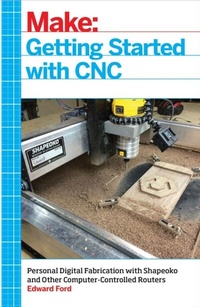
Getting Started with CNC
Personal Digital Fabrication with Shapeoko and Other Computer-Controlled Routers
1st Edition
Published on 11. August 2016
166 pages
978-1-4571-8334-8 (ISBN)
Description

Getting Started with CNC is the definitive introduction to working with affordable desktop and benchtop CNCs, written by the creator of the popular open hardware CNC, the Shapeoko. Accessible 3D printing introduced the masses to computer-controlled additive fabrication. But the flip side of that is subtractive fabrication: instead of adding material to create a shape like a 3D printer does, a CNC starts with a solid piece of material and takes away from it. Although inexpensive 3D printers can make great things with plastic, a CNC can carve highly durable pieces out of a block of aluminum, wood, and other materials. This book covers the fundamentals of designing for--and working with--affordable ($500-$3000) CNCs.
More details
Other editions
Additional editions
Content
- Intro
- Copyright
- Table of Contents
- Preface
- Why I Wrote This Book
- Who This Book Is For
- How to Use This Book
- Conventions Used in This Book
- Using Code Examples
- Safari® Books Online
- How to Contact Us
- Acknowledgments
- Chapter 1. What Is CNC?
- Digital Fabrication
- Why Computer Controlled?
- Accuracy
- Complexity
- Simulation
- Safety
- How Do Computer-Controlled Machines Work?
- Cartesian Coordinate System
- X, Y, and Z for CNC
- What Can I Make?
- Toys and Games
- Signs and Carvings
- Vehicles, Furniture, and Houses
- Molds and Casts
- Metal Creations and Inlays
- Circuit Boards
- Chapter 2. Mechanical Overview
- Gantry
- Carriage
- Spindle
- Spindles Versus Routers
- Table
- Mechanisms for Securing Materials
- Step Clamps
- T-slots
- Threaded Inserts
- Screws
- Tape
- Vacuum Table
- Vises
- Routers Versus Mills
- Machine Configurations
- Chapter 3. End Mills and Cutting
- End Mills
- Drill Bits Versus End Mills
- Common Tool Geometries
- Tip Shapes
- End Mill Anatomy
- End Mill Materials
- Coatings
- Cutting
- Ramping
- Climb Versus Conventional Cuts
- Speeds and Feeds
- Chipload
- Types of Tool Holding
- Chapter 4. CAD: Draw or Model Something
- 2D Raster Images
- 2D Vector Graphics
- Vector Editing Software
- 2D Drawings Versus 3D Models
- 3D Models
- More Software to Try
- V-Carving Text
- Image to G-code
- Single-Line Drawing
- Halftone Images
- Chapter 5. CAM: Make Toolpaths
- 2D/2.5D Toolpaths
- 3D Toolpaths
- 2D/2.5D CAM Operations
- 2D/2.5D Toolpath Parameters
- Overcuts
- Dog Bones
- T-Bones
- Minimum Feature Size
- Basic 3D CAM Operations
- Parallel Finishing
- Contour Finishing
- Chapter 6. CAD/CAM Project: No Machine Necessary!
- Inkscape
- MakerCAM
- Webgcode
- CAMotics
- Wooden Racer Project
- Project Materials and Dimensions
- Step 1: Create the Digital Design
- Body
- Wheels
- Step 2: Configure MakerCAM
- Step 3: Import and Center Racer SVG File
- Step 4: Create Wheel Toolpaths
- Reduce Wheel Thickness by Half
- Screw Head Countersink
- Screw Hole
- Step 5: Create Body Toolpaths
- Body Window
- Wheel Holes
- Body Perimeter
- Step 6: Calculate Toolpaths
- Step 7: Export G-code
- Step 8: Vizualize Toolpaths
- Chapter 7. Creating Motion: Electromechanical Overview
- Mechanical Motion
- Linear Motion
- Slop
- Linear Guide Types
- Power Transmission
- Lead Screws and Lead Nuts
- Belt Drives
- Rack and Pinion
- Backlash
- Motors and Electronic Components
- Stepper Motors
- Motion and Machine Control
- Mach3
- LinuxCNC
- Grbl
- Industrial Cases
- Other Choices
- Parallel Ports
- Chapter 8. G-Code: Speaking CNC
- Drawing a Square: Instructions for Humans
- Square-Drawing Instructions for Machines
- G-code Square Breakdown
- Step 1: Put Pen to Paper (G20 F20 X0 Y0 Z0)
- Step 2: Move the Pen 1 Inch Toward the Top (G1 Y1)
- Step 3: Move the Pen 1 Inch Right (G1 X1)
- Step 4: Move the Pen 1 Inch Toward bottom (G1 Y0)
- Step 5: Move the Pen 1 Inch Left (G1 X0)
- Step 6: Lift the Pen 1 Inch from Paper (G1 Z1)
- G-code Rules
- Feeds, Speeds, and Tools
- Diving Further into G-Codes
- G0 (Rapid Motion)
- G1 (Controlled Motion)
- G2 (Clockwise Motion)
- G3 (Counterclockwise Motion)
- G17/G18/G19 (Working Planes)
- G20/21 (Inches or Millimeters)
- G28 and G28.1 (Referencing Home)
- G90 (Absolute Mode)
- G91 (Incremental Mode)
- M-Codes
- Chapter 9. Practical Machining Tips
- CAM File Orientation Versus Actual Machine Setup
- Setting Machine Zero
- Zeroing the X- and Y-Axes
- Zeroing the Z-Axis
- Homing
- Practical Homing
- Tool Changes
- Machined Material Hold-Down Tips
- Chapter 10. Conclusion
- Appendix A. Resources
- Shapeoko Documentation and Communities
- Invaluable Resources
- MakerSpaces
- Index
- About the Author
