

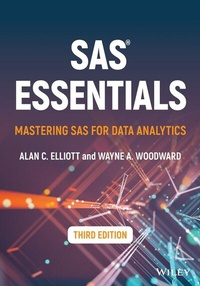
SAS Essentials
Description

Valuable step-by-step introduction to using SAS¯® statistical software as a foundational approach to data analysis and interpretation
Presenting a straightforward introduction from the ground up, SAS¯® Essentials illustrates SAS using hands-on learning techniques and numerous real-world examples; keeping different experience levels in mind, the highly qualified author team has developed the book over 25 years of teaching introductory SAS courses.
This book introduces data manipulation, statistical techniques, and the SAS programming language, including SAS macros, reporting results in tables, and factor analysis, as well as sections on character functions, variable manipulation, and merging, appending, and updating files. It features self-contained chapters to enhance the learning process and includes programming approaches for the latest version of the SAS platform.
The Third Edition has been updated with expanded examples, a new chapter introducing PROC SQL as well as new end-of-chapter exercises. The Third Edition also includes a companion website with data sets, additional code, notes on SAS programming, functions, ODS, PROC SQL, and SAS Arrays, along with solutions for instructors.
Specific sample topics covered in SAS¯® Essentials include:
* Getting data into SAS, reading, writing, and importing data, preparing data for analysis, preparing to use SAS procedures, and controlling output using ODS
* Techniques for creating, editing, and debugging SAS programs, cleaning up messy data sets, and manipulating data using character, time, and numeric functions
* Other essential computational skills that are utilized by business, government, and organizations alike, and DATA step for data management
* Using PROC to analyze data, including evaluating quantitative data, analyzing counts and tables, comparing means using T-Tests, correlation and regression, and analysis of variance, nonparametric analysis, logistic regression, factor analysis, and creating custom graphs and reports.
SAS¯® Essentials is a fundamental study resource for professionals preparing for the SAS Base Certification Exam, as well as an ideal textbook for courses in statistics, data analytics, applied SAS programming, and statistical computer applications.
More details
Other editions
Additional editions
Persons
Alan C. Elliott, MAS, MBA is a prolific writer and author or co-author of multiple books on data analytics and computer programs. He taught SAS programming at the university level for over 25 years.
Wayne A. Woodward, PhD, is Professor Emeritus of Statistical Science at Southern Methodist University. He has received SMU's highest recognitions for teaching and research, including the Altshuler Distinguished Teaching Professor and the United Methodist Church Scholar Teacher of the Year awards.
Content
Preface vii
Acknowledgements ix
PART I DATA MANIPULATION AND THE SAS®
PROGRAMMING LANGUAGE 1
1 Getting Started
2 Getting Data into SAS
3 Reading, Writing, and Importing Data
4 Preparing Data for Analysis
5 Preparing to Use SAS Procedures
6 SAS Advanced Programming Topics Part 1
7 SAS Advanced Programming Topics Part 2
8 Controlling Output Using ODS
9 Introduction to PROC SQL
PART II STATISTICAL ANALYSIS USING SAS PROCEDURES
10 Evaluating Quantitative Data
11 Analyzing Counts and Tables
12 Comparing Means Using T-Tests
13 Correlation and Regression
14 Analysis of Variance
15 Analysis of Variance, Part II
16 Nonparametric Analysis
17 Logistic Regression
18 Factor Analysis
19 Creating Custom Graphs
20 Creating Custom Reports
Appendix A Options Reference
Appendix B SAS Function Reference
Appendix C Choosing a SAS Procedure
Appendix D Quick Reference
Appendix E USING SAS® OnDemand for Academics
Appendix F Base Programming Practice Test
References
Index
1
GETTING STARTED
LEARNING OBJECTIVES
- To be able to use the SAS® software program in a Windows environment.
- To understand the basic information about getting data into SAS and running a SAS program.
- To be able to run a simple SAS program.
Data analytics is the process of gathering and using data to understand some process, predict a future outcome, or make a decision. The SAS system is a powerful software program designed to give data analysts a wide variety of both data management and data analysis capabilities. Although SAS has millions of users worldwide, it is not the simplest program to learn. With that in mind, we've created this book to provide you with a straightforward approach to learning SAS that can help you surmount the learning curve and successfully use SAS for data analysis.
Two main concepts are involved in learning SAS: (1) how to get data into SAS and ready for analysis using the SAS programming language and (2) how to perform the desired data analysis.
- Part 1 (Chapters 2-9) shows how to get data into SAS and prepare it for analysis.
- Part 2 (Chapters 10-20) shows how to use data to perform statistical analyses, create graphs, and produce reports.
This chapter introduces you to the SAS system's use in the Microsoft Windows environment and provides numerous Hands-On examples of how to use SAS to analyze data.
1.1 USING SAS IN A WINDOWS ENVIRONMENT
SAS runs on a number of computer platforms (operating systems) including mainframes and personal computers whose operating systems are UNIX, Linux, or Windows. This book is based on using SAS in a Windows environment where you have the software installed on your local computer. The vast majority of the content in this book will apply to any SAS computer environment. However, we will include occasional references to differences that are present in other operating systems. Most of the differences between versions have to do with file references. Moreover, there are multiple ways to use SAS, notably the programming or Enterprise Guide approaches. This book teaches the programming approach that offers the user the most flexibility. Before discussing the SAS program, we'll review some of the basic file-handling features of Windows. There is a free version of SAS called OnDemand for Academics: SAS Studio for Learning Purposes. Appendix E discusses how to install this version and how it can be used to run many of the examples in this book.
1.1.1 Creating a Folder for Storing Your SAS Files
As there are several versions of Windows currently in use, we present general guidelines that should work in any one of them. To follow our examples, we recommend that you store the data and SAS files provided in this book in a folder named SASDATA. In fact, we recommend that you do this NOW!. The examples in this text will assume that all example files used in this book are in a folder whose file path is C:\SASDATA. You can adapt the examples by using an appropriate file path for other operating systems. Table 1.1 shows several ways to reference a file.
In your own data analysis, you may choose to store your SAS files in a folder with a name that makes sense to you, such as C:\RESEARCH. You can also create subfolders for each analysis; for example, C:\RESEARCH\SMITH or C:\RESEARCH\JONES.
To copy the example files of this book to the C:\SASDATA folder on your own computer, perform the following:
- Download the example files from the following web site: http://www.alanelliott.com/sas
- Follow the installation instructions provided on the web site for the 3rd edition of this book. Doing so creates the
C:\SASDATAfolder on your computer and copies the example files to that folder. (The web site also includes updates concerning the information in this book and other helpful resources.)TABLE 1.1 Accessing Files in Various Operating Systems
Operating System Example File Reference WindowsC:\SASATA\myfileWindows/Cytrix\\CLIENT\C$\SASDATA\myfileUNIX/home/sasdata/myfileOpen VMS[username.sasdata]myfilez/OSSASDATA.myfile
You can also use SAS on an Apple Mac. To do so, we recommend that you install a virtual Windows environment using commercially available programs such as Bootcamp or Parallels and install SAS in the Windows environment. You can also run SAS OnDemand for Academics on Windows, Mac, or Linux environment. (Refer to Appendix E in this book or search the web for "SAS OnDemand for Academics" for more information.
The examples in the book are designed to use data and sample programs in the folder C:\SASDATA - in other words, in a folder on your computer's hard drive. You can also put the example files on any rewritable medium such as a flash drive or on a network drive - just remember to adjust the file names and file paths given in the examples in this book accordingly if you store your files in a location other than C:\SASDATA.
1.1.2 Beginning the SAS Program
Since there are multiple ways to use SAS, launching SAS may differ according to your installation and operating system. For a typical Windows environment, where there is a SAS icon (or tile) on your desktop, simply double-click it to launch SAS. If the SAS icon is not on your desktop, go to the Start button and select Start Programs SAS (English) to launch SAS. Henceforth, we will refer to this simply as the SAS icon.
(We don't recommend that you click on a .SAS file to launch SAS because it may not open SAS in the way you want. Doing so may open SAS in the Enhanced Editor, Enterprise Guide, or Universal Viewer. (It depends on how SAS was installed on your computer.) This book uses the SAS Windows Enhanced Editor as the primary interface for using SAS. Refer to SAS documentation for information about Enterprise Guide.
1.1.3 Understanding the SAS Windows Interface
Once you begin the SAS program, you will see a screen similar to that shown in Figure 1.1. (The SAS program appearance may be slightly different depending on which versions of Windows and SAS you're using.)
The normal opening SAS screen is divided into three visible windows. The top right window is the Log Window, and at the bottom right is the Editor. The third window, which appears as a vertical element on the left, is called the SAS Explorer/Results window. There are other SAS windows that are not visible on the normal opening screen. These include the Graph and Results Viewer windows. To open a SAS window that is not currently visible, click its tab at the bottom of the screen. (The Output tab relates to a window that is not often used and we will not discuss it here.) The following is a brief description of the windows that are used in this text.
- Editor: Also called the Enhanced Editor or Windows Programming Editor (WPGM), this is the area where you write SAS code. It is like a simple word processor. When you open a previously saved SAS program, its contents will appear in this window. SAS code is stored in plain ASCII text, so files saved in the ASCII format from any other editor or word processor may be easily opened in this editor. You can also copy (or cut) text from another editor or word processor and paste it into the Editor Window.
- Log: When you run a SAS program, a report detailing how (and if) the program ran appears in the Log Window. Typically, when you run a SAS program, you first look at the contents of the Log Window to see if any errors in the program were reported. The Log Window highlights errors in red. You should also look for warnings and other notes in the Log Window, which tell you that some part of your program may not have run correctly.
Figure 1.1 Initial SAS screen.
(Source: Created with SAS® software, Version 9.4. Copyright 2022, SAS Institute Inc., Cary, NC, USA. All Rights Reserved. Reproduced with permission of SAS Institute Inc., Cary, NC)
- SAS Explorer/Results: This window appears at the left of the screen and contains two tabs (shown at the bottom of the window): The Results tab displays a tree-like listing of your output, making it easy to scroll quickly to any place in your output listing. The Explorer Window (which you can display by clicking the Explorer tab) displays the available SAS libraries where SAS data files are stored. A SAS library is a nickname for an actual physical location on disk, such as
C:\SASDATA. This will be described in detail in Chapter 3. - Graph: If your SAS program creates graphics output, SAS will display a Graph Window tab. Click that tab to view graphics results.
- Results Viewer: Beginning with SAS 9.3, the results of analysis appear in this viewer. It will appear the first time you...
