

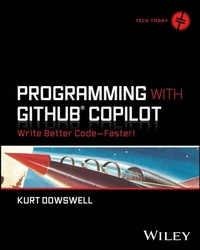
Programming with GitHub Copilot
Description

Accelerate your programming with the most popular AI coding tool on the market: GitHub Copilot
In Programming with GitHub Copilot: Write Better Code - Faster, veteran software developer and GitHub community hero Kurt Dowswell delivers an insightful and hands-on exploration of GitHub's powerful, new AI coding assistant, Copilot. In the book, you'll discover how to use the tool's capabilities to push the boundaries of what you thought was possible in programming.
Even if you've used autocomplete tools-like VS Code's TabNine extension-before, you'll be floored by GitHub Copilot's potential to transform the way you code. You'll learn how to install, configure, and use the software, from employing it's most common and widely used features to deploying business and enterprise functionality. You'll even discover how to fix runtime and compilation bugs and write unit, integration, and end-to-end tests.
You'll also find:
- Prompt strategies to get GitHub Copilot to help you brainstorm new code solutions
- What the future looks like for AI-assisted coding, including discussions of issues like code licensing and ethics
- Directions for chatting with Copilot, including common commands and prompts to help you guide the conversation to where you want it to go
Perfect for practicing programmers, developers, and software engineers, Programming with GitHub Copilot is also an essential resource for coders and other IT practitioners-in-training who want to expand their knowledge and improve the scope and depth of their programming skillsets.
More details
Other editions
Additional editions
Person
KURT DOWSWELL is a software architect with over 13 years of experience delivering enterprise-grade software solutions for the Department of Defense. He is one of the first developers to work with GitHub Copilot and is a GitHub "community hero," evangelizing the AI coding tool to the global developer community.
Content
Introduction xvii
Part I Getting Started with GitHub Copilot 1
Chapter 1 Get Started with GitHub Copilot 3
Learn Why GitHub Copilot Matters 4
Create a GitHub Account 4
Acquire a GitHub Copilot License 4
Install an IDE Extension 5
First Run: Test Copilot 10
Conclusion 15
Reference 15
Chapter 2 Decoding GitHub Copilot 17
Uncover the AI Behind GitHub Copilot 17
Understand Security, Privacy, and Data Handling 18
Understand Copyright Protections 20
Explore the GitHub Copilot Trust Center 21
Conclusion 22
References 22
Part II GitHub Copilot Features in Action 23
Chapter 3 Exploring Code Completions 25
Introducing Code Completions 25
Working with Copilot Code Completions 26
Discovering the Toolbar and Panel 34
Updating Copilot Settings 36
Leveraging Keyboard Shortcuts 38
Conclusion 40
Chapter 4 Chatting with GitHub Copilot 41
Discovering Copilot Chat 41
Defining Prompt Engineering with Copilot Chat 48
Commanding Your Conversation with Precision 52
Conclusion 65
Part III Practical Applications of GitHub Copilot 67
Chapter 5 Learning a New Programming Language 69
Introducing Language Education with Copilot 70
Setting Up Your Development Environment 70
Learning the Basics 72
Creating a Console Application 74
Explaining Code with Copilot 77
Adding New Code 78
Learning to Test 79
Conclusion 85
Reference 86
Chapter 6 Writing Tests with Copilot 87
Establishing the Example Project 87
Adding Unit Tests to Existing Code 89
Exploring Behavior-Driven Development with Copilot 94
Conclusion 99
Chapter 7 Diagnosing and Resolving Bugs 101
Establishing the Example Project 101
Fixing Syntax Errors 103
Resolving Runtime Exceptions 105
Resolving Terminal Errors 109
Conclusion 111
Chapter 8 Code Refactoring with Copilot 113
Introducing Code Refactoring with Copilot 113
Establishing the Example Project 114
Refactoring Duplicate Code 116
Refactoring Validators 122
Refactoring Bad Variable Names 127
Documenting and Commenting Code 129
Conclusion 132
Chapter 9 Enhancing Code Security 133
Detailing Code Security 133
Establishing the Example Project 134
Exploring Code Security 135
Finding and Fixing Security Issues 139
Conclusion 142
Chapter 10 Accelerating DevSecOps Practices 143
Detailing DevSecOps 143
Simplifying Containers 144
Automating Infrastructure as Code 148
Streamlining CI/CD Pipelines 152
Conclusion 158
Chapter 11 Enhancing Development Environments with Copilot 159
Amplifying Visual Studio with Copilot 159
Elevating Azure Data Studio with Copilot 166
Boosting JetBrains IntelliJ IDEA with Copilot 171
Enhancing Neovim with Copilot 176
Consulting Copilot in the GitHub cli 181
References 185
Conclusion 185
Chapter 12 Universal Conversion with GitHub Copilot 187
Translating Natural Language to Programming Languages 188
Converting JavaScript Components 190
Simplifying CSS Styles 191
Enhancing Nontyped Languages with Types 196
Transitioning Between Frameworks and Libraries 199
Converting Object-Oriented Languages 203
Migrating Databases 205
Transitioning CI/CD Platforms 206
Modernizing Legacy Systems 209
Conclusion 213
Reference 214
Part IV Key Insights and Advanced Use Cases for GitHub Copilot 215
Chapter 13 Considering Responsible AI with GitHub Copilot 217
Introducing Responsible AI 217
Examining How Copilot Implements Responsible AI 218
Programming with AI Responsibly 226
Conclusion 226
References 227
Chapter 14 Augmenting the Software Development Life Cycle with GitHub Copilot 229
Introducing the SDLC 229
Assessing the Adoption of AI in the SDLC 231
Detailing Levels of AI Integration in the SDLC 232
Showcasing GitHub Copilot in the SDLC 238
Addressing Concerns: AI Adoption and the Future of Work 250
Conclusion 251
References 251
Chapter 15 Exploring Copilot Business and Enterprise 253
Introducing Copilot Business and Enterprise 254
Chatting with Copilot in GitHub.com 257
Indexing Code Repositories to Improve Copilot's Understanding 262
Getting Better Answers with the Knowledge Base 267
Leveraging Copilot Chat in Code Repository Files 273
Enhancing Pull Requests with Copilot 279
Managing GitHub Copilot 288
Looking Ahead 292
Conclusion 293
References 293
Conclusion 295
Appendix Resources for Further Learning 297
GitHub Copilot Overview and Subscription Plans 297
Community Engagement and Support 299
Legal and Ethical Considerations 299
Research and Insights 300
Glossary 303
Index 311
CHAPTER 1
Get Started with GitHub Copilot
Software development is full of challenges to overcome. For years, it has been known that programming with a partner can help you learn more, produce better work, and gain more satisfaction while accomplishing your tasks. Although the benefits of pair programming are known, it isn't always possible to have a pair programming partner with you-until now.
GitHub Copilot is your artificial intelligence (AI) pair programming partner, always ready to assist and eager to help you learn! This book will walk you through how to best utilize GitHub Copilot to help you write better code and do it faster.
In this chapter, we will focus on the required steps for getting started with GitHub Copilot. Let's begin!
- Learn Why GitHub Copilot Matters to You
- Create a GitHub Account
- Acquire a GitHub Copilot License
- Install an IDE Extension
- First Run: Test Copilot
Learn Why GitHub Copilot Matters
GitHub Copilot is your AI pair programmer that can assist you in every phase of your software development lifecycle. Whether you are defining your next great feature or configuring a complex continuous integration/continuous delivery (CI/CD) pipeline for an enterprise-grade deployment, GitHub Copilot will be by your side every step of the way, giving you bespoke insights into your business needs. Get ready to take your development productivity and joy of programming to the next level.
You will find your favorite new AI-powered pair programmer, GitHub Copilot, in an ever-growing number of places within your integrated development environment (IDE) and beyond. This book will teach you how to use each Copilot feature in the different license options. We will also explore case studies with best practices that will help to extend your use of Copilot into all areas of your development lifecycle.
To prove the effectiveness of Copilot, a team at GitHub has conducted qualitative and quantitative research to test their hypothesis of improved developer productivity and happiness. One large-scale survey resulted in some amazing results: 88% indicated they were more productive, 74% said they were able to focus on more satisfying work, 96% indicated they were faster with repetitive tasks, and 73% of survey participants indicated they had more time in a flow state [1].
In addition to the survey, the GitHub team conducted a qualitative experiment by having developers create a web server in JavaScript. Individuals using Copilot finished the exercise on average 55% faster [1]! The team used GitHub Classroom to score submissions for correctness and completeness automatically.
Create a GitHub Account
Before you can start using Copilot, you need to have a valid GitHub account. Head to the following web page and ensure that you have access to your account before getting started:
Acquire a GitHub Copilot License
With a valid GitHub account, we can now review the available licenses for GitHub Copilot. You will need to pick the license that is best for you. There are three GitHub Copilot plans available.
- Copilot Individual
- Copilot Business
- Copilot Enterprise
There are several factors to consider when choosing the correct plan. If you are a student or a maintainer of a popular open-source project, you might be eligible for a free Copilot Individual license.
You can get more information on licenses on this web page:
Install an IDE Extension
GitHub Copilot runs as an extension in the following IDEs:
- Azure Data Studio
- JetBrains IDEs (IntelliJ, PyCharm, Rider, and so on)
- Vim/Neovim
- Visual Studio
- Visual Studio Code
NOTE In this book, we will be using the Visual Studio Code IDE for most of the examples. If you use one of the other supported IDEs as your preferred development platform, the information shared in these examples will be transferrable. We will be covering these additional IDEs later in the book when we detail how to set up and configure them to work with GitHub Copilot.
NOTE Support for the JetBrains IDEs is currently in beta.
Download Visual Studio Code
You can download Visual Studio Code (VS Code) from the following page:
Once you have installed VS Code on your computer, you should see a welcome screen (see Figure 1.1).
Figure 1.1: VS Code welcome screen
Install the GitHub Copilot Extension
Now that you have the VS Code IDE installed and open, let's navigate to the Extensions panel on the Action Bar. You will find the Extensions panel identified by the "squares" icon.
Now follow these steps:
- Open the Extensions panel.
- Search for "GitHub Copilot."
- Within the GitHub Copilot extension result, click Install (see Figure 1.2).
Figure 1.2: VS Code Extensions panel
Configure the IDE Settings for Copilot
After successfully installing the Copilot extension, you are ready to ensure you are authenticated to your GitHub account within VS Code. You should see a pop-up in the lower-right corner of VS Code prompting you to sign in to GitHub (see Figure 1.3). Please use this option to sign in.
If you don't see this prompt after installing the extension, you can also authenticate using the profile menu on the Action Bar (see Figure 1.4).
After completing the sign-in process via the GitHub authentication pages, you can verify your authentication status within VS Code via the bottom-right Copilot icon. Click this icon to bring up the Copilot status menu (see Figure 1.5).
Within the status menu you have access to your status, chat, settings, logs, documentation, and forums.
Figure 1.3: Sign-in prompt
Figure 1.4: Signing in via the Action Bar
Figure 1.5: Copilot status menu
Install Node.js
Lastly, Node.js will need to be installed to run the example. Node.js is an open-source, cross-platform, back-end JavaScript runtime environment. It allows us to execute JavaScript outside of the web browser.
The easiest way to install Node.js is to go to the website:
https://nodejs.org/en/download.
Based on your operating system and computer hardware, select the appropriate download, and follow the installation steps.
After installing Node.js, run the following command in your terminal to confirm that you have installed it successfully.
node -v This command will output the node version you have installed.
First Run: Test Copilot
As mentioned, this book will be showcasing the features of GitHub Copilot primarily in Visual Studio Code. There are dedicated chapters later in the book to detail all the other GitHub Copilot IDE experiences.
While most of the code completion features are universal between IDEs, there are differences in the menus, the keyboard shortcuts, and the availability of Copilot Chat (which is available only in Visual Studio and VS Code).
Get the Prerequisites
As mentioned, the following are the prerequisites to testing Copilot:
- VS Code
- GitHub account
- GitHub Copilot license
- GitHub Copilot extension
- Node.js
Explore Copilot
Let's make sure that Copilot is working by writing a quick example function. In this section, you will create a palindrome checker to showcase some of the basic interactions you will have with Copilot within your editor.
Start by opening a folder in VS Code. You can do this via the Explorer menu (see Figure 1.6) or the keyboard shortcut (Cmd+O/Ctrl+O).
NOTE Throughout this book, keyboard shortcuts will be displayed for both macOS and Windows OS.
Create a new folder called copilot-test and click Open within your Finder/Explorer window.
Add a new file to your open folder called palindrome-checker.js (see Figure 1.7).
Now you are ready to start writing the Node.js script. Let's start by typing a top-level comment in the palindrome-checker.js file, as shown here:
// node.js application that checks if a string is a palindrome Figure 1.6: Open Folder button
Figure 1.7: Creating the palindrome-checker.js file
As you start writing this comment, Copilot should start suggesting some text to complete it (see Figure 1.8).
Figure 1.8: Copilot completion suggestion for top-level comment
You can accept the Copilot text completion by hitting the Tab key.
NOTE You can provide context to Copilot in several ways, such as descriptive file comments, inline...
