

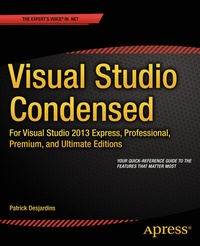
Visual Studio Condensed
For Visual Studio 2013 Express, Professional, Premium and Ultimate Editions
Published on 17. September 2014
XVII, 260 pages
978-1-4302-6823-9 (ISBN)
Description

Visual Studio 2013 is one of the most sophisticated integrated development environments in the world today. With hundreds of features and several different editions available, it can be hard to learn your way around, and hard to know whether you're using it to its full potential. Visual Studio Condensed gives you a quick and systematic guide to the features that matter most, tagged clearly according to their availability.The book starts by familiarizing you with the main features of Visual Studio and how to configure the user interface depending on your needs. You'll then dive into each key developer tool in turn, starting with the editor window and going through the navigation pane, documentation, and the NuGet package manager. Debugging is a difficult skill to master with a range of approaches and tools at your disposal, so you'll see how to make best use of breakpoints, the debugging windows, tracing and managed memory analysis, as well as tips and tricks on advanced debugging techniques that can make a real difference to your productivity.Visual Studio 2013 comes with sophisticated code improvement tools. You can visualize relationships in your code with the Code Map feature, find duplicated code to maximize your code reuse, and use Visual Studio's inbuilt list of metrics to figure out just how healthy your code is and how difficult or easy it will be to maintain. Testing is also made easy with unit testing and web performance tests as well as a Test Manager to organize your tests into test plans and suites. The final chapters of the book cover team work with Team Foundation Server, framework-specific features, and how to build your own Visual Studio extensions.Visual Studio Condensed is the ideal manual for busy developers who just want to get on with what matters: writing code. Whether you're new to Visual Studio or brushing up on the latest features, this book will get you up to speed in no time.
More details
Other editions
Additional editions
Patrick Desjardins
Visual Studio Condensed
For Visual Studio 2013 Express, Professional, Premium and Ultimate Editions
Book
09/2014
APress
€37.44
Shipment within 15-20 days
Person
Patrick Desjardins has been a Microsoft Most Valuable Professional (MVP) in ASP.NET since 2013. He is a software engineer known for his analysis, resourcefulness and ability to find effective solutions quickly. Since the early days of his professional career, his focus has been on keeping his knowledge up to date in order to provide quality services to meet customers' needs. His main area of interest is Web development, which he has embraced since the early 2000s, and he continues to train in new technologies on a daily basis. Patrick has been developing on .NET professionally since 2004. He has also developed many projects in PHP, giving him a broad perspective on how the web can be developed. Patrick is driven to help people embrace Microsoft technologies in the enterprise. He is a professional who has a well developed work ethic and who has the desire to perform on both quality and timeliness. He is a strong believer in ASP.NET MVC and Entity Framework, which help to produce professional quality websites that follow good standards using HTML5, CSS3 and proven design patterns.
Content
1 - Contents at a Glance [Seite 3]
2 - Contents [Seite 234]
3 - About the Author [Seite 243]
4 - About the Technical Reviewer [Seite 244]
5 - Acknowledgments [Seite 245]
6 - Introduction [Seite 4]
7 - Chapter 1: Introducing Visual Studio [Seite 5]
7.1 - Visual Studio Editions [Seite 5]
7.1.1 - Visual Studio Express Edition [Seite 5]
7.1.2 - Visual Studio Professional Edition [Seite 6]
7.1.3 - Visual Studio Premium Edition [Seite 7]
7.1.4 - Visual Studio Ultimate Edition [Seite 7]
7.1.5 - Visual Studio Online [Seite 7]
7.2 - Guided Tour of the Visual Studio UI [Seite 8]
7.2.1 - The General UI [Seite 9]
7.2.2 - The Start Page [Seite 11]
7.2.3 - Pinning Panels [Seite 14]
7.2.4 - Docking Panels [Seite 15]
7.2.5 - Navigation [Seite 16]
7.2.6 - Properties [Seite 18]
7.2.7 - Command Window [Seite 18]
7.2.8 - Immediate Window [Seite 18]
7.2.9 - Error List [Seite 18]
7.2.10 - The Object Browser [Seite 19]
7.2.11 - Code vs. Debug View [Seite 20]
7.2.12 - Smart Tag [Seite 20]
7.2.13 - IntelliSense [Seite 21]
7.2.14 - Code Snippet [Seite 23]
7.2.15 - Find and Replace [Seite 25]
7.3 - Summary [Seite 27]
8 - Chapter 2: Configuring Visual Studio [Seite 28]
8.1 - Customizing Menus and Toolbars [Seite 28]
8.1.1 - Menu [Seite 28]
8.1.2 - Toolbars [Seite 31]
8.2 - Visual Studio Options [Seite 32]
8.2.1 - Environment [Seite 32]
8.2.1.1 - General [Seite 33]
8.2.1.2 - Add-in Security [Seite 34]
8.2.1.3 - AutoRecover [Seite 34]
8.2.1.4 - Documents [Seite 34]
8.2.1.5 - Extensions and Updates, Find and Replace, Fonts and Color [Seite 36]
8.2.1.6 - Import and Export Settings [Seite 36]
8.2.1.7 - International Settings [Seite 36]
8.2.1.8 - Keyboard [Seite 36]
8.2.1.9 - Quick Launch [Seite 37]
8.2.1.10 - Startup [Seite 38]
8.2.1.11 - Synchronized Settings [Seite 38]
8.2.1.12 - Tabs and Windows [Seite 38]
8.2.1.13 - Task List [Seite 40]
8.2.1.14 - Web Browser [Seite 41]
8.2.2 - Projects and Solutions [Seite 41]
8.2.3 - Source Control [Seite 43]
8.2.4 - Text Editor [Seite 44]
8.2.5 - Debugging [Seite 47]
8.2.6 - IntelliTrace Configuration [Seite 48]
8.2.7 - Performance Tools [Seite 49]
8.2.8 - Database Tools [Seite 50]
8.2.9 - HTML Designer [Seite 52]
8.2.10 - Package Manager [Seite 53]
8.3 - Import and Export Settings [Seite 54]
8.4 - Project Properties [Seite 55]
8.4.1 - Application/Library [Seite 56]
8.4.2 - Build [Seite 57]
8.4.3 - Build Events [Seite 57]
8.4.4 - Debug/Web [Seite 58]
8.4.5 - Resources [Seite 58]
8.4.6 - Signing [Seite 59]
8.4.7 - Code Analysis [Seite 60]
8.5 - Summary [Seite 61]
9 - Chapter 3: Development Tools [Seite 62]
9.1 - The Editor Window [Seite 62]
9.1.1 - C# IntelliSense [Seite 62]
9.1.2 - JavaScript IntelliSense [Seite 63]
9.1.3 - CSS IntelliSense [Seite 65]
9.1.4 - Code Lens [Seite 66]
9.1.5 - Peek Definition [Seite 67]
9.1.6 - Go To Features [Seite 68]
9.1.7 - Razor [Seite 68]
9.1.8 - The Database Panel [Seite 70]
9.1.9 - Report Designer [Seite 72]
9.1.10 - The WPF Editor [Seite 74]
9.1.11 - Resource Files [Seite 77]
9.2 - Navigability [Seite 79]
9.2.1 - Solution Explorer Class Navigation [Seite 79]
9.2.2 - Navigating Methods in Solution Explorer [Seite 81]
9.2.3 - Navigate To [Seite 82]
9.2.4 - Quick Find and Find in Files [Seite 83]
9.2.5 - Bookmark [Seite 84]
9.2.6 - Search Solution Explorer [Seite 84]
9.2.7 - The Pending Changes Filter [Seite 85]
9.2.8 - The Enhanced Scrollbar [Seite 86]
9.3 - Documentation [Seite 87]
9.3.1 - C# [Seite 87]
9.3.2 - Visual Basic [Seite 88]
9.3.3 - Razor [Seite 88]
9.3.4 - XAML [Seite 89]
9.3.5 - Visual C++ [Seite 89]
9.4 - Deploying Your Code [Seite 89]
9.4.1 - Web Deploy [Seite 90]
9.4.2 - One Click Web Deployment [Seite 90]
9.4.3 - Click Once [Seite 91]
9.4.4 - Win8 Application Deployment [Seite 91]
9.5 - NuGet [Seite 93]
9.6 - Summary [Seite 95]
10 - Chapter 4: Debugging [Seite 96]
10.1 - Breakpoints [Seite 96]
10.1.1 - An Overview of Breakpoints [Seite 96]
10.1.2 - Conditional Breakpoints, Breakpoint Filters, and Hit Counts [Seite 98]
10.1.3 - Edit and Continue [Seite 99]
10.2 - Attaching to a Process [Seite 100]
10.3 - Debugging Windows [Seite 100]
10.3.1 - The Output Window [Seite 101]
10.3.2 - The Immediate Window [Seite 102]
10.3.3 - The Watch Window [Seite 102]
10.3.4 - The QuickWatch Window [Seite 103]
10.3.5 - The Autos and Locals Windows [Seite 103]
10.3.6 - The Breakpoints Window [Seite 105]
10.3.7 - The Memory Window [Seite 105]
10.4 - Advanced Debugging [Seite 106]
10.4.1 - The Threads Window [Seite 106]
10.4.2 - The Parallel Stacks Window [Seite 107]
10.4.3 - The Modules Window [Seite 108]
10.4.4 - The Process Window [Seite 108]
10.4.5 - The Page Inspector [Seite 108]
10.5 - Tracing [Seite 110]
10.5.1 - Call Stack [Seite 110]
10.5.2 - Code Map [Seite 111]
10.5.3 - IntelliTrace [Seite 112]
10.5.4 - Tracepoint [Seite 114]
10.6 - Memory Analysis with Profiling [Seite 115]
10.7 - Summary [Seite 116]
11 - Chapter 5: Code Improvement Tools [Seite 117]
11.1 - Code Map [Seite 117]
11.1.1 - Using Code Map for Methods [Seite 117]
11.1.2 - Using Code Map for Libraries [Seite 119]
11.2 - Finding Cloned Code [Seite 120]
11.2.1 - How the Code Clone Analyzer Works [Seite 120]
11.2.2 - Refining Results [Seite 121]
11.2.3 - Limitations [Seite 121]
11.2.4 - When to Use the Code Clone Analyzer [Seite 121]
11.3 - Architecture Tools [Seite 122]
11.3.1 - Editing [Seite 122]
11.3.2 - UML and Validation [Seite 122]
11.3.3 - Visualization [Seite 122]
11.3.4 - Layer Diagrams [Seite 122]
11.3.5 - Sequence Diagrams [Seite 125]
11.3.6 - Class Diagrams [Seite 126]
11.3.7 - Activity Diagrams [Seite 128]
11.3.8 - Use Case Diagrams [Seite 129]
11.3.9 - Component Diagrams [Seite 130]
11.3.10 - Directed-Graph Diagrams [Seite 130]
11.4 - Code Metrics [Seite 132]
11.4.1 - Lines of Code [Seite 132]
11.4.2 - Depth of Inheritance [Seite 133]
11.4.3 - Class Coupling [Seite 134]
11.4.4 - Cyclomatic Complexity [Seite 134]
11.4.5 - Maintainability Index [Seite 135]
11.5 - Static Code Analysis [Seite 135]
11.5.1 - The Code Analysis Panel [Seite 135]
11.5.2 - FxCop, StyleCop, and Code Analysis [Seite 136]
11.6 - Summary [Seite 137]
12 - Chapter 6: Testing Your Applications [Seite 138]
12.1 - Unit Testing and Code Coverage [Seite 138]
12.1.1 - Unit Testing [Seite 138]
12.1.2 - Code Coverage [Seite 139]
12.1.3 - Microsoft Fakes [Seite 141]
12.1.3.1 - Shims [Seite 141]
12.1.3.2 - Stubs [Seite 142]
12.2 - Load Testing and Web Performance Testing [Seite 142]
12.2.1 - Load Testing [Seite 143]
12.2.2 - Web Performance Testing [Seite 145]
12.3 - Testing Windows Store Applications [Seite 147]
12.3.1 - Coded UI Test Project [Seite 147]
12.3.2 - Visual Studio Remote Debugging [Seite 149]
12.3.3 - Visual Studio 2013 Windows Phone Emulator [Seite 150]
12.4 - Microsoft Test Manager [Seite 151]
12.4.1 - Exploratory Testing [Seite 151]
12.4.2 - Lab Center [Seite 152]
12.5 - Summary [Seite 154]
13 - Chapter 7: Teamwork with Visual Studio [Seite 155]
13.1 - How to Use TFS Source Control [Seite 155]
13.1.1 - What Is a Branch? [Seite 155]
13.1.2 - Merging Your Code [Seite 157]
13.1.3 - Resolving Conflicts [Seite 158]
13.1.4 - Change Tracking [Seite 159]
13.1.5 - Checking In and Checking Out Code [Seite 160]
13.1.6 - Viewing an Application's History [Seite 161]
13.1.7 - Labeling a Check-In [Seite 162]
13.1.8 - Annotating Code [Seite 162]
13.1.9 - Shelving Your Code [Seite 163]
13.2 - Code Review [Seite 163]
13.3 - Managing Your Work with Work Items [Seite 167]
13.3.1 - Work Item Types [Seite 167]
13.3.2 - Querying Work Items [Seite 169]
13.3.3 - Multiple Workspace [Seite 170]
13.4 - Visual Studio Integration with Different Development Processes [Seite 171]
13.4.1 - Life Cycle with Scrum [Seite 172]
13.4.2 - Life Cycle with Agile [Seite 172]
13.4.3 - Life Cycle with CMMI [Seite 173]
13.5 - Managing Your Project with the Web [Seite 173]
13.6 - Build Server [Seite 176]
13.7 - Summary [Seite 178]
14 - Chapter 8: Framework -Specific Features [Seite 179]
14.1 - Web Frameworks [Seite 179]
14.2 - The SharePoint Framework [Seite 182]
14.3 - The Windows Forms (WinForms) Framework [Seite 182]
14.3.1 - Changing WinForms Properties [Seite 183]
14.3.2 - Laying Out a WinForm with Visual Studio [Seite 184]
14.3.3 - Accessing Component Events with WinForms [Seite 185]
14.4 - The WPF Framework [Seite 186]
14.4.1 - The Visual Designer [Seite 187]
14.4.2 - The WPF Properties Window [Seite 188]
14.5 - Windows Store Applications [Seite 189]
14.5.1 - What Is Microsoft Blend? [Seite 191]
14.5.2 - Using JavaScript to Create Win 8 Apps [Seite 191]
14.6 - Visual Studio WCF Tools [Seite 192]
14.6.1 - Configuring the WCF Service [Seite 193]
14.6.2 - Testing a WCF Service [Seite 194]
14.6.3 - Consuming a WCF Service [Seite 195]
14.7 - The Workflow Foundation Framework [Seite 196]
14.7.1 - Building a Flowchart Workflow [Seite 196]
14.7.2 - Building a Sequential Workflow [Seite 198]
14.7.3 - Building a State Machine Workflow [Seite 200]
14.8 - Visual Studio LightSwitch [Seite 201]
14.9 - Visual Studio TypeScript [Seite 205]
14.10 - Summary [Seite 206]
15 - Chapter 9: Extending Visual Studio [Seite 207]
15.1 - Downloading and Exploring the Software Development Kit ( SDK) [Seite 207]
15.1.1 - What You Can Do with the SDK [Seite 207]
15.1.2 - Installing VSPackages with Visual Studio [Seite 208]
15.1.3 - VSIX Project Templates [Seite 208]
15.1.4 - Uninstalling an Extension [Seite 211]
15.1.5 - Visual Studio Shell Extensions [Seite 211]
15.2 - T4 Templates [Seite 211]
15.2.1 - Runtime T4 Templates [Seite 212]
15.2.2 - Design-Time T4 Templates [Seite 213]
15.2.3 - New Visual Studio 2013 Features for T4 Templates [Seite 214]
15.3 - SideWaffle [Seite 214]
15.3.1 - Extending Visual Studio with the SideWaffle Item Template [Seite 214]
15.3.2 - Extending Visual Studio with the SideWaffle Project Template [Seite 215]
15.4 - Browser Link Communication with Visual Studio [Seite 215]
15.4.1 - Extending Visual Studio with Browser Link [Seite 217]
15.5 - Customizing Code Snippets [Seite 218]
15.6 - Creating Your Own HTML Smart Tag [Seite 220]
15.6.1 - Creating a Smart Tag for the Code Editor [Seite 222]
15.7 - Using an MSIL Disassembler [Seite 223]
15.7.1 - Using ildasm.exe [Seite 223]
15.7.2 - Using ILSpy [Seite 224]
15.8 - Obfuscation Techniques to Protect Your Code [Seite 225]
15.9 - Summary [Seite 225]
16 - Index [Seite 226]
2 - Contents [Seite 234]
3 - About the Author [Seite 243]
4 - About the Technical Reviewer [Seite 244]
5 - Acknowledgments [Seite 245]
6 - Introduction [Seite 4]
7 - Chapter 1: Introducing Visual Studio [Seite 5]
7.1 - Visual Studio Editions [Seite 5]
7.1.1 - Visual Studio Express Edition [Seite 5]
7.1.2 - Visual Studio Professional Edition [Seite 6]
7.1.3 - Visual Studio Premium Edition [Seite 7]
7.1.4 - Visual Studio Ultimate Edition [Seite 7]
7.1.5 - Visual Studio Online [Seite 7]
7.2 - Guided Tour of the Visual Studio UI [Seite 8]
7.2.1 - The General UI [Seite 9]
7.2.2 - The Start Page [Seite 11]
7.2.3 - Pinning Panels [Seite 14]
7.2.4 - Docking Panels [Seite 15]
7.2.5 - Navigation [Seite 16]
7.2.6 - Properties [Seite 18]
7.2.7 - Command Window [Seite 18]
7.2.8 - Immediate Window [Seite 18]
7.2.9 - Error List [Seite 18]
7.2.10 - The Object Browser [Seite 19]
7.2.11 - Code vs. Debug View [Seite 20]
7.2.12 - Smart Tag [Seite 20]
7.2.13 - IntelliSense [Seite 21]
7.2.14 - Code Snippet [Seite 23]
7.2.15 - Find and Replace [Seite 25]
7.3 - Summary [Seite 27]
8 - Chapter 2: Configuring Visual Studio [Seite 28]
8.1 - Customizing Menus and Toolbars [Seite 28]
8.1.1 - Menu [Seite 28]
8.1.2 - Toolbars [Seite 31]
8.2 - Visual Studio Options [Seite 32]
8.2.1 - Environment [Seite 32]
8.2.1.1 - General [Seite 33]
8.2.1.2 - Add-in Security [Seite 34]
8.2.1.3 - AutoRecover [Seite 34]
8.2.1.4 - Documents [Seite 34]
8.2.1.5 - Extensions and Updates, Find and Replace, Fonts and Color [Seite 36]
8.2.1.6 - Import and Export Settings [Seite 36]
8.2.1.7 - International Settings [Seite 36]
8.2.1.8 - Keyboard [Seite 36]
8.2.1.9 - Quick Launch [Seite 37]
8.2.1.10 - Startup [Seite 38]
8.2.1.11 - Synchronized Settings [Seite 38]
8.2.1.12 - Tabs and Windows [Seite 38]
8.2.1.13 - Task List [Seite 40]
8.2.1.14 - Web Browser [Seite 41]
8.2.2 - Projects and Solutions [Seite 41]
8.2.3 - Source Control [Seite 43]
8.2.4 - Text Editor [Seite 44]
8.2.5 - Debugging [Seite 47]
8.2.6 - IntelliTrace Configuration [Seite 48]
8.2.7 - Performance Tools [Seite 49]
8.2.8 - Database Tools [Seite 50]
8.2.9 - HTML Designer [Seite 52]
8.2.10 - Package Manager [Seite 53]
8.3 - Import and Export Settings [Seite 54]
8.4 - Project Properties [Seite 55]
8.4.1 - Application/Library [Seite 56]
8.4.2 - Build [Seite 57]
8.4.3 - Build Events [Seite 57]
8.4.4 - Debug/Web [Seite 58]
8.4.5 - Resources [Seite 58]
8.4.6 - Signing [Seite 59]
8.4.7 - Code Analysis [Seite 60]
8.5 - Summary [Seite 61]
9 - Chapter 3: Development Tools [Seite 62]
9.1 - The Editor Window [Seite 62]
9.1.1 - C# IntelliSense [Seite 62]
9.1.2 - JavaScript IntelliSense [Seite 63]
9.1.3 - CSS IntelliSense [Seite 65]
9.1.4 - Code Lens [Seite 66]
9.1.5 - Peek Definition [Seite 67]
9.1.6 - Go To Features [Seite 68]
9.1.7 - Razor [Seite 68]
9.1.8 - The Database Panel [Seite 70]
9.1.9 - Report Designer [Seite 72]
9.1.10 - The WPF Editor [Seite 74]
9.1.11 - Resource Files [Seite 77]
9.2 - Navigability [Seite 79]
9.2.1 - Solution Explorer Class Navigation [Seite 79]
9.2.2 - Navigating Methods in Solution Explorer [Seite 81]
9.2.3 - Navigate To [Seite 82]
9.2.4 - Quick Find and Find in Files [Seite 83]
9.2.5 - Bookmark [Seite 84]
9.2.6 - Search Solution Explorer [Seite 84]
9.2.7 - The Pending Changes Filter [Seite 85]
9.2.8 - The Enhanced Scrollbar [Seite 86]
9.3 - Documentation [Seite 87]
9.3.1 - C# [Seite 87]
9.3.2 - Visual Basic [Seite 88]
9.3.3 - Razor [Seite 88]
9.3.4 - XAML [Seite 89]
9.3.5 - Visual C++ [Seite 89]
9.4 - Deploying Your Code [Seite 89]
9.4.1 - Web Deploy [Seite 90]
9.4.2 - One Click Web Deployment [Seite 90]
9.4.3 - Click Once [Seite 91]
9.4.4 - Win8 Application Deployment [Seite 91]
9.5 - NuGet [Seite 93]
9.6 - Summary [Seite 95]
10 - Chapter 4: Debugging [Seite 96]
10.1 - Breakpoints [Seite 96]
10.1.1 - An Overview of Breakpoints [Seite 96]
10.1.2 - Conditional Breakpoints, Breakpoint Filters, and Hit Counts [Seite 98]
10.1.3 - Edit and Continue [Seite 99]
10.2 - Attaching to a Process [Seite 100]
10.3 - Debugging Windows [Seite 100]
10.3.1 - The Output Window [Seite 101]
10.3.2 - The Immediate Window [Seite 102]
10.3.3 - The Watch Window [Seite 102]
10.3.4 - The QuickWatch Window [Seite 103]
10.3.5 - The Autos and Locals Windows [Seite 103]
10.3.6 - The Breakpoints Window [Seite 105]
10.3.7 - The Memory Window [Seite 105]
10.4 - Advanced Debugging [Seite 106]
10.4.1 - The Threads Window [Seite 106]
10.4.2 - The Parallel Stacks Window [Seite 107]
10.4.3 - The Modules Window [Seite 108]
10.4.4 - The Process Window [Seite 108]
10.4.5 - The Page Inspector [Seite 108]
10.5 - Tracing [Seite 110]
10.5.1 - Call Stack [Seite 110]
10.5.2 - Code Map [Seite 111]
10.5.3 - IntelliTrace [Seite 112]
10.5.4 - Tracepoint [Seite 114]
10.6 - Memory Analysis with Profiling [Seite 115]
10.7 - Summary [Seite 116]
11 - Chapter 5: Code Improvement Tools [Seite 117]
11.1 - Code Map [Seite 117]
11.1.1 - Using Code Map for Methods [Seite 117]
11.1.2 - Using Code Map for Libraries [Seite 119]
11.2 - Finding Cloned Code [Seite 120]
11.2.1 - How the Code Clone Analyzer Works [Seite 120]
11.2.2 - Refining Results [Seite 121]
11.2.3 - Limitations [Seite 121]
11.2.4 - When to Use the Code Clone Analyzer [Seite 121]
11.3 - Architecture Tools [Seite 122]
11.3.1 - Editing [Seite 122]
11.3.2 - UML and Validation [Seite 122]
11.3.3 - Visualization [Seite 122]
11.3.4 - Layer Diagrams [Seite 122]
11.3.5 - Sequence Diagrams [Seite 125]
11.3.6 - Class Diagrams [Seite 126]
11.3.7 - Activity Diagrams [Seite 128]
11.3.8 - Use Case Diagrams [Seite 129]
11.3.9 - Component Diagrams [Seite 130]
11.3.10 - Directed-Graph Diagrams [Seite 130]
11.4 - Code Metrics [Seite 132]
11.4.1 - Lines of Code [Seite 132]
11.4.2 - Depth of Inheritance [Seite 133]
11.4.3 - Class Coupling [Seite 134]
11.4.4 - Cyclomatic Complexity [Seite 134]
11.4.5 - Maintainability Index [Seite 135]
11.5 - Static Code Analysis [Seite 135]
11.5.1 - The Code Analysis Panel [Seite 135]
11.5.2 - FxCop, StyleCop, and Code Analysis [Seite 136]
11.6 - Summary [Seite 137]
12 - Chapter 6: Testing Your Applications [Seite 138]
12.1 - Unit Testing and Code Coverage [Seite 138]
12.1.1 - Unit Testing [Seite 138]
12.1.2 - Code Coverage [Seite 139]
12.1.3 - Microsoft Fakes [Seite 141]
12.1.3.1 - Shims [Seite 141]
12.1.3.2 - Stubs [Seite 142]
12.2 - Load Testing and Web Performance Testing [Seite 142]
12.2.1 - Load Testing [Seite 143]
12.2.2 - Web Performance Testing [Seite 145]
12.3 - Testing Windows Store Applications [Seite 147]
12.3.1 - Coded UI Test Project [Seite 147]
12.3.2 - Visual Studio Remote Debugging [Seite 149]
12.3.3 - Visual Studio 2013 Windows Phone Emulator [Seite 150]
12.4 - Microsoft Test Manager [Seite 151]
12.4.1 - Exploratory Testing [Seite 151]
12.4.2 - Lab Center [Seite 152]
12.5 - Summary [Seite 154]
13 - Chapter 7: Teamwork with Visual Studio [Seite 155]
13.1 - How to Use TFS Source Control [Seite 155]
13.1.1 - What Is a Branch? [Seite 155]
13.1.2 - Merging Your Code [Seite 157]
13.1.3 - Resolving Conflicts [Seite 158]
13.1.4 - Change Tracking [Seite 159]
13.1.5 - Checking In and Checking Out Code [Seite 160]
13.1.6 - Viewing an Application's History [Seite 161]
13.1.7 - Labeling a Check-In [Seite 162]
13.1.8 - Annotating Code [Seite 162]
13.1.9 - Shelving Your Code [Seite 163]
13.2 - Code Review [Seite 163]
13.3 - Managing Your Work with Work Items [Seite 167]
13.3.1 - Work Item Types [Seite 167]
13.3.2 - Querying Work Items [Seite 169]
13.3.3 - Multiple Workspace [Seite 170]
13.4 - Visual Studio Integration with Different Development Processes [Seite 171]
13.4.1 - Life Cycle with Scrum [Seite 172]
13.4.2 - Life Cycle with Agile [Seite 172]
13.4.3 - Life Cycle with CMMI [Seite 173]
13.5 - Managing Your Project with the Web [Seite 173]
13.6 - Build Server [Seite 176]
13.7 - Summary [Seite 178]
14 - Chapter 8: Framework -Specific Features [Seite 179]
14.1 - Web Frameworks [Seite 179]
14.2 - The SharePoint Framework [Seite 182]
14.3 - The Windows Forms (WinForms) Framework [Seite 182]
14.3.1 - Changing WinForms Properties [Seite 183]
14.3.2 - Laying Out a WinForm with Visual Studio [Seite 184]
14.3.3 - Accessing Component Events with WinForms [Seite 185]
14.4 - The WPF Framework [Seite 186]
14.4.1 - The Visual Designer [Seite 187]
14.4.2 - The WPF Properties Window [Seite 188]
14.5 - Windows Store Applications [Seite 189]
14.5.1 - What Is Microsoft Blend? [Seite 191]
14.5.2 - Using JavaScript to Create Win 8 Apps [Seite 191]
14.6 - Visual Studio WCF Tools [Seite 192]
14.6.1 - Configuring the WCF Service [Seite 193]
14.6.2 - Testing a WCF Service [Seite 194]
14.6.3 - Consuming a WCF Service [Seite 195]
14.7 - The Workflow Foundation Framework [Seite 196]
14.7.1 - Building a Flowchart Workflow [Seite 196]
14.7.2 - Building a Sequential Workflow [Seite 198]
14.7.3 - Building a State Machine Workflow [Seite 200]
14.8 - Visual Studio LightSwitch [Seite 201]
14.9 - Visual Studio TypeScript [Seite 205]
14.10 - Summary [Seite 206]
15 - Chapter 9: Extending Visual Studio [Seite 207]
15.1 - Downloading and Exploring the Software Development Kit ( SDK) [Seite 207]
15.1.1 - What You Can Do with the SDK [Seite 207]
15.1.2 - Installing VSPackages with Visual Studio [Seite 208]
15.1.3 - VSIX Project Templates [Seite 208]
15.1.4 - Uninstalling an Extension [Seite 211]
15.1.5 - Visual Studio Shell Extensions [Seite 211]
15.2 - T4 Templates [Seite 211]
15.2.1 - Runtime T4 Templates [Seite 212]
15.2.2 - Design-Time T4 Templates [Seite 213]
15.2.3 - New Visual Studio 2013 Features for T4 Templates [Seite 214]
15.3 - SideWaffle [Seite 214]
15.3.1 - Extending Visual Studio with the SideWaffle Item Template [Seite 214]
15.3.2 - Extending Visual Studio with the SideWaffle Project Template [Seite 215]
15.4 - Browser Link Communication with Visual Studio [Seite 215]
15.4.1 - Extending Visual Studio with Browser Link [Seite 217]
15.5 - Customizing Code Snippets [Seite 218]
15.6 - Creating Your Own HTML Smart Tag [Seite 220]
15.6.1 - Creating a Smart Tag for the Code Editor [Seite 222]
15.7 - Using an MSIL Disassembler [Seite 223]
15.7.1 - Using ildasm.exe [Seite 223]
15.7.2 - Using ILSpy [Seite 224]
15.8 - Obfuscation Techniques to Protect Your Code [Seite 225]
15.9 - Summary [Seite 225]
16 - Index [Seite 226]
