

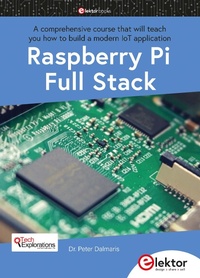
Raspberry Pi Full Stack
A comprehensive course that will teach you how to build a modern IoT application
1st Edition
Published on 26. August 2020
428 pages
978-3-89576-378-6 (ISBN)
Description

This book will take you on a whirlwind tour of full-stack web application development using Raspberry Pi. You will learn how to build an application from the ground up. You will gain experience and know-how of technologies including:- The Linux operating system and command line. - The Python programming language. - The Raspberry Pi General Purpose Input Output pins (GPIOs). - The Nginx web server. - Flask Python web application microframework. - JQuery and CSS for creating user interfaces. - Dealing with time zones. - Creating charts with Plotly and Google Charts. - Data logging with Google Sheet. - Developing applets with IFTTT. - Securing your application with SSL. - Receiving SMS notifications to your phone using Twilio. This book will also teach you how to set up a remote wireless Arduino sensor node and collect data from it. Your Raspberry Pi web application will be able to process Arduino node data in the same way it processes data from its onboard sensor. Raspberry Pi Full Stack will teach you many skills essential to building Web and Internet of Things applications. The application you will build in this project is a platform that you can extend upon. This is just the start of what you can do with a Raspberry Pi and the software and hardware components that you will learn about. This book is supported by the author via a dedicated discussion space.
All prices
More details
Other editions
Additional editions

Peter Dalmaris
Raspberry Pi Full Stack
A comprehensive course that will teach you how to build a modern IoT application
Book
08/2020
1st Edition
Elektor International Media
€44.95
Article exhausted; check different version
Person
Dr. Peter Dalmaris is an educator, an electrical engineer and Maker. Creator of online video courses on DIY electronics andauthor of several technical books. As a Chief Tech Explorer since 2013 at Tech Explorations, the company he founded in Sydney, Australia, Peter's mission is to explore technology and help educate the world.
Content
- Intro
- Contents
- About the author
- Part 1: Getting started with the Raspberry Pi Full Stack
- Chapter 1 What is this book about?
- Chapter 2 A walk-through the Full Stack project
- Chapter 3 Required hardware
- Chapter 4 How to get help
- Chapter 5 The code repository
- Part 2: Raspberry Pi, Arduino, and Raspberry Pi Zero W
- Chapter 6 Raspberry Pi vs Arduino high level comparison
- Chapter 7 Need for efficiency: the Raspberry Pi Zero W
- Chapter 8 Need for speed: the Raspberry Pi 4 (and 3)
- Part 3: How to set up the operating system
- Chapter 9 Operating systems for the Raspberry Pi
- Chapter 10 What is a 'headless' operating system
- Chapter 11 How to download and install Raspbian
- Chapter 12 How to set up SSH and WiFi in headless mode
- Chapter 13 How to set a hostname
- Chapter 14 Boot into Raspbian for the first time
- Chapter 15 How to set a fixed IP address
- Chapter 16 Basic configuration
- Chapter 17 Working as the 'root' user
- Part 4: How to backup and restore your SD card
- Chapter 18 Backup an SD card - MacOS
- Chapter 19 Restore an SD card - MacOS
- Chapter 20 Backup an SD card - Windows
- Chapter 21 Restore an SD card - Windows
- Part 5: Pins, GPIOs and how to control them with Python
- Chapter 22 Raspberry Pi pins, roles, and numbers
- Chapter 23 A taste of Python on the Command Line Interpreter
- Chapter 24 Python functions
- Chapter 25 A simple Python program
- Chapter 26 Wire a simple circuit
- Chapter 27 Control an LED with GPIOZERO
- Chapter 28 Control an LED with rpi.gpio
- Chapter 29 Read a button with GPIOZERO
- Chapter 30 Read a button with RPi.GPIO
- Chapter 31 Control an LED with a button
- Chapter 32 Set up the DHT22 sensor with Git
- Chapter 33 Use the DHT22 sensor
- Part 6: Set up the Web Application Stack
- Chapter 34 The Web Application Stack
- Chapter 35 The Python Virtual Environment
- Chapter 36 Increase the disk swap file size
- Chapter 37 Set up system Python - preparation
- Chapter 38 Download, compile and install Python 3
- Chapter 39 Set up the app Python virtual environment
- Chapter 40 Set up Nginx
- Chapter 41 Set up Flask
- Chapter 42 A tour of a simple Flask app
- Chapter 43 UWSGI installation
- Chapter 44 Nginx configuration
- Chapter 45 UWSGI configuration
- Chapter 46 UWSGI and Nginx configuration testing
- Chapter 47 Configure systemd to auto-start uwsgi
- Part 7: Set up the database
- Chapter 48 Install the SQLIte3 database
- Chapter 49 Hand-on with the SQLite3 CLI
- Part 8: Styling with Skeleton
- Chapter 50 Static assets and the Skeleton boilerplate CSS
- Chapter 51 Set up the static assets directory
- Chapter 52 Introducing the Skeleton boilerplate CSS
- Chapter 53 Copying files using SFTP
- Chapter 54 Flask templates
- Chapter 55 Debugging a Flask app
- Part 9: Capture and record sensor data
- Chapter 56 Introduction to Part 9
- Chapter 57 Install the DHT library and the rpi-gpio module
- Chapter 58 Display the current sensor values in the browser
- Chapter 59 Create a database to store sensor data
- Chapter 60 Capture sensor data with a Python script
- Chapter 61 Schedule sensor readings with Cron
- Chapter 62 Update the application and template file
- Part 10: Implement the date range selection feature
- Chapter 63 Introduction to Part 10
- Chapter 64 Prototype datetime range of records in SQLite CLI
- Chapter 65 Prototype datetime range in the browser
- Chapter 66 URL querystring validation
- Chapter 67 Quick tidying up
- Chapter 68 Use radio buttons for easy timedate range selection
- Chapter 69 Provision the Python script to work with the radio buttons
- Part 11: Google Charts and datetime widgets
- Chapter 70 Introduction to Part 11
- Chapter 71 Implement Google Charts
- Chapter 72 Test Google Charts
- Chapter 73 The datetime picker widget
- Chapter 74 Im plement the datetime picker widget
- Chapter 75 Test the datetime picker widget
- Part 12: Dealing with time zones
- Chapter 76 Adjust datetimes to local time zone on the client side
- Chapter 77 Introduction to Arrow
- Chapter 78 Implement Arrow
- Chapter 79 Upload timezone changes and test
- Chapter 80 Link the two pages of the application
- Part 13: Charting with Plotly
- Chapter 81 What is Plotly and how to install it
- Chapter 82 Try out Plotly on the CLI
- Chapter 83 Implement Plotly support on the client side
- Chapter 84 Add Plotly support on the server side
- Chapter 85 How to debug Javascript
- Chapter 86 Server side debugging example
- Part 14: Access your application from the Internet
- Chapter 87 How to access your application from the Internet?
- Chapter 88 Set a static IP address
- Chapter 89 Expose your app to the Internet with port forwarding
- Chapter 90 Create a self-signed certificate for application
- Chapter 91 Edit Nginx configuration to use SSL
- Chapter 92 Test SSL in Firefox, Safari, Chrome
- Part 15: Data logging with Google Sheet
- Chapter 93 What is data logging, and why Google Sheet?
- Chapter 94 Set up Google API credentials
- Chapter 95 Set up the Python libraries and Google Sheet
- Chapter 96 Implement of Google Sheet data logging
- Part 16: Set up a remote Arduino sensor node with the nRF24
- Chapter 97 Why set up an Arduino remote node?
- Chapter 98 The Arduino node wiring
- Chapter 99 The Arduino node sketch
- Chapter 100 Raspberry Pi and nRF24 wiring
- Chapter 101 The Raspberry Pi nRF24 receiver script
- Chapter 102 How to install the Python nRF24 modules on the Raspberry Pi
- Chapter 103 Test the nRF24 communications
- Chapter 104 Modify the front end of the application to show remote node data
- Part 17: If This Then That alerts
- Chapter 105 An introduction to If This Then That
- Chapter 106 Create an IFTTT webhook and applet
- Chapter 107 Add IFTTT code in the application and testing
- Chapter 108 Install the node listener script as an systemd service
- Part 18: Wrapping up
- Chapter 109 Make lab_en v_db page update every 10 minutes
- Chapter 110 Recap and what's next
- Part 19: Project extension: Text messaging using Twilio
- Chapter 111 What is this project extension all about?
- Chapter 112 An introduction to Twilio
- Chapter 113 Set up a Twilio account
- Chapter 114 Create a useful bash shell script
- Chapter 115 Add Twilio support to Raspberry Pi
- Chapter 116 Install Twilio CLI
- Chapter 117 Create local and public DNS hostnames
- Chapter 118 Create trusted SSL/TLS certificate
- Chapter 119 Send text alert messages
- Chapter 120 Receive text message commands
- Index
