

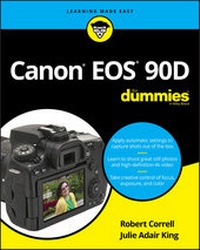
Canon EOS 90D For Dummies
1st Edition
Published on 27. December 2019
368 pages
978-1-119-67469-6 (ISBN)
Description

Get excited about the Canon EOS 90D and all it can do!
An amazing photo begins with a quality camera and the know-how to use it. If you've selected the Canon EOS 90D, you now have a digital camera that serves a range of photographers, from novices to professionals. It takes some know-how to take advantage of the camera's upgrades to its sensor, shutter speed, and video capabilities. Fortunately, Canon EOS 90D For Dummies canhelp you maximize the potential of the camera and its features.
Canon EOS 90D For Dummies lets you skip the photography class and start shooting high-quality images right away The book introduces the camera's settings; explains how to take control of exposure, focus, and color; and shows how to put all this new-found knowledge to work to shoot great portraits or action shots. The book is co-written by a pair of photography pros who share their professional experience on how to apply simple techniques for great shots.
* Choose the best setting for your situation
* Manage focus and color
* Make the most of your lighting
* Understand camera settings
* Customize your camera to your needs
Create remarkable photos and memories, whether you stick with user-friendly automatic settings or decide to dive into more advanced features. With your Canon EOS 90D and this book at your side, you can shoot quality video and capture moving subjects confidently.
An amazing photo begins with a quality camera and the know-how to use it. If you've selected the Canon EOS 90D, you now have a digital camera that serves a range of photographers, from novices to professionals. It takes some know-how to take advantage of the camera's upgrades to its sensor, shutter speed, and video capabilities. Fortunately, Canon EOS 90D For Dummies canhelp you maximize the potential of the camera and its features.
Canon EOS 90D For Dummies lets you skip the photography class and start shooting high-quality images right away The book introduces the camera's settings; explains how to take control of exposure, focus, and color; and shows how to put all this new-found knowledge to work to shoot great portraits or action shots. The book is co-written by a pair of photography pros who share their professional experience on how to apply simple techniques for great shots.
* Choose the best setting for your situation
* Manage focus and color
* Make the most of your lighting
* Understand camera settings
* Customize your camera to your needs
Create remarkable photos and memories, whether you stick with user-friendly automatic settings or decide to dive into more advanced features. With your Canon EOS 90D and this book at your side, you can shoot quality video and capture moving subjects confidently.
More details
Other editions
Additional editions
Robert Correll | Julie Adair King
Canon EOS 90D For Dummies
Book
01/2020
1st Edition
Wiley
€32.50
Shipment within 15-20 days
Persons
Robert Correll is author of Digital SLR Photography All-in-One For Dummies as well as books on other Canon DSLR models, Sony cameras, HDR photography, and photo restoration. Julie Adair King is a veteran photography professional and instructor with more than 60 books to her credit. She has written all editions of Digital Photography For Dummies as well as 40 guides to dSLR camera models.
Content
- Intro
- Title Page
- Copyright Page
- Table of Contents
- Introduction
- About This Book
- Foolish Assumptions
- Icons Used in This Book
- Beyond the Book
- Where to Go from Here
- Part 1 Fast Track to Super Snaps
- Chapter 1 Getting Up and Running
- Preparing the Camera for Initial Use
- Exploring External Camera Features
- Topside controls
- Back-of-the-body controls
- And the rest . . .
- Ordering from Camera Menus
- Mastering menu basics
- Navigating Custom Functions
- Customizing the Touch Screen
- Viewing Shooting Settings
- Displaying the Quick Control screen
- Decoding viewfinder data
- Reading the LCD panel
- Switching to Live View Mode
- Customizing the Live View display
- Staying safe with Live View
- Using Quick Control Mode
- Familiarizing Yourself with the Lens
- Focusing
- Zooming
- Enabling Image Stabilization
- Removing a lens
- Decoding Canon lens terminology
- Working with Memory Cards
- Buying SD cards
- Formatting a card
- Removing a card
- Handling cards
- Locking cards
- Reviewing Basic Setup Options
- Setup Menu 1
- Setup Menu 2
- Setup Menu 3
- Setup Menu 4
- Setup Menu 5
- Chapter 2 Choosing Basic Picture Settings
- Choosing an Exposure Mode
- Basic Zone exposure modes
- Creative Zone modes (P, Tv, Av, M, B, C1, and C2)
- Changing the Drive Mode
- Understanding the Image Quality Setting
- Adjusting the Image Quality setting
- Considering resolution: L, M, S1, or S2?
- Understanding file type (JPEG or Raw)
- Setting the Photo Aspect Ratio
- Adding Flash
- Using flash in Basic Zone modes
- Using flash in P, Tv, Av, M, B, C1, and C2 modes
- Chapter 3 Taking Great Pictures, Automatically
- Using Scene Intelligent Auto Mode
- Viewfinder shooting
- Live View photography
- Shooting Without the Flash in Basic Modes
- Taking Advantage of Special Scenes
- Selecting a Specialty Scene
- Adjusting a few settings
- Gaining More Control with Creative Assist
- Part 2 Taking Creative Control
- Chapter 4 Taking Charge of Exposure
- Introducing the Exposure Trio: Aperture, Shutter Speed, and ISO
- Aperture affects depth of field
- Shutter speed affects motion blur
- ISO affects image noise
- Doing the exposure balancing act
- Stepping Up to Advance Exposure Modes (P, Tv, Av, M, B, C1, and C2)
- Monitoring Exposure Settings
- Choosing an Exposure Metering Mode
- Setting ISO, Aperture, and Shutter Speed
- Controlling ISO
- Adjusting aperture and shutter speed
- Sorting Through Your Camera's Exposure-Correction Tools
- Overriding autoexposure results with Exposure Compensation
- Improving high-contrast shots with Highlight Tone Priority
- Experimenting with Auto Lighting Optimizer
- Looking at a few other exposure solutions
- Locking Autoexposure Settings
- Bracketing Exposures Automatically
- Chapter 5 Controlling Focus and Depth of Field
- Setting the Lens to Automatic or Manual Focusing Mode
- Exploring Viewfinder Focusing Options
- Adjusting autofocus performance
- Considering a few other autofocus settings
- Focusing in Live View and Movie Modes
- AF Method: Setting the focusing area
- AF Operation: One-Shot or Servo?
- Manual focusing in Live View and Movie modes
- Manipulating Depth of Field
- Chapter 6 Mastering Color Controls
- Understanding White Balance
- Changing the White Balance setting
- Creating a custom White Balance setting
- Fine-tuning color with White Balance Shift
- Bracketing White Balance
- Taking a Quick Look at Picture Styles
- Changing the Color Space
- Chapter 7 Putting It All Together
- Recapping Basic Picture Settings
- Shooting Still Portraits
- Capturing Action
- Capturing Scenic Vistas
- Capturing Dynamic Close-Ups
- Chapter 8 Shooting and Viewing Movies
- Recording Movies Using Default Settings
- Choosing between NTSC and PAL
- Customizing Recording Settings
- Choosing a Movie Recording Size setting
- Setting audio options
- Reviewing Other Movie Options
- Autofocusing options
- Movie Digital IS
- Playing with exposure and color
- Checking out a few final features
- Playing Movies
- Part 3 After the Shot
- Chapter 9 Picture Playback
- Adjusting Automatic Image Review
- Viewing Pictures in Playback Mode
- Viewing thumbnails (Index mode)
- Jumping through images
- Rotating pictures
- Zooming in for a closer view
- Showing focus points during playback
- Viewing Picture Data
- Basic Information display mode
- Detailed Information display mode
- Understanding histograms
- Taking Advantage of Image Search
- Viewing Photos and Movies on a TV
- Chapter 10 Working with Picture and Movie Files
- Deleting Files
- Protecting Photos and Movies
- Rating Photos and Movies
- Cropping Photos
- Installing the Canon Software
- Sending Pictures to the Computer
- Downloading via Wi-Fi or USB
- Downloading from a card reader
- Using Creative Assist During Playback
- Working with Raw Images
- Processing Raw Images in the Camera
- Converting Raw Images in Digital Photo Professional 4
- Adding Cleaning Instructions to Images
- Preparing Pictures for Online Sharing
- Part 4 The Part of Tens
- Chapter 11 Ten More Customization Options
- Changing the Furniture Around
- Disabling the AF-Assist Beam
- Customizing Exposure Increments
- Creating a Custom Menu
- Adding Custom Folders
- Creating Your Own Exposure Modes
- Changing the Direction of the Dials
- Embedding Copyright Notices
- Controlling the Lens Focus Drive
- Even More Advanced Autofocusing Tweaks
- Chapter 12 Ten Features to Explore on a Rainy Day
- Shooting Time-Lapse Photos and Movies
- Experimenting with Focus Bracketing
- Enabling Mirror Lockup
- Investigating More Printing Options
- Adding Effects to Photos During Playback
- Adding Effects During Shooting
- Shooting in Multiple Exposure Mode
- Creating Video Snapshots
- Trimming Movies
- Presenting a Slide Show
- Appendix Exploring Wireless Connections
- Index
- EULA
