

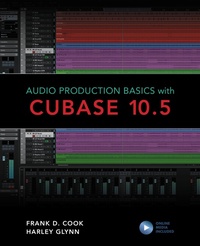
Audio Production Basics with Cubase 10.5
1st Edition
Published on 30. April 2020
336 pages
978-1-5381-3726-0 (ISBN)
Description

Learn the basics of recording, editing, and mixing audio using Cubase Elements, Artist, or Pro. Experience the software used worldwide by musicians, producers, engineers, mixers, and audio professionals. Filled with tips and insights, Audio Production Basics with Cubase 10.5 will get you working fast. With this book and the included media files, you'll get the practical, hands-on exposure you need. We cover everything from setting up your computer to the fundamentals of audio production, including:
Basic Digital Audio Workstation operations and audio hardware optionsPrinciples of sound production and microphone use Essential Cubase concepts and operationsMIDI fundamentals for playing and performing with virtual instruments Multi-track recordingPlug-in use and signal processing techniquesMixing your project and using automationOutputting your final mixdown
Cubase software is very powerful, yet fun and easy to use. Everything you learn here will apply to all editions of Cubase (Elements, Artist, and Pro), so you can easily upgrade in the future no matter where you are starting today. Take the first step now, with Audio Production Basics with Cubase 10.5.
Basic Digital Audio Workstation operations and audio hardware optionsPrinciples of sound production and microphone use Essential Cubase concepts and operationsMIDI fundamentals for playing and performing with virtual instruments Multi-track recordingPlug-in use and signal processing techniquesMixing your project and using automationOutputting your final mixdown
Cubase software is very powerful, yet fun and easy to use. Everything you learn here will apply to all editions of Cubase (Elements, Artist, and Pro), so you can easily upgrade in the future no matter where you are starting today. Take the first step now, with Audio Production Basics with Cubase 10.5.
More details
Edition
1. Auflage
Language
English
Place of publication
New York
United States
Publishing group
Bloomsbury Publishing Plc
Illustrations
200 b/w photos; 20 tables; 20 textboxes
ISBN-13
978-1-5381-3726-0 (9781538137260)
Copyright in bibliographic data and cover images is held by Nielsen Book Services Limited or by the publishers or by their respective licensors: all rights reserved.
Schweitzer Classification
Other editions
Additional editions
Frank D. Cook | Harley Glynn
Audio Production Basics with Cubase 10.5
Book
04/2020
Rowman & Littlefield Publishers
€43.50
Shipment within 3-4 weeks
Persons
Frank D. Cook is a musician and long-time digital audio user. He has worked in publishing and education for more than 20 years. Frank is the author of the acclaimed Pro Tools 101 course book, along with numerous other book titles in digital audio. He has taught college courses in commercial music, has authored four Pro Tools video training courses for LinkedIn Learning, and is an Avid Master Instructor.
Harley Glynn is an ardent user of Steinberg's Cubase, with diverse experience in the audio industry. Harley has used Cubase for over 10 years, producing hundreds of music tracks. His experience includes post-production mixing, SFX design, and production sound for short films. Harley currently works as an adjunct professor in the Los Rios Community College District. He has been a college-level instructor in the field of audio production since 2012.
Harley Glynn is an ardent user of Steinberg's Cubase, with diverse experience in the audio industry. Harley has used Cubase for over 10 years, producing hundreds of music tracks. His experience includes post-production mixing, SFX design, and production sound for short films. Harley currently works as an adjunct professor in the Los Rios Community College District. He has been a college-level instructor in the field of audio production since 2012.
Content
- Audio Production Basics with Cubase 10.5
- Contents
- Acknowledgments
- Introduction. Welcome to the World of Audio
- Getting Started in Audio Production
- Who Should Read This Book
- About This Book
- Requirements and Prerequisites
- Media Files
- Course Organization and Sequence
- Conventions and Symbols Used in This Book
- Keyboard Shortcuts and Modifiers
- Icons
- Chapter 1. Computer Concepts
- Selecting a Computer
- Mac Versus Windows Considerations
- The Importance of RAM
- Processing Power
- Storage Space
- Storage Options
- Onboard Sound Options (Audio In and Out)
- Other Options to Consider
- Working with Your Computer
- File Management
- Launching Applications
- Saving Files
- Working with an Application
- Menus
- Keyboard Shortcuts and Other Key Commands
- Review/Discussion Questions
- Exercise 1. Exploring Audio on the Computer
- Chapter 2. DAW Concepts
- Functions of a DAW
- What Can a DAW Do?
- Common DAWs
- Plug-In Formats
- What Is a Plug-In?
- Common Plug-In Formats
- Cubase Systems
- Cubase Software Options
- Cubase Hardware Options
- Downloading and Installing Cubase Elements
- Accessing the Installer
- Installation Steps
- Launching Cubase Elements for the First Time
- Important Concepts in Cubase Elements
- Project Files Versus Audio Files
- Audio Versus MIDI
- Review/Discussion Questions
- Exercise 2. Working with a Multi-Track Project
- Chapter 3. Audio Recording Concepts
- The Basics of Audio
- Frequency
- Amplitude
- Microphones
- Traditional Microphones
- USB Microphones
- Other Considerations
- Basic Miking Techniques
- Multi-Tracking and Signal Flow
- What Is Multi-Track Recording?
- Recording Signal Flow
- Moving Audio from Analog to Digital
- Analog Versus Digital Audio
- The Analog-to-Digital Conversion Process
- The Audio Interface
- Audio Interface Considerations
- Working Without an Audio Interface
- Review/Discussion Questions
- Exercise 3. Selecting Your Audio Production Gear
- Chapter 4. MIDI Recording Concepts
- A Brief History of MIDI
- Digital Control
- The Birth of MIDI
- The MIDI Protocol
- MIDI Notes
- Program Changes
- Controller Messages
- MIDI Controllers
- Tone-Generating Keyboards
- Keyboard Controllers
- Drumpad Controllers
- Grid Controllers
- Alternate Controllers
- What to Look for in a MIDI Controller
- Purchasing a Keyboard Controller
- Setup and Signal Flow
- Plug-and-Play Setup
- MIDI Cables and Jacks
- Using a MIDI Interface
- Considerations for Using Multiple MIDI Devices
- MIDI Versus Audio
- What Is MIDI?
- Monitoring with Onboard Sound Versus Virtual Instruments
- Tracking with Virtual Instruments
- Creating Tracks for Virtual Instruments
- Summary
- Review/Discussion Questions
- Exercise 4. Selecting Your MIDI Production Gear
- Chapter 5. Cubase Concepts, Part 1
- Creating a Project
- Main Windows
- Project Window Overview
- MixConsole Overview
- Transport Panel
- Working with Tracks
- Adding Tracks
- Primary Track Types
- Mono Versus Stereo Tracks
- MIDI Versus Instrument Tracks
- Events Versus Files
- Basic Navigation
- Using the Transport Controls
- Zooming and Scrolling in the Project Window
- Controlling Playback Behavior
- Monitoring Your Timeline Location
- Ranges and Selections
- Locator Ranges Versus Range Selections
- Playing a Range Selection
- Range Scenarios
- Review/Discussion Questions
- Exercise 5. Configuring and Working on a Project
- Chapter 6. Cubase Concepts, Part 2
- Setting Up for Recording
- Recording Audio
- Specifying a Record Range
- Record-Enabling Audio Tracks
- Monitoring Record-Enabled Audio Tracks
- Initiating a Record Take
- Undoing a Record Take
- Recording MIDI
- Monitoring a MIDI Controller
- Record-Enabling MIDI and Instrument Tracks
- Selecting a MIDI Record Mode
- Importing Media
- Supported File Types
- Importing Files from the Desktop
- Using the Import Command
- Snap Types and the Grid
- The Snap Types
- Snap Off
- Setting the Grid Type
- Working with Parts and Events
- Recognizing Parts and Events in the Project Window
- Selecting the Right Tool
- Basic Editing Techniques
- Advanced Editing Techniques
- Review/Discussion Questions
- Exercise 6. Importing and Editing MIDI Parts and Audio Events
- Chapter 7. Mixing Concepts
- Basic Mixing
- Setting Levels
- Panning
- Processing Options and Techniques
- Gain-Based Processing
- Time-Based Processing and Effects
- Inserts Versus Sends
- Mixing in the Box
- Advantages of In-the-Box Mixing
- Getting the Most Out of an In-the-Box Mix
- Review/Discussion Questions
- Exercise 7. Creating a Basic Mix
- Chapter 8. Signal Processing
- Plug-In Basics
- Viewing Inserts on Channels
- Inserting Plug-Ins on Tracks
- Moving and Duplicating Plug-Ins
- Displaying Plug-In Windows
- Common Plug-In Controls
- Adjusting Plug-In Parameters
- Adjusting Parameters with the Mouse
- Adjusting Parameters with a Scroll Wheel or Track Pad
- Adjusting Plug-In Parameters with the Computer Keyboard
- EQ Processing
- Types of EQ
- Basic EQ Parameters
- EQ Plug-Ins in Cubase Elements
- Strategies for Using EQ
- Dynamics Processing
- Types of Dynamics Processors
- Basic Dynamics Parameters
- Dynamics Plug-Ins in Cubase Elements
- Strategies for Using Compression
- Reverb and Delay Effects
- What Is Reverb?
- Reverb in Cubase Elements
- Applications for Reverb Processors
- What Is Delay?
- Delay in Cubase Elements
- Applications for Delay Processors
- Wet Versus Dry Signals
- Using Time-Based Effects as Inserts on Effect Tracks
- Using Send-and-Return Configurations
- Review/Discussion Questions
- Exercise 8. Optimizing Tracks with Signal Processing
- Chapter 9. Finishing a Project
- Recalling a Saved Mix
- Using Automation
- Selecting an Automation State
- Writing Real-Time Automation
- Creating Automation Manually
- Editing Automation Events
- Using the Line Tool for Automation
- Creating an Audio Mixdown
- Adding Processing on the Output Fader
- Considerations for Bouncing Audio
- Exporting an Audio Mix
- Review/Discussion Questions
- Exercise 9. Preparing the Final Mix
- Chapter 10. Beyond the Basics
- Customizing Key Commands in Cubase
- The Info Line
- Submixing with Group Tracks
- Simplifying a Mix
- Creating Stems
- Project Window Zones
- Left Zone
- Lower Zone
- Right Zone
- Using the Chord Pads
- Selecting and Modifying Chords
- Adding Chords to Tracks
- Using the Chord Assistant
- Accessing the Chord Assistant
- Circle of Fifths
- Auditioning Chords and Adding Chords to a Project
- Keyboard Shortcuts
- Common Functions and Operations
- Commonly Used Tools
- Common Zoom Commands
- Common Fade Functions
- Common Edit Functions
- Track Commands
- Review/Discussion Questions
- Exercise 10. Finalizing a Project
- Exercise 11. Exploring in Cubase
- Index
- About the Authors
