

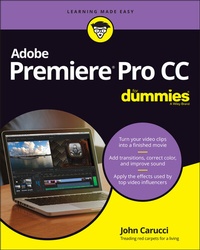
Adobe Premiere Pro CC For Dummies
1st Edition
Published on 15. March 2022
400 pages
978-1-119-86721-0 (ISBN)
Description

When the filming stops, the real video production work begins Ever wonder how your favorite video creators regularly put out such slick content? They're probably using Adobe Premiere Pro CC, a go-to video production app for both professional and amateur video creators. Adobe Premiere Pro CC For Dummies walks you through each step of editing and producing slick and stylish videos that stand up to what the pros post. From transferring your digital movie files from your camera or phone to your computer all the way to uploading your latest creation to YouTube or the web, this book has the info you need to bring your ideas to life. If you're new to video production, you can begin at the beginning with the handbook's user-friendly guide to the basics of setting clips on the timeline and making them flow seamlessly. Or, if you've already got a few videos under your belt, you can skip right to the more advanced material, like special effects and handy tricks of the trade. You'll also find: Instruction on joining video clips into a continuous final product, complete with transitions, special effects, and more Advice on improving sound, getting rid of color errors, and customizing the look of your videos with filters and aftereffects Straightforward guides to adding voiceovers and soundtracks to your videos So, if you're new to Adobe Premiere Pro CC--or digital video editing in general--Adobe Premiere Pro CC For Dummies is the first and last resource you'll need to start editing like a pro.
More details
Other editions
Additional editions
J Carucci
Adobe Premiere Pro CC For Dummies
Book
06/2022
1st Edition
Wiley
€38.50
Shipment within 15-20 days
Content
- Intro
- Title Page
- Copyright Page
- Table of Contents
- Introduction
- About this Book
- How this book is organized
- Icons Used in the Book
- Beyond the book
- Part 1 Getting Familiar with the Adobe Premiere Pro Universe
- Chapter 1 Perusing the Premiere Pro Landscape
- Understanding What Premiere Pro Can Do
- Dissecting the Workspace
- Breaking down the interface
- Understanding the panels
- Getting around the workspace
- Having a Panel Discussion
- Knowing the Project panel
- Spending some time with the Timeline panel
- Making the most of the Source and Program Monitors
- Grasping the Effects and Effect Controls panels
- Feeling out the other panels
- Using the libraries
- Tooling Around the Toolbar
- Chapter 2 Understanding the Premiere Pro Workspace
- Identifying Your Needs
- Working with your computer platform
- Are you a Mac?
- Or are you a PC?
- Naming PC models is a little harder
- Operating the OS of each platform
- The systems are not that far apart
- Look before you leap on your PC
- Understanding Workstation Requirements
- Determining if your computer is right
- Windows
- Macintosh
- Breaking down the differences between Mac and PC
- Respecting the graphics card
- Needing GPU acceleration
- Random access memory
- More Hard Drive Space, Please
- Solid-state drives
- Conventional hard drives
- Not all hard drives are created equal
- Scratch disks
- Managing other computer components
- Keying into keyboard types
- Eeek, a mouse!
- USB-C is the new black
- Looking at Capture Gear
- Smartphone capture
- Top-of-the-line video cameras
- Broadcast video camera
- Consumer-level camcorders
- Digital single-lens reflex
- Point-and-shoot video options
- Mirrorless camera
- Going GoPro
- Card readers and capture devices
- Audio recorders
- Going to the videotape
- Defining Users
- Neophyte user
- Intermediate
- Professional photographer
- Video enthusiast
- Social media influencer
- Chapter 3 Adjusting Premiere Pro to Suit Your Needs
- Setting Up Your Workspace
- Subscribing and installing software
- Feeling welcome
- Using workspace presets
- Adding a clip description
- Customizing and saving your workspace
- Moving panels
- Saving your workspace
- Hiding workspace presets
- Using a second monitor
- Using your iPad as a second monitor
- Set up your iPad monitor
- Using a broadcast monitor
- Breaking down keyboard shortcuts
- Personalizing keyboard commands
- Using a skin
- Setting your scratch disk
- Pointing in the right direction
- Tweaking Program Settings
- Setting preferences
- Optimizing performance
- Fine-tuning your setup
- Customizing the Windows
- Doing the panel dance
- Sizing the monitor
- What's inside counts
- Adjusting the timeline
- Modifying the Project panel
- Freestyling with Freeform
- Understanding the Audio Mixers
- More on the sliders
- Audio Clip Mixer
- Part 2 Gathering Content
- Chapter 4 Sorting Out the Elements of Video Production
- Defining Digitized Video
- Binary refinery
- Digital Video
- High Definition is the flavor of the day
- Fawning over 4K
- Vying with VHS
- Explaining Digital Video Fundamentals
- Understanding how video works
- Dealing with aspect ratio
- Frame rates
- Understanding timecode
- Understanding formats
- Breaking down the best file types
- Capturing Great Video
- Controlling the camera
- Arranging the scene
- Understanding shot lingo
- Lighting the scene
- Waiting for the sun
- Communicating through light
- On-camera video lights
- The French call it mise-en-scène
- Chapter 5 Prepping Your Movie Projects
- Starting Your Project
- Creating a project
- Opening an existing project
- Tweaking the Settings
- Project settings
- Title safe margins
- Getting those preferences right
- Timeline preferences
- Auto Save preferences
- Playback preferences
- Scratching the scratch drive surface
- Making a Sequence
- Setting each sequence
- Making a custom setting
- Adjusting the Timeline
- Increasing the height of the video and audio tracks
- Fill the screen with a panel
- Chapter 6 Importing Media into a Project
- Starting Your Project
- Ingesting media
- Adobe Bridge
- Transferring from a card reader
- Editing directly from a card
- Capturing tape from a camcorder
- Downloading clips
- Importing media
- Adding music and audio clips
- Recording ADR
- Sound effects
- Adding a soundtrack
- Finding the right music
- Grabbing royalty-free music from the web
- Prepping still images for the timeline
- Organizing Media
- Creating bins
- Color coding your bins
- Tagging with metadata
- Understanding data types
- Move it on over
- Entering data
- Bins versus tags
- Part 3 Editing Your Masterpiece
- Chapter 7 Preparing Your Video for Editing
- Getting the Lowdown on Your Clips
- Analyzing clip details
- Keeping bins lean and clean
- Playing clips smoothly
- Altering playback resolution
- Knowing how far can you go
- Changing playback resolution
- Working the In and Out Points
- Setting In and Out points
- Using markers
- More than a bookmark
- Types of markers
- Making your mark
- The Markers panel
- Modifying Clips
- Scrubbing through the clip
- Using keys
- Using the arrow keys
- Marking the scrubbed clip
- Adjusting clip duration
- Changing speeds
- Rate Stretch tool
- Here's how to use it
- Reversing the action
- Understanding Clip/Speed Duration
- Rippling through the Ripple tools
- Ripple Edit tool
- The Rolling Edit tool
- Chapter 8 Editing in the Timeline
- Managing Your Sequence
- Populating the timeline
- Adding clips
- Backing it up a bit
- Moving clips
- Dragging clips into the timeline
- Adding clips through the Program panel
- Source Patching and Targeting
- What you drag isn't always what you get
- Fine Tuning Your Clips
- Trimming clips
- Handling enough clip frames to trim
- Naming clips
- Expanding to see waveforms
- Freezing frames
- Choosing Insert Frame Hold Segment
- Advanced Timeline Tricks
- More advanced clip movement
- Using the Track Select tool
- Overwrite a clip with an adjacent clip
- Considering the three-point edit
- Back-timing edits
- Trying a four-point edit
- Making the right choice
- Chapter 9 Transitioning between Clips
- Choosing Effective Transitions
- Perusing the transition palette
- Why do you need transitions?
- Grasping Transition 101
- Setting default transitions
- Apply default transitions
- Controlling transitions
- Using clip handles
- Advanced Transition Techniques
- Planning for your transitions
- The one-sided transition
- Differentiating transitions in the timeline
- Changing and deleting transitions
- Copying and pasting transitions
- Plug in to your transitions
- Chapter 10 Finishing Your Edited Video
- Exercising Video Correction
- Fixing exposure issues
- Tweaking those tones
- Adjusting color
- Cropping to fill the frame
- What can you do about it?
- Correcting Color and Tone
- Grasping Lumetri Color
- Understanding the Lumetri Color Landscape
- Adjusting tone
- Making a quick correction
- Codec limits
- Using color for style
- Matching color in the scene
- Using Video Scopes
- Accessing the scopes
- Different scopes for different folks
- Defining the "scope" of terms
- Exploring Some Advanced Techniques
- Making adjustment layers
- Making an informed decision
- Using Comparison view
- Removing a color cast
- Adding punch to the clip
- Quickly correct luminance
- Color correction with an Adjustment Layer
- Chapter 11 Constructing the Video Composite
- Understanding Compositing
- Layering clips
- Adjusting opacity to reveal
- Messing with opacity
- Using the Opacity and Blend modes
- Striking the right balance between clips
- Let's look at the Blend modes
- Introducing the Blend modes
- Group 1: The most basic
- Group 2: The subtractive
- Group 3: Increasing density
- Group 4: Making a difference
- Group 5: The HSL category
- Applying a Blend mode to an adjustment layer
- Transform effect and adjustment layers
- Merging clips in a nest
- Working with the nested clip
- Understanding alpha channels
- Creating an image mask
- Working with Keyframes
- How keyframes work
- Keyframing in action
- Compositing with Special Effects
- Keen on green screen
- Blue too for chroma
- Shooting your very own chroma key
- Putting your green-screen composite together
- Fine-tuning your key
- Layering video
- Making clips side-by-side
- Chapter 12 Choosing Cool Effects for Your Movie
- Understanding Effects
- Enhancing the look of your video
- Improving the scene with Lighting Effects
- Controlling Lighting Effects
- Breaking down light types
- Scaling video
- Cropping video
- Making Corrections
- Dealing with shaky footage
- Understanding Warp Stabilization
- Warp Stabilization settings
- Blurring video
- Using Blur under a still image
- Making video sharper
- Creating a mosaic
- Removing effects
- Adding a timecode
- Playing with Your Clips
- Flipping video
- Changing speeds
- Time lapsing your video
- Trying Turbulent Displace
- Chapter 13 Working with Audio
- Understanding Your Audio Needs
- Sound matters
- Defining great sound
- Adjusting audio levels
- Mixing audio
- Get those levels right
- Simplifying varying audio levels
- Beginning with Recording the Audio
- Considerations for capturing audio
- Be aware of sound on the scene
- Working with Audio in Your Movie
- Linking and unlinking tracks
- Unlinking a track
- Re-linking clips
- Working with separate tracks
- Navigating the Essential Sound Panel
- Using the Essential Sound panel
- Working with audio tracks in the Essential Sound panel
- Organization is key
- Assigning audio track roles
- Delving into the Dialogue presets
- Looking into the Music option
- Effecting the SFX track
- Adjusting Ambience
- Making voices sound better
- Chapter 14 Dazzling with Titles and Graphics
- Understanding Titles and Motion Graphics
- Using the Text Tool
- Navigating the Essential Graphics panel
- Browsing the templates
- Using Text to Speech
- Creating a transcript
- Creating Captions
- Understanding Create Captions Controls
- Editing text
- Editing Graphics
- Searching for a graphic is easy
- The Browse section
- The Edit section
- Putting words on the screen
- Breaking down text adjustments
- Replacing fonts
- Create graphics
- Adjusting graphics
- Making a text layer
- Creating titles
- Adding static titles
- Title Safe and Action Safe
- Making a graphic title
- Smartening up your movie
- Crediting your movie
- Arranging your opening movie credits
- Closing credits
- Adding credits to your movie
- Making your own rolling credits
- Identifying a subject with a lower third
- Tweaking fonts
- Making a (simple) motion title
- Part 4 Finishing Off Your Project
- Chapter 15 Finalizing Your Project
- Being Your Own QC Monitor
- Watching and studying
- Assuring clip continuity
- Matching audio levels
- Checking graphics and titles
- Previewing the Timeline
- Casting a critical eye
- Having gap insurance
- Watching on an external monitor
- Viewing the meters
- Listening on speakers
- Being a good listener
- Hearing with your eyes closed
- Fine-Tuning Video for Export
- Pre-export process
- Being efficient
- Bumping up the preview quality
- Avoiding crashes
- Is there enough disk space?
- Clearing media cache
- Checking the timeline closely
- Dividing the export
- Relinking media
- Grabbing freeze frames
- Here's how to make a freeze frame
- Exporting a JPEG sequence
- Chapter 16 Kicking Out Your Movie
- Exporting Your Movie
- Familiarizing yourself with the Export panel
- Choosing a format
- Introducing the presets
- Understand the top video file extensions
- Popular file formats
- Checking the Summary
- The lower section of the Export panel
- Bitrate Setting
- Checking the right boxes
- Knowing the difference between file containers and codecs
- Setting output names for delivery
- Choosing the Right File Format for Your Needs
- Exporting uncompressed video as a master file
- Pre-export checklist
- Exporting a portion of the movie
- Pointing the file to a folder
- Saving settings for future exports
- Converting outside Premiere Pro
- Chapter 17 Spanning the Globe with Your Movie
- Showing Your Movie
- On your computer
- Watching on a smartphone
- Tablet viewing
- Projecting on a screen
- Playing on a home theater
- Cast a movie on your iPhone or iPad
- A warning about intellectual property
- Using the World's Largest Screening Room
- Uploading your movie
- Sharing videos on YouTube
- Sharing video on Vimeo
- Using Social Media
- Showing your movie on Facebook
- Twitter video is meant to be short
- Twitter video upload requirements
- TikTok
- Sharing your Movie
- WeTransfer
- iCloud
- iCloud Drive
- Dropbox
- Hightail
- Google Drive
- Going Old School
- Burning to DVD
- DVD creation software
- Export to tape
- Color bars
- Adding a good leader
- Part 5 The Part of Tens
- Chapter 18 Ten Ideas for Making Fantastic Movies
- Making Your Own Brady Bunch Opening (Or Something Like It)
- Exploiting Montage Editing
- Showing Restraint While Using Plug-ins
- Transforming Your Movie to Film Noir
- Making Still Images Move (The Ken Burns Effect)
- Adding a voiceover
- Producing Your Own News Segment
- Using Transitions to Help Tell the Story
- Applying a Filter Over Your Movie
- Having Fun by Reversing Motion
- Chapter 19 Ten Essential Premiere Pro Plug-Ins
- Knocking Out Your Movie with the Cine Punch Bundle
- Roll with Motion Array Premiere Pro Transitions
- Making Your Still Photo "Pop" Using Photo Montage 2
- Producing the Look of Film Stock with Film Convert Nitrate
- Emulating Star Wars Opening Titles with the Free Star Titler
- Sweetening Up Audio with Accusonus ERA 5 Bundle
- Prettying Up Your Subject's Skin Tones with Make Up Artist 3
- Adding Pizazz between Shots with Andy's Swish Transitions
- Making Seamless Time-Lapse and Slow-Motion Video with Flicker Free
- Simulating Beams of Light Coming through Portals with Light Rays
- Chapter 20 Ten Tips for Making Video Easier to Edit
- Shooting Movies "Horizontally" with Your Smartphone
- Producing Better Video to Edit by Keeping It Steady
- Shooting to Edit for Quicker Turnaround
- Taking Advantage of Natural Light
- Handling Each Shot for Your Edit
- Seeing True Video Quality with a Calibrated Monitor
- Adding Drives for Scratch Space
- Ditching the Pinhole for a Microphone
- Using an Audio Recorder for Great Sound
- Converting Master Files into the Right Format
- Index
- EULA
