

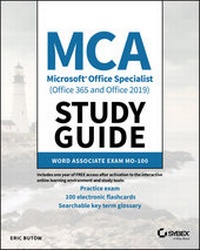
MCA Microsoft Office Specialist (Office 365 and Office 2019) Study Guide
Word Associate Exam MO-100
1st Edition
Published on 4. December 2020
208 pages
978-1-119-71829-1 (ISBN)
Description

Learn the realities of being a Microsoft Office Specialist and efficiently prepare for the Word Associate MO-100 Exam with a single, comprehensive study guide
MCA Microsoft Office Specialist Study Guide: Word Associate Exam MO-100 comprehensively prepares you for the MO-100 Exam. Accomplished and experienced author Eric Butow provides readers with a one-stop resource for learning the job responsibilities of a Microsoft Office Specialist and succeeding on the MO-100 Exam.
The study guide is written in a straightforward and practical style which, when combined with the companion online Sybex resources, allows you to learn efficiently and effectively. The online resources include hundreds of practice questions, flashcards, and a glossary of key terms. In addition to preparing you for the realities of the Microsoft Office Specialist job role, this study guide covers all the subjects necessary to do well on the certifying exam, including:
* Managing documents
* Inserting and formatting text, paragraphs, and sections
* Managing tables and lists
* Creating and managing references
* Inserting and formatting graphics
* Managing document collaboration
Perfect for anyone seeking to begin a new career as a Microsoft Office Specialist, or simply wondering what the job entails, the Study Guide also belongs on the bookshelf of currently practicing professionals who want to brush up on the fundamentals of their role.
MCA Microsoft Office Specialist Study Guide: Word Associate Exam MO-100 comprehensively prepares you for the MO-100 Exam. Accomplished and experienced author Eric Butow provides readers with a one-stop resource for learning the job responsibilities of a Microsoft Office Specialist and succeeding on the MO-100 Exam.
The study guide is written in a straightforward and practical style which, when combined with the companion online Sybex resources, allows you to learn efficiently and effectively. The online resources include hundreds of practice questions, flashcards, and a glossary of key terms. In addition to preparing you for the realities of the Microsoft Office Specialist job role, this study guide covers all the subjects necessary to do well on the certifying exam, including:
* Managing documents
* Inserting and formatting text, paragraphs, and sections
* Managing tables and lists
* Creating and managing references
* Inserting and formatting graphics
* Managing document collaboration
Perfect for anyone seeking to begin a new career as a Microsoft Office Specialist, or simply wondering what the job entails, the Study Guide also belongs on the bookshelf of currently practicing professionals who want to brush up on the fundamentals of their role.
More details
Other editions
Additional editions
Book
01/2021
1st Edition
Sybex Inc.,U.S.
€24.00
Shipment within 15-20 days
Person
Eric Butow is the author or coauthor of 35 books on multiple aspects of technology. He has also developed and taught networking, computing, and usability courses for Ed2Go, Virtual Training Company, California State University/Sacramento, and Udemy. Eric began using Word, Excel, and PowerPoint professionally in 1992. He has been a technical writer for large and small companies, and presently provides website development, online marketing, and technical writing services through his company, Butow Communications Group.
Content
- Cover
- Title Page
- Copyright Page
- Acknowledgments
- About the Author
- Contents at a Glance
- Contents
- Table of Exercises
- Introduction
- Assessment Test
- Chapter 1 Working with Documents
- Navigating Within Documents
- Searching for Text
- Linking to Locations Within Documents
- Moving to Specific Locations and Objects in Documents
- Showing and Hiding Formatting Symbols and Hidden Text
- Formatting Documents
- Setting Up Document Pages
- Applying Style Settings
- Inserting and Modifying Headers and Footers
- Configuring Page Background Elements
- Saving and Sharing Documents
- Saving Documents in Alternative File Formatting
- Changing Basic Document Properties
- Modifying Print Settings
- Sharing Documents Electronically
- Inspecting Documents for Issues
- Locating and Removing Hidden Properties and Personal Information
- Finding and Fixing Accessibility Issues
- Locating and Correcting Compatibility Issues
- Summary
- Key Terms
- Exam Essentials
- Review Questions
- Chapter 2 Inserting and Formatting Text
- Adding and Replacing Text
- Finding and Replacing Text
- Inserting Symbols and Special Characters
- Formatting Text and Paragraphs
- Adding Text Effects
- Applying Formatting by Using Format Painter
- Setting Line and Paragraph Spacing and Indentation
- Applying Built-In Styles to Text
- Clearing Formatting
- Creating and Configuring Document Sections
- Formatting Text in Multiple Columns
- Inserting Page, Section, and Column Breaks
- Changing Page Setting Options for a Section
- Summary
- Key Terms
- Exam Essentials
- Review Questions
- Chapter 3 Managing Tables and Lists
- Creating Tables
- Create Tables Quick!
- Converting Text to Tables
- Switching Tables to Text
- Creating Tables by Specifying Rows and Columns
- Modifying Tables
- Sorting Table Data
- Configuring Cell Margins and Spacing
- Merging and Splitting Cells
- Resizing Tables, Rows, and Columns
- Splitting Tables
- Configuring a Repeating Row Header
- Creating and Formatting Lists
- Structuring Paragraphs as Numbered and Bulleted Lists
- Changing Bullet Characters and Number Formatting
- Defining Custom Bullet Characters and Number Formatting
- Increasing and Decreasing List Levels
- Restarting and Continuing List Numbering
- Setting Starting Number Values
- Summary
- Key Terms
- Exam Essentials
- Review Questions
- Chapter 4 Building References
- Creating and Managing Referencing Elements
- Inserting Footnotes and Endnotes
- Modifying Footnote and Endnote Properties
- Creating and Modifying Bibliography Citation Sources
- Inserting Citations for Bibliographies
- Working with Referencing Tables
- Inserting Tables of Contents
- Customizing Tables of Contents
- Adding Bibliographies
- Summary
- Key Terms
- Exam Essentials
- Review Questions
- Chapter 5 Adding and Formatting Graphic Elements
- Inserting Illustrations and Text Boxes
- Adding Shapes
- Including Pictures
- Inserting 3D Models
- Adding SmartArt Graphics
- Placing Screenshots and Screen Clippings
- Inserting Text Boxes
- Formatting Illustrations and Text Boxes
- Applying Artistic Effects
- Adding Picture Effects and Picture Styles
- Removing Picture Backgrounds
- Formatting Graphic Elements
- Setting Up SmartArt Graphics
- Working with 3D Models
- Adding and Organizing Text
- Formatting Text in Text Boxes
- Adding Text in Shapes
- Changing SmartArt Graphic Content
- Modifying Graphic Elements
- Positioning Objects
- Wrapping Text Around Objects
- Adding Alt Text to Objects
- Summary
- Key Terms
- Exam Essentials
- Review Questions
- Chapter 6 Working with Other Users on Your Document
- Adding Comments
- Inserting Comments
- Reviewing and Replying to Comments
- Resolving Comments
- Deleting Comments
- Tracking Your Changes
- Turning On Track Changes
- Reviewing Tracked Changes
- Accepting and Rejecting Tracked Changes
- Locking and Unlocking Change Tracking
- Summary
- Key Terms
- Exam Essentials
- Review Questions
- Appendix: Answers to Review Questions
- Chapter 1: Working with Documents
- Chapter 2: Inserting and Formatting Text
- Chapter 3: Managing Tables and Lists
- Chapter 4: Building References
- Chapter 5: Adding and Formatting Graphic Elements
- Chapter 6: Working with Other Users on Your Document
- Index
- Online Test Bank
- EULA
