

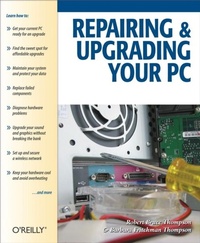
Repairing and Upgrading Your PC
1st Edition
Published on 2. March 2006
448 pages
978-0-596-55286-2 (ISBN)
Description

Most computer users think that fiddling with the insides of their PC is taboo. They fear that by removing the screws that hold the case on, they're crossing into forbidden territory. And even for those who know they can open the box and fix or upgrade their PC, analysis paralysis often stops them in their tracks: Which upgrades offer the best bang for the buck? How do you pinpoint the faulty component that's making your system freeze? What about compatibility issues?Get ready to get unstuck and get your PC running fast and running right. Repairing and Upgrading Your PC delivers start-to-finish instructions, simple enough for even the most inexperienced PC owner, for troubleshooting, repairing, and upgrading your computer. Written by hardware experts Robert Bruce Thompson and Barbara Fritchman Thompson, this book covers it all: how to troubleshoot a troublesome PC, how to identify which components make sense for an upgrade, and how to tear it all down and put it back together. This book shows how to repair and upgrade all of your PC's essential components:Motherboard, CPU, and Memory. Choose the optimal match of these core components to keep your PC running at top speedHard Drive, Optical Drive, and Removable StorageGive your computer what it needs for long-term and short-term storageAudio and Video. Enhance your computing experience with the right sound and graphics devices for your needsInput Devices. Pick the best keyboard and mouse to keep your hands happy and healthyNetworking. Set up secure wireless networking to keep the bits flowing between your computers and the outside worldCases and Power Supplies. Keep everything running cool and reliablyWith its straightforward language, clear instructions, and extensive illustrations, this book makes it a breeze for PC owners of any skill level to work on their computer.
More details
Other editions
Additional editions
Robert Thompson | Barbara Fritchman Thompson
Repairing and Upgrading Your PC
Book
04/2006
1st Edition
Make Community, LLC
€33.00
Article not available at the moment
Content
- Intro
- Repairing and Upgrading Your PC
- SPECIAL OFFER: Upgrade this ebook with O'Reilly
- A Note Regarding Supplemental Files
- Foreword
- Preface
- Organization of This Book
- Acknowledgments
- We'd Like to Hear from You
- How to Contact O'Reilly
- How to Contact the Authors
- 1. Getting Started
- 1.1. Upgrading or Repairing Versus Buying New
- 1.2. Popular Upgrades
- 1.3. Choosing Components
- 1.4. Buying Components
- 1.5. Troubleshooting
- 1.5.1. Problem: When you apply power, nothing happens
- 1.5.2. Problem: The system seems to start normally, but the display remains black
- 1.5.3. Problem: When you connect power (or turn on the power switch on the back of the power supply), the power supply starts briefly and then shuts off
- 1.5.4. Problem: When you apply power, the floppy drive LED lights solidly and the system fails to start
- 1.5.5. Problem: The optical drive appears to play audio CDs, but no sound comes from the speakers
- 1.5.6. Problem: SATA drives are not recognized
- 1.5.7. Problem: The monitor displays BIOS boot text, but the system doesn't boot and displays no error message
- 1.5.8. Problem: The monitor displays a Hard Drive Failure or similar error message
- 1.5.9. Problem: The monitor displays a No Boot Device, Missing Operating System, or similar error message
- 1.5.10. Problem: The system refuses to boot from the optical drive
- 1.5.11. Problem: When you first apply power, you hear a continuous high-pitched screech or warble
- 2. Working on PCs
- 2.1. Rules to Upgrade and Repair By
- 2.2. Hand Tools
- 2.3. Software Tools
- 2.4. General Procedures
- 2.4.1. Before you open the case
- 2.4.2. Removing and replacing the case cover
- 2.4.3. Managing Internal Cables and Connectors
- 2.4.4. Working with expansion cards
- 2.4.5. Setting jumpers
- 2.4.6. Installing drives
- 3. System Maintenance
- 3.1. System Cleaning
- 3.2. Preventative Maintenance
- 3.2.1. Backing up the system
- 3.2.1.1. Backup hardware
- 3.2.1.2. Organizing your data directory structure
- 3.2.1.3. Developing a backup rotation scheme
- 3.2.1.4. Choosing backup software
- 3.2.2. Securing the system
- 3.2.3. Hard drive housekeeping
- 3.2.4. Keeping your system updated
- 3.2.4.1. Operating system and application software updates
- 3.2.4.2. Device driver updates
- 3.2.4.3. Firmware updates
- 3.2.5. Curing Windows Rot
- 3.2.6. A periodic maintenance checklist
- 4. Motherboards
- 4.1. Everything You Always Wanted to Know About Motherboards
- 4.1.1. Choosing a motherboard
- 4.2. A Motherboard Tour
- 4.3. Identifying a Motherboard
- 4.4. Replacing a Motherboard
- 4.4.1. Getting started
- 4.4.2. Preparing the case
- 4.4.3. Seating and securing the motherboard
- 4.4.4. Connecting front-panel switch and indicator cables
- 4.4.5. Connecting front-panel ports
- 4.4.6. Reconnect the drive data cables
- 4.4.7. Reconnect the ATX Power Connectors
- 4.4.8. Reinstalling the video adapter
- 4.4.9. Finishing up the installation
- 4.5. Troubleshooting and Maintaining Motherboards
- 4.5.1. Configuring CMOS
- 4.5.2. Updating the BIOS
- 5. Processors
- 5.1. The Truth About Processor Performance
- 5.1.1. Price and performance
- 5.1.2. AMD versus Intel
- 5.1.3. Benchmarks lie
- 5.1.4. Optimizing price/performance ratio
- 5.2. Processor Characteristics
- 5.3. Processor Types
- 5.3.1. Budget processors
- 5.3.1.1. AMD Sempron
- 5.3.1.2. Intel Celeron
- 5.3.2. Mainstream processors
- 5.3.2.1. AMD Athlon 64
- 5.3.2.2. Intel Pentium 4
- 5.3.3. Dual-core processors
- 5.3.3.1. AMD Athlon 64 X2
- 5.3.3.2. Intel Pentium D
- 5.3.4. AMD and Intel processor summaries
- 5.4. CPU Coolers
- 5.5. Processor Upgrade Considerations
- 5.5.1. Identifying the current processor
- 5.5.2. Choosing a replacement processor
- 5.6. Replacing the Processor
- 5.6.1. Removing the old processor
- 5.6.2. Installing the new processor (Sockets 462/A, 478, 754, 939)
- 5.6.3. Installing the new processor (Socket 775)
- 5.7. Troubleshooting Processors
- 6. Memory
- 6.1. Understanding Memory
- 6.1.1. Memory types
- 6.2. Memory Performance
- 6.3. Other Memory Issues
- 6.3.1. Dual-channel operation
- 6.3.2. Non-parity versus ECC modules
- 6.3.3. Unbuffered versus registered modules
- 6.3.4. Motherboard compatibility issues
- 6.4. Choosing Memory
- 6.5. Installing Memory
- 6.5.1. Installing and removing a DIMM
- 6.5.2. Testing and configuring newly installed memory
- 6.6. Troubleshooting Memory Installation and Operation
- 6.6.1. When you have not added memory
- 6.6.2. When adding memory
- 7. Hard Disk Drives
- 7.1. Hard Disk Drive Interfaces
- 7.1.1. ATA
- 7.1.1.1. Assigning masters and slaves
- 7.1.1.2. Using Cable Select
- 7.1.1.3. Master/slave guidelines
- 7.1.1.4. ATA cables
- 7.1.2. Serial ATA
- 7.1.2.1. Serial ATA features
- 7.1.2.2. Serial ATA connectors and cables
- 7.1.2.3. Configuring an SATA hard drive
- 7.1.3. ATA RAID
- 7.2. Choosing a Hard Disk Drive
- 7.3. Installing a Hard Disk Drive
- 7.4. Enabling DMA Mode Transfers (PATA Only)
- 7.5. Troubleshooting Hard Drive Problems
- 7.5.1. Isolating the problem
- 7.5.2. Recovering data from a failed or failing drive
- 8. Optical Drives
- 8.1. Optical Drive Types
- 8.2. Optical Drive Performance
- 8.3. Optical Disc Types
- 8.3.1. Writable CD discs
- 8.3.2. Writable DVD discs
- 8.4. Installing and Configuring an Optical Drive
- 8.4.1. Choosing an interface configuration
- 8.4.2. Installing the optical drive
- 8.4.3. Enabling Bus Mastering (DMA) support
- 8.4.4. Changing optical drive letter assignments
- 8.5. Troubleshooting Optical Drives
- 8.5.1. Cleaning an optical drive
- 8.5.2. Updating drive firmware
- 8.5.3. Determining drive capabilities
- 8.5.4. Verifying quality of burned discs
- 8.5.5. Dealing with Book Type issues
- 9. External and Removable Storage Devices
- 9.1. Uses for External and Removable Storage
- 9.2. External Hard Drives
- 9.3. External Drive Enclosures
- 9.4. Removable Hard Drive Enclosures
- 9.5. USB Flash Memory Drives
- 9.6. Tape Drives
- 10. Video Adapters
- 10.1. Video Adapter Interfaces
- 10.1.1. PC adapter interfaces
- 10.1.2. AGP compatibility considerations
- 10.1.3. Adapter/display interfaces
- 10.2. Choosing a Video Adapter
- 10.3. TV Tuner/Capture Cards
- 10.4. Installing a Video Card
- 10.5. Configuring Windows Video
- 10.6. Troubleshooting Video Adapters Problems
- 11. Displays
- 11.1. CRT Displays
- 11.1.1. CRT Characteristics
- 11.1.2. CRT advantages
- 11.1.3. Choosing a CRT display
- 11.2. LCD Displays
- 11.2.1. LCD display characteristics
- 11.2.2. LCD advantages
- 11.2.3. Choosing an LCD display
- 11.3. Troubleshooting Display Problems
- 11.3.1. Troubleshooting CRTs
- 11.3.2. Troubleshooting LCD displays
- 12. Audio
- 12.1. Audio Adapters
- 12.1.1. Audio adapter components
- 12.2. Audio Adapter Characteristics
- 12.3. Choosing an Audio Adapter
- 12.4. Installing a Sound Card
- 12.5. Configuring an Audio Adapter Card Under Windows
- 12.6. Speakers and Headphones
- 12.6.1. Speaker and headphone characteristics
- 12.7. Choosing Speakers and Headphones
- 12.8. Troubleshooting Audio Problems
- 13. Input Devices
- 13.1. Keyboards
- 13.1.1. Choosing a Keyboard
- 13.1.2. Configuring a keyboard
- 13.1.3. Cleaning a keyboard
- 13.1.4. Troubleshooting and repairing keyboards
- 13.2. Mice and Trackballs
- 13.2.1. Choosing a mouse or trackball
- 13.2.2. Configuring a mouse or trackball
- 13.2.3. Troubleshooting a mouse
- 13.3. Game Controllers
- 13.3.1. Game controller characteristics
- 13.3.2. Choosing a game controller
- 13.3.3. Installing a game controller
- 13.3.4. Troubleshooting game controllers
- 14. Wireless Networking
- 14.1. Wireless Networking Standards
- 14.2. Wireless Components
- 14.2.1. Access points
- 14.2.2. Wireless adapters
- 14.2.3. Transmitter power, receiver sensitivity, and antenna considerations
- 14.2.3.1. Transmitter power
- 14.2.3.2. Receiver sensitivity
- 14.2.3.3. Antenna considerations
- 15. Cases
- 15.1. Case Characteristics
- 15.2. Tweaking Your Current Case
- 15.2.1. Improving cooling efficiency
- 15.2.2. Reducing noise level
- 16. Power Supplies and Power Protection
- 16.1. Power Supplies
- 16.1.1. Power supply characteristics
- 16.1.2. Power supply connectors
- 16.2. Choosing a Power Supply
- 16.2.1. Installing a power supply
- 16.2.2. Troubleshooting power supplies
- 16.3. Power Protection
- 16.3.1. Passive power protection
- 16.3.2. Active power protection
- 16.3.2.1. BPS types
- 16.3.2.2. BPS characteristics
- 16.3.2.3. Choosing a BPS
- Index
- About the Authors
- Colophon
- SPECIAL OFFER: Upgrade this ebook with O'Reilly
