

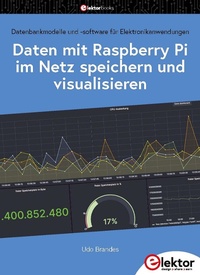
Daten mit dem Raspberry Pi im Netz speichern und visualisieren
Datenbankmodelle und -software für Elektronikanwendungen
1st Edition
Published on 9. October 2023
281 pages
978-3-89576-581-0 (ISBN)
Description

Mit seiner Energieeffizienz und seinem reichen Spektrum an quelloffener Software eignet sich der Einplatinencomputer Raspberry Pi auch für die Speicherung von Daten und deren grafische Aufbereitung lokal oder im World Wide Web (WWW).
Dieses Buch stellt verschiedene Datenbankmodelle und diverse Datenbanksoftware vor:
> SQL: MariaDB, SQLite
> InfluxDB: Telegraf
> Grafana
> MQTT
> Verschlüsselung mit RPi
> Apache
> PHP
> Node RED
> Docker
Es zeigt darüber hinaus ausgewählte Ansätze, gespeicherte Daten anzuzeigen und zu verwalten. Ein eigener Abschnitt ist sowohl der SSL-Verschlüsselung der Verbindung als auch dem Betrieb von Servern im WWW gewidmet.
Das Buch richtet sich an alle,
> die neugierig sind und gerne die Möglichkeiten des Raspberry Pi ausloten möchten,
> die einen Einstieg in das Datenmanagement mit Datenbanken suchen,
> die mit einfachen Mitteln schnell loslegen möchten,
> die Alternativen aufgezeigt bekommen möchten,
> die in komprimierter Form Tipps für eigene Entwicklungen suchen,
> die Freude am eigenen Entwickeln und Realisieren haben.
Programmierkenntnisse und -erfahrungen sind für die Installation der Software nicht erforderlich. Jeder einzelne Schritt wird detailliert beschrieben und mit Screenshots visuell unterlegt.
More details
Other editions
Additional editions
Udo Brandes
Daten mit dem Raspberry Pi im Netz speichern und visualisieren
Datenbankmodelle und -software für Elektronikanwendungen
Book
10/2023
1st Edition
Elektor
€39.80
Available immediately
Person
Udo Brandes war lange Jahre als Systementwickler beim Rechenzentrum der Finanzverwaltung des Landes Nordrhein-Westfalen tätig. Verschiedene Aufgaben bei der Stadt Wuppertal markierten seinen weiteren beruflichen Weg. Seit einigen Jahren arbeitet er als selbstständiger Programmierer, IT-Entwickler und Autor. Ansätze und Möglichkeiten der Mikrocontrollerprogrammierung sind Zukunftsthemen, die den Autor faszinieren und mit deren Chancen und Risiken er sich seit langem intensiv befasst.
Content
- Intro
- Inhaltsverzeichnis
- 1 Raspberry Pi aufsetzen
- 1.1 Installation
- 1.2 Einstellungen anpassen
- 1.3 Hilfreiche Tools
- 2 Daten speichern
- 2.1 Sequentielle Speichermedien
- 2.2 Datenbanken
- 2.3 Beispieldaten für Datenbanken
- 3 InfluxD
- 3.1 Das Datenbankkonzept
- 3.2 Installation InfluxDB2.x
- 3.3 Zugriffswege auf die InfluxDB
- 3.4 Mit de InfluxDB arbeiten (Einstieg)
- 3.5 Date speichern
- 3.6 Daten abrufen mit dem Data Explorer
- 3.7 Notebooks
- 3.8 Dashboards
- 3.9 Tasks
- 3.10 Warnungen
- 3.11 Date löschen / die Datenbank " sauber" halten
- 3.12 Die InfluxDB-API
- 3.13 InfluxDB administrieren
- 4 MariaDB Server
- 4.1 Was ist eine relationale Datenbank?
- 4.2 Datenbankkonzept/-aufbau
- 4.3 Installation
- 4.4 MariaDB administrieren
- 4.5 Mit MariaDB arbeiten
- 5 SQLite
- 5.1 Datenbankkonzept/-aufbau
- 5.2 Installation
- 5.3 MariaDB administrieren
- 5.4 SQLite nutzen
- 6 MongoDB
- 6.1 Was ist eine Dokument orientierte Datenbank?
- 6.2 Datenbankkonzept/-aufbau
- 6.3 MongoDB auf dem Raspberry Pi
- 7 Telegraf / Chronograf / Kapacitor
- 7.1 Telegraf
- 7.2 Chronograf
- 7.3 Kapacitor
- 8 Grafana
- 8.1 Installation
- 8.2 Grafana administrieren
- 8.3 Erstmalige Anmeldung in einem Browser
- 8.4 Anzeigen de Telegraf-Systemdaten
- 8.5 Warnmeldungen einrichten
- 8.6 Grafana versus InfluxDB UI Dashboard (Chronograf)
- 8.7 Grafana und MySQL-Daten
- 8.8 SSL für Grafana
- 9 MQTT / Mosquitto
- 9.1 MQTT
- 9.2 Installation
- 9.3 Mosquito it Passwort absichern
- 9.4 Mosquito testen
- 9.5 Mosquito TLS / SSL
- 10 Das ,,Netz" und der Raspberry PI
- 10.1 Verbindung mit dem heimischen Netz
- 10.2 Verbindung mit dem Internet
- 10.3 Der VPN-Tunnel
- 10.4 TLS/SSL
- 11 Apache
- 11.1 Installation
- 11.2 Apache nutzen
- 11.3 TLS / SSL
- 12 PHP (7.4)
- 12.1 Installation
- 12.2 PHP nutzen
- 13 Node-RED
- 13.1 Installation
- 13.2 Node-RED administrieren
- 13.3 Node-RED nutzen
- 13.4 InfluxDB und Node-RED
- 13.5 MariaDB und Node-RED
- 13.6 SQLite und Node-RED
- 14 Systemadministration über das Web
- 14.1 Cockpit
- 14.2 Webmin
- 14.3 Webmin versus Cockpit 15 Docker
- 15 Docker
- 15.1 Installation und Test
- 15.2 Mosquito in Docker ausführen
- 15.3 InfluxDB in Docker ausführen
- 15.4 Telegraf in Docker ausführen
- 15.5 Grafana in Docker ausführen
- 15.6 Node-RED in Docker ausführen
- 15.7 Portainer
- 15.8 Docker Compose
- Anlage
- Stichwortverzeichnis
