

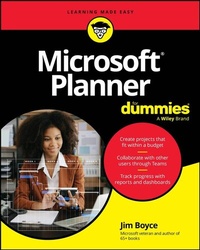
Microsoft Planner For Dummies
Description

Tackle projects with confidence using Microsoft Planner
Microsoft Planner For Dummies delivers a start-to-finish guide to Microsoft's industry-leading project management software. Jim Boyce walks you through this not-as-confusing-as-it-first-looks software, showing you the ins and outs of creating projects, integrating Planner with other Microsoft software, organizing and assigning tasks, and more.
Covering the key features of Planner Plan 1, you'll get insight into planning a project, reporting and tracking progress, and managing plans with other collaborators. Keep your project running smoothly and on track, so the only thing you'll have to worry about is checking tasks off your checklist.
You'll also find:
- Step-by-step instructions for planning projects within strict time and budget constraints
- Expansive coverage of report generation within Microsoft Planner
- Practical discussions of how to stay in sync with conversations on Microsoft Teams as you use Planner
For beginner project managers, Microsoft Planner For Dummies is your go-to guide. This is also an essential resource for project management students as well as experienced project managers who are new to - or need a refresher on - Microsoft Planner.
More details
Other editions
Additional editions
Person
Jim Boyce is a former principal customer success account manager at Microsoft and author of more than 65 books on computers and technology. He has written for Microsoft.com, TechRepublic, and InfoWorld and was previously an IT services director at Xerox.
Content
Introduction 1
Part 1: Getting Started with Microsoft Planner 5
Chapter 1: Introducing Microsoft Planner 7
Chapter 2: Choosing a Plan and a Path 23
Chapter 3: Comparing Microsoft Planner to Other Tools 33
Chapter 4: Stepping into Microsoft Planner 43
Part 2: Grasping the Basics of Microsoft Planner 55
Chapter 5: Navigating the Microsoft Planner Interface 57
Chapter 6: Creating and Managing Tasks 73
Chapter 7: Organizing and Structuring Tasks 87
Chapter 8: Collaborating and communicating with Microsoft Planner 101
Chapter 9: Managing Tasks 127
Part 3: Digging Deeper with Microsoft Planner 147
Chapter 10: Managing Plan Structure and Flow 149
Chapter 11: Adding Structure with Templates 167
Chapter 12: Managing Goals, Sprints, and Milestones 181
Part 4: Automating and Managing Microsoft Planner 195
Chapter 13: Leveraging Automation and Integration 197
Chapter 14: Integrating Copilot with Microsoft Planner 221
Chapter 15: Reporting from Microsoft Planner 243
Chapter 16: Managing Microsoft Planner in the Enterprise 271
Part 5: The Part of Tens 281
Chapter 17: Ten Tips for Faster, Smarter Planning 283
Chapter 18: Ten Outside-the-Box Use Cases for Microsoft Planner 289
Chapter 19: Ten Training and Support Resources 297
Index 301
Chapter 1
Introducing Microsoft Planner
IN THIS CHAPTER
Understanding the role that Planner plays in managing plans
Seeing what Planner has to offer
Exploring common use cases for Planner for personal and business use
Sketching out your first plan
The beginning is always a great place to start, isn't it? But maybe you decided to jump ahead to one of the other chapters to dive right into Microsoft Planner and create some tasks. I like to poke around a bit myself before I read the instructions - sometimes until I hit a virtual wall and need help. But you're here now, probably because you want a deeper understanding of what Planner is and in what scenarios it could be useful to you. That's exactly what this chapter is about. I start with an overview of Planner.
Getting Acquainted with Planner
At its core, Planner is a tool that enables you to organize a sequence of tasks within a plan and track those tasks to completion. Planner is incredibly flexible because it provides a framework into which you can fit many different types of plans across a variety of scenarios (see "Investigating Planner Use Cases," later in this chapter). Like many applications, you can use a few of Planner's features to create and manage simple plans, or use all its features - integrated with other applications like Microsoft Teams - to create and manage large or complex projects.
In a nutshell, Teams lets you chat with other users, participate in online meetings, and store and collaboratively work on documents. That's the tip of the iceberg for Teams, because it works with all sorts of other apps, too. If you need more information on what Teams can do, check out Chapter 21 to find resources that explore Teams in detail. Or just search the web for "Microsoft Teams features" - or ask your favorite artificial intelligence (AI) about it.
If you've used the Tasks feature in Microsoft Outlook or the Microsoft To Do app in Microsoft 365, you have some sense of what Planner can do. However, Planner goes well beyond just giving you a means to create and manage a personal task list. With it, you can create plans that organize tasks for yourself and for others into a project.
I use the term project to describe any sequence of actions or commitments that are arranged along a timeline and work toward achieving a defined result. This could include establishing a set of personal goals and achieving them, planning a wedding or trip, delivering an educational course, building and executing a business plan, building a house, or developing and delivering an application. All these projects have activities and requirements that span across a timeline and work together toward an end result.
To provide a visual example, Figure 1-1 shows a business plan in Planner, created using the Business Plan template that is included with Planner. The plan is organized into several buckets (more on that topic in the next section), each with some tasks that have checklist items associated with them. Not shown in the figure are additional tasks named Finalize Strategic Plan, Define the Market, and Five-Year Business Plan, each with its own checklists.
FIGURE 1-1: Planner includes several templates to help you quickly start a new plan.
Planner certainly isn't the only project-planning tool available today. Several non-Microsoft project-planning tools are available, including Asana, Jira, Trello, and others. I explore some of these alternatives in Chapter 3. In addition, you can think of Planner as an entry point to Microsoft Project, Microsoft's flagship project-planning solution.
Project currently claims about 14 percent of the project-management software market, second after first-place Jira, which holds about 24 percent of the market.
Here's the big picture: Planner offers an easy-to-use tool for planning and tracking tasks and commitments across a timeline as part of an overall plan. There are different versions of Planner - from a free version (Planner Basic Plan), through paid versions, all the way up to Project, each offering increasing levels of features and capabilities. Although other planning tools are available, Planner shines in its integration with Teams and other Microsoft tools. It's also an app published under the Microsoft 365 umbrella of applications, making it readily available to Microsoft 365 users. It's a perfect, inexpensive (or free) tool for project planning across a very broad range of use cases. It's particularly easy for novice planners to use, and it builds nicely toward more feature-rich versions like Project.
At this point, you should have a broad overview of what Planner can do. Other chapters explore these topics in more detail. For example, Chapter 2 digs deeper into the different versions of Planner, how to access those versions, and what points to consider when choosing one. Chapter 3 takes a brief look at some of the other planning tools available today and contrasts them with Planner.
Exploring the Key Features and Benefits of Planner
Planner has a lot to offer, but in this section I focus on the core features for creating and working with tasks, along with the integration possibilities between Planner and other Microsoft tools, including Teams and Power BI.
Capturing and visualizing tasks
The best way to begin to understand what Planner can do is to see it in action. Figure 1-2 shows Planner with a simple plan that contains a handful of tasks for a project called Buy a New Pickup Truck. This is a very basic example because I've only created some tasks; I haven't assigned any start or end dates to sequence them across the project timeline.
FIGURE 1-2: This is a simple plan for purchasing a new pickup truck.
Organizing tasks
Just slapping sticky notes on a board without any organization may be a good way to get your ideas out, or in this case, start to define key tasks. But any good plan needs to be organized, particularly when a project has precursors (tasks that must be completed or requirements that must be met before certain other tasks can begin or be completed) and dependent items (tasks that rely on precursors to be done before they can be completed).
Figure 1-2 shows the tasks using the Board view, which works well for visualizing tasks grouped into buckets. I've created a couple of buckets and moved my original tasks from the To Do bucket into buckets that match each task's area, leaving the To Do bucket empty. A bucket doesn't necessarily indicate a sequence for completing tasks. Although I've grouped the tasks in Figure 1-2 into buckets based on two key areas, it doesn't mean that the tasks in the Pick the Pickup bucket need to be completed before the tasks in the Figure Out How to Pay for It bucket.
Think of buckets as a way to organize tasks into logical groups that generally have something in common but that don't necessarily fall into the same span of the project's timeline.
The Grid view, shown in Figure 1-3, helps you visualize the tasks as a table (referred to as a grid). You can edit tasks inline in the Grid view, meaning you can edit the tasks' properties right in the grid without opening them in a separate window. The Grid view also lets you filter and sort tasks, for example sorting all tasks by start or end date, showing only the tasks assigned to a specific person, or showing only tasks that have not started yet.
FIGURE 1-3: Use the Grid view to sort and filter all tasks, regardless of what bucket they're in.
Have a look at Chapter 5 for details on using Planner views effectively. See Chapter 7 for tips on buckets and other ways you can organize and structure tasks.
Scheduling tasks
Every project has a timeline. In almost every case, a task will have a start date and a due date. You can add a start date and a due date to a task when you create it, but in most cases, you'll create tasks, organize them into buckets, and then begin scheduling them after the body of tasks in your plan begins to take shape.
Some things that you enter as tasks won't have start or end dates. For example, you may include things that you haven't decided are part of the project, or that happen so far in the future that you can't define their dates. Future tasks that do need dates may be dependent on other tasks that haven't been completed yet, so you may leave those dates blank until you get a better idea of when those precursors will be completed. Ongoing tasks like monitoring system performance or responding to customer complaints also won't have clear start or due dates. You could argue that these types of tasks don't belong in a project that has a finite timeline, but adding them helps you remember and plan for those activities. You could group them together into a bucket called Things That Never End!
This is a good place to introduce the Schedule view, shown in Figure 1-4. This view shows your tasks by due date on a calendar to help you visualize not only when the task is supposed to end, but also how it relates to other tasks on the timeline.
FIGURE 1-4: Use the Schedule view to visualize tasks on a...
