

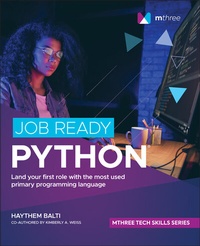
Job Ready Python
Description

Job Ready Python offers readers a straightforward and elegant approach to learning Python that emphasizes hands-on and employable skills you can apply to real-world environments immediately.
Based on the renowned mthree Global Academy and Software Guild training program, this book will get you up to speed in the basics of Python, loops and data structures, object-oriented programming, and data processing. You'll also get:
* Thorough discussions of Extract, Transform, and Load (ETL) scripting in Python
* Explorations of databases, including MySQL, and MongoDB--all commonly used database platforms in the field
* Simple, step-by-step approaches to dealing with dates and times, CSV files, and JSON files
Ideal for Python newbies looking to make a transition to an exciting new career, Job Ready Python also belongs on the bookshelves of Python developers hoping to brush up on the fundamentals with an authoritative and practical new handbook.
More details
Other editions
Additional editions
Persons
KIMBERLY A. WEISS is a veteran course developer, specializing in Computer Science courses since 2002. She was an assistant professor in Computer Science for over ten years before deciding to focus exclusively on course design. She has worked with multiple universities as well as corporate training settings to develop interactive instructional content appropriate for the target learners and course goals.
Content
- Intro
- Table of Contents
- Title Page
- Introduction
- WHAT DOES THIS BOOK COVER?
- READER SUPPORT FOR THIS BOOK
- PART I: Getting Started with Python
- Lesson 1: Setting Up a Python Programming Environment
- PYTHON OVERVIEW
- USING REPLIT ONLINE
- GETTING STARTED WITH JUPYTER NOTEBOOK
- A QUICK LOOK AT VISUAL STUDIO CODE
- USING PYTHON FROM THE COMMAND LINE
- SUMMARY
- EXERCISES
- Lesson 2: Understanding Programming Basics
- THE FUTURE OF COMPUTER PROGRAMMING
- PROGRAMMING LANGUAGES
- DATA TYPES AND VARIABLES
- SUMMARY
- EXERCISES
- Lesson 3: Exploring Basic Python Syntax
- USING WITH SINGLE-LINE COMMANDS
- USING SEMICOLONS
- CONTINUING WITH BACKSLASH
- WORKING WITH CASE STRUCTURE
- ADDING COMMENTS
- USING THE INPUT FUNCTION
- STORING INPUT
- UNDERSTANDING VARIABLE TYPES
- DISPLAYING VARIABLE VALUES
- NAMING VARIABLES
- SUMMARY
- EXERCISES
- Lesson 4: Working with Basic Python Data Types
- REVIEW OF DATA TYPES
- NUMBER DATA TYPES
- IDENTIFYING DATA TYPES
- MATHEMATICAL OPERATIONS
- PEMDAS
- COMMON MATH FUNCTIONS
- MATH LIBRARY FUNCTIONS
- USING NUMBERS WITH USER INPUT
- BOOLEAN TYPES AND BOOLEAN OPERATIONS
- LOGIC OPERATIONS
- COMPARATIVE OPERATORS
- SUMMARY
- EXERCISES
- Lesson 5: Using Python Control Statements
- CONTROL STRUCTURES REVIEW
- UNDERSTANDING SEQUENCE CONTROL STRUCTURE
- UNDERSTANDING SELECTION STATEMENTS
- UNDERSTANDING CONDITIONAL STATEMENTS
- IF-ELSE STATEMENTS
- WORKING WITH NESTED CONDITIONS
- EMBEDDING CONDITIONS
- SUMMARY
- EXERCISES
- Lesson 6: Pulling It All Together: Income Tax Calculator
- GETTING STARTED
- STEP 1: GATHER REQUIREMENTS
- STEP 2: DESIGN THE PROGRAM
- STEP 3: CREATE THE INPUTS
- STEP 4: CALCULATE THE TAXABLE INCOME
- STEP 5: CALCULATE THE TAX RATE
- STEP 6: UPDATE THE APPLICATION
- STEP 7: ADDRESS THE UI
- ON YOUR OWN
- SUMMARY
- PART II: Loops and Data Structures
- Lesson 7: Controlling Program Flow with Loops
- ITERATIONS OVERVIEW
- THE ANATOMY OF A LOOP
- THE FOR LOOP
- THE WHILE LOOP
- FOR VS. WHILE LOOPS
- STRINGS AND STRING OPERATIONS
- ITERATING THROUGH STRINGS
- SUMMARY
- EXERCISES
- Lesson 8: Understanding Basic Data Structures: Lists
- DATA STRUCTURE OVERVIEW-PART 1
- CREATING LISTS
- DETERMINING LIST LENGTH
- WORKING WITH LIST INDEXES
- NEGATIVE INDEXING IN LISTS
- SLICING LISTS
- ADDING ITEMS TO A LIST
- INSERTING LIST ITEMS
- REMOVING LIST ITEMS
- CONCATENATING LISTS
- LIST COMPREHENSION
- SORTING LISTS
- COPYING LISTS
- SUMMARY
- EXERCISES
- Lesson 9: Understanding Basic Data Structures: Tuples
- TUPLES AND TUPLE OPERATIONS
- TUPLE INDEX VALUES
- NEGATIVE INDEXING IN TUPLES
- SLICING TUPLES
- IMMUTABILITY
- CONCATENATING TUPLES
- SEARCHING TUPLES
- SUMMARY
- EXERCISES
- Lesson 10: Diving Deeper into Data Structures: Dictionaries
- DATA STRUCTURE OVERVIEW-PART 2
- GETTING STARTED WITH DICTIONARIES
- GENERATING A DICTIONARY
- RETRIEVING ITEMS FROM A DICTIONARY
- USING THE KEYS() METHOD
- USING THE ITEMS() METHOD
- REVIEWING THE KEYS(), VALUES(), AND ITEMS() METHODS
- USING THE GET() METHOD
- USING THE POP() METHOD
- WORKING WITH THE IN OPERATOR
- UPDATING A DICTIONARY
- DUPLICATING A DICTIONARY
- CLEARING A DICTIONARY
- SUMMARY
- EXERCISES
- Lesson 11: Diving Deeper into Data Structures: Sets
- SETS
- RETRIEVING ITEMS FROM A SET
- ADDING ITEMS TO A SET
- CREATING AN EMPTY SET
- UNDERSTANDING SET UNIQUENESS
- SEARCHING ITEMS IN A SET
- CALCULATING THE LENGTH OF A SET
- DELETING ITEMS FROM A SET
- CLEARING A SET
- POPPING ITEMS IN A SET
- DELETING A SET
- DETERMINING THE DIFFERENCE BETWEEN SETS
- INTERSECTING SETS
- COMBINING SETS
- SUMMARY
- EXERCISES
- Lesson 12: Pulling It All Together: Prompting for an Address
- STEP 1: GETTING STARTED
- STEP 2: ACCEPT USER INPUT
- STEP 3: DISPLAY THE INPUT VALUE
- STEP 4: MODIFY THE OUTPUT
- STEP 5: SPLIT A TEXT VALUE
- STEP 6: DISPLAY ONLY THE HOUSE NUMBER
- STEP 7: DISPLAY THE STREET NAME
- STEP 8: ADD THE PERIOD
- SUMMARY
- Lesson 13: Organizing with Functions
- FUNCTIONS OVERVIEW
- DEFINING FUNCTIONS IN PYTHON
- FUNCTION SYNTAX
- DEFAULT INPUT VALUES
- PARAMETER SYNTAX
- ARBITRARY ARGUMENTS
- KEYWORD ARGUMENTS
- ARBITRARY KEYWORD ARGUMENTS
- SUMMARY
- EXERCISES
- PART III: Object-Oriented Programming in Python
- Lesson 14: Incorporating Object-Oriented Programming
- OBJECT-ORIENTED PROGRAMMING OVERVIEW
- DEFINING CLASSES
- CREATING OBJECTS
- WORKING WITH METHODS
- CLASS ATTRIBUTES
- SUMMARY
- EXERCISES
- Lesson 15: Including Inheritance
- UNDERSTANDING INHERITANCE
- CREATING A PARENT CLASS
- CREATING A CHILD CLASS
- INHERITING AT MULTIPLE LEVELS
- OVERRIDING METHODS
- SUMMARY
- EXERCISES
- Lesson 16: Pulling It All Together: Building a Burger Shop
- REQUIREMENTS FOR OUR APPLICATION
- PLAN THE CODE
- CREATE THE CLASSES
- CREATE THE FOOD ITEM CLASS
- CREATE THE MAIN FILE
- DISPLAY THE OUTPUT
- TIE THE CODE FILES TOGETHER
- SUMMARY
- PART IV: Data Processing with Python
- Lesson 17: Working with Dates and Times
- GETTING STARTED WITH DATES AND TIMES
- GETTING THE CURRENT DATE AND TIME
- SPLITTING A DATE STRING
- USING DATETIME ATTRIBUTES
- CREATING CUSTOM DATETIME OBJECTS
- COMPARE DATETIME VALUES
- WORKING WITH UTC FORMAT
- APPLYING TIMESTAMPS
- ARITHMETIC AND DATES
- CALCULATING THE DIFFERENCE IN DAYS
- USING DATE WITHOUT TIME
- USING TIME WITHOUT DATE
- SUMMARY
- EXERCISES
- Lesson 18: Processing Text Files
- FILE PROCESSING OVERVIEW
- INTRODUCTION TO FILE INPUT/OUTPUT
- PROCESSING TEXT FILES
- OPENING A FILE
- READING TEXT FROM A FILE
- ADD CONTENT TO A FILE
- OVERWRITING THE CONTENTS OF A FILE
- CREATING A NEW FILE
- USING THE OS MODULE
- DELETING A FILE
- SUMMARY
- EXERCISES
- Lesson 19: Processing CSV Files
- READING CSV FILES
- USING THE DICTREADER CLASS
- CREATING A DATASET LIST
- USING WRITEROW()
- APPENDING DATA
- WRITING ROWS AS LISTS
- WRITING ROWS FROM DICTIONARIES
- SUMMARY
- EXERCISES
- Lesson 20: Processing JSON Files
- PROCESSING JSON FILES
- CREATING A JSON FILE WITH DUMP()
- CONVERTING TO JSON WITH DUMPS()
- FORMATTING JSON DATA
- USING JSON.LOADS()
- ITERATING THROUGH JSON DATA
- READING AND WRITING JSON DATA
- SUMMARY
- EXERCISES
- PART V: Data Analysis and Exception Handling
- Lesson 21: Using Lambdas
- CREATING A LAMBDA FUNCTION
- WORKING WITH MULTIPLE INPUTS
- PLACING LAMBDA FUNCTIONS INSIDE A FUNCTION
- USING THE MAP() FUNCTION
- COMBINING MAP AND LAMBDA FUNCTIONS
- USING THE FILTER() FUNCTION
- COMBINING A FILTER AND A LAMBDA
- USING THE REDUCE() FUNCTION
- SUMMARY
- EXERCISES
- Lesson 22: Handling Exceptions
- BUILT-IN EXCEPTIONS
- WORKING WITH TRY AND EXCEPT
- WORKING WITH MULTIPLE EXCEPTS
- COMBINING EXCEPTION TYPES
- USING MULTIPLE OPERATIONS IN A TRY
- USING THE RAISE KEYWORD
- EXPLORING THE GENERAL EXCEPTION CLASSES
- ADDING FINALLY
- SUMMARY
- EXERCISES
- Lesson 23: Pulling It All Together: Word Analysis in Python
- EXAMINE THE DATA
- READ THE DATA
- TOKENIZE THE DATASET
- COUNT THE WORDS IN EACH REVIEW
- SUMMARY
- Lesson 24: Extracting, Transforming, and Loading with ETL Scripting
- ETL SCRIPTING IN PYTHON
- DESIGN AND IMPLEMENT CUSTOM ETL SCRIPTS
- THE EXTRACT CLASS
- THE TRANSFORM CLASS
- THE LOAD CLASS
- SUMMARY
- EXERCISES
- Lesson 25: Improving ETL Scripting
- CONVERTING TO STATIC METHODS FOR THE EXTRACT CLASS
- CONVERTING TO STATIC METHODS FOR THE TRANSFORM CLASS
- SUMMARY
- EXERCISES
- PART VI: Appendices
- Appendix A: Flowcharts
- FLOWCHART BASICS
- COMMON FLOWCHARTING SHAPES
- Appendix B: Creating Pseudocode
- WHAT IS PSEUDOCODE?
- Appendix C: Installing MySQL
- MySQL INSTALLATION
- VERIFY THE INSTALLATION
- THE MySQL NOTIFIER
- Appendix D: Installing Vinyl DB
- DATABASE STRUCTURE
- CREATE THE DATABASE
- Appendix E: Installing MongoDB
- INSTALLING MongoDB COMMUNITY SERVER
- RUNNING MongoDB
- Appendix F: Importing to MongoDB
- Index
- Copyright
- About the Authors
- About the Technical Writer
- About the Technical Editor
- Acknowledgments
- End User License Agreement
Lesson 1
Setting Up a Python Programming Environment
As mentioned in the introduction, this book is designed to give you a thorough understanding of the Python programming language and its rich set of libraries, and to expose you to application development using Python. In order to do this, you'll need a tool to enter and run your Python programs. In this first lesson, we point to tools and show you how to get started using them.
LEARNING OBJECTIVES
By the end of this lesson, you will:
- Know of a few Python tools that are available.
- Learn where you can access an online Python tool to enter and run Python scripts.
- Create and run your first Python script.
NOTE Don't worry if you don't understand some of the jargon and code presented in this lesson. Rather, focus on setting up your programming environment as described in this lesson. The rest of this book will focus on teaching you the jargon and code!
PYTHON OVERVIEW
Python is a general-purpose programming language that is interpreted. Python balances ease and comprehension with power and speed. With its focus on speed for developing applications, it has become a significant tool for software development. When working with Python, you write programs that are then executed using Python. The programs are generally saved as text files with a .py extension and interpreted using the Python program.
Because Python is open source, there are several development environments and distributions that can be used to write Python programs. To program Python you need either a text editor or an integrated development environment (IDE) as well as a Python interpreter. In many cases, if you install an IDE, it will install Python for you as well. You can also install the Python interpreter on your system and use any text editor you want.
In this lesson, we will cover installing Python and some publicly available tools. Before showing how to install Python locally, we'll introduce Replit, which is an integrated development environment you can use online without installing anything locally. It is relatively easy to use and includes everything you need to get started learning Python. We'll also show you how to install two other development environments, Anaconda Jupyter Notebook and Microsoft Visual Studio Code, which are also free. Finally, we'll show you how to install Python on its own to use via the command line of your operating system.
NOTE We show several tools in this lesson; however, you don't need to use all of them. The objective is to show you several tools and let you decide which one to use. If you are unsure which to use, we recommend starting with Replit.
USING REPLIT ONLINE
Replit is a popular online IDE used to learn many programming languages including Python. By using Replit, you can enter your Python code and run it without installing anything locally on your machine. This means you can start programming Python immediately and will be able to access your programs and the tools from any computer with internet access.
NOTE Replit was originally called Repl.it, but changed its name around 2021. It also changed its URL from Repl.it to Replit.com at the same time.
Creating a Replit Account
You can find Replit at www.Replit.com. When you land on this page, you should be greeted with a page similar to Figure 1.1.
Figure 1.1 The Replit.com home page
You will notice a button in the middle of the page labeled < > Start coding. Clicking this button will take you to a dialog asking you to log in. This is similar to clicking the Log in button on the top-right corner of the page. Before you can start coding with Replit, you need to sign up for an account. Thankfully, Replit offers a free account that should provide you with everything you need to complete this book. Clicking either button will present a dialog similar to Figure 1.2.
Figure 1.2 The Sign-up dialog for Replit
If you plan to use Replit, you should create an account by entering a username that is between 2 and 15 characters, a valid email address to use to verify the account, and a password. Enter the information and click the Create account button. Alternatively, you can log in using a Google, GitHub, or Facebook ID.
If you've entered acceptable information for your account, then the sign-up process should take you to the Replit desktop with a welcome dialog similar to Figure 1.3.
NOTE You might see a slightly different flow for initially setting up Replit. You might be prompted with a survey that contains questions related to what you plan to do with Replit. Replit will to customize the IDE based on your answers to these questions.
Figure 1.3 The Replit welcome dialog
Creating a Python Program in Replit
In the welcome dialog, you are offered the options to build from scratch or to explore example repls. Select Build from scratch to continue. This should greet you with a dialog to build your first repl as shown in Figure 1.4, which is simply a program area within the Replit IDE.
Figure 1.4 Building a new program from scratch
You should select Python from the drop-down menu and enter a name for your repl in the second box. In Figure 1.4, we entered JobReadyPython. You can do the same. With the language selected and name provided, click Create repl to continue.
Your first repl work area will be created and you'll be dropped into the Replit desktop. More importantly, because you selected Python, the desktop will be preconfigured to allow you to write Python code. The desktop is shown in Figure 1.5.
Figure 1.5 Replit desktop with Python ready to go
If you look at the Replit desktop, you will see that it is presented in three sections. The far left is the Files dialog and icons for project options. You can see in Figure 1.5 that your Python project was started with one file by default called main.py.
The middle section has a tab that shows the editor where you will write your Python code. Currently the tab shown has the main.py file displayed. If you click to the right of the number 1, you will be able to enter code. Note that the editor shows some text there; however, it is not part of your file and as soon as you type something, it will go away. You can click that text if you want to see some examples.
The right side of the desktop shows the Console window. The Console window is where the output from running your program will be displayed. Using the IDE, you will write programs in the middle section, then click the run button () at the top of the screen. The results (or errors) will then be displayed in the right dialog area.
To see this in action, enter Listing 1.1 into the main.py file in the middle dialog on the IDE. This is basic Python code used to print statements. You will need to make sure you use the same capitalization and spacing.
LISTING 1.1
Using the Replit editor
print("This is my first Python program!") print("It is beautiful!") When you enter this, you will notice that the Replit editor will provide you helpful information as shown in Figure 1.6. This is one of the benefits of using an IDE.
Figure 1.6 Entering code into Replit
Running a Python Program in Replit
Once you've entered the code from Listing 1.1, click the run button () at the top. The print function you are using displays text to the console, so you will see the text that was within the quotes displayed on the right side of the IDE as shown in Figure 1.7.
Figure 1.7 Running the Python script in Replit
Congratulations! You've entered and executed your first Python program. If you type something wrong, then you might get an error when you run the program. If so, that error will be shown in the Console window instead of the expected results. You can read what the error states and possibly determine what was done wrong.
NOTE When an IDE shows an error, it might include a line number. The line number shown might not be the line that had the issue, but often will be close. If you leave off the closing parenthesis on the second line of code, the error you receive will likely indicate line 3 because the interpreter didn't know the parenthesis was missing until it got to line 3.
Other Replit Tasks
It is beyond the scope of this book to teach you everything about Replit; however, the following sections present a few core tasks you will find useful as you work through the code within this book using the Replit IDE. These include:
- Renaming your code file
- Saving your code file
- Adding additional files to a Python project
- Getting more help for Replit
Renaming Your Code File
The default name for the Python file was main.py. You can change this name to any name you'd like, but you should...
