

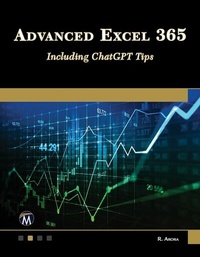
Advanced Excel 365
Including ChatGPT Tips
1st Edition
Published on 3. September 2024
304 pages
978-1-5015-1907-9 (ISBN)
Description

No detailed description available for 'Advanced Excel 365'.
More details
Language
English
Place of publication
New York
United States
Target group
Professional and scholarly
US School Grade: College Graduate Student
File size
12,70 MB
ISBN-13
978-1-5015-1907-9 (9781501519079)
Copyright in bibliographic data and cover images is held by Nielsen Book Services Limited or by the publishers or by their respective licensors: all rights reserved.
Schweitzer Classification
Other editions
Additional editions
E-Book
09/2024
1st Edition
Mercury Learning and Information
€49.95
Available for download
Book
08/2024
1st Edition
De Gruyter
€49.95
Article not available at the moment
Content
- Half Title
- Title
- Copyright
- Dedication
- Contents
- Preface
- Acknowledgments
- About the Author
- Chapter 1: Overview of Excel 2021
- Introduction
- Structure
- Objectives
- Components of the Excel Window
- Backstage View
- Saving and Sharing Files Online
- Interacting with Excel
- Working with Default Settings
- Formatting of Tables
- Paste Special Preview
- Flash Fill
- Quick Data Analysis
- Data Mining
- TAT Saving Techniques
- Conclusion
- Exercises
- Chapter 2: Cell References and Range
- Introduction
- Structure
- Objectives
- Using Different Types of References
- Types of Cell Reference
- Relative Cell Reference
- Absolute Cell References
- Mixed Cell Reference
- Named Range
- Creating a Named Range
- Editing Named Ranges
- Deleting Named Ranges
- Conclusion
- Exercises
- Chapter 3: Working with Formulas and Functions
- Introduction
- Structure
- Objectives
- Using Formulas in a Worksheet
- Array Formula
- Using Functions
- Example
- IF Function
- Example
- Nested IF
- Example
- IF With AND
- Syntax
- IF With OR
- IF With NOT
- Lookup Functions
- VLOOKUP
- HLOOKUP
- Making VLOOKUP Dynamic
- Using the Column Function in VLOOKUP
- Using the Match Function in VLOOKUP
- Index
- Index-Match
- Conclusion
- Exercise
- Chapter 4: Data Validation
- Introduction
- Structure
- Objectives
- Trace Precedents
- Trace Dependents
- How to Use Trace Dependents
- Setting Data Validation Rules
- Methods of Data Validation
- Creating a List
- Conclusion
- Exercises
- Chapter 5: Protection
- Introduction
- Structure
- Objectives
- Employee Information System
- Protecting a Worksheet by Using Passwords
- Protecting a Workbook
- Protecting a Part of a Worksheet
- Password Protecting a File
- Conclusion
- Exercises
- Chapter 6: Sorting a Database
- Introduction
- Structure
- Objectives
- Definition of Sorting
- Simple Sort
- Multilevel Sort
- Customized Sort
- Conclusion
- Exercises
- Chapter 7: Filtering a Database
- Introduction
- Structure
- Objectives
- Filters
- AutoFilter
- Number, Text, or Date Filters
- Filtering a List Using Advanced Filter
- Filtering Unique Records
- Conclusion
- Exercise
- Chapter 8: Subtotals and Data Consolidation
- Introduction
- Structure
- Objectives
- Subtotals
- Display Subtotal at a Single Level
- Displaying Nested Subtotal
- Consolidate Data
- Example of Consolidated Data
- Conclusion
- Exercises
- Region: East
- Region: West
- Region: South
- Chapter 9: Pivot Tables
- Introduction
- Structure
- Objectives
- Examining Pivot Tables
- Recommended Pivot Table
- Creating a Pivot Table
- Percent of Grand Total
- Group Items in a Pivot Table
- Grouping of Dates
- Monthly Report
- Create a Graph Using Pivot Data
- Weekly Report
- Grouping of Numbers (Creating Slabs)
- Slicer
- Timeline
- Power View
- Power Pivot
- Benefits of Data Model
- Creating a Pivot Table Using Power Pivot
- Conclusion
- Exercises
- Chapter 10: Conditional Formatting
- Introduction
- Structure
- Objectives
- Conditional Formatting
- Conditional Formatting Using Cell Values (Column-based Conditional Formatting)
- Conditional Formatting Using Formula (Record-based Conditional Formatting)
- Icon Set
- Formulas with Multiple Conditions
- Apply a Conditional Formula Based on a Different Sheet's Cell Reference
- Conclusion
- Exercises
- Chapter 11: What-If Analysis
- Introduction
- Structure
- Objectives
- Goal Seek
- Using the Goal Seek Command
- Projecting Figures Using a Data Table
- One-Variable Data Tables
- Two-Variable Data Tables
- What-if Scenarios
- Creating Scenarios
- Create a Scenario Summary Report
- Delete a Scenario
- Display a Scenario
- Merge Scenarios from Another Worksheet
- Protecting Scenarios
- Conclusion
- Exercises
- Task 1: Goal Seek
- Task 2: Data Table
- Task 3: Scenario Manager
- Chapter 12: Working with Multiple Worksheets, Workbooks, and Applications
- Introduction
- Structure
- Objectives
- Links Between Different Worksheets
- Sheetname!Reference
- Creating Links Between Different Software
- Auditing Features
- Dependent and Precedent Cells
- Workgroup Collaboration
- Sharing Workbooks
- Merging Workbooks
- Tracking Changes
- Creating Hyperlinks
- Creating Links to a Different File
- Conclusion
- Exercises
- Chapter 13: Working with Charts
- Introduction
- Structure
- Objectives
- Creating Charts Using Chart Tools
- Chart Designs
- Adding Titles and Values in Charts Using Chart Tools
- Formatting Charts
- Charts for Data
- Chart Templates
- Chart Filter Option
- Waterfall Chart
- Recommendations
- Sparklines
- Create a Sparkline
- Customize Sparklines
- Change the Style of Sparklines
- Conclusion
- Exercises
- Chapter 14: Creating and Recording Macros in VBA
- Introduction
- Structure
- Objectives
- Introduction to VBA
- Uses of VBA
- Introduction to Macros
- Creating a Macro
- Adding a Developer Tab on the Ribbon
- Recording a Macro
- Defining a Macro
- Macro Storage
- Macro Shortcut
- Macro Description
- Stop Recording
- Relative Reference Macro
- Scenario 1
- Running Your Macro
- Running the Macro by Name
- Scenario 2
- Scenario 3
- Conclusion
- Exercises
- Chapter 15: Assigning Buttons to Macros
- Introduction
- Structure
- Objectives
- Creating Buttons on the Quick Access Toolbar
- Modifying Menus or Buttons
- Scenario 4
- Creating a Button in the Excel Worksheet
- Scenario 5
- Editing the Recorded Macros
- Scenario 6
- Scenario 7
- Scenario 8
- Practice 1
- Practice 2
- Conclusion
- Exercises
- Chapter 16: Functions and Subroutines in VBA
- Introduction
- Structure
- Objectives
- Writing Procedures
- Visual Basic Editor
- Project Explorer Keyboard Shortcuts
- Inserting Modules
- Writing Code Inside Modules
- Sub Procedure
- Macro
- Function Procedure
- Scenario 9
- Branching a Procedure
- Use If.Then...Endif
- Use If...Then...Else.Endif
- Use If...Then...Elseif.Then.Else.Endif OR Select Case. End
- Scenario 10
- Scenario 11
- Scenario 12
- Scenario 13
- Scenario 14
- Conclusion
- Exercises
- Chapter 17: Conditional Statements in VBA
- Introduction
- Structure
- Objectives
- If.End If
- Example
- Select Case
- Example
- Select Case vs. If . End If
- Conclusion
- Exercises
- Chapter 18: Variables and Data Types in VBA
- Introduction
- Structure
- Objectives
- Variables and Constants
- Variables
- Constant
- Declaring Variables and Constants
- Data Types of Variables and Constants
- Using the Option Explicit Statement
- Message Box and Input Box
- Selecting and Activating Cells
- Selecting and Activating Rows and Columns
- Working with Sheets
- Working with a Workbook
- Working with the Application Object
- Scenario 15
- Scenario 16
- Conclusion
- Exercise
- Chapter 19: Looping Structures in VBA
- Introduction
- Structure
- Objectives
- Using Loops (Repeating Action)
- Choosing a Loop to Use
- Using Do.Loop Statements
- Repeating Statements While a Condition is True
- Checking Condition Before You Enter the Loop
- Checking Condition After the Loop Has Run at Least Once
- Scenario 17
- Using For.Next Statements
- Syntax
- Scenario 18
- Using For Each. Next Statements
- Syntax
- Scenario 19
- Scenario 20
- Scenario 21
- Scenario 22
- Scenario 23
- Scenario 24
- Auto-Executed Macros
- Practice 3
- Practice 4
- Scenario 25
- Scenario 26
- Scenario 27
- Conclusion
- Exercises
- Chapter 20: Arrays and Collections in VBA
- Introduction
- Structure
- Objectives
- Arrays
- Declaring the Arrays
- Syntax
- Example
- Using Arrays
- Array Indexing
- Declaring a Dynamic Array
- Syntax
- Resizing a Dynamic Array
- Array Example
- Conclusion
- Exercises
- Chapter 21: Debugging and Error Handling in VBA
- Introduction
- Structure
- Objectives
- Errors
- Error Handling
- Scenario 28
- Error Number
- Scenario 29
- Debugging the Macro
- Conclusion
- Exercises
- Chapter 22: User Forms and User Input in VBS
- Introduction
- Structure
- Objectives
- User Forms
- Creating User Forms
- Adding Other Controls
- Handling Events for the Control
- Scenario 30
- Conclusion
- Exercises
- Chapter 23: Advanced VBA Techniques and Best Practices
- Introduction
- Structure
- Objectives
- Code to Set Initial Values for the Control
- Code for Option Buttons
- Code for Insert Button
- Double-click Insert Button
- Code to Show User Form
- Add-Ins
- Scenario 31
- Code for the Change Case Form
- Creating Menu with Code
- Conclusion
- Exercises
- Chapter 24: Building Custom Add-ins with VBA
- Introduction
- Structure
- Objectives
- Protecting Your Add-Ins with a Password
- Using Add-Ins
- Conclusion
- Exercises
- Chapter 25: ChatGPT with Excel
- Introduction
- Structure
- Objectives
- Using ChatGPT With Excel
- Conclusion
- Exercises
- Index
