

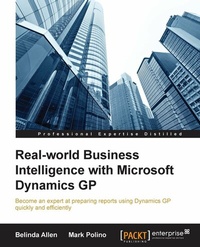
Real-world Business Intelligence with Microsoft Dynamics GP
Description

Key Features
Extend your Microsoft Dynamics GP skills by mastering Microsoft Dynamics Excel and Microsoft Power BI tools
Gain insight into your current data, providing insight for better decision making
Empower yourself with easy-to-follow directions for preparing useful and advanced reports
Book DescriptionIf you're a GP user, this book is aimed at making your job easier. How? Through the use of Business Intelligence (BI) provided by your Microsoft Dynamics GP software to aid you in making informed decisions. This book assumes no previous experience; however, a basic knowledge of Excel is expected.What you will learn
Learn where and how to deploy an SQL View
Create PivotTables and PivotCharts using Excel
Design PowerViews in Excel
Use PowerPivot and PowerQuery in Excel for large data sets
Manage Receivables better through the use of Business Intelligence
Develop custom reports for your Microsoft Dynamics GP data
Manage products using Inventory Control and BI
Master how to use Excel Slicers, PivotTables, PivotCharts, PivotViews, Excel tables, Data Connections, and other Excel features
Who this book is forIf you're a GP user, this book is aimed at making your job easier. How? Through the use of Business Intelligence (BI) provided by your Microsoft Dynamics GP software to aid you in making informed decisions. This book assumes no previous experience; however, a basic knowledge of Excel is expected.
All prices
More details
Other editions
Additional editions
Persons
Belinda Allen is a Microsoft Most Valuable Professional for Dynamics GP (MVP) and a GPUG (GP User Group) All-Star. Belinda is currently the Business Intelligence Program Manager for the new Azure Cloud-based SaaS ERP offering, PowerGP Online. This is an amped-up version of the GP we all love, running in the Microsoft Azure Cloud. In this role, she helps both Partners and Customers design and implement BI methodologies, allowing businesses to make decisions based on timely and accurate information. Belinda was one of the co-founders of Smith & Allen Consulting, Inc. (SACI), a New York City based firm with over 25 years' experience specializing in business intelligence, analytics and ERP software. On April 1, 2016, SACI joined forces with Njevity, Inc. (www.NjevityToGo.com). Now she gets to spend time in her favorite place, the world of Business Intelligence (BI). NjevityToGo offers solutions for ERP, CRM, BI, and much more in the cloud. Njevity is also the force behind PowerGP Online. Belinda's first book, Real-world Business Intelligence with Microsoft Dynamics GP was co-written with Mark Polino. It's a dive into where to Implementing a Business Intelligence Methodology with Microsoft Dynamics GP. Currently a member of the Credentialing Council for the Association of Dynamics Professionals, Belinda was the first Council Chair. In this role, she led a team of community leaders providing guidance and insight in the delivery and development of credentials for both Microsoft Dynamics GP and Microsoft Dynamics NAV. Belinda is also an inaugural member of the Board of Advisors for PBIUG (Power BI User Group.) In this role she provides her experience to the User Board Members, while they create the foundation for this new organization. The goal is to make Power BI a critical tool in the user's organizations. Belinda began implementing ERP systems so long ago that Windows was not an operating system but an application. And at that time, larger businesses used main frames with monitors that projected green type on black backgrounds, and smaller business did their accounting by hand. Having seen the evolution that has taken place over the years from sheets of paper to integrated analytics, Belinda still gets excited every time she helps a business improve. Belinda is also well known for her blog, www.BelindaTheGPcsi.com. On her blog, she shares really useful information about the product quickly and succinctly. She has earned the nickname GP CSI because she excels at reviewing GP problems and figuring out what went wrong... and why. With followers from all over the globe, she is able to share knowledge and achieve her mission--"To improve the lives and business success of my followers." Belinda has just started her new blog, www.BIbelinda.com, which is devoted to Microsoft Power BI. When not delving into GP problems and spearheading business success for clients, Belinda enjoys sailing, crochet/knitting, sewing/quilting, reading, and turning wood.Polino Mark :
Mark Polino is CPA, with additional certifications in financial forensics (CFF) and information technology (CITP). He is a Microsoft MVP for Business Solutions and a GPUG All Star who has worked with Dynamics GP and its predecessors since 1999. He works as the Director of Client Services for Fastpath, and he runs the DynamicAccounting.net website dedicated to all things Dynamics GP. He is a regularly featured speaker at Dynamics GP related events. This is Mark's tenth book, and his seventh GP related book with Packt Publishing. His work includes eight technology-focused books and two novels. He is also the author of the best-selling Microsoft Dynamics GP 2010 Cookbook, the spin off Lite edition, and a co-author for updated GP 2013 and 2016 editions, all from Packt Publishing.
Content
What is BI and what are BI Tools for Microsoft Dynamics GP
The General Ledger Holds It All
Business Intelligence for Bank Reconciliation
Making Money by Paying Bills in Payables Management
Collect What Is Owed in Receivables Management
SOP Sales at Your Mouse Click! (Sales Order Processing)
Managing SOP just got easier (Sales Order Processing)
Managing your Inventory (Control)
Inventory (Control) with a boomerang effect
Gain Control of Your Spending with Purchase Order Processing (POP)
Payroll, Commissions and More oh my
Out-of-the-box BI tools for Microsoft Dynamics GP
The following are all the tools that work with GP and are considered native or out-of-the-box as they come with GP or are a part of the Microsoft stack of technology. Some of these tools are included in the price of GP and others must be purchased separately.
We won't use all of these tools in this book, no one has that much time! We do want to make sure that you are aware of their existence and understand what each tool does. The tools are in no particular order; this isn't a beauty pageant or a top ten list.
Business Analyzer
This is a metric or Key Performance Indicator (KPI) tool that comes with Microsoft Dynamics GP. This tool is role based and includes over 150 reports out-of-the-box. These reports or metrics can be run from within GP, outside of GP, on a Microsoft Surface via an app from the Microsoft App Store, and even on an iPad with the Business Analyzer app.
Business Analyzer uses reports that are built-in and can be edited with Microsoft SQL Server Reporting Services. Business Analyzer with SQL Security is secure and easy to use. Reports can be displayed as a dashboard, chart, or tabular with drill back right into GP data:
Management Reporter reports and Excel reports can even be added to the Windows App and iPad App versions. This tool is best used for dashboards where the data can be represented in small charts or graphs along with the Management Reporter reports representing what you want to see.
SQL Server Reporting Services
SQL Server Reporting Services (SSRS) is a report-writing tool based directly on the data coming from Microsoft SQL Server. Reports can be created using tabular, graphical, or free form format.
Reports can be launched in Business Analyzer, on the GP home page within many GP cards and transaction windows, or in Microsoft SharePoint. The following screenshot shows six SSRS (out-of-the-box with GP) reports being used to make the home page (for this user only) dashboard. This makes the home page in GP a custom experience for each and every user, providing the user with the information that is important to them:
Like Business Analyzer, SSRS is a great tool for repetitive analysis. It's not as useful for ad hoc analysis.
Microsoft Excel
Although Microsoft Excel is not included with Microsoft Dynamics GP, it is likely to be a tool you already own and like using. Microsoft Dynamics GP includes Excel-based reports that are connected to be completely refreshable with new data with just a click. This means no more exporting to Excel and then formatting, only repeating the task the next time you need the report.
Now, you can pull the data into Excel and then format and save it. The next time you need the report, open the Excel file, select Data and Refresh (or even have it auto refresh) with formatting intact and with no extra effort. This allows Excel to be your report writer with data integrated automatically, so there is no need to balance Excel with GP. Quit thinking of Excel as a big calculator, and focus on its analytical power. Excel is incredibly powerful for both repetitive and ad hoc analyses. Excel is really less of a tool and more like a hardware store.
We are by no means suggesting that a large number of Excel reports become your BI. Instead, we are suggesting that you use Excel to extract data from the source, using it as a formatting tool and data delivery tool. The following screenshot is an example of using Excel to format refreshable data into a dashboard, using Excel as a report delivery tool. The following report is actually the first report we will build in Chapter 2, Business Intelligence for the General Ledger:
Microsoft Excel PowerPivot
PowerPivot is a tool in Excel 2013-Office Professional Plus that enables you to perform data mashups (combining data from two or more sources, such as GP and Microsoft CRM) and data exploration, using billions of rows of data at a super fast speed. We refer to this as pivot tables on steroids! This is accomplished through the use of the data model.
The data model is an in-memory data storage device with row based compression. That data is stored as a part of the file but is not visible in the Excel spreadsheet, unless you choose to display it (or a part of it). This is how a single Excel file can handle billions of rows, bypassing the normal row and column limitations of the Excel spreadsheet.
The data model can also receive data from multiple sources, allowing you to make custom links, and even custom fields, by using Data Analysis Expressions (DAX). It is through PowerPivot's data model that Excel can create a single pivot table/chart on the data from multiple sources. This is a great tool when you want to share data offline with others:
Microsoft Excel Power Query
Power Query is a great new tool that allows you to conform, combine, split, merge, and mash up your data from GP and other sources, including public websites (such as Wikipedia and some government sites) and even some private websites. These queries can then be shared with other users via Microsoft Power BI for Office 365. Think of it as SmartList objects outside of Dynamics GP.
Power Query uses an Excel spreadsheet and/or the data model from PowerPivot to hold the data it captures and cleanses. What makes this an exciting tool is its ability to gather all kinds of data from all kinds of sources, combine it, and use it in Excel. PowerPivot can import data and contain it, while Power Query can import or link to data and use PowerPivot to contain it. Why is this small difference important? Power Query is more flexible in the types of connections it can make.
Also, Power Query is the data editing tool of the new Power BI dashboard-ing tool:
Microsoft Excel Power Map
Power Map is a great way to visually see and even fly across your data as a 3D geographical representation. Why is this considered a BI tool? Imagine seeing your sales represented on a map, showing total sales or gross margin. Does one product or product line sell better in the North than the South? Does it sell better in the fall in the East and in summer in the West? Where should you put your new warehouse in order for it to be close to your customer base?
Power Maps are not always the best fit for your BI, but when they do fit, you can sure learn a lot about your data.
The following screenshot shows sales leads and their estimated value by the salesperson from Microsoft CRM data:
Microsoft Power BI
Microsoft Power BI is a stand-alone website/dashboard tool that allows you to create your own dashboard, with refreshable links from a large variety of data sources. Included with this tool is a free App that displays the data from the website.
One of the most amazing features of Microsoft Power BI is the Q&A feature. If you upload an Excel table into the dashboard, you can ask questions about the data, in natural language, just like you do in Microsoft Bing. The results of your questions will be a visual representation of the answer. It could be a graph, chart, table, map, and so on. If this is something you ask a lot, you can simply pin it to the dashboard as a new chart.
This tool is amazing for managers, executives, owners, and board members alike. It gives a quick insight into timely data, right at their fingertips:
Microsoft Excel Power View
Power View is a tool in Excel 2013-Office Professional Plus that enables you to represent your data in a more graphic representation than those of a traditional pivot table or chart. For example, you can graph your sales for each state on an actual map of the U.S., highlighting visually where your biggest sales come from without reading any numbers.
This is a simple dashboard tool that allows for easy filtering. This tool works very well for those individuals who want to see data in a dashboard format, with the ability to filter either a single part of the dashboard or the entire dashboard.
Power View can use data from an Excel spreadsheet, or data in a PowerPivot data model. Again, this allows for multiple data sources and large amounts of data to be used on a single dashboard:
GP Analysis Cubes library
This module in GP allows you to organize your data into analysis cubes that allows users to evaluate or create reports from different angles or formats using pivot tables. The same chunk or cube of data can be used to evaluate inventory sold, sales revenue, sales commission, returns of items, profitability of sales, and so on. These cubes are designed specifically to analyze the GP database, using the...

