

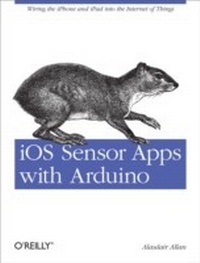
iOS Sensor Apps with Arduino
Wiring the iPhone and iPad into the Internet of Things
1st Edition
Published on 13. September 2011
128 pages
978-1-4493-1754-6 (ISBN)
Description

Turn your iPhone or iPad into the hub of a distributed sensor network with the help of an Arduino microcontroller. With this concise guide, youll learn how to connect an external sensor to an iOS device and have them talk to each other through Arduino. Youll also build an iOS application that will parse the sensor values it receives and plot the resulting measurements, all in real-time.iOS processes data from its own onboard sensors, and now you can extend its reach with this simple, low-cost project. If you're an Objective-C programmer who likes to experiment, this book explains the basics of Arduino and other hardware components you needand lets you have fun in the process.Learn how to connect the Arduino platform to any iOS deviceBuild a simple application to control your Arduino directly from an iPadGather measurements from an ultrasonic range finder and display them on your iPhoneConnect an iPhone, iPad, or iPod Touch to an XBee radio networkExplore other methods for connecting external sensors to iOS, including Ethernet and the MIDI protocol
More details
Other editions
Additional editions
Book
10/2011
O'Reilly
€19.00
Shipment within 10-20 days
Content
- Intro
- Copyright
- Table of Contents
- Preface
- Who Should Read This Book?
- What Should You Already Know?
- What Will You Learn?
- What's in This Book?
- Conventions Used in This Book
- Using Code Examples
- Safari® Books Online
- How to Contact Us
- Acknowledgments
- Chapter 1. Introduction to the Arduino
- The Arduino
- Powering the Board
- Input and Output
- Communicating with the Board
- Installing the Software
- Connecting to the Board
- Blinking an LED
- Uploading the Sketch
- Making a Serial Connection
- Summary
- Chapter 2. Connecting the iPhone to the Arduino
- The Apple MFi Program
- The Redpark Serial Cable
- Testing the Cable
- Connecting to the Arduino
- Connecting to an iOS Device
- A Simple Serial Application
- Adding the Redpark Serial Library
- Connecting the Arduino
- Sending Data Back to the Arduino
- Log Messages
- Summary
- Chapter 3. Controlling the Arduino from the iPad
- An Arduino on Your iPad
- Adding the Serial Library
- Building the User Interface
- Integrating the Serial Library
- Listening for Messages on the Arduino
- Putting It All Together
- Going Further
- Adding a Log Window
- Summary
- Chapter 4. Using External Sensors from the iPhone
- The LV-MaxSonar-EZ1
- Analog Output
- Pulse Width Output
- RS-232 Serial Output
- MaxSonar Range Finder for iPhone
- Adding the Serial Library
- The CorePlot Library
- Compiling the Core Plot library from source code
- Adding the Core Plot library to the project
- Building the User Interface
- Building the Backend
- Writing the Arduino Sketch
- Putting It All Together
- Turning Things On and Off
- Connecting Directly to the Cable
- Chapter 5. Connecting to an XBee Network
- XBee Modules
- Series 1 or Series 2?
- Regular Versus Pro?
- 802.15.4 or ZigBee?
- Which Aerial?
- How to Configure an XBee Series 1 Radio
- Connecting the XBee to Your Mac
- XBee Addressing
- Configuring Two XBee Radios
- Connecting an XBee to an Arduino
- Connecting an XBee to an iOS Device
- XBee to RS-232 Serial
- Going Further
- Chapter 6. Other Ways to Connect
- Using the Network
- Using Ethernet
- Using WiFi
- Using a Soft Modem
- Switch Science Board
- HiJack Board
- Using the MIDI Protocol
- The HIDDUINO
- Summary
