

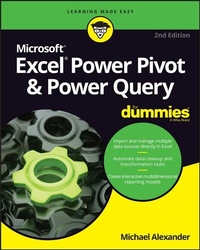
Excel Power Pivot & Power Query For Dummies
Description

Learn to crunch huge amounts of data with PowerPivot and Power Query
Do you have a ton of data you need to make sense of? Microsoft's Excel program can handle amazingly large data sets, but you'll need to get familiar with PowerPivot and Power Query to get started.
And that's where Dummies comes in. With step-by-step instructions-accompanied by ample screenshots-Excel PowerPivot & Power Query For Dummies will teach you how to save time, simplify your processes, and enhance your data analysis and reporting. Use Power Query to discover, connect to, and import your organization's data. Then use PowerPivot to model it in Excel. You'll also learn to:
- Make use of databases to store large amounts of data
- Use custom functions to extend and enhance Power Query
- Add the functionality of formulas to PowerPivot and publish data to SharePoint
If you're expected to wrangle, interpret, and report on large amounts of data, Excel PowerPivot & Power Query For Dummies gives you the tools you need to get up to speed quickly.
Michael Alexander is a senior consultant at Slalom Consulting with more than 15 years' experience in data management and reporting. He is the author of more than a dozen books on business analysis using Microsoft Excel and has been named Microsoft Excel MVP for his contributions to the Excel community.
More details
Other editions
Additional editions
Content
- Intro
- Title Page
- Copyright Page
- Table of Contents
- Introduction
- About This Book
- Foolish Assumptions
- Icons Used in This Book
- Beyond the Book
- Where to Go from Here
- Part 1 Supercharged Reporting with Power Pivot
- Chapter 1 Thinking Like a Database
- Exploring the Limits of Excel and How Databases Help
- Scalability
- Transparency of analytical processes
- Separation of data and presentation
- Getting to Know Database Terminology
- Databases
- Tables
- Records, fields, and values
- Queries
- Understanding Relationships
- Chapter 2 Introducing Power Pivot
- Understanding the Power Pivot Internal Data Model
- Linking Excel Tables to Power Pivot
- Preparing Excel tables
- Adding Excel Tables to the data model
- Creating relationships between Power Pivot tables
- Managing existing relationships
- Using the Power Pivot data model in reporting
- Chapter 3 The Pivotal Pivot Table
- Introducing the Pivot Table
- Defining the Four Areas of a Pivot Table
- Values area
- Row area
- Column area
- Filter area
- Creating Your First Pivot Table
- Changing and rearranging a pivot table
- Adding a report filter
- Keeping the pivot table fresh
- Customizing Pivot Table Reports
- Changing the pivot table layout
- Customizing field names
- Applying numeric formats to data fields
- Changing summary calculations
- Suppressing subtotals
- Showing and hiding data items
- Hiding or showing items without data
- Sorting the pivot table
- Understanding Slicers
- Creating a Standard Slicer
- Getting Fancy with Slicer Customizations
- Size and placement
- Data item columns
- Miscellaneous slicer settings
- Controlling Multiple Pivot Tables with One Slicer
- Creating a Timeline Slicer
- Chapter 4 Using External Data with Power Pivot
- Loading Data from Relational Databases
- Loading data from SQL Server
- Loading data from Microsoft Access databases
- Loading data from other relational database systems
- Loading Data from Flat Files
- Loading data from external Excel files
- Loading data from text files
- Loading data from the Clipboard
- Loading Data from Other Data Sources
- Refreshing and Managing External Data Connections
- Manually refreshing Power Pivot data
- Setting up automatic refreshing
- Preventing Refresh All
- Editing the data connection
- Chapter 5 Working Directly with the Internal Data Model
- Directly Feeding the Internal Data Model
- Managing Relationships in the Internal Data Model
- Managing Queries and Connections
- Creating a New Pivot Table Using the Internal Data Model
- Filling the Internal Data Model with Multiple External Data Tables
- Chapter 6 Adding Formulas to Power Pivot
- Enhancing Power Pivot Data with Calculated Columns
- Creating your first calculated column
- Formatting calculated columns
- Referencing calculated columns in other calculations
- Hiding calculated columns from end users
- Utilizing DAX to Create Calculated Columns
- Identifying DAX functions that are safe for calculated columns
- Building DAX-driven calculated columns
- Month sorting in Power Pivot-driven pivot tables
- Referencing fields from other tables
- Nesting functions
- Understanding Calculated Measures
- Creating a calculated measure
- Editing and deleting calculated measures
- Free Your Data with Cube Functions
- Chapter 7 Diving into DAX
- DAX Language Fundamentals
- Using DAX operators
- Applying conditional logic in DAX
- Working with DAX aggregate functions
- Exploring iterator functions and row context
- Understanding Filter Context
- Getting context transitions with the CALCULATE function
- Adding flexibility with the FILTER function
- Part 2 Wrangling Data with Power Query
- Chapter 8 Introducing Power Query
- Power Query Basics
- Starting the query
- Understanding query steps
- Refreshing Power Query data
- Managing existing queries
- Understanding Column-Level Actions
- Understanding Table Actions
- Chapter 9 Power Query Connection Types
- Importing Data from Files
- Getting data from Excel workbooks
- Getting data from CSV and text files
- Getting data from PDF files
- Getting data from folders
- Importing Data from Database Systems
- A connection for every database type
- Getting data from other data systems
- Walk-through: Getting data from a database
- Managing Data Source Settings
- Data Profiling with Power Query
- Data Profiling options
- Data Profiling quick actions
- Chapter 10 Transforming Your Way to Better Data
- Completing Common Transformation Tasks
- Removing duplicate records
- Filling in blank fields
- Concatenating columns
- Changing case
- Finding and replacing specific text
- Trimming and cleaning text
- Extracting the left, right, and middle values
- Splitting columns using character markers
- Pivoting and unpivoting fields
- Creating Custom Columns
- Concatenating with a custom column
- Understanding data type conversions
- Spicing up custom columns with functions
- Adding conditional logic to custom columns
- Grouping and Aggregating Data
- Working with Custom Data Types
- Chapter 11 Making Queries Work Together
- Reusing Query Steps
- Understanding the Append Feature
- Creating the needed base queries
- Appending the data
- Understanding the Merge Feature
- Understanding Power Query joins
- Merging queries
- Understanding Fuzzy Match
- Chapter 12 Extending Power Query with Custom Functions
- Creating and Using a Basic Custom Function
- Creating a Function to Merge Data from Multiple Excel Files
- Creating Parameter Queries
- Preparing for a parameter query
- Creating the base query
- Creating the parameter query
- Part 3 The Part of Tens
- Chapter 13 Ten Ways to Improve Power Pivot Performance
- Limit the Number of Rows and Columns in Your Data Model Tables
- Use Views Instead of Tables
- Avoid Multi-Level Relationships
- Let the Back-End Database Servers Do the Crunching
- Beware of Columns with Many Unique Values
- Limit the Number of Slicers in a Report
- Create Slicers Only on Dimension Fields
- Disable the Cross-Filter Behavior for Certain Slicers
- Use Calculated Measures Instead of Calculated Columns
- Upgrade to 64-Bit Excel
- Chapter 14 Ten Tips for Working with Power Query
- Getting Quick Information from the Queries & Connections Pane
- Organizing Queries in Groups
- Selecting Columns in Queries Faster
- Renaming Query Steps
- Quickly Creating Reference Tables
- Viewing Query Dependencies
- Setting a Default Load Behavior
- Preventing Automatic Data Type Changes
- Disabling Privacy Settings to Improve Performance
- Disabling Relationship Detection
- Index
- EULA
