

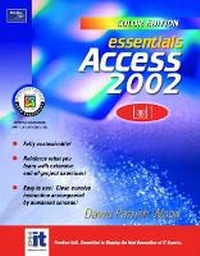
Essentials
Access 2002 Level 1 (Color Edition)
Published on 2. July 2002
Book
Paperback/Softback
258 pages
978-0-13-100901-1 (ISBN)
Description
The Essentials Series for Microsoft Office XP Color Edition has be rewritten and redesigned to meet the needs of today's classroom. These hands-on tutorials with a project orientation are designed to give students a thorough knowledge of software applications. Extensive end-of-project exercises emphasize hands-on skill development.
More details
Language
English
Place of publication
United States
Publishing group
Pearson Education (US)
Target group
Professional and scholarly
Dimensions
Height: 276 mm
Width: 216 mm
ISBN-13
978-0-13-100901-1 (9780131009011)
Copyright in bibliographic data and cover images is held by Nielsen Book Services Limited or by the publishers or by their respective licensors: all rights reserved.
Schweitzer Classification
Content
PROJECT 1. GETTING STARTED WITH ACCESS.
Lesson 1. Creating a New Database Using the Database Wizard.
Lesson 2. Copying and Renaming a Database File.
Lesson 3. Opening and Closing a Database.
Lesson 4. Opening and Closing a Database Table.
Lesson 5. Learning about the Access Window.
Lesson 6. Getting Help.
Lesson 7. Exiting Access and Windows.
PROJECT 2. CREATING A DATABASE.
Lesson 1. Creating a New Database.
Lesson 2. Creating a New Table Using the Table Design Wizard.
Lesson 3. Adding Fields.
Lesson 4. Editing Fields.
Lesson 5. Moving Fields.
Lesson 6. Deleting Fields.
Lesson 7. Creating a New Primary Key.
PROJECT 3. ENTERING AND EDITING DATA.
Lesson 1. Adding Records.
Lesson 2. Moving Among Records.
Lesson 3. Editing Records.
Lesson 4. Inserting and Deleting Records.
Lesson 5. Adjusting Column Widths and Hiding Columns.
Lesson 6. Finding Records.
Lesson 7. Selecting Records Using Filter by Selection.
Lesson 8. Selecting Records Using Filter by Form.
Lesson 9. Sorting Records.
PROJECT 4. QUERYING YOUR DATABASE.
Lesson 1. Creating a New Query Using the Simple Query Wizard.
Lesson 2. Editing the Query.
Lesson 3. Changing Field Order and Sorting Query.
Lesson 4. Matching Criteria.
Lesson 5. Saving the Query with a New Name and Opening Multiple Queries.
Lesson 6. Creating a Calculated Field.
Lesson 7. Formatting the Results of a Calculated Field.
PROJECT 5. CREATING AND USING FORMS.
Lesson 1. Creating an AutoForm.
Lesson 2. Entering and Editing Data Using a Form.
Lesson 3. Saving, Closing, and Opening a Form.
Lesson 4. Creating a New Form Using the Form Wizard.
Lesson 5. Adding Fields to Forms.
Lesson 6. Moving and Resizing Fields in Forms.
Lesson 7. Adding a Form Header and Label.
PROJECT 6. CREATING AND PRINTING REPORTS.
Lesson 1. Printing the Table Data.
Lesson 2. Creating a Report Using a Report Wizard.
Lesson 3. Printing and Renaming a Report.
Lesson 4. Modifying a Report Design.
Lesson 5. Saving the Report with a New Name.
Lesson 6. Adding Labels to Reports.
PROJECT 7. CUSTOMIZING FIELDS AND TABLES.
Lesson 1. Modifying a Table Design.
Lesson 2. Entering a Default Value.
Lesson 3. Changing a Field Type and Selecting a Format.
Lesson 4. Changing a Field Size.
Lesson 5. Working with More Than One Table.
Lesson 6. Creating Table Relationships.
Lesson 7. Creating a Multiple-Table Query.
PROJECT 8. INTEGRATING ACCESS WITH OTHER SOURCES OF DATA AND THE INTERNET.
Lesson 1. Converting a Database from a Previous Version of Access.
Lesson 2. Linking an Access Table to a Form Letter in Word.
Lesson 3. Merging an Access Table with a Form Letter.
Lesson 4. Importing a Table from Excel.
Lesson 5. Creating a Data Access Page Using the Page Wizard.
Lesson 6. Using a Browser to Interact with the Database.
Lesson 1. Creating a New Database Using the Database Wizard.
Lesson 2. Copying and Renaming a Database File.
Lesson 3. Opening and Closing a Database.
Lesson 4. Opening and Closing a Database Table.
Lesson 5. Learning about the Access Window.
Lesson 6. Getting Help.
Lesson 7. Exiting Access and Windows.
PROJECT 2. CREATING A DATABASE.
Lesson 1. Creating a New Database.
Lesson 2. Creating a New Table Using the Table Design Wizard.
Lesson 3. Adding Fields.
Lesson 4. Editing Fields.
Lesson 5. Moving Fields.
Lesson 6. Deleting Fields.
Lesson 7. Creating a New Primary Key.
PROJECT 3. ENTERING AND EDITING DATA.
Lesson 1. Adding Records.
Lesson 2. Moving Among Records.
Lesson 3. Editing Records.
Lesson 4. Inserting and Deleting Records.
Lesson 5. Adjusting Column Widths and Hiding Columns.
Lesson 6. Finding Records.
Lesson 7. Selecting Records Using Filter by Selection.
Lesson 8. Selecting Records Using Filter by Form.
Lesson 9. Sorting Records.
PROJECT 4. QUERYING YOUR DATABASE.
Lesson 1. Creating a New Query Using the Simple Query Wizard.
Lesson 2. Editing the Query.
Lesson 3. Changing Field Order and Sorting Query.
Lesson 4. Matching Criteria.
Lesson 5. Saving the Query with a New Name and Opening Multiple Queries.
Lesson 6. Creating a Calculated Field.
Lesson 7. Formatting the Results of a Calculated Field.
PROJECT 5. CREATING AND USING FORMS.
Lesson 1. Creating an AutoForm.
Lesson 2. Entering and Editing Data Using a Form.
Lesson 3. Saving, Closing, and Opening a Form.
Lesson 4. Creating a New Form Using the Form Wizard.
Lesson 5. Adding Fields to Forms.
Lesson 6. Moving and Resizing Fields in Forms.
Lesson 7. Adding a Form Header and Label.
PROJECT 6. CREATING AND PRINTING REPORTS.
Lesson 1. Printing the Table Data.
Lesson 2. Creating a Report Using a Report Wizard.
Lesson 3. Printing and Renaming a Report.
Lesson 4. Modifying a Report Design.
Lesson 5. Saving the Report with a New Name.
Lesson 6. Adding Labels to Reports.
PROJECT 7. CUSTOMIZING FIELDS AND TABLES.
Lesson 1. Modifying a Table Design.
Lesson 2. Entering a Default Value.
Lesson 3. Changing a Field Type and Selecting a Format.
Lesson 4. Changing a Field Size.
Lesson 5. Working with More Than One Table.
Lesson 6. Creating Table Relationships.
Lesson 7. Creating a Multiple-Table Query.
PROJECT 8. INTEGRATING ACCESS WITH OTHER SOURCES OF DATA AND THE INTERNET.
Lesson 1. Converting a Database from a Previous Version of Access.
Lesson 2. Linking an Access Table to a Form Letter in Word.
Lesson 3. Merging an Access Table with a Form Letter.
Lesson 4. Importing a Table from Excel.
Lesson 5. Creating a Data Access Page Using the Page Wizard.
Lesson 6. Using a Browser to Interact with the Database.