

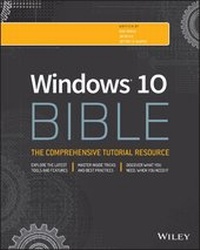
Windows 10 Bible
Published on 5. October 2015
Book
Paperback/Softback
888 pages
978-1-119-05005-6 (ISBN)
Description
A complete, detailed Windows 10 reference for beginners and power users alike
Windows 10 Bible is one of the most thorough references on the market with complete coverage of Windows 10. Whether you're a beginner seeking guidance or a power-user looking for fresh tips and tricks, this book contains everything you could ever hope to know about the Windows operating system. You will get the insider guidance of a Microsoft support manager as you discover everything there is to know about Windows customization, content management, networking, hardware, performance, security, and more. Step-by-step instructions walk you through new and important procedures, and screen shots help you stay on track every step of the way.
Whether you're starting from scratch or just looking to become more proficient, this guide is your ideal solution. You'll learn just what Windows can do, and how to take full advantage so you can get more done faster.
* Go beyond the desktop to personalize the system
* Manage your content, media, software, and security
* Eliminate issues related to printing, faxing, and scanning
* Fine-tune performance, connect to a network, work with the cloud, and more
Whether you want a complete basic introduction or the nitty-gritty detail, Windows 10 Bible has you covered.
Windows 10 Bible is one of the most thorough references on the market with complete coverage of Windows 10. Whether you're a beginner seeking guidance or a power-user looking for fresh tips and tricks, this book contains everything you could ever hope to know about the Windows operating system. You will get the insider guidance of a Microsoft support manager as you discover everything there is to know about Windows customization, content management, networking, hardware, performance, security, and more. Step-by-step instructions walk you through new and important procedures, and screen shots help you stay on track every step of the way.
Whether you're starting from scratch or just looking to become more proficient, this guide is your ideal solution. You'll learn just what Windows can do, and how to take full advantage so you can get more done faster.
* Go beyond the desktop to personalize the system
* Manage your content, media, software, and security
* Eliminate issues related to printing, faxing, and scanning
* Fine-tune performance, connect to a network, work with the cloud, and more
Whether you want a complete basic introduction or the nitty-gritty detail, Windows 10 Bible has you covered.
More details
Other editions
New editions
Rob Tidrow | Jim Boyce | Jeffrey R. Shapiro
Windows 10 Anniversary Update Bible
Book
06/2017
Wiley
€47.00
Shipment within 15-20 days
Additional editions
Rob Tidrow | Jim Boyce | Jeffrey R. Shapiro
Windows 10 Bible
E-Book
09/2015
Wiley
from
€34.99
Available for download
Rob Tidrow | Jim Boyce | Jeffrey R. Shapiro
Windows 10 Bible
E-Book
09/2015
Wiley
€34.99
Available for download
Persons
Rob Tidrow is a 15-year veteran of the technology industry and the author or coauthor of more than 30 books on Windows 8, Windows Server, wireless networking, and Microsoft Outlook. Jim Boyce is the author or coauthor of more than 50 books and hundreds of articles on Windows, Windows Server, Office applications, programming, and other computer topics. Jeffrey Shapiro has published more than 20 books on IT, network administration, and software development during his 21-year career.
Content
Introduction xxxi
Part I: Getting Started 1
Chapter 1: What's New in Windows 10 3
Chapter 2: Navigating the Windows 10 Interface 19
Chapter 3: Getting around the Windows Desktop 33
Chapter 4: Sharing and Securing with User Accounts 63
Chapter 5: Using Windows 10 Family Safety 97
Chapter 6: Troubleshooting Startup Problems 107
Part II: Personalizing Windows 10 119
Chapter 7: Protecting Yourself with Windows Firewall 121
Chapter 8: Automatic Updates 137
Chapter 9: Personalizing the Windows 10 Interface 149
Chapter 10: Personalizing the Desktop 159
Chapter 11: Customizing Startup Options 193
Part III: Beyond the Desktop 213
Chapter 12: Windows 10 and Office Online 215
Chapter 13: Social Networking with Windows 10 227
Chapter 14: Using Computers Remotelyy 233
Chapter 15: Managing Names and Addresses 253
Chapter 16: Working in the Cloud 267
Part IV: Pictures, Music, and Movies 277
Chapter 17: Working with Pictures 279
Chapter 18: Making Music with Media Player 323
Chapter 19: Working with Videos and Photos 375
Part V: Managing Your Content 389
Chapter 20: Understanding Drives, Folders, and Files 391
Chapter 21: Managing Files and Folders 447
Chapter 22: Searching for Files and Messages on Your Computer 479
Chapter 23: Metadata and Power Searches 497
Chapter 24: Protecting Your Files 523
Part VI: Printing and Managing Printers 547
Chapter 25: Installing and Managing Printers 549
Chapter 26: Managing Print Jobs 569
Part VII: Installing and Removing Programs 579
Chapter 27: Adding and Managing Windows 10 Applications 581
Chapter 28: Installing and Upgrading Legacy Programs 591
Chapter 29: Getting Older Programs to Run 601
Chapter 30: Repairing and Removing Programs 613
Chapter 31: Setting Default Programs 621
Chapter 32: Managing Programs and Processes 637
Chapter 33: Troubleshooting Software Problems 661
Part VIII: Hardware and Performance Tuning 675
Chapter 34: Installing and Removing Hardware 677
Chapter 35: Using Wireless Bluetooth Devices 705
Chapter 36: Performance-Tuning Your System 723
Chapter 37: Troubleshooting Hardware and Performance 757
Part IX: Networking and Sharing 767
Chapter 38: Creating a Home Networkk 769
Chapter 39: Sharing Resources on a Network 785
Chapter 40: Using Shared Resources 801
Part X: Appendixes 815
Appendix A: Upgrading to Windows 10 817
Appendix B: Installing Windows 10 on a New System 821
Appendix C: Universal Shortcut Keys 825
Appendix D: Windows 10 Touch Gestures 831
Index x 833
Part I: Getting Started 1
Chapter 1: What's New in Windows 10 3
Chapter 2: Navigating the Windows 10 Interface 19
Chapter 3: Getting around the Windows Desktop 33
Chapter 4: Sharing and Securing with User Accounts 63
Chapter 5: Using Windows 10 Family Safety 97
Chapter 6: Troubleshooting Startup Problems 107
Part II: Personalizing Windows 10 119
Chapter 7: Protecting Yourself with Windows Firewall 121
Chapter 8: Automatic Updates 137
Chapter 9: Personalizing the Windows 10 Interface 149
Chapter 10: Personalizing the Desktop 159
Chapter 11: Customizing Startup Options 193
Part III: Beyond the Desktop 213
Chapter 12: Windows 10 and Office Online 215
Chapter 13: Social Networking with Windows 10 227
Chapter 14: Using Computers Remotelyy 233
Chapter 15: Managing Names and Addresses 253
Chapter 16: Working in the Cloud 267
Part IV: Pictures, Music, and Movies 277
Chapter 17: Working with Pictures 279
Chapter 18: Making Music with Media Player 323
Chapter 19: Working with Videos and Photos 375
Part V: Managing Your Content 389
Chapter 20: Understanding Drives, Folders, and Files 391
Chapter 21: Managing Files and Folders 447
Chapter 22: Searching for Files and Messages on Your Computer 479
Chapter 23: Metadata and Power Searches 497
Chapter 24: Protecting Your Files 523
Part VI: Printing and Managing Printers 547
Chapter 25: Installing and Managing Printers 549
Chapter 26: Managing Print Jobs 569
Part VII: Installing and Removing Programs 579
Chapter 27: Adding and Managing Windows 10 Applications 581
Chapter 28: Installing and Upgrading Legacy Programs 591
Chapter 29: Getting Older Programs to Run 601
Chapter 30: Repairing and Removing Programs 613
Chapter 31: Setting Default Programs 621
Chapter 32: Managing Programs and Processes 637
Chapter 33: Troubleshooting Software Problems 661
Part VIII: Hardware and Performance Tuning 675
Chapter 34: Installing and Removing Hardware 677
Chapter 35: Using Wireless Bluetooth Devices 705
Chapter 36: Performance-Tuning Your System 723
Chapter 37: Troubleshooting Hardware and Performance 757
Part IX: Networking and Sharing 767
Chapter 38: Creating a Home Networkk 769
Chapter 39: Sharing Resources on a Network 785
Chapter 40: Using Shared Resources 801
Part X: Appendixes 815
Appendix A: Upgrading to Windows 10 817
Appendix B: Installing Windows 10 on a New System 821
Appendix C: Universal Shortcut Keys 825
Appendix D: Windows 10 Touch Gestures 831
Index x 833