

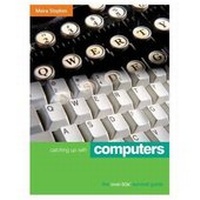
Catching up with Computing
Published on 12. July 2001
Book
Paperback/Softback
288 pages
978-0-13-090823-0 (ISBN)
Description
In the year 2000, 45% of the population are over 50.
7% of people aged 50-64 have tried the Internet (3% in 1996)
2% over 65 have tried the Internet.
These numbers are increasing rapidly. Research by Microsoft suggests this is the biggest growth market for new technology and the popularity of the Hairnet organisation in the UK has supported this. Hairnet offers older people the chance to get to grips with computing and cyberspace by offering a range of courses aimed at and taught by the over-50s.
The over-50s are far more likely to have had no experience of computers at work, school, college or at home and this is becoming more and more of a disadvantage in our 'information society'. The fact that every other word seems to be www or dot-com only makes things more intimidating.
Aimed specifically at the older user this book will take the mystery out of computing and will give users the confidence to use all the common applications.
7% of people aged 50-64 have tried the Internet (3% in 1996)
2% over 65 have tried the Internet.
These numbers are increasing rapidly. Research by Microsoft suggests this is the biggest growth market for new technology and the popularity of the Hairnet organisation in the UK has supported this. Hairnet offers older people the chance to get to grips with computing and cyberspace by offering a range of courses aimed at and taught by the over-50s.
The over-50s are far more likely to have had no experience of computers at work, school, college or at home and this is becoming more and more of a disadvantage in our 'information society'. The fact that every other word seems to be www or dot-com only makes things more intimidating.
Aimed specifically at the older user this book will take the mystery out of computing and will give users the confidence to use all the common applications.
More details
Language
English
Place of publication
Upper Saddle River
United States
Publishing group
Pearson Education (US)
Dimensions
Height: 234 mm
Width: 173 mm
Thickness: 15 mm
Weight
490 gr
ISBN-13
978-0-13-090823-0 (9780130908230)
Copyright in bibliographic data and cover images is held by Nielsen Book Services Limited or by the publishers or by their respective licensors: all rights reserved.
Schweitzer Classification
Person
THE AUTHOR
Moira Stephen is an established author who has written extensively for the Made Simple series. Titles include: Access for Windows 3.1; Access for Windows 95; Access 97 for Windows; Access 2000; Access 2000 in Business, Powerpoint for Windows 3.1; Powerpoint for Windows 95; Powerpoint 97 for Windows; Powerpoint 2000; AmiPro for Windows 3.1; WordPro for Windows 3.1; Publisher 97, Publisher 2000, Microsoft Money 99.
Moira Stephen is an established author who has written extensively for the Made Simple series. Titles include: Access for Windows 3.1; Access for Windows 95; Access 97 for Windows; Access 2000; Access 2000 in Business, Powerpoint for Windows 3.1; Powerpoint for Windows 95; Powerpoint 97 for Windows; Powerpoint 2000; AmiPro for Windows 3.1; WordPro for Windows 3.1; Publisher 97, Publisher 2000, Microsoft Money 99.
Content
Contents 1 Getting Started 1 History lesson 2 Living with computers 5 Different types of computer 9 Overview of a PC 11 Software 19 Networks 20 Internet 22 2 Using Windows 23 Start, shut down and restart your computer 24 Desktop icons 26 Working with windows 27 Menus 31 Control Panel 33 Mouse 40 Formatting diskettes 42 Windows Help 44 Accessories 48 Shortcuts 53 3 File management 55 Disks and drives 56 Folders 58 File types 60 Searching for folders or files 64 Backups 65 Computer viruses 66 4 Standard features 67 Opening and closing applications 68 File handling 68 MS Office Help 72 Selection techniques 78 Delete, Cut, Copy and Paste 79 Spelling and grammar 81 Formatting 84 Preview and Print 87 Drawings 88 WordArt 90 Pictures 91 Toolbars 93 5 Word processing 97 Getting started 98 Entering text 99 Font formatting 103 Special characters and symbols 104 Paragraph formatting 105 Print preview and print 111 Find and Replace 113 View options in Word 115 Page Setup 116 Tables 121 6 Spreadsheets 127 Starting a spreadsheet 128 Spreadsheet jargon 129 Entering and editing data 132 Formatting options 134 Formulas 139 Functions 142 Sort 148 Charts 149 Preview, Page layout and print 156 7 Databases 161 Database jargon 162 Table structure 164 Creating a database in Access 165 Creating a new table 167 Entering and editing data 172 Forms 177 Find, sort and filter 179 Printing your tables 186 Reports 187 8 Presentations 189 Creating a presentation 191 Working with slides 194 Changing the template 197 Charts 198 Organization charts 201 Tables 204 The Clip Gallery 205 Masters 206 Slide shows 209 Running a slide show 213 Printing presentations 214 9 Desktop Publishing 217 Introduction to DTP 218 Watch your budget! 221 Creating a publication 222 Specifying your own design 227 Text frames 232 Leading, tracking and kerning 233 Working with objects 234 Adding and removing pages 235 Background objects 236 Sidebars and pull quotes 237 10 Internet and e-mail 239 Getting started 240 Opening your browser 241 Searching 246 Favorites 249 Printing 251 E-mail 252 Address Book 254 11 Buying a PC 261 What do you need? 262 How much will I spend? 263 Where should I buy a computer? 264 Buyers checklist 266 12 Glossary 267 Index 2751 Basic Concepts & IT terminology
Getting started
Intro/bit of history?
Terminology/overview of PC
Keyboard layout - Enter/backspace/delete/shift/ctrl/alt/etc
Input, Output devices/Storage devices - hard drives, floppy drives, zip drives, CDs, DVDs etc
Types of Memory - ROM & RAM
Processor type
Software - eg Operating System, Application software (discuss different applications/uses)
Introduce basic terms they may encounter e.g. GUI, Multimedia PCs, Y2K, and UPS
Networks
LANs, WANs
Computers in every day life - business and home
2 Windows environment
Working with windows
maximise, minimise, restore, resize, move
Properties
for customisation of desktop/colour/screensavers etc
Accessories
calculator, games, paint, wordpad, CD player etc
Control Panel
Add/Remove Programs
Regional settings
Date/time
Accessibility options
Sounds
Mouse
Add printers
Taskbar
Shortcuts
Re-starting / shutting down
3 File Management/Housekeeping
My Computer
Windows Expl
Getting started
Intro/bit of history?
Terminology/overview of PC
Keyboard layout - Enter/backspace/delete/shift/ctrl/alt/etc
Input, Output devices/Storage devices - hard drives, floppy drives, zip drives, CDs, DVDs etc
Types of Memory - ROM & RAM
Processor type
Software - eg Operating System, Application software (discuss different applications/uses)
Introduce basic terms they may encounter e.g. GUI, Multimedia PCs, Y2K, and UPS
Networks
LANs, WANs
Computers in every day life - business and home
2 Windows environment
Working with windows
maximise, minimise, restore, resize, move
Properties
for customisation of desktop/colour/screensavers etc
Accessories
calculator, games, paint, wordpad, CD player etc
Control Panel
Add/Remove Programs
Regional settings
Date/time
Accessibility options
Sounds
Mouse
Add printers
Taskbar
Shortcuts
Re-starting / shutting down
3 File Management/Housekeeping
My Computer
Windows Expl