

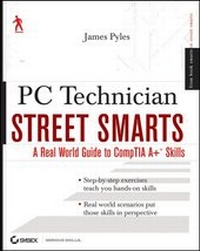
PC Technician Street Smarts
A Real World Guide to CompTIA A+ Skills
1st Edition
Published on 24. November 2006
Book
Paperback/Softback
408 pages
978-0-470-08458-8 (ISBN)
Description
Develop the skills you need in the real world
Hit the ground running with the street-smart training you'll find in this practical book. Using a "year in the life" approach, it gives you an inside look at the common responsibilities of PC Technicians, with key information organized around the actual day-to-day tasks, scenarios, and challenges you'll face in the field. This valuable training tool is loaded with hands-on, step-by-step exercises covering all phases of a PC Technician's job, including:
* Installing hardware and software
* Maintaining hardware and software
* Installing and upgrading operating systems and networks
* Installing and upgrading security systems
An invaluable study tool
This no-nonsense book also covers the common tasks that CompTIA expects all of its A+ certification candidates to know how to perform. So whether you're preparing for certification or seeking practical skills to break into the field, you'll find the instruction you need, including:
* Installing or replacing a power supply
* Installing or replacing a laptop hard drive
* Upgrading Windows(r) 2000 to Windows(r) XP
* Scanning for and removing viruses
* Installing printer drivers
* Troubleshooting your network
The Street Smarts series is designed to help current or aspiring IT professionals put their certification to work for them. Full of practical, real world scenarios, each book features actual tasks from the field and then offers step-by-step exercises that teach the skills necessary to complete those tasks. And because the exercises are based upon exam objectives from leading technology certifications, each Street Smarts book can be used as a lab manual for certification prep.
Hit the ground running with the street-smart training you'll find in this practical book. Using a "year in the life" approach, it gives you an inside look at the common responsibilities of PC Technicians, with key information organized around the actual day-to-day tasks, scenarios, and challenges you'll face in the field. This valuable training tool is loaded with hands-on, step-by-step exercises covering all phases of a PC Technician's job, including:
* Installing hardware and software
* Maintaining hardware and software
* Installing and upgrading operating systems and networks
* Installing and upgrading security systems
An invaluable study tool
This no-nonsense book also covers the common tasks that CompTIA expects all of its A+ certification candidates to know how to perform. So whether you're preparing for certification or seeking practical skills to break into the field, you'll find the instruction you need, including:
* Installing or replacing a power supply
* Installing or replacing a laptop hard drive
* Upgrading Windows(r) 2000 to Windows(r) XP
* Scanning for and removing viruses
* Installing printer drivers
* Troubleshooting your network
The Street Smarts series is designed to help current or aspiring IT professionals put their certification to work for them. Full of practical, real world scenarios, each book features actual tasks from the field and then offers step-by-step exercises that teach the skills necessary to complete those tasks. And because the exercises are based upon exam objectives from leading technology certifications, each Street Smarts book can be used as a lab manual for certification prep.
More details
Edition
1., Auflage
Language
English
Place of publication
Chichester
United Kingdom
Publishing group
John Wiley and Sons Ltd
Target group
Professional and scholarly
Edition type
New edition
Dimensions
Height: 23.3 cm
Width: 18.7 cm
Weight
571 gr
ISBN-13
978-0-470-08458-8 (9780470084588)
Schweitzer Classification
Other editions
New editions
James Pyles
PC Technician Street Smarts
A Real World Guide to CompTIA A+ Skills. Updated for the 2009 Exam
Book
10/2009
2nd Edition
Wiley
€25.90
Article exhausted; check for reprint
Person
James Pyles, A+, Network+, CCNA, is an experienced instructor and author. He is atechnical writer for EmergeCore Networks. He also provides technical support for server, workstation, and audiovisual hardware and networks for a major hardware manufacturer. He has participated in numerous installations of hardware, operating systems, and wireless LANs.
Content
Introduction
Phase 1 Installing Hardware and Software
Task 1.1 Installing RAM
Task 1.2 Installing a PCI Card
Task 1.3 Installing a CPU
Task 1.4 Installing a Power Supply
Task 1.5 Installing a Hard Drive
Task 1.6 Installing a Floppy Drive
Task 1.7 Installing a SCSI Drive
Task 1.8 Installing a CD Drive
Task 1.9 Installing a DVD Drive
Task 1.10 Installing a Motherboard
Task 1.11 Installing a Video Card
Task 1.12 Installing a Laptop Keyboard
Task 1.13 Installing SO-DIMM in a Laptop
Task 1.14 Installing a Laptop Hard Drive
Task 1.15 Installing a Laptop Optical Drive
Task 1.16 Installing a KVM Switch
Task 1.17 Installing a Complete Workstation from the Box
Task 1.18 Preventing ESD Damage
Task 1.19 Installing Drivers from a Disk
Task 1.20 Installing Drivers from the Internet
Task 1.21 Reformatting a Hard Drive
Task 1.22 Installing an Operating System (Windows XP Professional) as a Fresh Install
Task 1.23 Uninstalling Software
Task 1.24 Installing Microsoft Applications
Task 1.25 Installing Non-Microsoft Applications
Task 1.26 Upgrading Windows 2000 to Windows XP
Task 1.27 Using Restore Points in Windows XP
Task 1.28 Shutting Down Programs
Task 1.29 Tweaking Windows XP
Task 1.30 Installing a Local Printer
Task 1.31 Installing Printer Drivers
Phase 2 Maintaining and Documenting Computer Systems
Task 2.1 Identifying a Motherboard
Task 2.2 Managing a Swap File
Task 2.3 Imaging a Disk
Task 2.4 Searching for Drivers
Task 2.5 Cleaning Dust Bunnies Out of Computers
Task 2.6 Cleaning Out Fans
Task 2.7 Oiling Fans
Task 2.8 Cleaning and Degaussing Monitors
Task 2.9 Cleaning Keyboards, Mice, and PCs
Task 2.10 Defragging a Hard Drive
Task 2.11 Updating Security Patches
Task 2.12 Checking and Reseating RAM
Task 2.13 Checking and Reseating PCI Cards
Task 2.14 Checking Internal Connectors
Task 2.15 Speeding Up Windows 2000 Professional
Task 2.16 Flashing the BIOS
Task 2.17 Changing the CMOS Battery to Correct
Task 2.18 Resetting Passwords
Task 2.19 Testing Ports with an Online Scanner
Task 2.20 Changing Printer Toner
Task 2.21 Performing Asset Management of PCs
Task 2.22 Performing Asset Management on Inventory
Task 2.23 Performing Asset Management
Task 2.24 Performing Asset Management
Task 2.25 Tracking Work Done on a PC
Phase 3 Networking Computer Systems
Task 3.1 Mapping Drives
Task 3.2 Creating File Shares
Task 3.3 Configuring PCs to Use Dynamic Addressing
Task 3.4 Installing a Network Printer
Task 3.5 Making a Straight-Through Cable
Task 3.6 Making a Crossover Cable
Task 3.7 Testing Network Cables
Task 3.8 Setting Up a Mail Account
Task 3.9 Joining a Computer to a Domain
Task 3.10 Creating a User in Active Directory
Task 3.11 Mapping Network Cables
Task 3.12 Setting Up a Local User ID
Task 3.13 Adding a Network Peripheral Port
Task 3.14 Setting Up VPN on a PC
Task 3.15 Setting Up Dial-Up Networking
Task 3.16 Connecting a PC to a Network Printer
Phase 4 Troubleshooting and Restoring Computer Systems
Task 4.1 Scanning for and Removing Viruses
Task 4.2 Scanning for and Removing Malware
Task 4.3 Changing Backup Tapes on a Server
Task 4.4 Changing the Backup Schedule on a Server
Task 4.5 Backing Up Outlook Express
Task 4.6 Backing Up Outlook
Task 4.7 Troubleshooting a Randomly Rebooting PC
Task 4.8 Troubleshooting a PC That Can't Print
Task 4.9 Troubleshooting a PC That Can't Print
Task 4.10 Troubleshooting the Error Message
Task 4.11 Troubleshooting Long Load
Task 4.12 Troubleshooting a CD Player
Task 4.13 Troubleshooting the Error Message
Task 4.14 Troubleshooting a "New Hardware Found" Message
Task 4.15 Troubleshooting the Inability to Connect
Task 4.16 Troubleshooting an Empty Outlook
Task 4.17 Troubleshooting No Restart of UPS Device
Task 4.18 Troubleshooting Excel Locking Up
Task 4.19 Troubleshooting No Monitor Image
Task 4.20 Troubleshooting the Inability to Connect
Task 4.21 Troubleshooting the Inability to Access a Shared
Task 4.22 Troubleshooting the Inability to Connect
Index.
Phase 1 Installing Hardware and Software
Task 1.1 Installing RAM
Task 1.2 Installing a PCI Card
Task 1.3 Installing a CPU
Task 1.4 Installing a Power Supply
Task 1.5 Installing a Hard Drive
Task 1.6 Installing a Floppy Drive
Task 1.7 Installing a SCSI Drive
Task 1.8 Installing a CD Drive
Task 1.9 Installing a DVD Drive
Task 1.10 Installing a Motherboard
Task 1.11 Installing a Video Card
Task 1.12 Installing a Laptop Keyboard
Task 1.13 Installing SO-DIMM in a Laptop
Task 1.14 Installing a Laptop Hard Drive
Task 1.15 Installing a Laptop Optical Drive
Task 1.16 Installing a KVM Switch
Task 1.17 Installing a Complete Workstation from the Box
Task 1.18 Preventing ESD Damage
Task 1.19 Installing Drivers from a Disk
Task 1.20 Installing Drivers from the Internet
Task 1.21 Reformatting a Hard Drive
Task 1.22 Installing an Operating System (Windows XP Professional) as a Fresh Install
Task 1.23 Uninstalling Software
Task 1.24 Installing Microsoft Applications
Task 1.25 Installing Non-Microsoft Applications
Task 1.26 Upgrading Windows 2000 to Windows XP
Task 1.27 Using Restore Points in Windows XP
Task 1.28 Shutting Down Programs
Task 1.29 Tweaking Windows XP
Task 1.30 Installing a Local Printer
Task 1.31 Installing Printer Drivers
Phase 2 Maintaining and Documenting Computer Systems
Task 2.1 Identifying a Motherboard
Task 2.2 Managing a Swap File
Task 2.3 Imaging a Disk
Task 2.4 Searching for Drivers
Task 2.5 Cleaning Dust Bunnies Out of Computers
Task 2.6 Cleaning Out Fans
Task 2.7 Oiling Fans
Task 2.8 Cleaning and Degaussing Monitors
Task 2.9 Cleaning Keyboards, Mice, and PCs
Task 2.10 Defragging a Hard Drive
Task 2.11 Updating Security Patches
Task 2.12 Checking and Reseating RAM
Task 2.13 Checking and Reseating PCI Cards
Task 2.14 Checking Internal Connectors
Task 2.15 Speeding Up Windows 2000 Professional
Task 2.16 Flashing the BIOS
Task 2.17 Changing the CMOS Battery to Correct
Task 2.18 Resetting Passwords
Task 2.19 Testing Ports with an Online Scanner
Task 2.20 Changing Printer Toner
Task 2.21 Performing Asset Management of PCs
Task 2.22 Performing Asset Management on Inventory
Task 2.23 Performing Asset Management
Task 2.24 Performing Asset Management
Task 2.25 Tracking Work Done on a PC
Phase 3 Networking Computer Systems
Task 3.1 Mapping Drives
Task 3.2 Creating File Shares
Task 3.3 Configuring PCs to Use Dynamic Addressing
Task 3.4 Installing a Network Printer
Task 3.5 Making a Straight-Through Cable
Task 3.6 Making a Crossover Cable
Task 3.7 Testing Network Cables
Task 3.8 Setting Up a Mail Account
Task 3.9 Joining a Computer to a Domain
Task 3.10 Creating a User in Active Directory
Task 3.11 Mapping Network Cables
Task 3.12 Setting Up a Local User ID
Task 3.13 Adding a Network Peripheral Port
Task 3.14 Setting Up VPN on a PC
Task 3.15 Setting Up Dial-Up Networking
Task 3.16 Connecting a PC to a Network Printer
Phase 4 Troubleshooting and Restoring Computer Systems
Task 4.1 Scanning for and Removing Viruses
Task 4.2 Scanning for and Removing Malware
Task 4.3 Changing Backup Tapes on a Server
Task 4.4 Changing the Backup Schedule on a Server
Task 4.5 Backing Up Outlook Express
Task 4.6 Backing Up Outlook
Task 4.7 Troubleshooting a Randomly Rebooting PC
Task 4.8 Troubleshooting a PC That Can't Print
Task 4.9 Troubleshooting a PC That Can't Print
Task 4.10 Troubleshooting the Error Message
Task 4.11 Troubleshooting Long Load
Task 4.12 Troubleshooting a CD Player
Task 4.13 Troubleshooting the Error Message
Task 4.14 Troubleshooting a "New Hardware Found" Message
Task 4.15 Troubleshooting the Inability to Connect
Task 4.16 Troubleshooting an Empty Outlook
Task 4.17 Troubleshooting No Restart of UPS Device
Task 4.18 Troubleshooting Excel Locking Up
Task 4.19 Troubleshooting No Monitor Image
Task 4.20 Troubleshooting the Inability to Connect
Task 4.21 Troubleshooting the Inability to Access a Shared
Task 4.22 Troubleshooting the Inability to Connect
Index.