

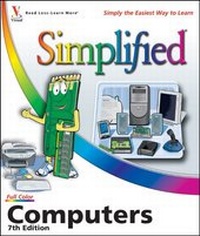
Computers Simplified
7th Edition
Published on 9. October 2007
Book
Paperback/Softback
230 pages
978-0-470-16877-6 (ISBN)
Description
Are you new to computers? Does new technology make you nervous? Relax! You're holding in your hands the easiest guide ever to computers - a book that skips the long-winded explanations and shows you how things work. All you have to do is open the book, follow Chip, your friendly guide - and discover just how easy it is to get up to speed.
* Learn how to use different types of computers and software
*
Create documents and work with different programs
*
Get online, start using email, and manage music and photos
*
"Simplify It" sidebars offer real-world advice
*
A friendly character called Chip introduces each task
*
Full-color screen shots walk you through step by step
*
Self-contained, two-page lessons make learning a snap
* Learn how to use different types of computers and software
*
Create documents and work with different programs
*
Get online, start using email, and manage music and photos
*
"Simplify It" sidebars offer real-world advice
*
A friendly character called Chip introduces each task
*
Full-color screen shots walk you through step by step
*
Self-contained, two-page lessons make learning a snap
More details
Series
Edition
7., Auflage
Language
English
Place of publication
Chichester
United Kingdom
Publishing group
John Wiley and Sons Ltd
Target group
Professional and scholarly
Edition type
Revised edition
Illustrations
colour illustrations
Dimensions
Height: 25.4 cm
Width: 21.7 cm
Thickness: 14 mm
Weight
798 gr
ISBN-13
978-0-470-16877-6 (9780470168776)
Schweitzer Classification
Other editions
New editions
Elaine Marmel
PCs Simplified
Book
01/2011
1st Edition
Wiley
€23.90
Article exhausted; check different version
Additional editions
Previous edition
Paul McFedries
Computers Simplified
Book
09/2005
6th Edition
Hungry Minds Inc,U.S.
€22.90
Article exhausted; check for reprint
Person
Paul McFedries is the president of Logophilia Limited, a technical writing company. Paul has worked with many different types of computers since 1975 and has been a full-time technical writer since 1991. He has written over 50 books that have sold more than three million copies worldwide. These books include the Wiley titles Teach Yourself VISUALLY Windows Vista, Windows Vista Top 100 Simplified Tips & Tricks, and The Unofficial Guide to Microsoft Office 2007. Paul is also the proprietor of Word Spy (www.wordspy.com), a website that tracks new words and phrases as they enter the language.
Content
1 Getting Familiar with Computer Basics.
Discover the Computer.
Benefits of Using a Computer.
What You Can Do with a Computer.
Types of Computers.
Tour the Personal Computer.
Learn About Computer Hardware.
Explore Computer Software.
2 Discovering How Your Computer Works.
Get to Know Data Input Devices.
Get Acquainted with Data Output Devices.
Learn About the Operating System.
Tour the Central Processing Unit.
Understanding Memory.
Learn About Data Storage.
3 Purchasing a Computer
Choose a Computer Type.
Select a CPU.
Determine How Much RAM You Need.
Select Data Storage Options.
Choose a Monitor and Video Card.
Choose a Printer.
Add Other Peripherals.
Purchase Additional Software.
Tips on Purchase Considerations.
4 Getting Started with Your Computer.
Set Up Your Work Area.
Connect the Computer Components.
Turn On the Computer for the First Time.
Use a Keyboard.
Use a Mouse.
Use a CD-ROM or DVD-ROM Drive.
Use a Memory Card Reader.
Restart the Computer.
Turn Off the Computer.
5 Learning Windows Vista Basics.
Explore the Windows Vista Screen.
Start a Program.
Switch Between Programs.
Tour a Program Window.
Access a Command from a Drop-Down Menu.
Select a Command Using a Toolbar.
Use Dialog Box Controls.
Save a Document.
Open a Document.
Print a Document.
Edit Document Text.
Copy a File.
Move a File.
Rename a File.
Delete a File.
6 Using Software.
Create Documents with a Word Processor.
Crunch Numbers with a Spreadsheet.
Build Presentations with a Presentation Program.
Manipulate Pictures with an Image Editor.
Create Publications with a Desktop-Publishing Program.
7 Using Multimedia.
How a Digital Camera Works.
How a Digital Video Camera Works.
How a Webcam Works.
How a Digital Audio Player Works.
Discover Digital Images.
Learn About Digital Video.
Understanding Digital Audio.
Copy Music CD Tracks to Your Computer.
Discover Gaming Consoles.
8 Working with Portable Computers.
Understand the Advantages of a Portable Computer.
Learn About the Portable Computer Battery.
Maximize Battery Power.
Discover the Portable Computer Screen.
Upgrade with PC Cards.
Learn About Portable Computer Accessories.
9 Connecting to the Internet.
Introduction to the Internet.
Explore Internet Connections.
Start the Connect to the Internet Wizard.
Set Up a Dial-Up Internet Connection.
Set Up a Broadband Internet Connection.
Set Up a Wireless Internet Connection.
Connect to the Internet.
Disconnect from the Internet.
10 Surfing the World Wide Web.
Introduction to the World Wide Web.
Learn About Web Browsers.
Search the Web.
Read News on the Web.
Research Using the Web.
Buy and Sell on the Web.
Socialize on the Web.
11 Communicating Online.
Introduction to E-Mail.
Discover E-Mail Addresses.
Compose an E-Mail Message.
Receive an E-Mail Message.
Learn About E-Mail Etiquette.
12 Wireless Computing.
Discover Wireless Computing.
Wireless Computing Devices.
Connect to a Wireless Network.
Stream Media Throughout Your Home.
13 Wireless Computing.
Discover Wireless Computing.
Wireless Computing Devices.
Connect to a Wireless Network.
Stream Media Throughout Your Home.
14 Implementing Computer Security.
Guard Against Internet Intruders.
Protect Yourself on the Web.
Protect Your Children on the Web.
Reduce E-Mail Spam.
Guard Against E-Mail Viruses.
Discover the Computer.
Benefits of Using a Computer.
What You Can Do with a Computer.
Types of Computers.
Tour the Personal Computer.
Learn About Computer Hardware.
Explore Computer Software.
2 Discovering How Your Computer Works.
Get to Know Data Input Devices.
Get Acquainted with Data Output Devices.
Learn About the Operating System.
Tour the Central Processing Unit.
Understanding Memory.
Learn About Data Storage.
3 Purchasing a Computer
Choose a Computer Type.
Select a CPU.
Determine How Much RAM You Need.
Select Data Storage Options.
Choose a Monitor and Video Card.
Choose a Printer.
Add Other Peripherals.
Purchase Additional Software.
Tips on Purchase Considerations.
4 Getting Started with Your Computer.
Set Up Your Work Area.
Connect the Computer Components.
Turn On the Computer for the First Time.
Use a Keyboard.
Use a Mouse.
Use a CD-ROM or DVD-ROM Drive.
Use a Memory Card Reader.
Restart the Computer.
Turn Off the Computer.
5 Learning Windows Vista Basics.
Explore the Windows Vista Screen.
Start a Program.
Switch Between Programs.
Tour a Program Window.
Access a Command from a Drop-Down Menu.
Select a Command Using a Toolbar.
Use Dialog Box Controls.
Save a Document.
Open a Document.
Print a Document.
Edit Document Text.
Copy a File.
Move a File.
Rename a File.
Delete a File.
6 Using Software.
Create Documents with a Word Processor.
Crunch Numbers with a Spreadsheet.
Build Presentations with a Presentation Program.
Manipulate Pictures with an Image Editor.
Create Publications with a Desktop-Publishing Program.
7 Using Multimedia.
How a Digital Camera Works.
How a Digital Video Camera Works.
How a Webcam Works.
How a Digital Audio Player Works.
Discover Digital Images.
Learn About Digital Video.
Understanding Digital Audio.
Copy Music CD Tracks to Your Computer.
Discover Gaming Consoles.
8 Working with Portable Computers.
Understand the Advantages of a Portable Computer.
Learn About the Portable Computer Battery.
Maximize Battery Power.
Discover the Portable Computer Screen.
Upgrade with PC Cards.
Learn About Portable Computer Accessories.
9 Connecting to the Internet.
Introduction to the Internet.
Explore Internet Connections.
Start the Connect to the Internet Wizard.
Set Up a Dial-Up Internet Connection.
Set Up a Broadband Internet Connection.
Set Up a Wireless Internet Connection.
Connect to the Internet.
Disconnect from the Internet.
10 Surfing the World Wide Web.
Introduction to the World Wide Web.
Learn About Web Browsers.
Search the Web.
Read News on the Web.
Research Using the Web.
Buy and Sell on the Web.
Socialize on the Web.
11 Communicating Online.
Introduction to E-Mail.
Discover E-Mail Addresses.
Compose an E-Mail Message.
Receive an E-Mail Message.
Learn About E-Mail Etiquette.
12 Wireless Computing.
Discover Wireless Computing.
Wireless Computing Devices.
Connect to a Wireless Network.
Stream Media Throughout Your Home.
13 Wireless Computing.
Discover Wireless Computing.
Wireless Computing Devices.
Connect to a Wireless Network.
Stream Media Throughout Your Home.
14 Implementing Computer Security.
Guard Against Internet Intruders.
Protect Yourself on the Web.
Protect Your Children on the Web.
Reduce E-Mail Spam.
Guard Against E-Mail Viruses.