

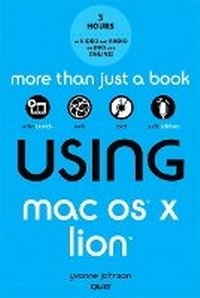
Using Mac OS X Lion
2nd Edition
Published on 2. November 2011
Book
Mixed media product
400 pages
978-0-7897-4120-2 (ISBN)
Description
Don't just read about Mac OS X Lion: See it and hear it with step-by-step video tutorials and valuable audio sidebars delivered through the free Web Edition that comes with every USING book. For the price of the book, you get online access anywhere with a web connection-no books to carry, content is updated as Mac OS X Lion changes, and the benefit of video and audio learning. Way more than just a book, this is all the help you'll ever need where you want, when you want!
INCLUDES MORE THAN 3 HOURS OF FREE VIDEO & AUDIO
Show Me video walks through tasks you've just got to see
Tell Me More audio delivers insights straight from the experts
2 CONVENIENT WAYS TO ACCESS THE VIDEO TUTORIALS AND AUDIO SIDEBARS
The 69 media files are available on the included DVD.
The Web Edition of USING Mac OS X Lion, which includes the media files, is available online anytime and anywhere once you've registered your book at quepublishing.com/using.
INCLUDES MORE THAN 3 HOURS OF FREE VIDEO & AUDIO
Show Me video walks through tasks you've just got to see
Tell Me More audio delivers insights straight from the experts
2 CONVENIENT WAYS TO ACCESS THE VIDEO TUTORIALS AND AUDIO SIDEBARS
The 69 media files are available on the included DVD.
The Web Edition of USING Mac OS X Lion, which includes the media files, is available online anytime and anywhere once you've registered your book at quepublishing.com/using.
More details
Edition
2nd edition
Language
English
Place of publication
United States
Publishing group
Pearson Education (US)
Target group
Professional and scholarly
Dimensions
Height: 155 mm
Width: 225 mm
Thickness: 22 mm
Weight
544 gr
ISBN-13
978-0-7897-4120-2 (9780789741202)
Copyright in bibliographic data and cover images is held by Nielsen Book Services Limited or by the publishers or by their respective licensors: all rights reserved.
Schweitzer Classification
Other editions
Previous edition
Yvonne Johnson
Using Mac OS X Snow Leopard
Book
05/2010
Que Corporation,U.S.
€39.80
Article exhausted; check for reprint
Person
Yvonne Johnson has been writing computer books and teaching computer classes since 1982. She has written more than 60 computer books and college texts for well-known publishers on practically every type of software that exists-from operating systems to desktop publishing, from word processing and spreadsheets to databases, from programming to graphic design and web design. Her most recent Mac books include Using Mac OS X Snow Leopard (Pearson Education) and Using Office 2011 for Mac (Pearson Education).
She started the first proprietary computer-training school in Kentucky and operated it for 12 years, serving local clients such as Brown & Williamson Tobacco and General Electric, and sending out trainers to locations all over the country for the Department of Defense, the IRS, and Fortune 500 companies. During that time, she wrote the curricula for all the software programs taught at the school. After selling the school, she worked as a freelance computer curriculum developer, writing a large percent of the curricula offered by a national computer-training company headquartered in Chicago. She also wrote computer-training material and trained extensively for a computer-training and consulting subsidiary of the Washington Post. Ultimately, she took the position of Vice President of Curriculum Development with this company.
Although she has a tremendous depth and breadth of computer knowledge, she has never forgotten how to communicate with beginning learners. She is known for the simplicity of her writing and her ability to explain complex topics in understandable terms. This ability comes from years of delivering classroom training on computer applications to thousands of employees of large and small businesses, military and government personnel, teachers, attorneys, secretaries, and, yes, even Microsoft software support engineers.
She started the first proprietary computer-training school in Kentucky and operated it for 12 years, serving local clients such as Brown & Williamson Tobacco and General Electric, and sending out trainers to locations all over the country for the Department of Defense, the IRS, and Fortune 500 companies. During that time, she wrote the curricula for all the software programs taught at the school. After selling the school, she worked as a freelance computer curriculum developer, writing a large percent of the curricula offered by a national computer-training company headquartered in Chicago. She also wrote computer-training material and trained extensively for a computer-training and consulting subsidiary of the Washington Post. Ultimately, she took the position of Vice President of Curriculum Development with this company.
Although she has a tremendous depth and breadth of computer knowledge, she has never forgotten how to communicate with beginning learners. She is known for the simplicity of her writing and her ability to explain complex topics in understandable terms. This ability comes from years of delivering classroom training on computer applications to thousands of employees of large and small businesses, military and government personnel, teachers, attorneys, secretaries, and, yes, even Microsoft software support engineers.
Content
Introduction 1
Using This Book 1
Special Features 2
About the USING Web Edition 2
About the DVD-for Print Books Only 2
1 Initializing a New Computer 3
Turning On a New Computer the First Time 3
Purchasing the Extras 10
Keeping Records 12
2 Upgrading to Lion 15
Performing the Upgrade 15
Settling In 17
Getting the New Experience 18
Exploring Lion's New Features 19
3 Setting Up User Accounts and Installing Hardware 25
Customizing Your Own User Account 25
Sharing Your Computer with Another User 29
Using External Drives 38
Installing and Managing Printers 39
Setting Up a Computer-to-Computer Network 42
4 Getting Comfortable with Lion 49
Exploring the Desktop 49
Using Menus 50
Using the Dock 55
Putting Your Mac to Sleep or Shutting It Down 60
5 Managing Your Hardware 65
Learning about Your Mac 65
Exploring System Preferences 66
Controlling the Screen Brightness 68
Adjusting the Sound 69
Setting Keyboard Preferences 71
Operating the Mouse or Trackpad 73
Using CD/DVD Drives 76
6 Customizing the Desktop 80
Changing the Background 80
Using a Screen Saver 83
Working with Icons on the Desktop 85
Customizing the Appearance of the Dock 92
Working with Icons in the Dock 94
Setting Date and Time Preferences 97
7 Using Finder 103
Identifying Components of the Finder Window 103
Using Finder Views 106
Observing the Default Behavior of the Finder 114
Customizing the Finder 115
Exploring the File Structure 123
Creating Different Types of Folders 126
Working with Files 132
8 Managing Applications 144
Using Launchpad 144
Opening and Closing Applications 150
Working with Windows 156
Using Mission Control 160
Working with Spaces 161
Installing and Updating Applications 164
Getting the Most from the Mac App Store 167
Controlling Access to Applications 169
9 Browsing the Web 171
Launching Safari for the First Time 171
Setting Parental Controls 175
Browsing in Tabs or Windows 177
Navigating the Web 178
Working with Bookmarks 180
Downloading and Viewing Files 184
Saving Web Content 185
Customizing Safari's Toolbar 189
Adding Extensions to Safari 190
Quitting Safari 192
10 Using the Address Book and iCal 193
Using the Address Book 193
Using iCal 209
11 Using Mac Mail 224
Getting Mail Accounts Set Up 224
Exploring the Mail Window 227
Getting, Viewing, and Reading Email 231
Sending New Messages and Replies 237
Filtering Spam 245
Finding Messages 246
Flagging Messages 249
Archiving Messages 250
Deleting Messages 250
Creating Mailboxes 251
Customizing Mail 251
Synchronizing Email on All Your Devices 254
Quitting Mail 255
12 Using iChat and FaceTime 256
Using iChat 256
Using FaceTime 270
13 Using TextEdit 274
Working with Documents 274
Navigating and Editing Text 278
Setting Margins and Tabs 282
Formatting Text 284
Exploring Other Formatting Features 288
14 Using Widgets and Other Applications 292
Using Widgets 292
Using Preview 297
Consulting the Dictionary 305
Using Stickies 306
Using the Calculator 309
Using the DigitalColor Meter 312
15 Using System Utilities 314
Activity Monitor 314
Using the AirPort Utility 315
Using the AppleScript Editor 315
Using Audio MIDI Setup 316
Using Bluetooth File Exchange 316
Using Boot Camp Assistant 318
Using the ColorSync Utility 319
Using Console 321
Using DigitalColor Meter 321
Using the Disk Utility 322
Using Grab 326
Using Grapher 328
Using Keychain 328
Using Migration Assistant 328
Using Podcast Publisher 330
Using QuickTime Player 7 330
Using System Information 331
Using Terminal 334
Using the VoiceOver Utility 335
16 Keeping Your Mac Safe, Updated, and Backed Up 336
Safely Surfing the Web 336
Exploring System Security Preferences 339
Working with Keychain Access 343
Getting Software Updates 346
Backing Up with Time Machine 346
17 Having Fun 350
Using DVD Player 350
Using QuickTime Player 351
Using iTunes 357
Using Photo Booth 365
Playing Games 371
Index 372
The following appendix can be accessed online at quepublishing.com/using and on the included DVD:
A Making Use of Support Resources
Using This Book 1
Special Features 2
About the USING Web Edition 2
About the DVD-for Print Books Only 2
1 Initializing a New Computer 3
Turning On a New Computer the First Time 3
Purchasing the Extras 10
Keeping Records 12
2 Upgrading to Lion 15
Performing the Upgrade 15
Settling In 17
Getting the New Experience 18
Exploring Lion's New Features 19
3 Setting Up User Accounts and Installing Hardware 25
Customizing Your Own User Account 25
Sharing Your Computer with Another User 29
Using External Drives 38
Installing and Managing Printers 39
Setting Up a Computer-to-Computer Network 42
4 Getting Comfortable with Lion 49
Exploring the Desktop 49
Using Menus 50
Using the Dock 55
Putting Your Mac to Sleep or Shutting It Down 60
5 Managing Your Hardware 65
Learning about Your Mac 65
Exploring System Preferences 66
Controlling the Screen Brightness 68
Adjusting the Sound 69
Setting Keyboard Preferences 71
Operating the Mouse or Trackpad 73
Using CD/DVD Drives 76
6 Customizing the Desktop 80
Changing the Background 80
Using a Screen Saver 83
Working with Icons on the Desktop 85
Customizing the Appearance of the Dock 92
Working with Icons in the Dock 94
Setting Date and Time Preferences 97
7 Using Finder 103
Identifying Components of the Finder Window 103
Using Finder Views 106
Observing the Default Behavior of the Finder 114
Customizing the Finder 115
Exploring the File Structure 123
Creating Different Types of Folders 126
Working with Files 132
8 Managing Applications 144
Using Launchpad 144
Opening and Closing Applications 150
Working with Windows 156
Using Mission Control 160
Working with Spaces 161
Installing and Updating Applications 164
Getting the Most from the Mac App Store 167
Controlling Access to Applications 169
9 Browsing the Web 171
Launching Safari for the First Time 171
Setting Parental Controls 175
Browsing in Tabs or Windows 177
Navigating the Web 178
Working with Bookmarks 180
Downloading and Viewing Files 184
Saving Web Content 185
Customizing Safari's Toolbar 189
Adding Extensions to Safari 190
Quitting Safari 192
10 Using the Address Book and iCal 193
Using the Address Book 193
Using iCal 209
11 Using Mac Mail 224
Getting Mail Accounts Set Up 224
Exploring the Mail Window 227
Getting, Viewing, and Reading Email 231
Sending New Messages and Replies 237
Filtering Spam 245
Finding Messages 246
Flagging Messages 249
Archiving Messages 250
Deleting Messages 250
Creating Mailboxes 251
Customizing Mail 251
Synchronizing Email on All Your Devices 254
Quitting Mail 255
12 Using iChat and FaceTime 256
Using iChat 256
Using FaceTime 270
13 Using TextEdit 274
Working with Documents 274
Navigating and Editing Text 278
Setting Margins and Tabs 282
Formatting Text 284
Exploring Other Formatting Features 288
14 Using Widgets and Other Applications 292
Using Widgets 292
Using Preview 297
Consulting the Dictionary 305
Using Stickies 306
Using the Calculator 309
Using the DigitalColor Meter 312
15 Using System Utilities 314
Activity Monitor 314
Using the AirPort Utility 315
Using the AppleScript Editor 315
Using Audio MIDI Setup 316
Using Bluetooth File Exchange 316
Using Boot Camp Assistant 318
Using the ColorSync Utility 319
Using Console 321
Using DigitalColor Meter 321
Using the Disk Utility 322
Using Grab 326
Using Grapher 328
Using Keychain 328
Using Migration Assistant 328
Using Podcast Publisher 330
Using QuickTime Player 7 330
Using System Information 331
Using Terminal 334
Using the VoiceOver Utility 335
16 Keeping Your Mac Safe, Updated, and Backed Up 336
Safely Surfing the Web 336
Exploring System Security Preferences 339
Working with Keychain Access 343
Getting Software Updates 346
Backing Up with Time Machine 346
17 Having Fun 350
Using DVD Player 350
Using QuickTime Player 351
Using iTunes 357
Using Photo Booth 365
Playing Games 371
Index 372
The following appendix can be accessed online at quepublishing.com/using and on the included DVD:
A Making Use of Support Resources