

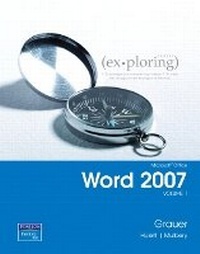
Exploring Microsoft Office Word 2007, Volume 1
Published on 28. June 2007
Book
Paperback/Softback
424 pages
978-0-13-157273-7 (ISBN)
Description
The content associated with the traditional text has moved to Pearson Custom Library (PCL). PCL allows customers to create customized textbooks, giving students a more engaging and affordable education. If you would like to purchase the full text without customization, please use ISBN ___. For more information about customization opportunities, refer to www.pearsoncustomlibrary.com.
More details
Language
English
Place of publication
United States
Publishing group
Pearson Education (US)
Target group
Professional and scholarly
Dimensions
Height: 194 mm
Width: 247 mm
Thickness: 12 mm
Weight
750 gr
ISBN-13
978-0-13-157273-7 (9780131572737)
Copyright in bibliographic data and cover images is held by Nielsen Book Services Limited or by the publishers or by their respective licensors: all rights reserved.
Schweitzer Classification
Other editions
Previous edition
Robert T. Grauer | Maryann Barber
Exploring Microsoft Word 2003 Volume 1
Book
07/2004
6th Edition
Pearson
€38.43
Article exhausted; check for reprint
Content
Chapter 1 - What Will Word Processing Do for Me?
Section 1 Introduction to Word Processing
Understanding Word Basics
Using AutoText
Viewing a Document
Using the Mini Toolbar
Hands-On Exercise #1: Introduction to Microsoft Word
Section 2 Document Formatting
Setting Margins and Specifying Page Orientation
Inserting Page Breaks
Adding Page Numbers
Inserting Headers and Footers
Creating Sections
Inserting a Cover Page
Using Find and Replace Commands
Hands-On Exercise #2: Document Organization
Section 3 The Final Touches
Checking Spelling and Grammar
Using Save and Backup Options
Selecting Printing Options
Customizing Word
Hands-On Exercise #3: The Final Touches
Summary
Key Terms
Practice Exercises
Mid-Level Exercises
Capstone Exercise
Mini Cases
Chapter 2 - Gaining Proficiency: Editing and Formatting
Section 1 Text Formatting
Applying Font Attributes Through the Font Dialog Box
Highlighting Text
Controlling Word Wrapping with Nonbreaking Hyphens and Nonbreaking Spaces
Copying Formats with the Format Painter
Hands-on exercise #1: Character Formatting
Section 2 Paragraph Formats
Setting Off Paragraphs with Tabs, Borders, Lists, and Columns
Applying Paragraph Formats
Hands-on exercise #2: Paragraph formatting
Section 3 Styles and Document References
Creating and Modifying Styles
Hands-on exercise #3: Styles
Table of Contents and Indexes
Hands-on exercise #4: Reference Pages
Summary
Key Terms
Practice Exercises
Mid-Level Exercises
Capstone Exercise
Mini Cases
Chapter 3 - Enhancing a Document: Tables and Graphics
Section 1 Tables
Inserting a Table
Hands-On Exercise #1: Insert a Table
Section 2 Advanced Table Features
Formatting a Table
Sort and Apply Formulas to Table Data
Converting Text to a table
Hands-On Exercise #2: Advanced Table Features
Section 3 Graphic Tools
Inserting Clipart and Images into a Document
Formatting a Graphic Element
Inserting WordArt into a Document
Inserting Symbols into a Document
Hands-On Exercise #3: Clip Art, WordArt, and Symbols
Summary
Key Terms
Practice Exercises
Mid-Level Exercises
Capstone Exercise
Mini Cases
Chapter 4 - Share, Compare, and Document
Section 1 Workgroups and Collaboration
Inserting Comments in a Document
Tracking Changes in a Document
Hands-On Exercise #1: Document Collaboration
Section 2 Multiple Documents
Viewing Documents Side by Side
Comparing and Combining Documents
Creating Master Documents and Subdocuments
Using Navigation Tools
Hands-On Exercise #2: Document Comparison, Mergers, and Navigation
Section 3 Reference Resources
Acknowledging a Source
Creating a Bibliography
Selecting the Writing Style
Creating and Modifying Footnotes and Endnotes
Hands-On Exercise #3: Reference Resources
Section 4 Additional Reference Resources
Adding Figure References
Inserting a Table of Figures
Adding Legal References
Creating a Cross-Reference
Modifying Document Properties
Hands-On Exercise #4: Additional Reference Resources
Summary
Key Terms
Practice Exercises
Mid-Level Exercises
Capstone Exercise
Mini Cases
Section 1 Introduction to Word Processing
Understanding Word Basics
Using AutoText
Viewing a Document
Using the Mini Toolbar
Hands-On Exercise #1: Introduction to Microsoft Word
Section 2 Document Formatting
Setting Margins and Specifying Page Orientation
Inserting Page Breaks
Adding Page Numbers
Inserting Headers and Footers
Creating Sections
Inserting a Cover Page
Using Find and Replace Commands
Hands-On Exercise #2: Document Organization
Section 3 The Final Touches
Checking Spelling and Grammar
Using Save and Backup Options
Selecting Printing Options
Customizing Word
Hands-On Exercise #3: The Final Touches
Summary
Key Terms
Practice Exercises
Mid-Level Exercises
Capstone Exercise
Mini Cases
Chapter 2 - Gaining Proficiency: Editing and Formatting
Section 1 Text Formatting
Applying Font Attributes Through the Font Dialog Box
Highlighting Text
Controlling Word Wrapping with Nonbreaking Hyphens and Nonbreaking Spaces
Copying Formats with the Format Painter
Hands-on exercise #1: Character Formatting
Section 2 Paragraph Formats
Setting Off Paragraphs with Tabs, Borders, Lists, and Columns
Applying Paragraph Formats
Hands-on exercise #2: Paragraph formatting
Section 3 Styles and Document References
Creating and Modifying Styles
Hands-on exercise #3: Styles
Table of Contents and Indexes
Hands-on exercise #4: Reference Pages
Summary
Key Terms
Practice Exercises
Mid-Level Exercises
Capstone Exercise
Mini Cases
Chapter 3 - Enhancing a Document: Tables and Graphics
Section 1 Tables
Inserting a Table
Hands-On Exercise #1: Insert a Table
Section 2 Advanced Table Features
Formatting a Table
Sort and Apply Formulas to Table Data
Converting Text to a table
Hands-On Exercise #2: Advanced Table Features
Section 3 Graphic Tools
Inserting Clipart and Images into a Document
Formatting a Graphic Element
Inserting WordArt into a Document
Inserting Symbols into a Document
Hands-On Exercise #3: Clip Art, WordArt, and Symbols
Summary
Key Terms
Practice Exercises
Mid-Level Exercises
Capstone Exercise
Mini Cases
Chapter 4 - Share, Compare, and Document
Section 1 Workgroups and Collaboration
Inserting Comments in a Document
Tracking Changes in a Document
Hands-On Exercise #1: Document Collaboration
Section 2 Multiple Documents
Viewing Documents Side by Side
Comparing and Combining Documents
Creating Master Documents and Subdocuments
Using Navigation Tools
Hands-On Exercise #2: Document Comparison, Mergers, and Navigation
Section 3 Reference Resources
Acknowledging a Source
Creating a Bibliography
Selecting the Writing Style
Creating and Modifying Footnotes and Endnotes
Hands-On Exercise #3: Reference Resources
Section 4 Additional Reference Resources
Adding Figure References
Inserting a Table of Figures
Adding Legal References
Creating a Cross-Reference
Modifying Document Properties
Hands-On Exercise #4: Additional Reference Resources
Summary
Key Terms
Practice Exercises
Mid-Level Exercises
Capstone Exercise
Mini Cases