

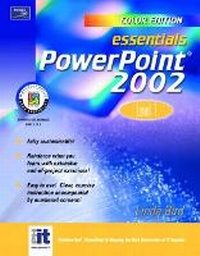
Essentials
PowerPoint 2002 Level 1 (Color Edition)
Published on 8. July 2002
Book
Paperback/Softback
258 pages
978-0-13-100902-8 (ISBN)
Description
The Essentials Series for Microsoft Office XP Color Edition has been rewritten and redesigned to meet the needs of today's classroom. These hands-on tutorials with a project orientation are designed to give students a thorough knowledge of software applications. Extensive end-of-project exercises emphasize hands-on skill development.
More details
Language
English
Place of publication
United States
Publishing group
Pearson Education (US)
Target group
Professional and scholarly
Dimensions
Height: 276 mm
Width: 216 mm
Weight
576 gr
ISBN-13
978-0-13-100902-8 (9780131009028)
Copyright in bibliographic data and cover images is held by Nielsen Book Services Limited or by the publishers or by their respective licensors: all rights reserved.
Schweitzer Classification
Content
PROJECT 1. GETTING STARTED WITH POWERPOINT.
Lesson 1. Exploring the PowerPoint Window.
Lesson 2. Creating a Blank Presentation.
Lesson 3. Creating a Presentation Using a Design Template.
Lesson 4. Entering and Editing Text.
Lesson 5. Saving a Presentation.
Lesson 6. Printing a Presentation.
Lesson 7. Getting Help.
Lesson 8. Closing Your Presentation and Exiting PowerPoint.
PROJECT 2. CREATING AND MODIFYING PRESENTATIONS.
Lesson 1. Creating a Presentation Using the AutoContent Wizard.
Lesson 2. Adding, Demoting, and Promoting Text.
Lesson 3. Selecting, Moving, and Copying Text.
Lesson 4. Changing Text Appearance.
Lesson 5. Using the Format Painter.
Lesson 6. Changing the Text Alignment and Setting Tabs.
Lesson 7. Adding, Removing, and Modifying Bullets.
PROJECT 3. VIEWING AND RESTRUCTURING PRESENTATIONS.
Lesson 1. Opening an Existing Presentation.
Lesson 2. Navigating Among Different Views.
Lesson 3. Moving Among Slides in Normal View.
Lesson 4. Running an Electronic Slide Show.
Lesson 5. Using the Slide Show Shortcut Keys.
Lesson 6. Adding and Deleting Slides and Changing Slide Layout.
Lesson 7. Changing Slide Order.
PROJECT 4. CHANGING A PRESENTATION'S LOOK.
Lesson 1. Using PowerPoint's Templates.
Lesson 2. Customizing a Template.
Lesson 3. Using Color Schemes.
Lesson 4. Changing the Slide Background.
Lesson 5. Modifying the Slide Master.
Lesson 6. Inserting a Footer.
Lesson 7. Inserting Clip Art.
PROJECT 5. WORKING WITH CHARTS.
Lesson 1. Selecting an Appropriate Chart Type.
Lesson 2. Creating a Data Chart.
Lesson 3. Editing Chart Data.
Lesson 4. Resizing, Moving, and Changing Chart Types.
Lesson 5. Choosing a Chart Subtype and Formatting a Chart.
Lesson 6. Adding Animation to a Chart.
Lesson 7. Creating and Formatting an Organization Chart.
PROJECT 6. WORKING WITH ELECTRONIC SLIDE SHOWS.
Lesson 1. Adding Slide Transitions.
Lesson 2. Using Animation Schemes.
Lesson 3. Animating Objects.
Lesson 4. Timing the Slide Show Animation.
Lesson 5. Using the Annotation Pen.
Lesson 6. Using the Meeting Minder.
PROJECT 7. PRODUCING OUTPUT.
Lesson 1. Adding Speaker Notes.
Lesson 2. Printing Speaker Notes and Handouts.
Lesson 3. Using Page Setup.
Lesson 4. Using Advanced Print Settings.
Lesson 5. Packing Up Your Presentation.
Lesson 6. Using Web Page Preview.
Lesson 7. Publishing a Presentation to the Web.
Lesson 1. Exploring the PowerPoint Window.
Lesson 2. Creating a Blank Presentation.
Lesson 3. Creating a Presentation Using a Design Template.
Lesson 4. Entering and Editing Text.
Lesson 5. Saving a Presentation.
Lesson 6. Printing a Presentation.
Lesson 7. Getting Help.
Lesson 8. Closing Your Presentation and Exiting PowerPoint.
PROJECT 2. CREATING AND MODIFYING PRESENTATIONS.
Lesson 1. Creating a Presentation Using the AutoContent Wizard.
Lesson 2. Adding, Demoting, and Promoting Text.
Lesson 3. Selecting, Moving, and Copying Text.
Lesson 4. Changing Text Appearance.
Lesson 5. Using the Format Painter.
Lesson 6. Changing the Text Alignment and Setting Tabs.
Lesson 7. Adding, Removing, and Modifying Bullets.
PROJECT 3. VIEWING AND RESTRUCTURING PRESENTATIONS.
Lesson 1. Opening an Existing Presentation.
Lesson 2. Navigating Among Different Views.
Lesson 3. Moving Among Slides in Normal View.
Lesson 4. Running an Electronic Slide Show.
Lesson 5. Using the Slide Show Shortcut Keys.
Lesson 6. Adding and Deleting Slides and Changing Slide Layout.
Lesson 7. Changing Slide Order.
PROJECT 4. CHANGING A PRESENTATION'S LOOK.
Lesson 1. Using PowerPoint's Templates.
Lesson 2. Customizing a Template.
Lesson 3. Using Color Schemes.
Lesson 4. Changing the Slide Background.
Lesson 5. Modifying the Slide Master.
Lesson 6. Inserting a Footer.
Lesson 7. Inserting Clip Art.
PROJECT 5. WORKING WITH CHARTS.
Lesson 1. Selecting an Appropriate Chart Type.
Lesson 2. Creating a Data Chart.
Lesson 3. Editing Chart Data.
Lesson 4. Resizing, Moving, and Changing Chart Types.
Lesson 5. Choosing a Chart Subtype and Formatting a Chart.
Lesson 6. Adding Animation to a Chart.
Lesson 7. Creating and Formatting an Organization Chart.
PROJECT 6. WORKING WITH ELECTRONIC SLIDE SHOWS.
Lesson 1. Adding Slide Transitions.
Lesson 2. Using Animation Schemes.
Lesson 3. Animating Objects.
Lesson 4. Timing the Slide Show Animation.
Lesson 5. Using the Annotation Pen.
Lesson 6. Using the Meeting Minder.
PROJECT 7. PRODUCING OUTPUT.
Lesson 1. Adding Speaker Notes.
Lesson 2. Printing Speaker Notes and Handouts.
Lesson 3. Using Page Setup.
Lesson 4. Using Advanced Print Settings.
Lesson 5. Packing Up Your Presentation.
Lesson 6. Using Web Page Preview.
Lesson 7. Publishing a Presentation to the Web.