

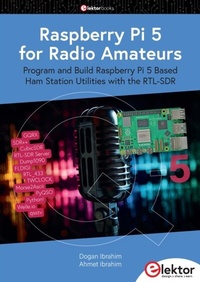
Raspberry Pi 5 for Radio Amateurs
Program and Build Raspberry Pi 5 Based Ham Station Utilities with the RTL-SDR
1. Auflage
Erschienen am 7. Mai 2024
303 Seiten
978-3-89576-613-8 (ISBN)
Beschreibung

The RTL-SDR devices (V3 and V4) have gained popularity among radio amateurs because of their very low cost and rich features. A basic system may consist of a USB based RTL-SDR device (dongle) with a suitable antenna, a Raspberry Pi 5 computer, a USB based external audio inputoutput adapter, and software installed on the Raspberry Pi 5 computer. With such a modest setup, it is possible to receive signals from around 24 MHz to over 1.7 GHz.
This book is aimed at amateur radio enthusiasts and electronic engineering students, as well as at anyone interested in learning to use the Raspberry Pi 5 to build electronic projects. The book is suitable for both beginners through experienced readers. Some knowledge of the Python programming language is required to understand and eventually modify the projects given in the book. A block diagram, a circuit diagram, and a complete Python program listing is given for each project, alongside a comprehensive description. The following popular RTL-SDR programs are discussed in detail, aided by step-by-step installation guides for practical use on a Raspberry Pi 5:
> SimpleFM
> GQRX
> SDR++
> CubicSDR
> RTL-SDR Server
> Dump1090
> FLDIGI
> Quick
> RTL_433
> aldo
> xcwcp
> GPredict
> TWCLOCK
> CQRLOG
> klog
> Morse2Ascii
> PyQSO
> Welle.io
> Ham Clock
> CHIRP
> xastir
> qsstv
> flrig
> XyGrib
> FreeDV
> Qtel (EchoLink)
> XDX (DX-Cluster)
> WSJT-X
The application of the Python programming language on the latest Raspberry Pi 5 platform precludes the use of the programs in the book from working on older versions of Raspberry Pi computers.
Alle Preise
Weitere Details
Weitere Ausgaben
Andere Ausgaben

Dogan Ibrahim | Ahmet Ibrahim
Raspberry Pi 5 for Radio Amateurs
Program and Build Raspberry Pi 5 Based Ham Station Utilities with the RTL-SDR
Buch
04/2024
1. Auflage
Elektor
39,95 €
Sofort lieferbar
Personen
Dogan Ibrahim has a BSc degree in electronic engineering, an MSc degree in automatic control engineering, and a PhD degree in digital signal processing. Dogan has worked in many industrial organizations before he returned to academic life. Prof Ibrahim is the author of over 70 technical books and published over 200 technical articles on microcontrollers, microprocessors, and related fields. He is a Chartered electrical engineer and a Fellow of the Institution of the Engineering Technology. He has been a licenced amateur radio operator for several decades (G7SCU) and also holds an Arduino certification.
Ahmet Ibrahim holds BSc (Hons) and MSc degrees in the fields of computing, software and networking. Ahmet has held positions in many industries involved in enterprise computing. He enjoys advising, designing and implementing complex cloud and on-premises computer systems. Ahmet is an experienced electronics engineer and a licenced amateur radio operator (2E1GUC).
Ahmet Ibrahim holds BSc (Hons) and MSc degrees in the fields of computing, software and networking. Ahmet has held positions in many industries involved in enterprise computing. He enjoys advising, designing and implementing complex cloud and on-premises computer systems. Ahmet is an experienced electronics engineer and a licenced amateur radio operator (2E1GUC).
Inhalt
- Raspberry Pi 5 for Radio Amateurs
- All rights reserved
- Contents
- Preface
- 1 ? Installing the Raspberry Pi 5 Operating System
- 1.1 Overview
- 1.2 Using a pre-installed micro SD card
- 1.3 Larger font in Console mode
- 1.4 Accessing your Raspberry Pi 5 Console from your PC - the Putty Program
- 1.5 Accessing the Desktop GUI from your PC
- 1.6 Assigning a Static IP Address to your Raspberry Pi 5
- 1.7 Enabling Bluetooth
- 1.8 Connecting the Raspberry Pi 5 to a Wired Network
- 1.8.1 Unable to connect to a wired network
- 1.9 Installing the Raspberry Pi 5 Bookworm Operating System on a Blank microSD Card
- 2 ? Using a Text editor, Creating and Running a Python Program
- 2.1 The nano Text Editor
- 2.2 Creating and Running a Python Program
- 2.2.1 Method 1 - Interactively from command prompt in Console mode
- 2.3 Which method?
- 3 ? Amateur Radio Programs - Software-Only
- 3.1 Overview
- 3.2 4-Band Resistor Color Code Identifier
- 3.3 4-Band Resistor Color Code Identifier Including Very Small Resistors
- 3.4 Series or Parallel Resistors
- 3.5 Capacitor Identification
- 3.6 Capacitors in Series or in Parallel
- 3.7 Resistive Potential Divider
- 3.8 Resistive Attenuator Design
- 3.9 RC Charging Transient Circuit Response
- 3.10 Calculating the Inductance of a Single-Layer, Air-Core Coil
- 3.11 Constructing a single layer coil for required inductance
- 3.12 Calculating the Capacitance for Required Resonance Frequency
- 3.13 DC Circuits Mesh Analysis
- 3.13.1 DC Circuits mesh analysis - a more complex example
- 3.14 DC Circuit Node Analysis
- 3.15 Bipolar Junction Transistor Analysis
- 3.16 Designing Active Low-Pass Filters
- 3.17 Passive Low-Pass Butterworth Filter Design
- 3.18 The 555 Timer IC
- 3.19 Impedance Matching
- 3.20 Designing a Common-Emitter BJT Transistor Amplifier Circuit
- 3.21 Using a Windows-Based Simulation Program
- 3.21.1 Simulating the Resistive Mesh Circuit in Figure 3.33
- 3.21.2 Simulating the transistor circuit in Figure 3.42
- 3.21.3 Simulating the transistor circuit in Figure 3.66
- 4 ? Hardware Based Projects for Amateur Radio
- 4.1 Overview
- 4.2 Project 1: Logic Probe
- 4.3 Project 2: Station Mains On-Off Power Control
- 4.4 Project 3: Station Clock with Output to the Monitor
- 4.5 Project 4: Station Clock with Output to LCD
- 4.6 Project 5: Station Geographical Coordinates
- 4.7 Project 6: Waveform Generation in Software - Sawtooth waveform
- 4.7.1 The MCP4921 DAC
- 4.8 Project 7: Generating a Waveform - Frequency Entry using Keypad and L
- 4.8.1 The AD9850
- 4.8.2 Starting the program automatically at boot time
- 4.8.3 Boxing the project
- 4.9 Project 8: Morse Code Exerciser with Rotary Encoder and LCD to Set wpm Value
- 4.9.1 Rotary encoder
- 4.9.2 Boxing the project
- 4.10 Project 9: Morse Decoder
- 4.11 Project 10: Frequency Counter
- 4.12 Project 11: FM Radio with Raspberry Pi 5
- 4.13 Project 12: Modified Project - Increasing the Output Signal Level - Connecting a Loudspeaker
- 4.14 Project 13: FM Radio using an LCD and Rotary Encoder to Set the Frequency
- 5 ? Raspberry Pi 5 Audio Output
- 5.1 Overview
- 5.2 Using an External USB Audio Adapter
- 5.3 Testing the Audio Output
- 5.4 Audio Volume
- 6 ? RTL-SDR Meets Raspberry Pi 5
- 6.1 Overview
- 6.2 RTL-SDR V3
- 6.3 RTL-SDR V4 vs V3
- 6.4 The RTL-SDR Antenna Kit
- 6.4.1. Dipole orientation
- 6.4.2. Terrestrial signal reception
- 6.4.3. Satellite reception
- 6.4.4. Choosing the antenna element length
- 6.5 Hardware Setup
- 6.6 Installing the RTL-SDR Software on Raspberry Pi 5
- 6.7 Testing - Tuning to a Frequency Manually
- 6.8 Testing the RTL-SDR Dongle
- 7 ? A Simple FM Receiver
- 7.1 Overview
- 7.2 The Program
- 7.2.1 Creating a shell script
- 8 ? GQRX on the Raspberry Pi 5
- 8.1 Overview
- 8.2 Installation on Raspberry Pi 5
- 8.3 Using the GQRX
- 8.3.1 The audio frame
- 8.3.2 Streaming audio to your PC
- 9 ? SDR++
- 9.1 Overview
- 9.2 Installing SDR++ on the Raspberry Pi 5
- 9.3 Using the SDR++
- 9.3.1 Quick startup example
- 9.3.2 Graphical outputs
- 9.3.3 Source options
- 9.3.4 Display options
- 9.3.5 Radio module
- 9.3.6 Frequency Manager
- 9.3.7 Recorder
- 10 ? CubicSDR
- 10.1 Introduction to CubicSDR
- 10.2 Quick Startup
- 11 ? RTL-SDR Server
- 11.1 Overview
- 12 ? Dump1090
- 12.1 Overview
- 12.2 Dump1090 Essential Features
- 12.3 Installing Dump1090 on the Raspberry Pi 5
- 12.4 Launching the Dump1090 Software
- 13 ? FLDIGI
- 13.1 Overview
- 13.2 Features
- 13.3 Digital Formats
- 13.4 Installation on Raspberry Pi 5
- 13.5 Starting the Program
- 13.6 Decoding Morse Code (CW)
- 13.7 Receiving Weather Fax (WEFAX)
- 13.8 Receiving RTTY Traffic
- 13.8.1 Using fldigi to receive RTTY messages
- 13.9 Receiving NAVTEX Messages
- 13.9.1 Using fldigi to receive NAVTEX messages
- 14 ? Quisk
- 14.1 Overview
- 14.2 Installing quisk on the Raspberry Pi 5
- 15 ? RTL_433
- 15.1 Overview
- 15.2 Installing RTL_433 on the Raspberry Pi 5
- 15.3 Program Options
- 16 ? Other SDR hardware
- 16.1 Overview
- 16.2 HackRF One
- 16.3 NooElec NESDR Smart HF Bundle
- 16.4 BladeRF
- 16.5 LimeSDR
- 16.6 Universal Software Radio Peripheral (USRP)
- 16.7 ADALM-Pluto
- 16.8 AirSpy HF+ Discovery
- 17 ? Installation and Use of Some Popular Radio Applications
- 17.1 Overview
- 17.2 Aldo Morse Code Tutor - Text Based
- 17.2.1 Installing aldo on the Raspberry Pi 5
- 17.3 xcwcp Morse Code Tutor - Graphical
- 17.3.1 Installing xcwcp on Raspberry Pi 5
- 17.4 GPredict - Satellite/Orbital Object Tracking and Rig Control
- 17.4.1 Installing GPredict on Raspberry Pi 5
- 17.4.2 GPredict controls
- 17.5 TWCLOCK
- 17.5.1 Installation on Raspberry Pi 5
- 17.5.2 Using the program
- 17.6 CQRLOG
- 17.6.1 Installation on Raspberry Pi 5
- 17.6.2 Running the program
- 17.7 Klog
- 17.7.1 Installation on Raspberry Pi 5
- 17.7.2 Using the program
- 17.8 Morse2Ascii
- 17.8.1 Installation on Raspberry Pi 5
- 17.8.2 Using the program
- 17.9 PyQSO
- 17.9.1 Installation on Raspberry Pi 5
- 17.9.2 Using the program
- 17.10 Welle.io (DAB/DAB+ Radio)
- 17.10.1 Installation on Raspberry Pi 5
- 17.10.2 Running the program
- 17.11 Ham Clock
- 17.11.1 Installation on Raspberry Pi 5
- 17.11.2 Running the program
- 17.11.3 Accessing from a web browser
- 17.12 Chirp
- 17.12.1 Installation on Raspberry Pi 5
- 17.12.2 Running the program
- 17.13 Xastir
- 17.13.1 Installation on Raspberry Pi 5
- 17.13.2 Running the program and configuring for internet APRS
- 17.14 QSSTV
- 17.14.1 Installation on Raspberry Pi 5
- 17.14.2 Running the program
- 17.14.3 Testing the program
- 17.15 FLRIG
- 17.15.1 Installation on Raspberry Pi 5
- 17.15.2 Running flrig
- 17.16 XyGrib
- 17.16.1 Installation of XyGrib on Raspberry Pi 5
- 17.16.2 Running XyGrib
- 17.17 FreeDV
- 17.17.1 Installation on Raspberry Pi 5
- 17.17.2 Running FreeDV
- 17.18 Qtel (EchoLink)
- 17.18.1 Qtel installation on Raspberry Pi
- 17.18.2 Running the program
- 17.18.3 Using EchoLink on smart phones
- 17.19 XDX (DX-Cluster)
- 17.19.1 Installation on Raspberry Pi 5
- 17.19.2 Running the program
- 17.20 WSJT-X
- 17.20.1 Installation on Raspberry Pi 5
- 17.20.2 Running the program
- Index
